Works with Box using Http Client
This sample uses the akaBot Http Client activity and Box Client Credentials
Grant (CCG) authentication to work with the root folder of an existing Box
Managed User. It lists content, creates and renames a folder, uploads and updates
files, downloads a file, pauses for inspection, and then removes the test data.
Prerequisites
- A Box developer or enterprise account with access to the Box Developer Console.
- A Box Admin who can authorize the application.
- Multi-factor authentication (2FA) enabled for the account that reveals or copies the Client Secret.
- akaBot Studio with the Core activities installed.
Create a New App
- Sign in to Box and open the Box Developer Console.
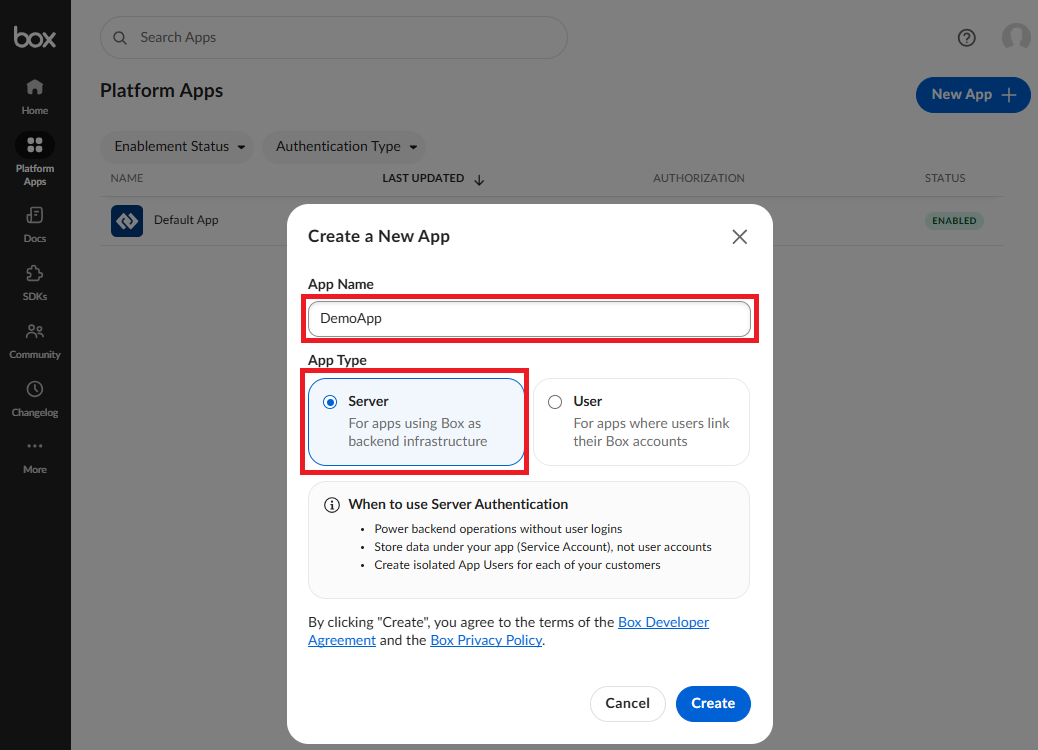
- Select Platform Apps, then select New App.
- Enter an application name. For example,
DemoApp. - Select Server as the application type.
Configure access to the default account
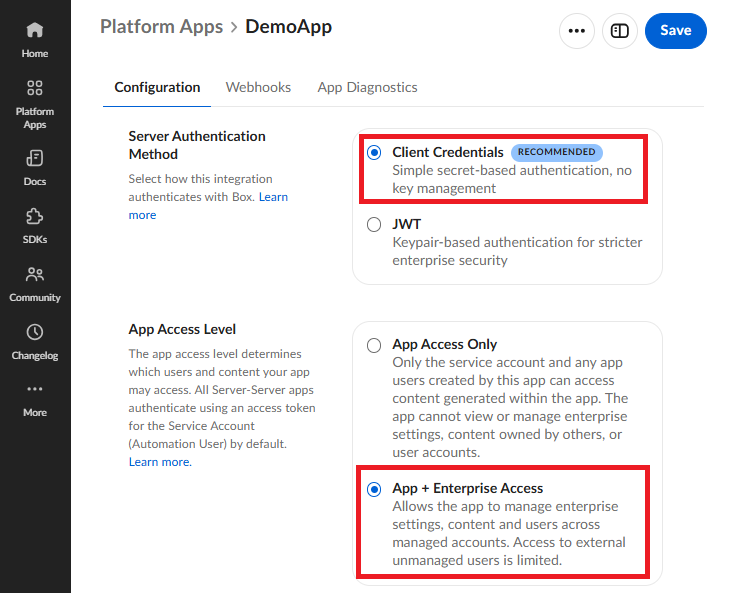
Open the application's Configuration tab and configure these settings:
- Under App Access Level, select App + Enterprise Access. This permits the app to access existing Managed Users instead of only its Service Account.
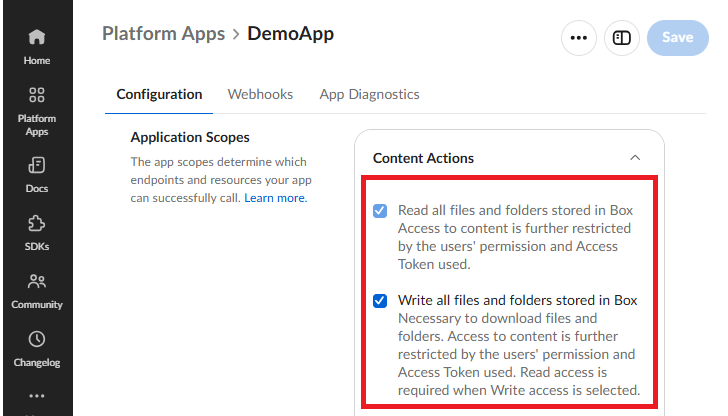
- Under Application Scopes, enable:
- Read all files and folders stored in Box.
- Write all files and folders stored in Box.
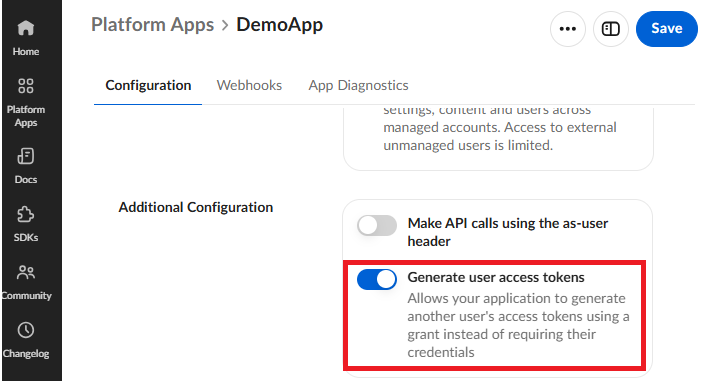
- Under Additional Configuration, enable
Generate User Access Tokens. This is required because the workflow sends
box_subject_type=userand authenticates as a Managed User. - Click Save button.
Build config file
In the application's Configuration tab, find App Details pane:
- Under Access group, copy Client ID. This becomes
clientID. - Click button Fetch Secret to get Client Secret. Box may require a 2FA verification. This
becomes
clientSecret. - Under Properties group, copy Enterprise ID. This becomes
enterpriseID.
Update the config file HttpBoxDefaultAccount/data/box-config.json with above values.
{
  "boxAppSettings": {
    "clientID": "PUT_YOUR_CLIENT_ID_HERE",
    "clientSecret": "PUT_YOUR_CLIENT_SECRET_HERE"
  },
  "enterpriseID": "PUT_YOUR_ENTERPRISE_ID_HERE"
}
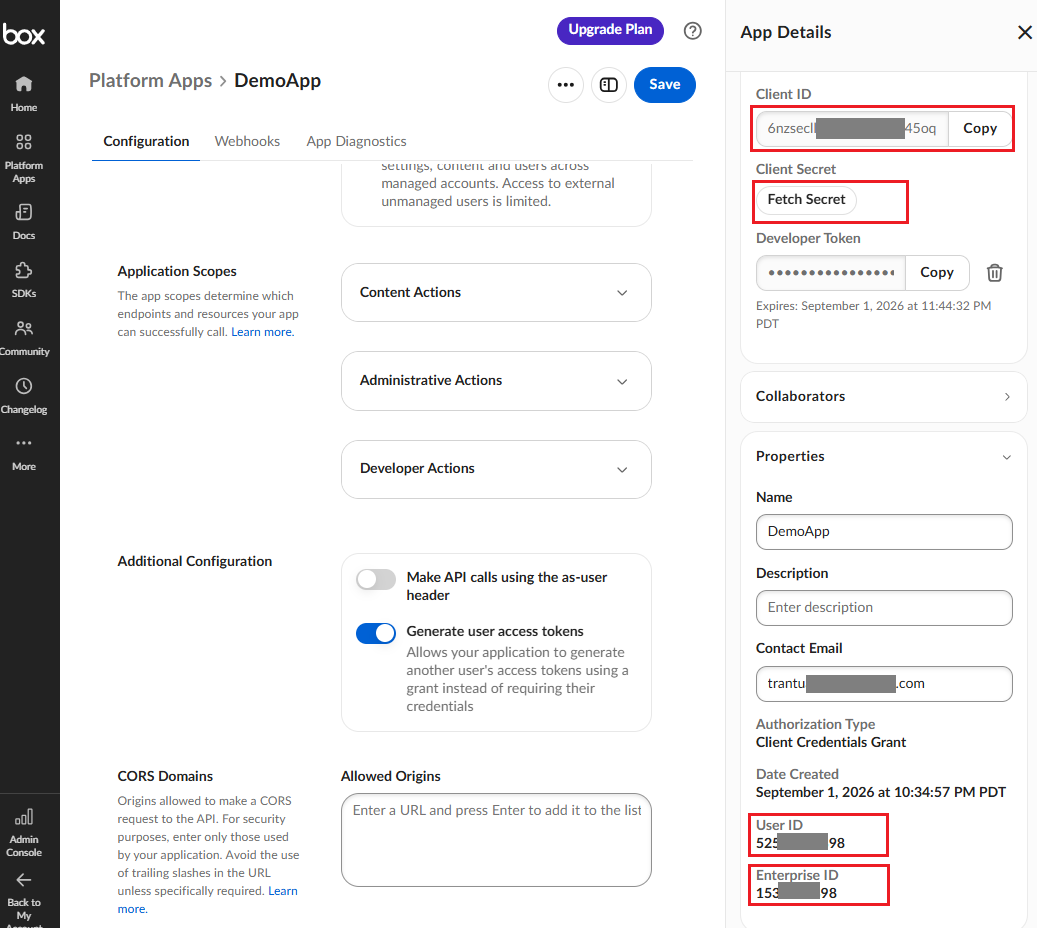
- Under Properties group, copy User ID.
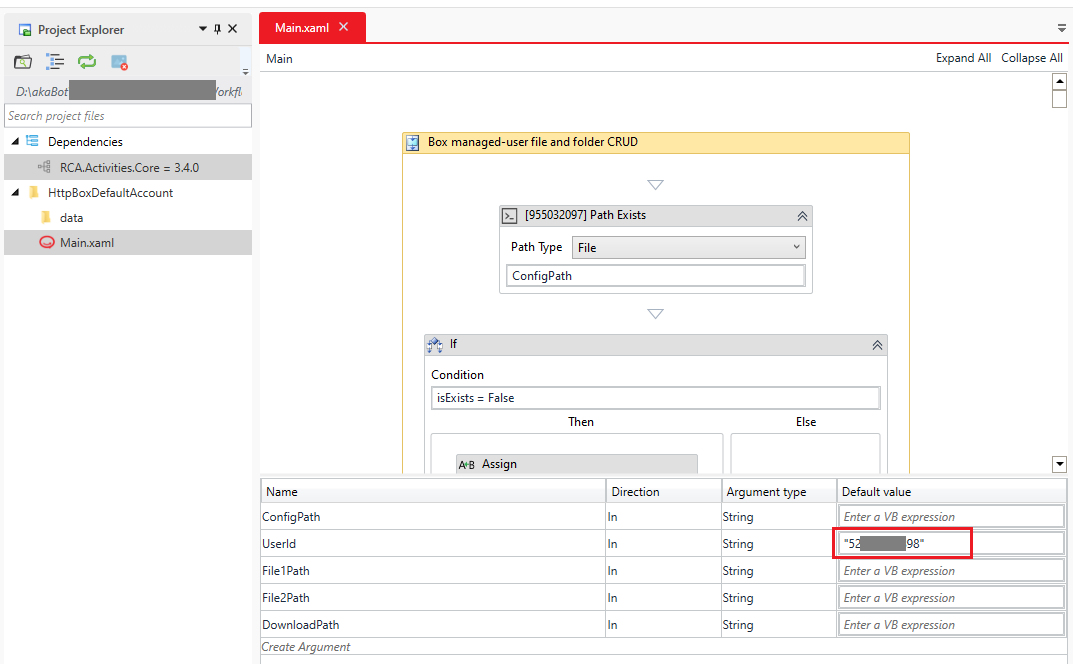
Set the UserId input in akaBot Studio, or update its default value in Main.xaml.
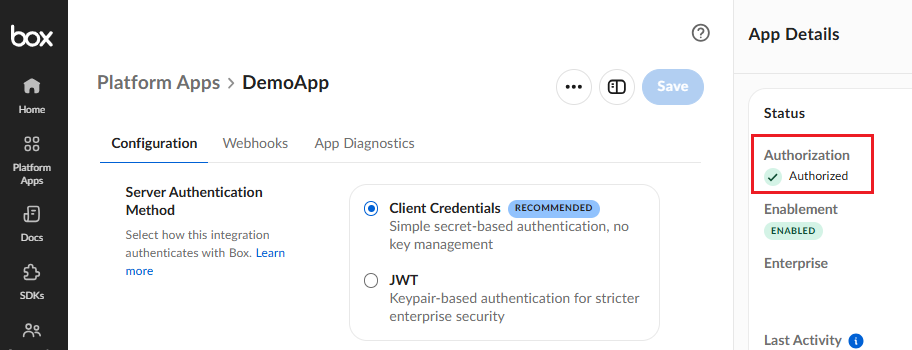
- Authorization (if required)
A server-authenticated Box Platform App must be authorized before it can call the Box API.
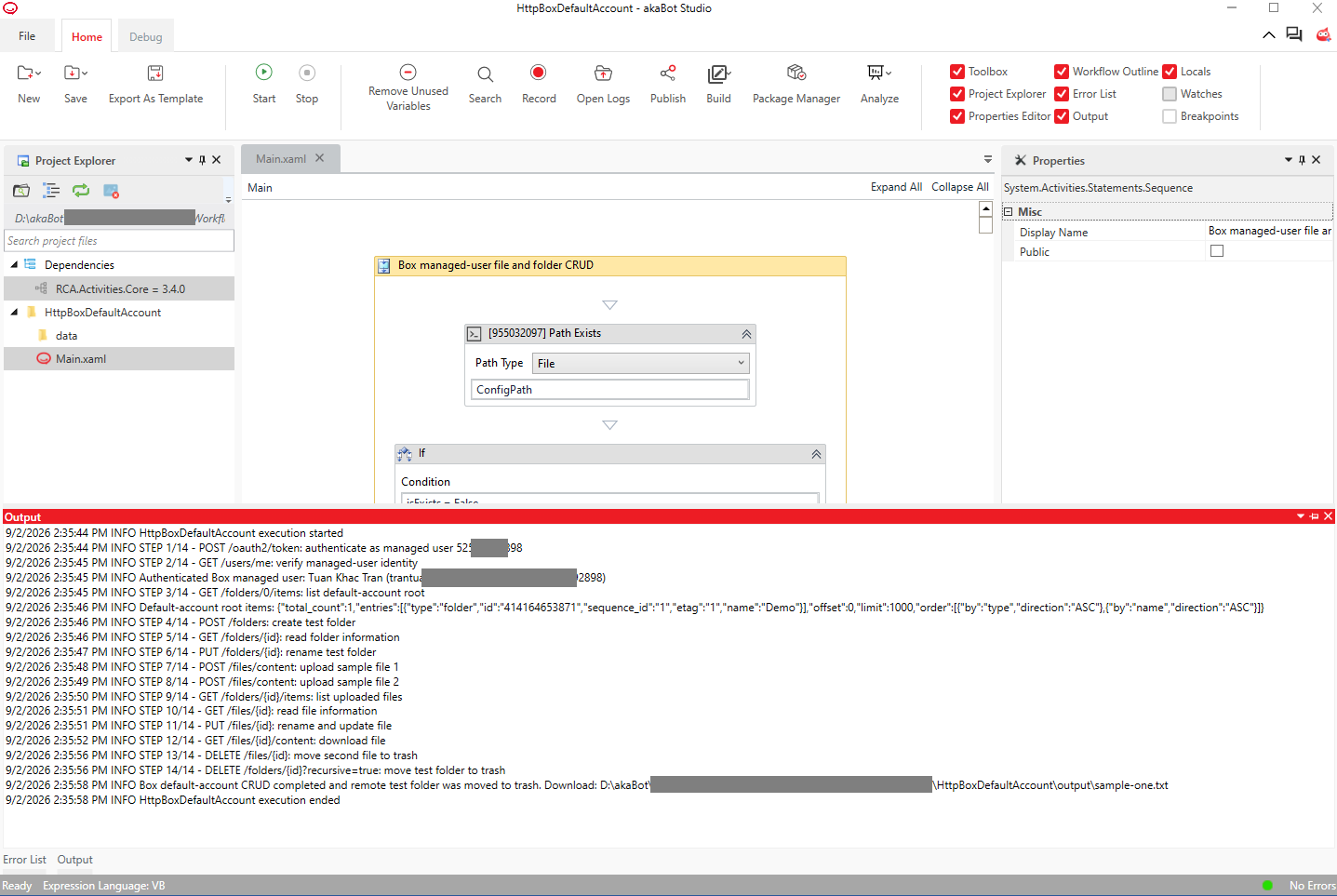
Run
Open Main.xaml in akaBot Studio and run it.
The workflow displays a Message Box after it creates, uploads, updates, and downloads the test content. Inspect the generated folder in Box, then select OK to allow the workflow to delete the downloaded local file and move the remote test file and folder to Box Trash.
Click here to download full workflow.
Operations
The workflow:
- Reads
data/box-config.jsononce and deserializes it to aJObject. - Requests a Managed User access token with
box_subject_type=user. - Calls
GET /users/meand verifies that the returned ID equalsUserId. - Lists the user's root folder.
- Creates, reads, and renames a folder.
- Uploads two files, lists the folder, reads file information, renames one file, and downloads it.
- Pauses so the user can inspect the test content on Box.
- Deletes the local download, the second remote file, and the test folder recursively. Box API deletions move the remote items to Trash.
Activity Core 3.4's OAuth2Token property sends the OAuth authorization scheme. Box
requires Bearer, so this workflow explicitly supplies
Authorization: Bearer <token> in each API request's Headers dictionary.
Troubleshooting
invalid_client: Verify Client ID and Client Secret, and confirm they belong to the same application.invalid_grant: Verify App + Enterprise Access, Generate User Access Tokens, the numericUserId, and application authorization.403 Forbidden: Verify the required read/write scopes and re-authorize the app after changing its configuration.- The workflow accesses the wrong account: Verify
UserId; changingenterpriseIDdoes not select a Managed User for this sample.