Google Search Use Case
A step-by-step tutorial demonstrating how to perform a Google search and retrieve results using Browser activities.
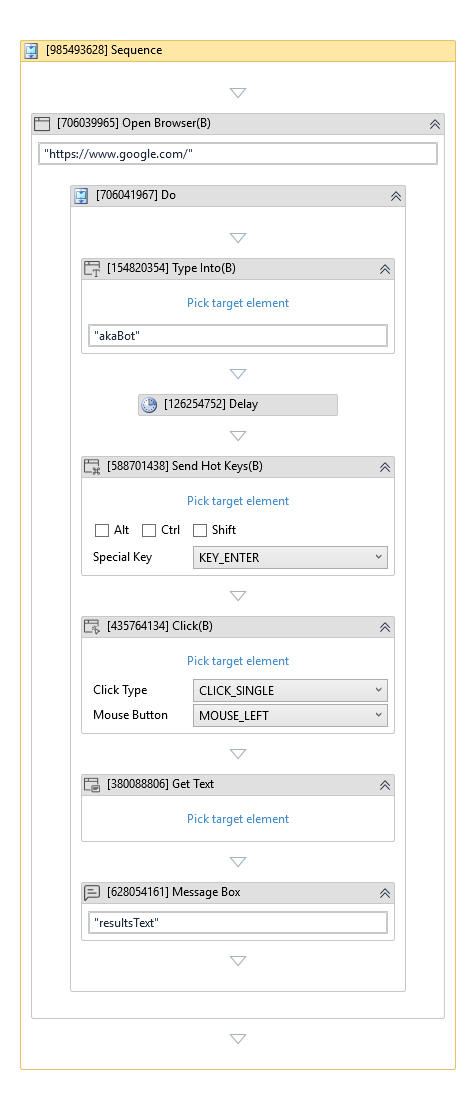
This guide provides a practical, real-world exercise using Google Search to demonstrate web automation. You will build a workflow that automatically navigates to Google, searches for a keyword, extracts the search results statistics, and displays it via a message box popup.
You will use activities such as Open Browser, Type Into, Send Hot Keys, Click, and Get Text from the RCA.Activities.Browser package, alongside Delay and Message Box activities from the Core package.
Lesson Overview
- Use case: Search Google – Design a standard search workflow on
https://www.google.com/.
Section: Use Case – Search Google
This section guides you through creating a process to search for "akaBot" on Google, extract the text of the search results page, and display it.
Prerequisites
- Target URL:
https://www.google.com/ - Input keyword:
akaBot - Output: Display search results statistics text via a popup.
Step-by-Step Instructions
- Open akaBot Studio and create a new Process.
- Drag a Sequence container into the Workflow Designer.
- Drag an Open Browser activity inside the Sequence container.
- In the Properties panel under Input, set the Url field to
"https://www.google.com/". - Select
Chromein the Browser Type dropdown list.
- In the Properties panel under Input, set the Url field to
- Drag a Type Into activity inside the Do container of the Open Browser activity.
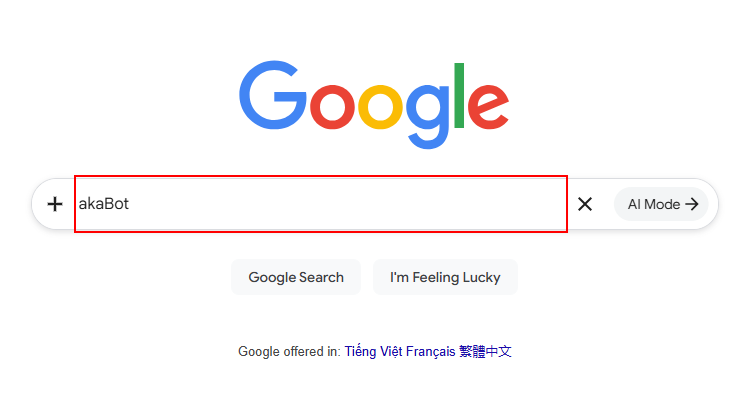
- Click the Pick target element link on the activity block.
- Click on the Google Search input bar on the browser.
- In the Properties panel under Input, set the Text field to
"akaBot".
NOTE: When performing automated actions too quickly on search engines like Google, the system may trigger bot verification screens (CAPTCHA). To prevent this and mimic natural user behavior, you can drag a Delay activity (from the Core toolbox section) immediately below the Type Into activity. In the Properties panel under Duration, set an appropriate pause (e.g., 00:00:02 for 2 seconds) to delay the execution before the next action.
- Drag a Send Hot Keys activity below the Delay activity (or Type Into activity).
- Click Pick target element and select the Google Search input bar again.
- Select
KEY_ENTERfrom the Special Key dropdown list in the activity designer or the Properties panel to execute the search query.
- Drag a Click activity below the Send Hot Keys activity.
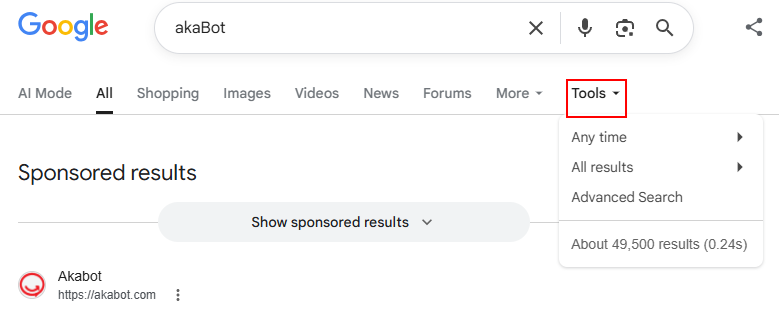
- Click Pick target element and select the Tools button on the Google search results page.
- In the Properties panel, set the Click Type to
CLICK_SINGLEand Mouse Button toMOUSE_LEFT. This action clicks the "Tools" button to expand the search options and reveal the results statistics (e.g., the number of search results and search elapsed time).
- Drag a Get Text activity below the Click activity.
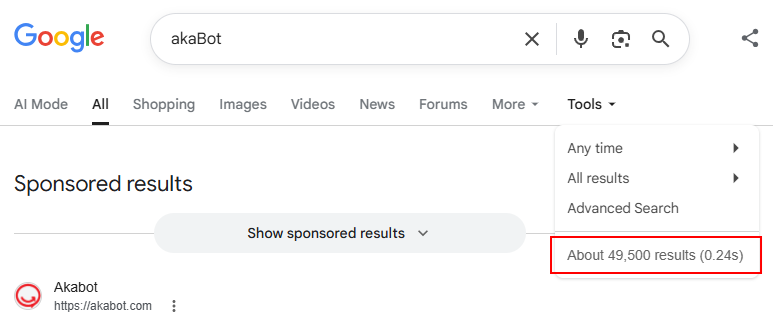
- Click Pick target element and select the search results statistics text (e.g.,
"About 49,500 results (0.24s)"). - In the Properties panel under Output, press
Ctrl + Kin the Result field and create a new string variable namedresultsText.
- Click Pick target element and select the search results statistics text (e.g.,
- Drag a Message Box activity (from the Core toolbox section) below the Get Text activity.
- In the Properties panel, set the Text field to
resultsText.
- In the Properties panel, set the Text field to
- Run the process to verify that the browser launches, searches Google, clicks the Tools button, and displays the search results statistics text in a popup.