About Modern Excel
Starting with RCA.Activities.Excel 3.4.0, the Excel package contains a second family of activities: the Modern Excel activities. They sit alongside the classic (Interop) activities and are built around two ideas:
- One scope, Use Excel File, opens the workbook and gives it a name (by default
Excel). - The activities inside it do not take a sheet name plus a range string. They take a single reference to a sheet, a range or a table, written as an expression such as
Excel.Sheet("Sheet1").
The Modern activities automate Microsoft Excel itself, so Microsoft Excel must be installed on the machine running akaBot Studio or Agent.
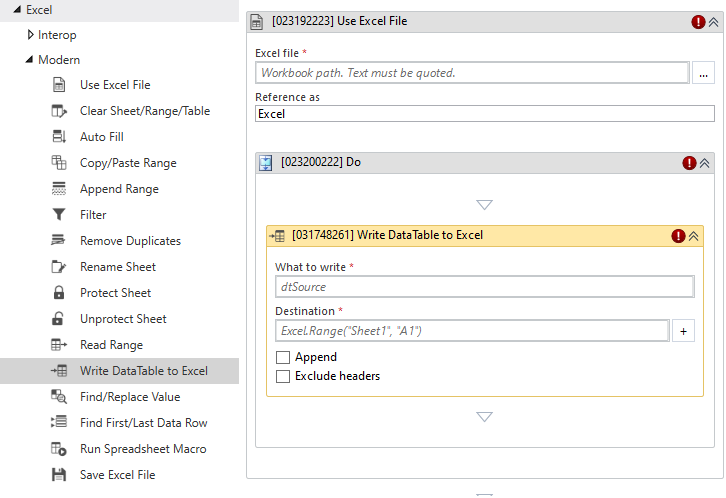
The Use Excel File scope
Use Excel File opens the workbook given in Excel file and runs the activities placed in its body. It publishes the workbook to its body under the name given in Reference as. The default name is Excel, which is why the examples on these pages start with Excel..
- If you change Reference as to, for example,
Sales, the children writeSales.Sheet("Sheet1")instead. - Leaving Reference as empty restores the default name
Excel. - To work with two workbooks in one workflow, nest two Use Excel File scopes and give them different Reference as names.
Every Modern activity (all activities on these pages except the scope itself) must be placed inside a Use Excel File scope. Putting one directly inside the classic Excel Application Scope shows a validation error, because the classic scope does not publish a reference. Nesting a classic scope between the Use Excel File and the Modern activity is allowed.

Writing references
The name published by the scope (here Excel) has the following methods. Each returns a reference that you can put into any field that asks for a sheet, a range or a table:
| Expression | Points at |
|---|---|
Excel.Sheet("Sheet1") | The whole worksheet Sheet1 (its used range). |
Excel.Range("Sheet1", "A1:D10") | The range A1:D10 (or a single cell, e.g. "B2") on Sheet1. |
Excel.Range("A1:D10") | The range A1:D10 on the sheet currently in context; Sheet1 when there is none. |
Excel.Table("Sheet1", "Table1") | The Excel table (ListObject) Table1 on Sheet1. |
Excel.Table("Table1") | The table Table1 on the sheet currently in context; Sheet1 when there is none. |
The arguments are ordinary expressions, so variables work too, e.g. Excel.Sheet(sheetName). Sheet names are matched without regard to case. The sheet must already exist when the activity runs: the Modern activities do not create missing sheets.
The scope reference also exposes Excel.FilePath (the full path of the open workbook) and Excel.Sheets (the names of its worksheets).
References are resolved on every access
A reference stores what it points at, not a fixed address. The address is worked out again each time an activity uses it. A table reference therefore follows the table as it grows: if one activity adds rows to Excel.Table("Sheet1", "Table1"), the next activity that uses the same reference sees the new rows. A sheet reference always means the sheet's current used range.
The + button and the Custom Input dialog
Fields that take a reference show a + button on the right. Clicking it opens the Custom Input dialog, which builds the reference expression for you:
- Choose what to point at: Table, Range or Sheet. (PivotTable is shown but disabled - pivot tables are not supported yet.)
- Fill in Worksheet name, and then Range or Table name depending on the choice.
- Click Save. The dialog writes the expression, using the Reference as name of the enclosing Use Excel File, e.g.
Excel.Range("Sheet1", "A1:D10").
If the workbook given in the Use Excel File's Excel file field is already open in Excel, the boxes suggest the sheets, tables and named ranges it actually contains, including ones that have not been saved yet. The dialog never launches Excel and never opens the file: if the workbook is not open, or the path is computed by an expression rather than written as plain text, there are simply no suggestions. The boxes always stay editable, so you can type a sheet the workflow creates later.
Values typed in the dialog are treated as text and quoted for you. To use variables, edit the expression in the field directly.
The + button does nothing when the activity is not inside a Use Excel File scope.
Modern and classic activities
- The classic Excel Application Scope and the classic Excel activities are unchanged and keep working exactly as before.
- The classic activities also run inside Use Excel File, so a workflow can be migrated one activity at a time.
- The Modern activities only run inside Use Excel File.
A few Modern activities share a name with a classic one but behave differently:
- Append Range (Modern) appends one part of the workbook (a range, table or sheet) after another. To append a DataTable, use Write DataTable to Excel with Append selected.
- Write DataTable to Excel has Exclude headers, the opposite of the classic Add Headers: leaving it cleared writes the column names.
- Read Range (Modern) has Visible rows only cleared by default, like the classic Use Filter.
- Clear Sheet/Range/Table clears cells in place. The classic Delete Range removes cells and shifts the remaining ones.
Activities
| Activity | Description |
|---|---|
| Use Excel File | Opens a workbook and makes it available to the activities inside it. |
| Read Range | Reads a sheet, range or table into a DataTable. |
| Write DataTable to Excel | Writes a DataTable into a sheet, range or table, optionally appending. |
| Append Range | Copies a range, table or sheet and pastes it after the data in another one. |
| Clear Sheet/Range/Table | Clears values and/or formatting while keeping the cells in place. |
| Auto Fill | Extends a pattern or formulas across a larger range, like Excel's fill handle. |
| Copy/Paste Range | Copies a range, table or sheet and pastes it somewhere else. |
| Filter | Filters a table, range or sheet on one column. |
| Find/Replace Value | Finds a value, optionally replacing it, and returns the cell address. |
| Find First/Last Data Row | Returns the first and last row that hold data in a column. |
| Remove Duplicates | Removes duplicate rows from a sheet, range or table. |
| Rename Sheet | Renames a worksheet. |
| Protect Sheet | Protects a worksheet against editing. |
| Unprotect Sheet | Removes protection from a worksheet. |
| Run Spreadsheet Macro | Runs a macro in the workbook. |
| Save Excel File | Saves the workbook. |
| Save Excel File As | Saves the workbook as another file, optionally in another format. |
Example: copy a sheet's data into a new sheet
This example reads the data on Sheet1 of C:\Data\Sales.xlsx and writes it to the sheet Report, which must already exist in the workbook.
- Add Use Excel File. In Excel file enter
"C:\Data\Sales.xlsx". Leave Reference as asExcel. - Inside the scope, add Read Range:
- What to read:
Excel.Sheet("Sheet1") - Save to: a new DataTable variable
dtSales - Keep First row contains headers selected.
- What to read:
- Below it, add Write DataTable to Excel:
- What to write:
dtSales - Destination:
Excel.Range("Report", "A1")
- What to write:
- Run the workflow. Because Save changes is selected on the scope by default, the workbook is saved and then closed when the scope ends.