Getting Started
AI Hub is the platform for interacting with governed AI assistants called Channels, retrieving answers grounded in approved organizational documents, and using AI within your organization's policies. The application launches from Akabot Center and inherits the identity, organizational context, and permissions of the current Akabot Center session.
How to use the procedures
Each procedure in this guide uses the following conventions:
- Prerequisites describe access or configuration required before starting.
- Procedure lists the ordered steps.
- Expected result states what a successful outcome looks like.
- If it fails describes the first safe corrective action.
Menu names, button labels, tab names, and status values are shown in bold. Values such as <CENTER_URL> represent environment-specific addresses provided by your administrator.
Step 1: Open the application
Prerequisites
- An active Akabot Center account.
- Permission for at least one AI Hub function.
- A supported browser allowed by the customer.
Procedure
- Sign in to Akabot Center at
<CENTER_URL>. - Select the organization in which you intend to work.
- Open AI Hub from the Akabot Center application menu.
- Wait for the embedded application to finish loading.
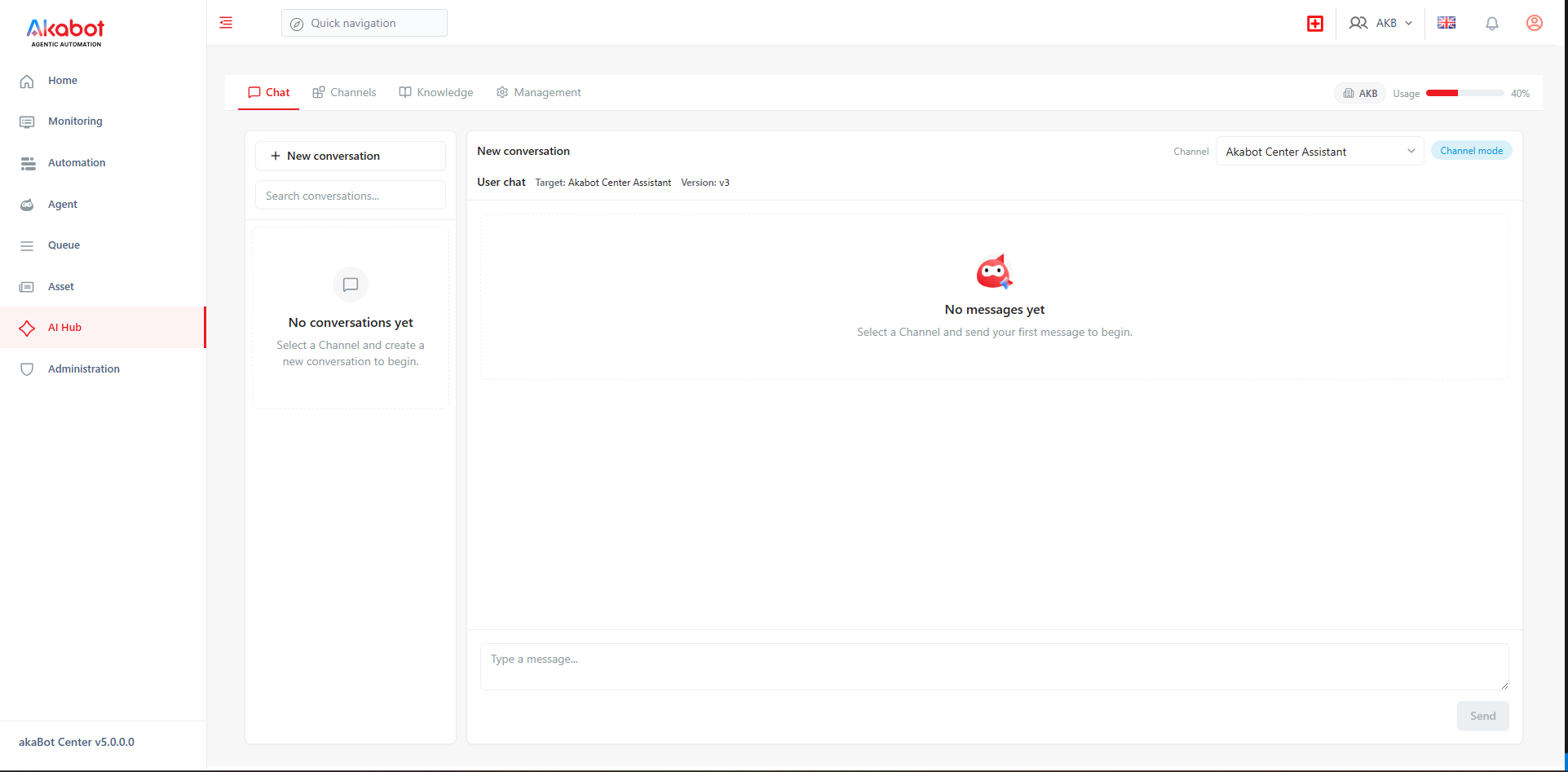
- Confirm the active organization shown in the top bar. If the indicator is not visible, verify your organization selection in Akabot Center before continuing.
✅ Expected result: The application opens without a second login prompt and displays only permitted navigation items.
⚠️ If it fails:
- If Session expired appears, sign in to Akabot Center again and reopen the application.
- If the frame is blank, capture the browser error without sensitive data and contact support.
- If the wrong organization appears, return to Akabot Center and select the correct organization before making changes.
Step 2: Find your way around
The top bar may also display a usage meter. Open it to view used, allowed, and remaining quota for the current period.
Language
The application follows the locale supplied by Akabot Center and supports Vietnamese, English, Japanese, Korean, Traditional Chinese, and Simplified Chinese. Change the language in the Akabot Center user settings when available, then return to or refresh the embedded application. If the host does not provide a supported locale, the application uses its configured fallback.
Step 3: Know what you're allowed to do
The application hides or locks functions that the current account cannot use. Access is controlled in Akabot Center and enforced again by the backend, so what you see below explains why a menu item may be missing rather than something you need to configure yourself.
Typical user profiles
Find your role below to understand what you can do and what permission your administrator needs to grant you.
| Profile | Typical responsibilities | Akabot Center Resource | Required Center Permission |
|---|---|---|---|
| Business user | Chat with assigned Channels, review citations, approve or reject tool actions within authority | AI CHAT RESOURCE | view (chat.read) |
| Knowledge editor | Create knowledge bases, upload documents, review extraction, retry failed processing | AI RAG RESOURCE | create (knowledge.write) |
| Knowledge access manager | Set sharing mode, grant/revoke principal or organization access | AI RAG RESOURCE | edit (knowledge.manageAccess) |
| Channel builder | Create drafts, configure models/knowledge/tools, test behavior | AI CHANNEL RESOURCE | create (channel.writeDraft) |
| Channel publisher | Review readiness and publish a new active version | AI CHANNEL RESOURCE | edit (channel.publish) |
| Access administrator | Assign Channels and audit effective access | AI AGENT ASSIGNMENT RESOURCE | view (assignment.read) |
| Platform administrator | Configure providers, tools, policies, usage limits, system packs, operations, and audit | ADMIN RESOURCE | delete (platform.manage) |
| Emergency operator | Suspend or restore a principal/organization under an approved incident procedure | ADMIN RESOURCE | delete (platform.manage) |
When a menu item is missing
Check the following before opening a support case:
- Confirm the correct organization is selected in Akabot Center.
- Refresh or reopen the application after a permission change.
- Confirm the feature is available and not degraded.
- Ask the administrator to verify the relevant resource and permission level.
Do not use a bookmarked deep link as a way to bypass a hidden menu. The backend will still deny unauthorized requests.
Product terminology
Use this table as a reference whenever a term in this guide is unfamiliar.
| Term | Meaning |
|---|---|
| Channel | A governed AI assistant configured with instructions, a model, knowledge bases, tools, policies, versions, and access rights |
| Knowledge base | A managed collection of documents processed for semantic retrieval and citation |
| Chat model | The AI model that generates conversational responses |
| Embedding model | A model that converts content into vectors for semantic retrieval |
| Provider | A vendor or compatible API service that supplies one or more AI models |
| Draft | Editable Channel configuration that is not serving normal users |
| Active version | A published Channel version available to authorized callers |
| Citation | A source excerpt used to support a response |
| Tool | An approved operation that reads or changes data in Akabot Center or another connected system |
| Principal | A user, robot, token, service, or supported group identity |
| Organization/OU | The active organizational scope received from Akabot Center |
| Support reference | A correlation identifier used to locate a request in system logs |
Where to go next
- New to Chat? Continue with Chat.
- Setting up documents for a Channel to reference? See Knowledge Bases.
- Building or publishing a Channel? See Channels.
- Configuring providers, tools, or governance? See Management.