Chat
The Chat interface enables users to converse with an assigned Channel, retrieve answers grounded in approved documents, and review the sources supporting each response.
Start a new conversation
Prerequisites
- Chat read/write permission.
- At least one assigned Channel with an active version.
- Available usage quota.
Procedure
- Select Chat.
- Open the Channel selector.
- Search for and select the required Channel.
- Select New conversation.
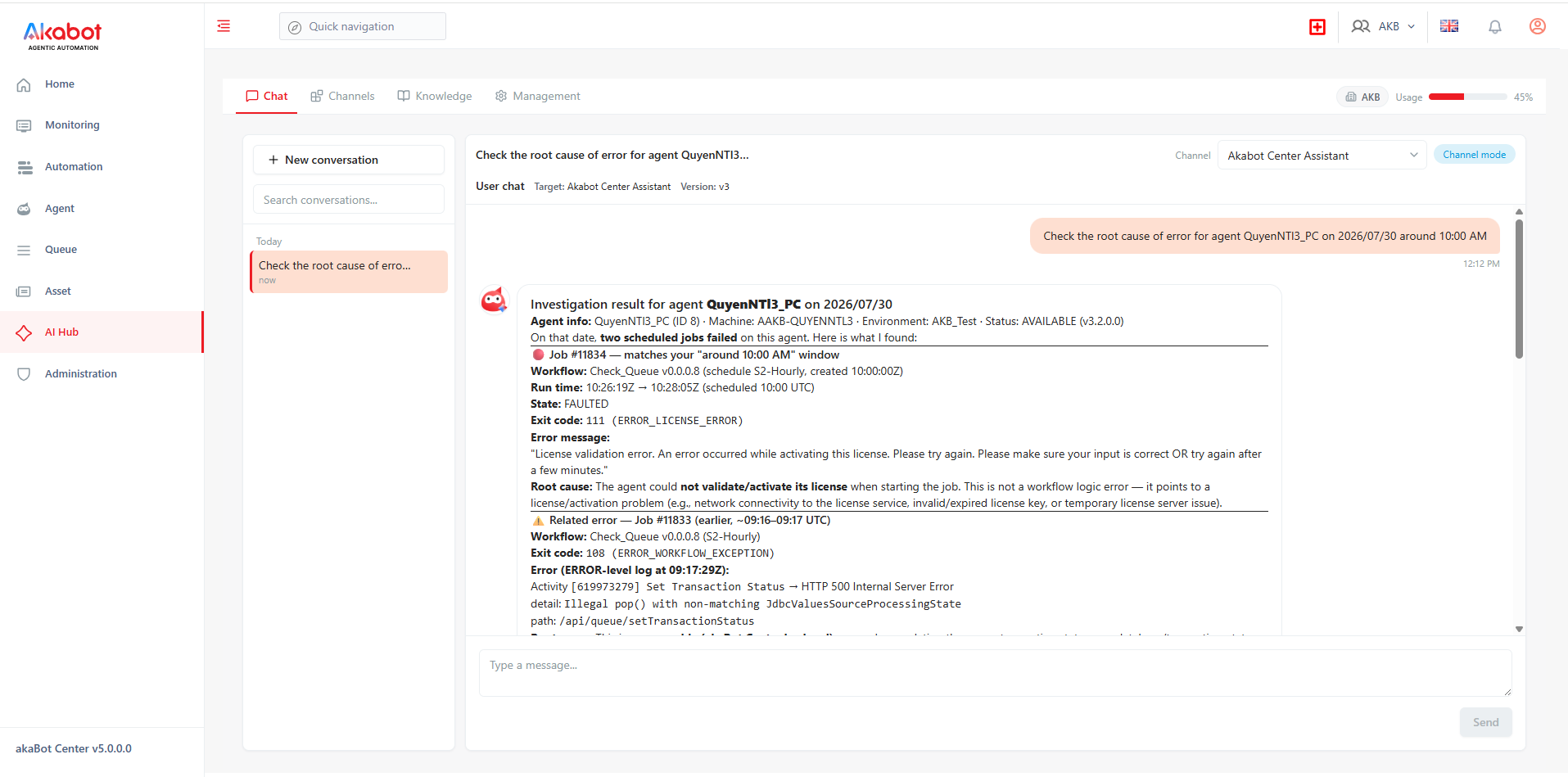
- Enter a clear request in the message box.
- Select Send.
✅ Expected result: The user message appears, response streaming begins, and the completed answer is stored in the conversation.
⚠️ If it fails:
- No Channels assigned: request an assignment from the Channel owner or access administrator.
- Select a Channel: select a Channel from the selector before starting a new conversation or sending a message.
- Model unavailable: contact the Channel owner or platform administrator.
- Quota exhausted: open the quota details and contact the budget owner.
Write effective requests
A useful request normally includes four elements:
- Objective: what result is required.
- Context: relevant process, audience, date, or business scope.
- Constraints: approved sources, length, exclusions, confidentiality, or deadline.
- Output format: table, summary, checklist, email draft, JSON, or another required structure.
Example:
Check the root cause of error for agent
<AgentName>on 2026/07/30 around 10:00 AM.
Avoid vague prompts such as "tell me everything." Do not combine unrelated tasks in a single message.
Stop or retry a response
- Select Stop to end an in-progress response.
- Use Retry only after checking the request and any displayed error.
- Do not repeatedly retry a tool that might change data; first confirm whether the previous attempt completed in the target system.
Review citations
When a response contains Sources or citation markers:
Procedure
- Select a citation.
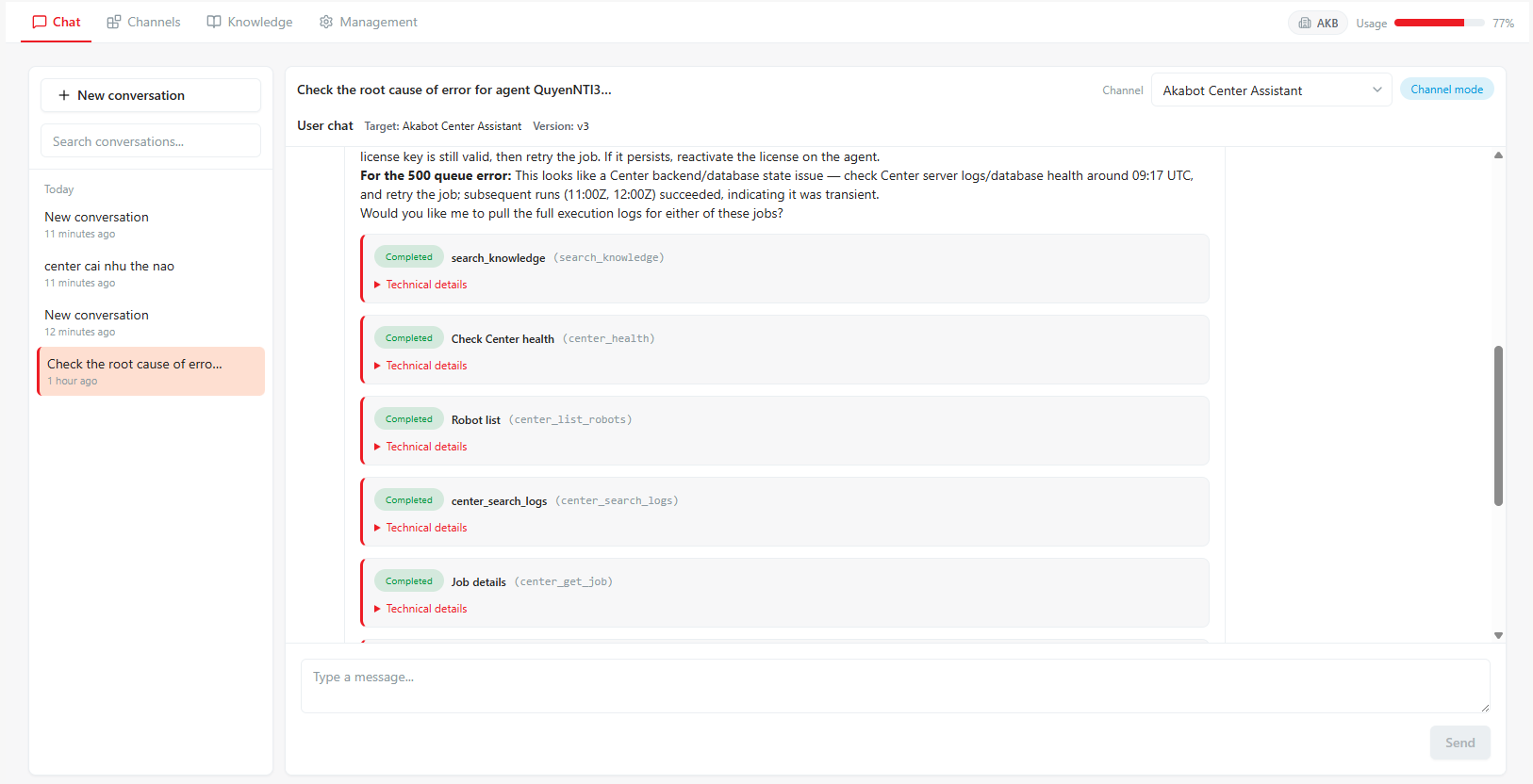
- Review the excerpt, document name, estimated page/sheet, and relevance information.
- Open the related knowledge base when permitted.
- Compare critical statements with the authoritative source document.
A citation shows that relevant content was retrieved; it does not guarantee that the generated interpretation is correct. If the source has been deleted or access was revoked, the preview may no longer be available.
Add context from Akabot Center
Where context suggestions are available:
Procedure
- Search for the relevant Akabot Center item.
- Select only the item needed for the request.
- Confirm the selected context before sending.
- Remove an incorrect item using its remove action.
Context search may be unavailable when Akabot Center is experiencing issues. Do not paste restricted data manually to work around a connection failure.
Manage conversations
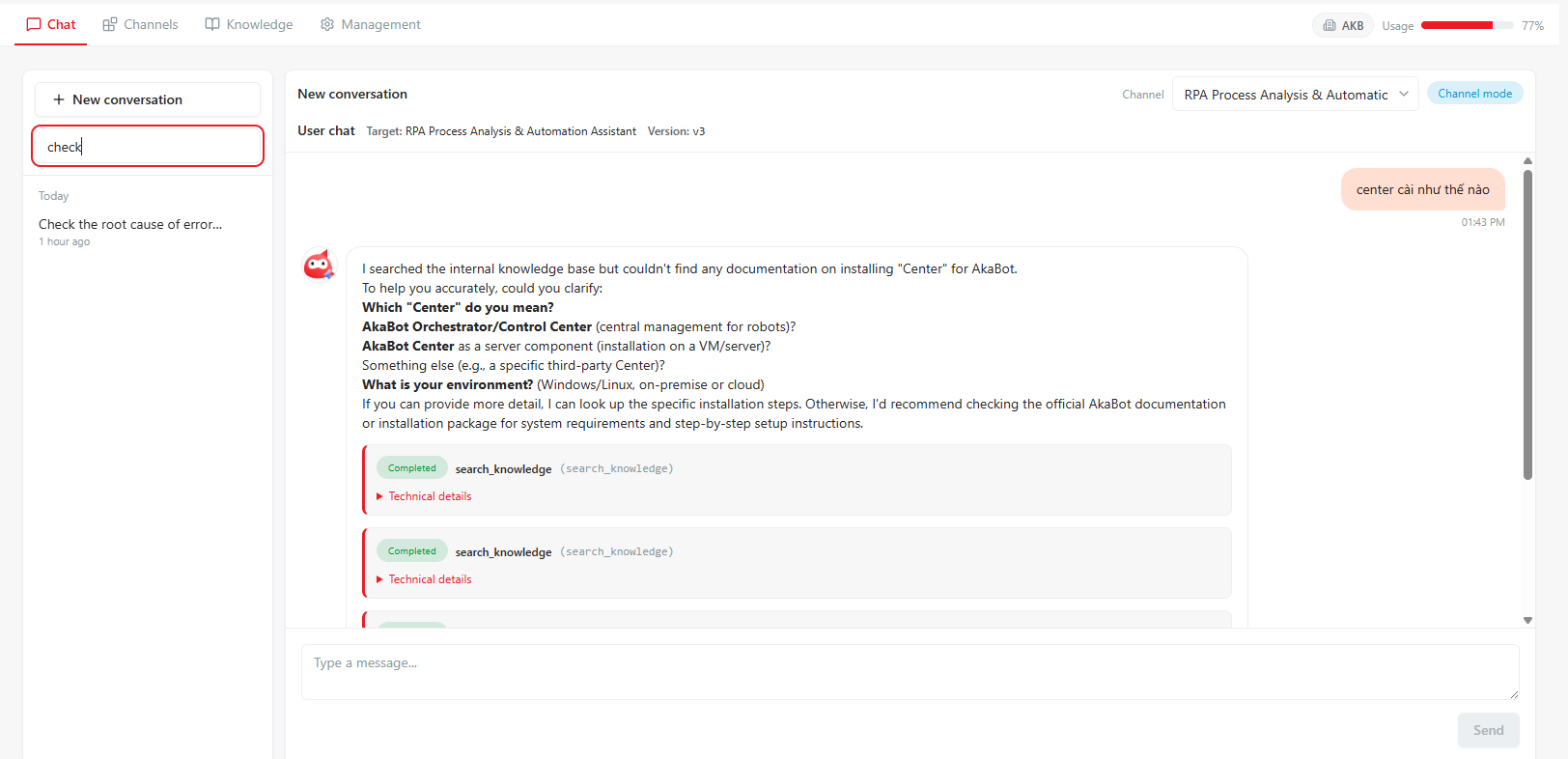
- Use search to locate a conversation by title.
- Rename a conversation to reflect its business purpose.
- Start a new conversation when changing to an unrelated task or Channel.
- Archived conversations are read-only; start a new conversation to continue.
- Deletion is permanent and removes all messages in that conversation. Confirm the exact title before deleting.
Safe-use rules
- Do not enter passwords, API keys, access tokens, or data outside your approved handling scope.
- Treat AI output as a draft until a responsible person verifies it.
- Validate legal, financial, safety, HR, and customer-impacting content against authoritative policy.
- Do not approve write tools solely because the Channel recommends approval.
- Report suspected disclosure, unauthorized access, or harmful behavior immediately.
See also: Security and responsible-use checklist.
Where to go next
- Want to know why a citation looks the way it does, or how a source document is kept up to date? See Knowledge Bases.
- Ran into an error message? See Troubleshooting.