Block User Input
RCA.Activities.Core.BlockUserInput
Description
This activity allows you to block user input from the mouse and keyboard while activities are running. You can configure it to block the mouse, keyboard, or both, and define a hotkey combination to re-enable them.
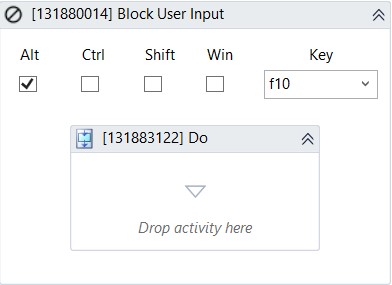
* indicates required fields.
In the Body of Activity
- Alt: If selected, akaBot will disable the Alt key.
- Ctrl: If selected, akaBot will disable the Ctrl key.
- Shift: If selected, akaBot will disable the Shift key.
- Win: If selected, akaBot will disable the Windows key.
- Key: The key used to reactivate the mouse and keyboard. A list of available special keys is provided.
Properties
Common
- Continue On Error (Boolean): Specifies whether the automation should continue even when an error occurs. Only True or False values are supported.
Default:False - Timeout MS (Int32): The maximum time (in milliseconds) to wait before throwing an error. If the timeout expires, the execution stops.
Input
- Block (Dropdown list): Specifies what to block: All, Mouse, or Keyboard.
Unblock Options
- Key (String): The key used to reactivate the mouse and keyboard. This can also be selected in the body of the activity.
- KeyModifiers (Dropdown list): The modifier keys used together with the selected key. Available options: Alt, Ctrl, Shift, Win.
- SpecialKey (Boolean): Indicates whether a special key is used in the keyboard shortcut. A list of available special keys is provided in the Key dropdown in the activity body.
Misc
- Public (Checkbox): If selected, the activity data will be logged. Consider data security before using this property.
- Display Name (String): The name of this activity. You can edit it to better organize and structure your workflow.
Example:[132682924] Block User Input