Google Workspace Setup Guide for GSuite Application Scope
This guide explains how to configure Google Workspace authentication for akaBot GSuiteApplicationScope.
The activity supports these Google services:
| akaBot service | Activities covered |
|---|---|
| Gmail | SendEmail, GetMailMessages, ChangeLabels |
| Drive | Upload, download, copy, move, delete, search, file info, folder, and permission activities |
| Sheets | Read/write cells, ranges, rows, columns, sheets, and spreadsheet operations |
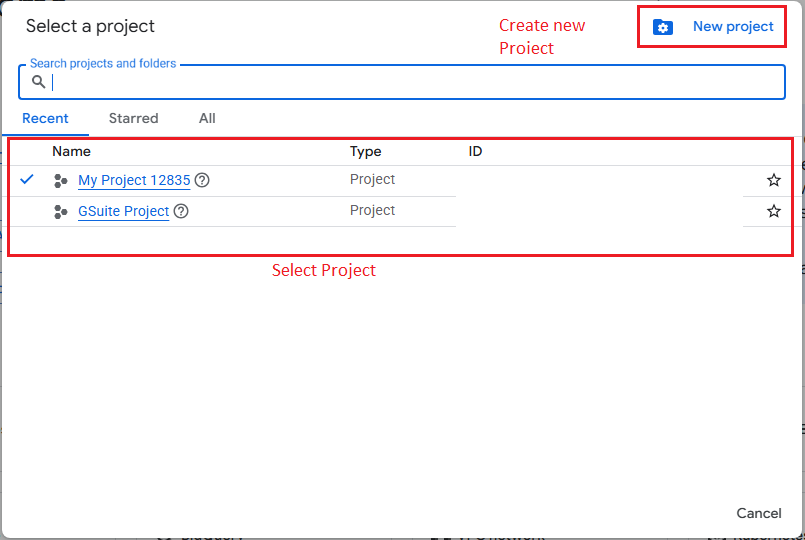
1. App: Create or Select Google Cloud Project
- Go to Google Cloud Console.
- Sign in with the Google account or Workspace admin account that owns the project.
- Create a new project or select an existing project.
- Make sure this is the project used for akaBot
GSuiteApplicationScope.
2. APIs & Services: Enable APIs for Activities
-
In Google Cloud Console, open:
APIs & Services -> Enable APIs and Services -
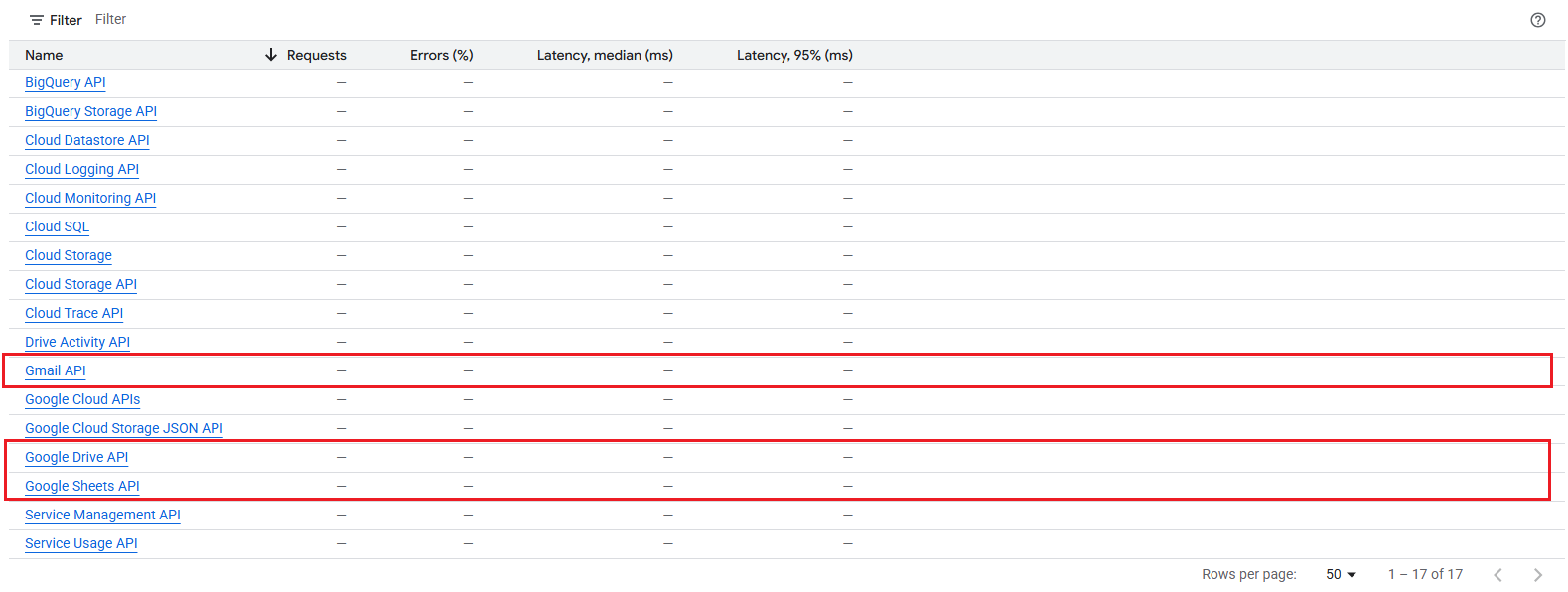
Search for and enable the API services required by your akaBot activities.
| akaBot activity group | API to enable |
|---|---|
| Gmail activities | Gmail API |
| Drive activities | Google Drive API |
| Sheets activities | Google Sheets API |
3. OAuth Consent
-
In Google Cloud Console, open:
APIs & Services -> OAuth consent screen -
Choose the user type.
| User type | Use when |
|---|---|
| Internal | Only users in your Google Workspace domain use the app |
| External | Users outside your Google Workspace domain use the app |
-
Fill in the required app information:
App nameUser support emailDeveloper contact emailAuthorized domains, if requiredPrivacy policy URL, if required -
Add scopes used by the current
GSuiteApplicationScope.https://mail.google.com/https://www.googleapis.com/auth/drivehttps://www.googleapis.com/auth/spreadsheetshttps://www.googleapis.com/auth/drive.file
| Scope | Covers |
|---|---|
https://mail.google.com/ | Gmail send, read, and label activities |
https://www.googleapis.com/auth/drive | Drive file, folder, search, and permission activities |
https://www.googleapis.com/auth/spreadsheets | Sheets read, write, and update activities |
https://www.googleapis.com/auth/drive.file | Specific Drive files used by the app |
https://mail.google.com/ and https://www.googleapis.com/auth/drive are broad or restricted scopes. For an internal Workspace app, Google verification is usually not required. For an external or public app, Google may require OAuth verification and possibly a security assessment.
4. Authentication Type Specific``
4.1 OAuth Client ID
Use this option when a user signs in interactively and grants consent.
Google Cloud setup
-
Go to:
APIs & Services -> Credentials -
Click:
Create Credentials -> OAuth client ID -
Select the application type. For akaBot desktop workflows, use:
Desktop app -
Create the credential.
-
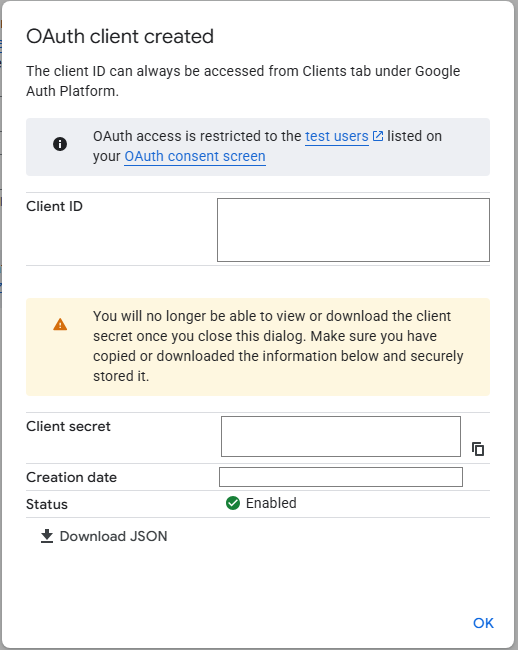
Copy the generated values:
Client IDClient Secret

akaBot GSuiteApplicationScope setup
Configure:
AuthenticationType = OAuthClientID
CredentialID = <Client ID>
CredentialSecret = <Client Secret>
Services = Gmail / Drive / Sheets
User = optional token cache user name
When the workflow runs, Google sign-in opens and the token is stored locally under:
Datastore.GSuite
4.2 Service Account Key
Use this option for unattended automation with Drive or Sheets files that are shared directly with the service account.
Google Cloud setup
-
Go to:
APIs & Services -> Credentials -
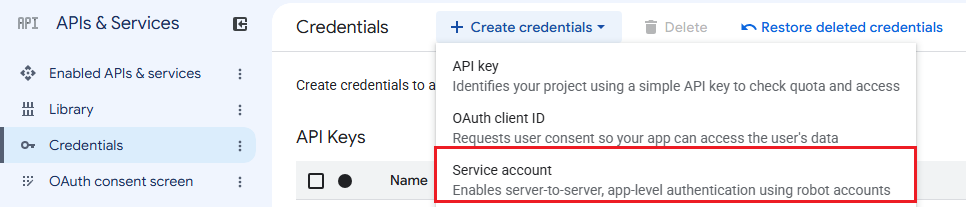
Click:
Create Credentials -> Service account -
Create the service account.
-
Open the service account.
-
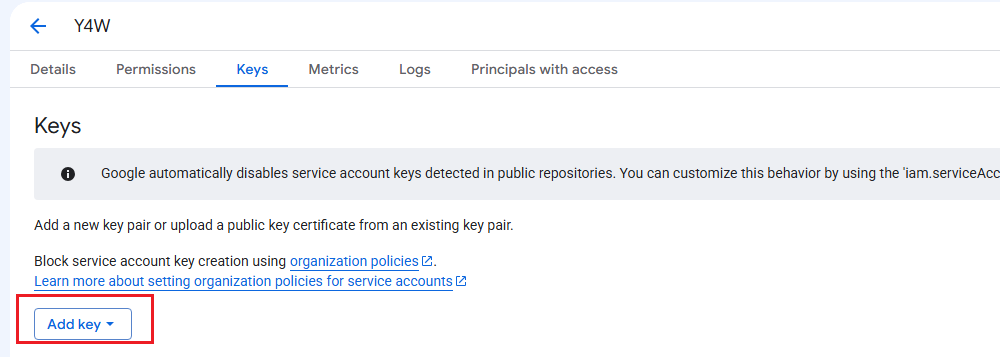
Go to
Keys. -
Click:
Add Key -> Create new key -> JSON -
Download the JSON key file.
akaBot GSuiteApplicationScope setup
Configure:
AuthenticationType = ServiceAccountKey
KeyType = JSON
KeyPath = <path to JSON key>
HasDomainWideAccesss = false
Services = Drive / Sheets
Gmail does not work with service account authentication unless Domain-Wide Delegation is enabled.
4.3 Service Account Key with Domain-Wide Delegation
Use this option for Workspace-wide automation, especially Gmail with service account authentication.
Google Cloud setup
- Open the service account.
- Expand
Advanced settings. - Copy the numeric
Client ID.
Google Admin setup
-
Go to Google Admin Console.
-
Sign in as a Super Admin.
-
Open:
Security -> Access and data control -> API controls -
Click:
Manage Domain Wide Delegation -
Click
Add new. -
Paste the service account numeric Client ID.
-
Add scopes as a comma-separated list:
https://mail.google.com/,https://www.googleapis.com/auth/drive,https://www.googleapis.com/auth/spreadsheets,https://www.googleapis.com/auth/drive.file -
Click
Authorize.
Changes can take up to 24 hours to propagate, but usually complete faster.
akaBot GSuiteApplicationScope setup
Configure:
AuthenticationType = ServiceAccountKey
KeyType = JSON
KeyPath = <path to JSON key>
HasDomainWideAccesss = true
UserEmail = <workspace-user@company.com>
Services = Gmail / Drive / Sheets
UserEmail must be an actual user in the Google Workspace domain. The service account impersonates this user when calling Google APIs.
4.4 API Key
Use this option only for limited or public API scenarios.
In the current akaBot code, API key authentication is blocked for Gmail and Drive. Use API key only for limited Sheets or public-data scenarios.
Google Cloud setup
-
Go to:
APIs & Services -> Credentials -
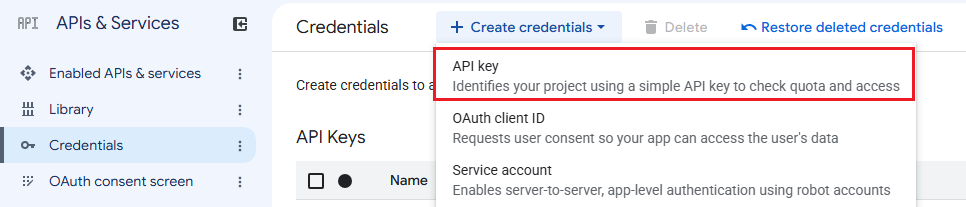
Click:
Create Credentials -> API key -
Copy the generated API key.
akaBot GSuiteApplicationScope setup
Configure:
AuthenticationType = ApiKey
ApiKey = <API key>
Services = Sheets
Recommended Setup
| Scenario | Recommended authentication type |
|---|---|
| User signs in and grants consent | OAuth Client ID |
| Internal unattended Drive or Sheets automation | Service Account Key |
| Internal Workspace-wide automation, including Gmail | Service Account Key with Domain-Wide Delegation |
| Public or limited data only | API Key |