Installation on Windows (Docker / Offline)
This guide explains how to deploy akaBot AI Hub on Windows using Docker, Docker Compose, and an offline release package. Review the system requirements before you start.
The main procedure uses the Application package for an environment where PostgreSQL/MySQL/MariaDB/Microsoft SQL Server, Redis, and Qdrant are already available. Choose the Full package only when the installer must also provision PostgreSQL, Redis, and Qdrant on this host. The Windows package is a .zip, while the Docker images inside remain compressed Linux-container .tar.gz archives for direct loading into Docker.
Windows-container mode is not supported. Docker must be able to run Linux container images.
1. Release package overview
The Windows release is split into four packages:
| Package | Images | Use case | Database impact |
|---|---|---|---|
AI-Hub-v1.0.0-application-windows-amd64.zip | 2 | New installation with external infrastructure, or combined Backend and Frontend update | Depends on the approved schema plan |
AI-Hub-v1.0.0-backend-windows-amd64.zip | 1 | Backend-only update | May require an approved schema update |
AI-Hub-v1.0.0-frontend-windows-amd64.zip | 1 | Frontend-only update | No database change |
AI-Hub-v1.0.0-full-windows-amd64.zip | 5 | New offline installation with bundled PostgreSQL, Redis, and Qdrant | Creates a new PostgreSQL schema |
Use the Application package when the customer already operates the database, Redis, and Qdrant. Use the Full package only for a new, self-contained installation that should run bundled PostgreSQL, Redis, and Qdrant. The Full package supports PostgreSQL only. Microsoft SQL Server always requires the Application package.
The remainder of this guide shows the Application package. If the Full package is selected, replace application with full in the archive and folder names and follow the Full-only infrastructure instruction in Step 6. Review release-notes.md before installation.
2. Fresh installation
Do not use this procedure for a Backend-only or Frontend-only package. Follow Component updates for those packages.
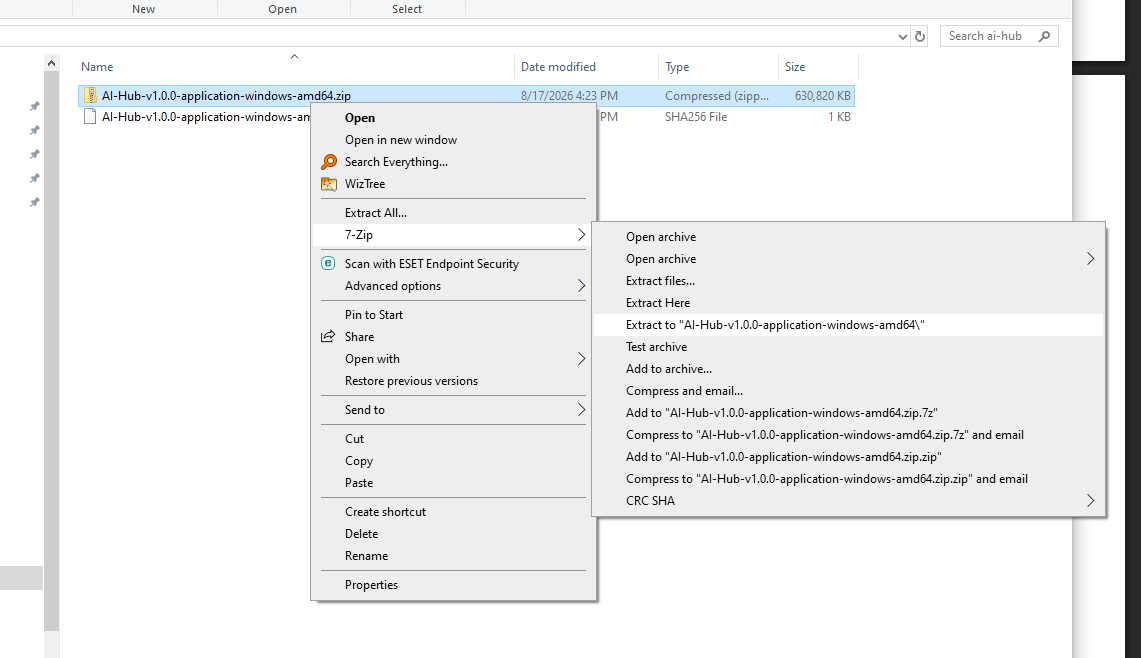
Step 1: Extract the release package
Open PowerShell in the delivery directory and extract the Application package:
Expand-Archive '.\AI-Hub-v1.0.0-application-windows-amd64.zip' `
  -DestinationPath D:\software\ai-hub -Force
Set-Location D:\software\ai-hub\AI-Hub-v1.0.0-application-windows-amd64
Extract to a short local path such as D:\software\ai-hub. Do not run directly from inside the ZIP file or from a network share.
Step 2: Configure the runtime environment
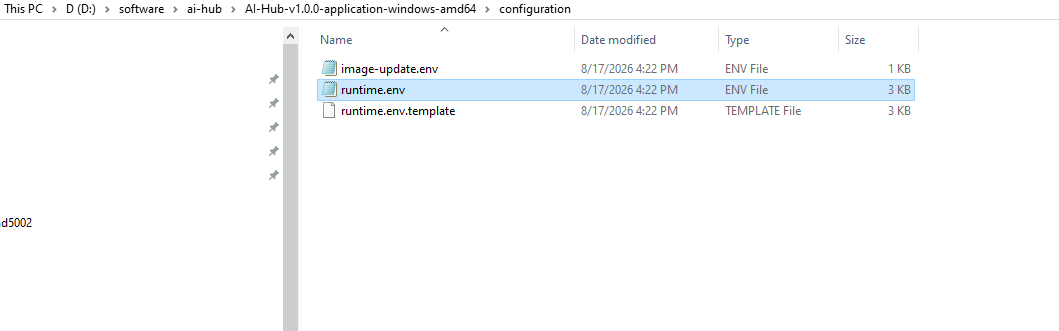
Copy-Item configuration\runtime.env.template configuration\runtime.env
notepad configuration\runtime.env
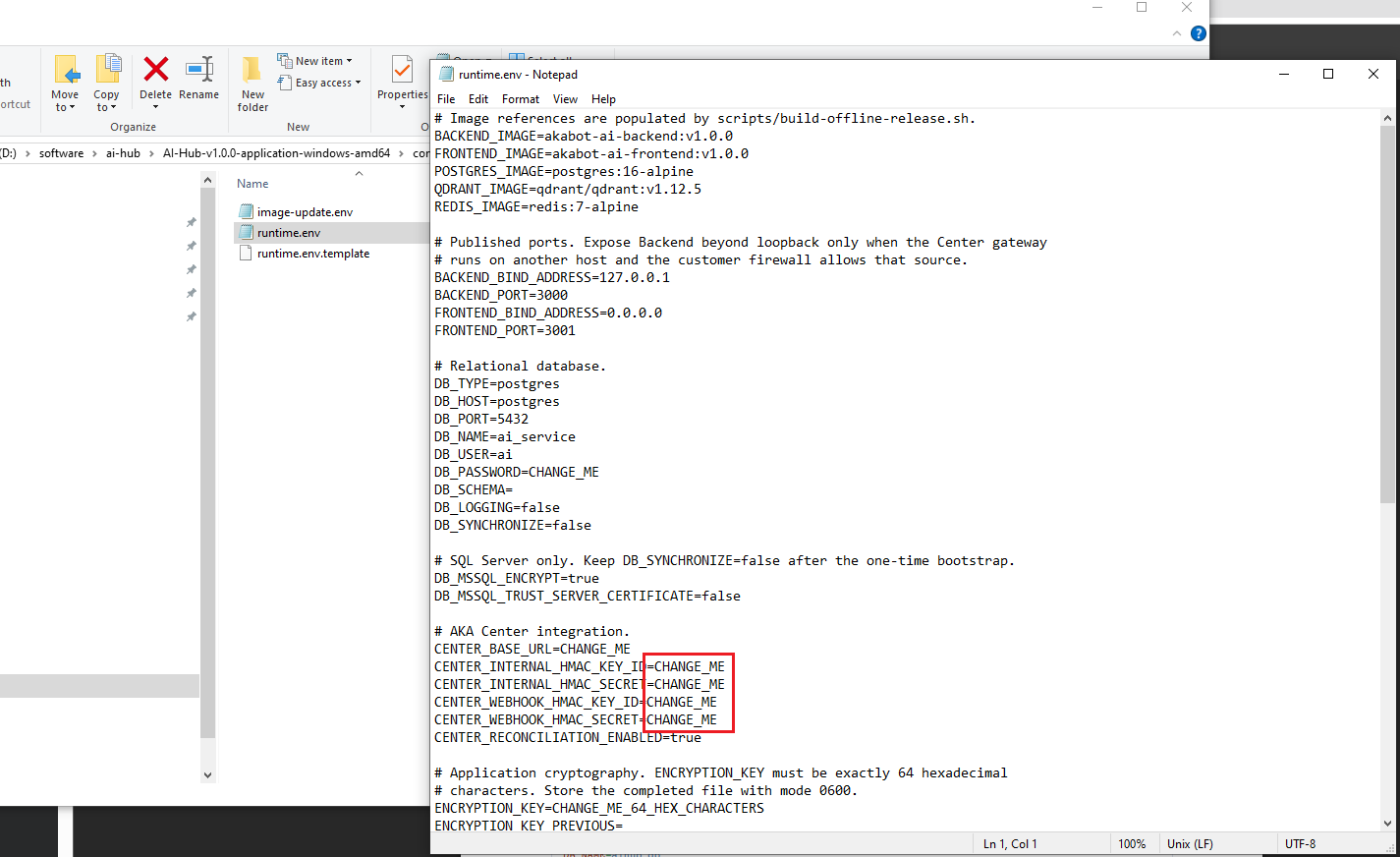
Replace every CHANGE_ME value. Do not commit, email, or paste the completed file into support tickets.
Validate the file before startup:
docker compose --env-file configuration\runtime.env `
  -f deployment\compose.yaml config --quiet
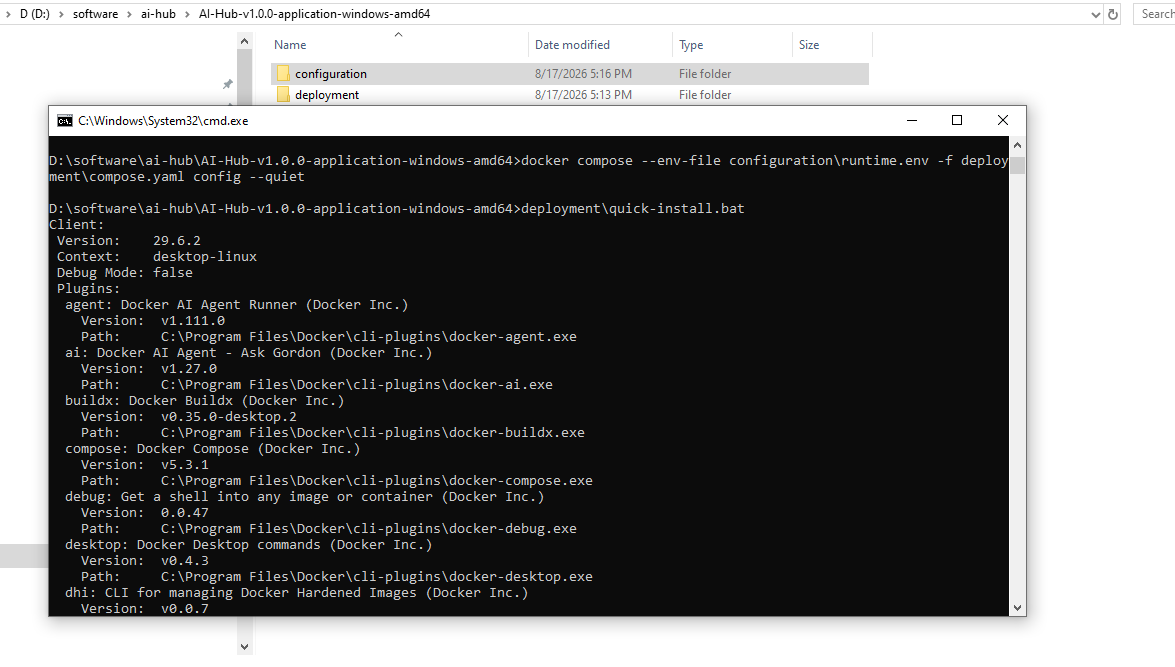
Do not share the rendered output of docker compose config; it may contain secrets.
Step 3: Run the automated installer
From the extracted bundle root, run:
deployment\quick-install.bat
The installer verifies every packaged file, loads all image archives, prepares the database, starts the services included in the selected package, waits for health checks, and prints the final status. For an Application package, it starts only AI Hub Backend and Frontend and connects them to the external services configured in runtime.env; it does not install PostgreSQL, Redis, or Qdrant. No manual checksum command is required for the normal installation path.
Available options:
deployment\quick-install.bat --skip-load
deployment\quick-install.bat --skip-database-setup
deployment\quick-install.bat --mssql-bootstrap
deployment\quick-install.bat --help
Use --mssql-bootstrap only for a new, empty SQL Server database. Never combine it with --skip-database-setup.
The following steps show the equivalent manual procedure for controlled operations and troubleshooting.
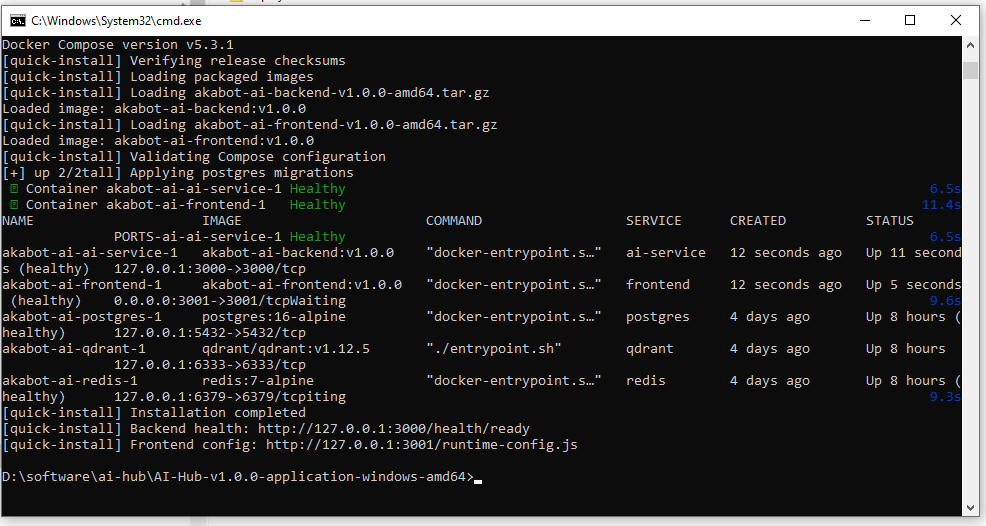
The screenshot above was captured on a host where PostgreSQL, Redis, and Qdrant containers were already running. Their presence in docker compose ps does not mean the Application package installed them.
Step 4: Load images manually (optional)
Normally, skip this step and use quick-install.bat. For controlled operations where images must be loaded separately, run:
Get-ChildItem .\images -Recurse -File -Filter *.tar.gz |
  Sort-Object FullName |
  ForEach-Object {
    docker load --input $_.FullName
    if ($LASTEXITCODE -ne 0) { throw "Failed to load $($_.Name)" }
  }
The outer package is a ZIP for Windows distribution. Do not manually extract the .tar.gz image files; docker load consumes them directly.
Step 5: Configure the database and services
PostgreSQL (recommended)
DB_TYPE=postgres
DB_HOST=postgres.customer.internal
DB_PORT=5432
DB_USER=aihub_user
DB_PASSWORD=your_secure_password
DB_NAME=aihub_db
DB_SCHEMA=
DB_SYNCHRONIZE=false
For the Application package, use the actual customer database hostname or IP address. The hostname postgres is reserved for the PostgreSQL service bundled with the Full package.
MySQL
DB_TYPE=mysql
DB_HOST=mysql.customer.internal
DB_PORT=3306
DB_USER=aihub_user
DB_PASSWORD=your_secure_password
DB_NAME=aihub_db
DB_SCHEMA=
DB_SYNCHRONIZE=false
MariaDB
DB_TYPE=mariadb
DB_HOST=mariadb.customer.internal
DB_PORT=3306
DB_USER=aihub_user
DB_PASSWORD=your_secure_password
DB_NAME=aihub_db
DB_SCHEMA=
DB_SYNCHRONIZE=false
Microsoft SQL Server
DB_TYPE=mssql
DB_HOST=sqlserver.customer.internal
DB_PORT=1433
DB_USER=aihub_user
DB_PASSWORD=your_secure_password
DB_NAME=aihub_db
DB_SCHEMA=dbo
DB_SYNCHRONIZE=false
DB_MSSQL_ENCRYPT=true
DB_MSSQL_TRUST_SERVER_CERTIFICATE=false
Redis and vector store configuration
REDIS_URL=redis://redis.customer.internal:6379/0
QDRANT_URL=http://qdrant.customer.internal:6333
Use the customer hostnames, ports, credentials, TLS settings, and network rules when deploying an Application package with external services. Confirm that the Docker containers can reach each endpoint before running the installer.
akaBot Center authentication and security
CENTER_BASE_URL=http://docker-host.example.internal:8080
CENTER_INTERNAL_HMAC_KEY_ID=your_key_id
CENTER_INTERNAL_HMAC_SECRET=your_hmac_secret
CENTER_WEBHOOK_HMAC_KEY_ID=your_webhook_key_id
CENTER_WEBHOOK_HMAC_SECRET=your_webhook_secret
API_BASE_PATH=http://localhost:8080/ai-service
PARENT_ORIGIN=http://localhost:8080
CORS_ALLOWED_ORIGINS=http://localhost:3001,http://localhost:8080
AI_SERVICE_PUBLIC_BASE_URL=http://localhost:8080/ai-service
Set CENTER_BASE_URL to a hostname or IP address that is reachable from inside the container. host.docker.internal may be used only when the selected Docker runtime provides that mapping. Use the customer's DNS names and HTTPS endpoints in production.
Generate a unique 32-byte encryption key in PowerShell:
$Bytes = New-Object byte[] 32
$Rng = [Security.Cryptography.RandomNumberGenerator]::Create()
$Rng.GetBytes($Bytes)
$EncryptionKey = -join ($Bytes | ForEach-Object { $_.ToString('x2') })
$Rng.Dispose()
$EncryptionKey
Store the 64-character result in ENCRYPTION_KEY.
Step 6: Prepare the infrastructure and schema manually
For an Application package, do not start PostgreSQL, Redis, or Qdrant from this Compose file. Confirm that the customer-managed services are running and reachable from Docker, then continue with the approved schema procedure below.
For a Full package only, start the bundled infrastructure:
docker compose --env-file configuration\runtime.env `
  -f deployment\compose.yaml up -d --wait postgres qdrant redis
For a new PostgreSQL/MySQL/MariaDB database:
docker compose --env-file configuration\runtime.env `
  -f deployment\compose.yaml run --rm migrate
The packaged baseline is for an empty database and cannot upgrade a legacy schema. Microsoft SQL Server must not run the packaged migration service. For a new, empty MSSQL database, use:
deployment\quick-install.bat --mssql-bootstrap
Never enable DB_SYNCHRONIZE against an existing or production database.
Step 7: Start AI Hub services manually
docker compose --env-file configuration\runtime.env `
  -f deployment\compose.yaml up -d --wait ai-service frontend
3. Post-installation verification
docker compose --env-file configuration\runtime.env `
  -f deployment\compose.yaml ps

Invoke-WebRequest http://127.0.0.1:3000/health -UseBasicParsing
Invoke-WebRequest http://127.0.0.1:3000/health/ready -UseBasicParsing
Invoke-WebRequest http://127.0.0.1:3001/runtime-config.js -UseBasicParsing
Complete an end-to-end acceptance check through akaBot Center: authentication, authorization, chat, AI provider connectivity, embedding, RAG citations, and enabled tools.
4. Component updates
Never replace the existing configuration\runtime.env with a template from an update package. Back up PostgreSQL, Qdrant, and document storage before Backend or combined updates.
Backend-only update
Load the Backend image, copy only BACKEND_IMAGE from configuration\image-update.env, and run the release-approved schema plan:
docker compose --env-file configuration\runtime.env `
  -f deployment\compose.yaml stop ai-service

# Run only when release-notes.md approves this migration path.
# Never run this packaged migration for MSSQL.
docker compose --env-file configuration\runtime.env `
  -f deployment\compose.yaml run --rm migrate

docker compose --env-file configuration\runtime.env `
  -f deployment\compose.yaml up -d ai-service
For MSSQL, skip migrate and apply only the schema plan approved for the release. Never enable DB_SYNCHRONIZE on an existing or production database.
Frontend-only update
Load the Frontend image, copy only FRONTEND_IMAGE, and run:
docker compose --env-file configuration\runtime.env `
  -f deployment\compose.yaml up -d frontend
Do not run a database migration for a Frontend-only update.
Combined Backend and Frontend update
Use the Application package, load both images, and copy only BACKEND_IMAGE and FRONTEND_IMAGE into the existing runtime configuration:
docker compose --env-file configuration\runtime.env `
  -f deployment\compose.yaml up -d ai-service frontend
Apply the approved Backend schema procedure before recreating services.
5. Service maintenance and Windows notes
Stop services without deleting data
docker compose --env-file configuration\runtime.env `
  -f deployment\compose.yaml down
Named volumes remain intact. Do not add -v unless permanent deletion of PostgreSQL, Qdrant, Redis, and uploaded documents is intentional.
Common Windows checks
- Run
docker infoand confirm the server is reachable and uses Linux containers. - Run
docker compose versionand confirm Docker Compose v2 is available. - Check ports
3000and3001if services cannot bind. - Keep the bundle on a local NTFS drive and avoid very long extraction paths.
- PostgreSQL, Redis, and Qdrant are internal by default and do not publish host ports; this is intentional.
View logs
docker compose --env-file configuration\runtime.env `
  -f deployment\compose.yaml logs -f

docker compose --env-file configuration\runtime.env `
  -f deployment\compose.yaml logs -f ai-service