Setup Guide: Microsoft Exchange (EWS)
Use the Exchange activities when your company runs its own Exchange Server (on-premises). This guide helps you collect the connection details and shows where to enter them. You do not need to configure the Exchange server.
For Microsoft 365 / Exchange Online mailboxes, use the Office 365 package instead.
1. Information You Need
| Information | Where to get it | Example |
|---|---|---|
| Server (EWS address) | Step 2.1, or ask your IT team | "https://mail.company.com/EWS/Exchange.asmx" |
| Email Auto discover (alternative to Server) | Your mailbox address | "user@company.com" |
| User | Step 2.2 | "botuser" |
| Password | Your Windows (domain) password | – |
| Domain | Step 2.2 | "MYDOMAIN" |
You need either Server or Email Auto discover, not both.
2. Get the Information
Step 2.1: Find the EWS Address with Outlook
If Outlook is connected to the Exchange mailbox on any Windows computer:
- Hold Ctrl and right-click the Outlook icon in the system tray (click
^if it is hidden). Select Test E-mail AutoConfiguration. - Enter your E-mail Address and Password. Clear Use Guessmart and Secure Guessmart Authentication, keep Use AutoDiscover selected, and click Test.
- On the Results tab, find Availability Service URL and copy the address ending in
/EWS/Exchange.asmx. This is the value for Server.
If this does not work, send your IT team this request:
Please send me the EWS URL (ending in
/EWS/Exchange.asmx) for the mailbox<address>.
Step 2.2: Find Your Domain and User Name
- Press Windows + R, type
cmd, and press Enter. - Type
whoamiand press Enter. The result looks likeMYDOMAIN\botuser:- The part before
\is the Domain (MYDOMAIN). - The part after
\is the User (botuser).
- The part before
3. Enter the Information in akaBot Studio
All Exchange activities are under Mail > Exchange in the Activities panel.
Step 3.1: Exchange Scope
All settings for this activity: Exchange Scope
Exchange Scope connects to the mailbox once. Every Exchange activity placed inside it uses that connection.
- Drag Exchange Scope into your workflow.
- In the Properties panel:
- New Connection – choose one option:
- Option A (recommended): enter Server, for example
"https://mail.company.com/EWS/Exchange.asmx". Leave Email Auto discover empty. - Option B: enter Email Auto discover, for example
"user@company.com". Leave Server empty.
- Option A (recommended): enter Server, for example
- Logon:
- User:
"botuser" - Password: your password
- Domain:
"MYDOMAIN"(leave empty if you log in with a full address such asuser@company.com)
- User:
- New Connection – choose one option:
Step 3.2: Add Activities Inside the Scope
Place the following activities in the Do area of Exchange Scope. Leave their Connection and Logon properties empty – they use the scope's connection.
A. Get Exchange Mail Messages
All settings for this activity: Get Exchange Mail Messages
- Mail Folder:
"Inbox"(default) - Top:
30(default) - Only Unread Messages: selected by default
- Messages:
exchangeMails(typeList<MailMessage>). Create the variable by clicking the box and pressing Ctrl+K; check in the Variables panel that its scope is the Sequence that also contains the For Each loop.
B. Send Exchange Mail
All settings for this activity: Send Exchange Mail
- To (required):
"client@example.com" - Subject:
"Invoice Notification" - Body:
"Please find the invoice attached."
C. Move Message To Another Folder
All settings for this activity: Move Message To Another Folder
- Mail Message: one email, for example the current item of a For Each loop over
exchangeMails - Mail Folder: the destination folder, for example
"Processed"
D. Delete Exchange Mail Message
All settings for this activity: Delete Exchange Mail Message
- Mail Message: one email to delete
- Delete Mode:
MoveToDeletedItems(default): moves the email to Deleted Items.SoftDelete: removes the email from all folders. Your IT administrator can still recover it for a limited time.HardDelete: deletes the email permanently.
Tips for Mail Message
- Type the name of an existing variable, such as
item. Do not create a new variable with a name that already exists, or Studio shows "A variable with the same name already exists in the specified scope".- Use one email (the current loop item), not the whole list.
- Use Move or Delete on the same email, not both. After an email is moved, deleting it with the old variable fails.
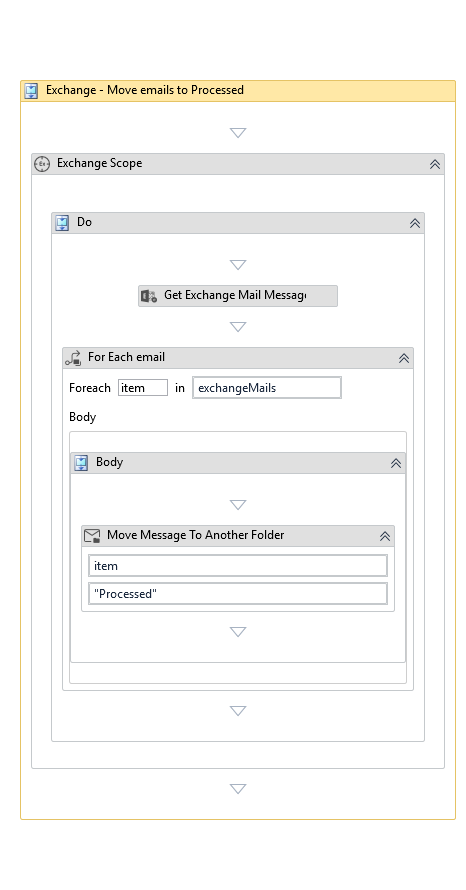
Example workflow: inside Exchange Scope, read the emails into exchangeMails, then move each item to Processed. The activities inside the scope leave Connection and Logon empty.