Installation
akaBot Automation Hub Installation
akaBot Automation Hub requires some additional programs such as:
- Java JDK 11
- MySQL Community Server
1. Java JDK 11
Step 1: Kindly download Java JDK 11 at JAVA JDK 11
Step 2 Run the installer you have downloaded. After that, click "Next" to proceed.
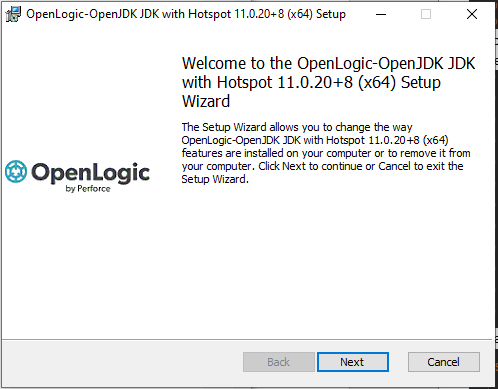
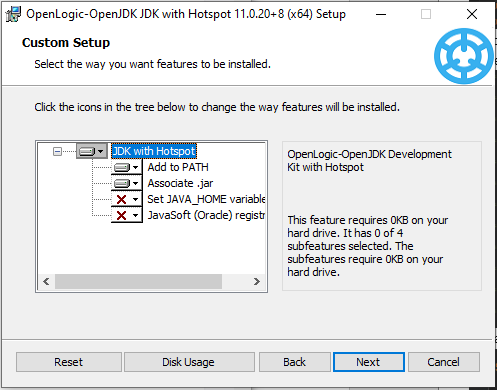
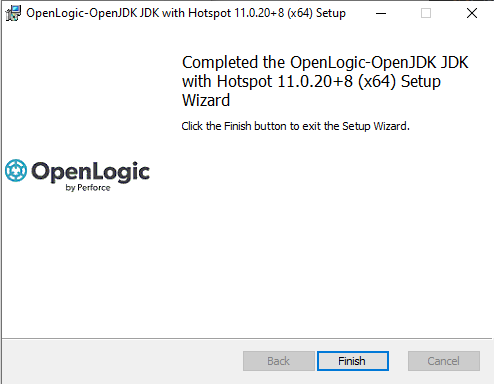
- After Installation is complete, you will see the Complete Notification below. Simply click “Finish”. You have successfully installed JDK.
2. MySQL 8.0
Step 1 - Kindly download MySQL 8.0
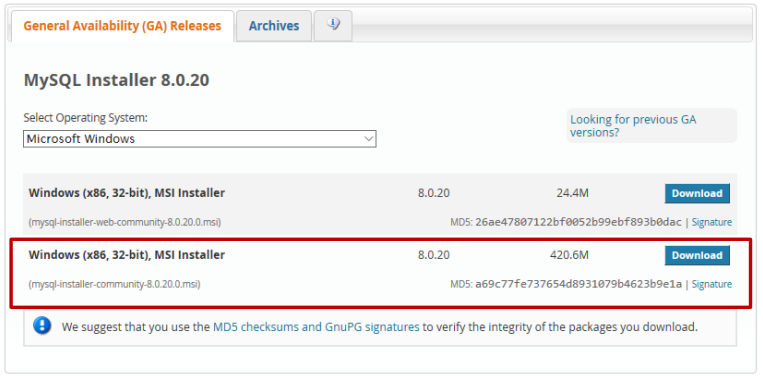
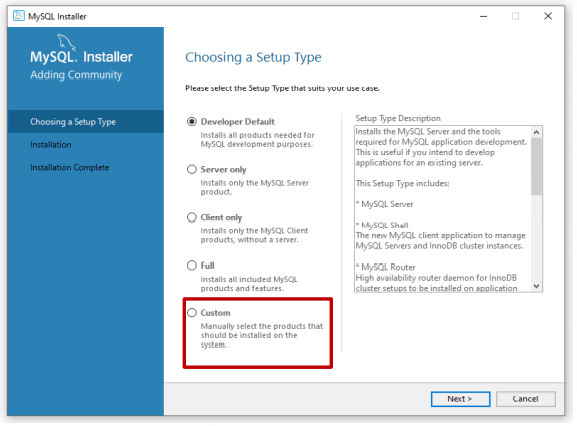
Step 2 - Run the installer and choose Custom option.
-
To run akaBot Center, you will need MySQL Server and MySQL Workbench.
-
Under:
- MySQL Servers > MySQL Server, choose the newest for MySQL Server.
- Application > MySQL Workbench, choose the newest version for MySQL Workbench.
-
After that, kindly click "Execute" and hit Next,...
-
When you at the "Accounts and Roles" page, it is recommended you set it to the default password "sis@12345" to avoid having to update the Config file later. Click "Next"
-
Click "Execute" and wait till everything is finished. Click “Finish”.
-
If you see this prompt, we have successfully finished the installation. Click “Finish”.
Note: Automation Hub can run with other DBMS such as Oracle or SqlServer but it’s not tested yet, so we only recommend you run with MySQL this time.
3. akaBot Automation Hub Configuration
Step 1 - Open the application.yml file
Step 2 - Update the database connection by updating the datasource section (database server, username, password…)
Step 3 - Uncomment the mail section and fill in your smtp mail server
Step 4 - Update the server port, the default is 8080
Step 5 - Update the root download URL for downloading components (e.g.: your host is example.com and the port is 8080 -> http://example.com:8080/api/storage/download)
Step 6 - Save the edited file.
4. Install AutomationHub service
Step 1: Open the command line as administrator and cd to the extracted directory from the downloaded Automation Hub package.
Step 2: Run install script win-install.bat
Step 3
: The script will start installing and configuring Automation Hub service