Subscription Management
This guide shows you how to monitor your plan limits, track document and storage consumption, export usage reports, and configure alert thresholds so you know before you reach your limit.
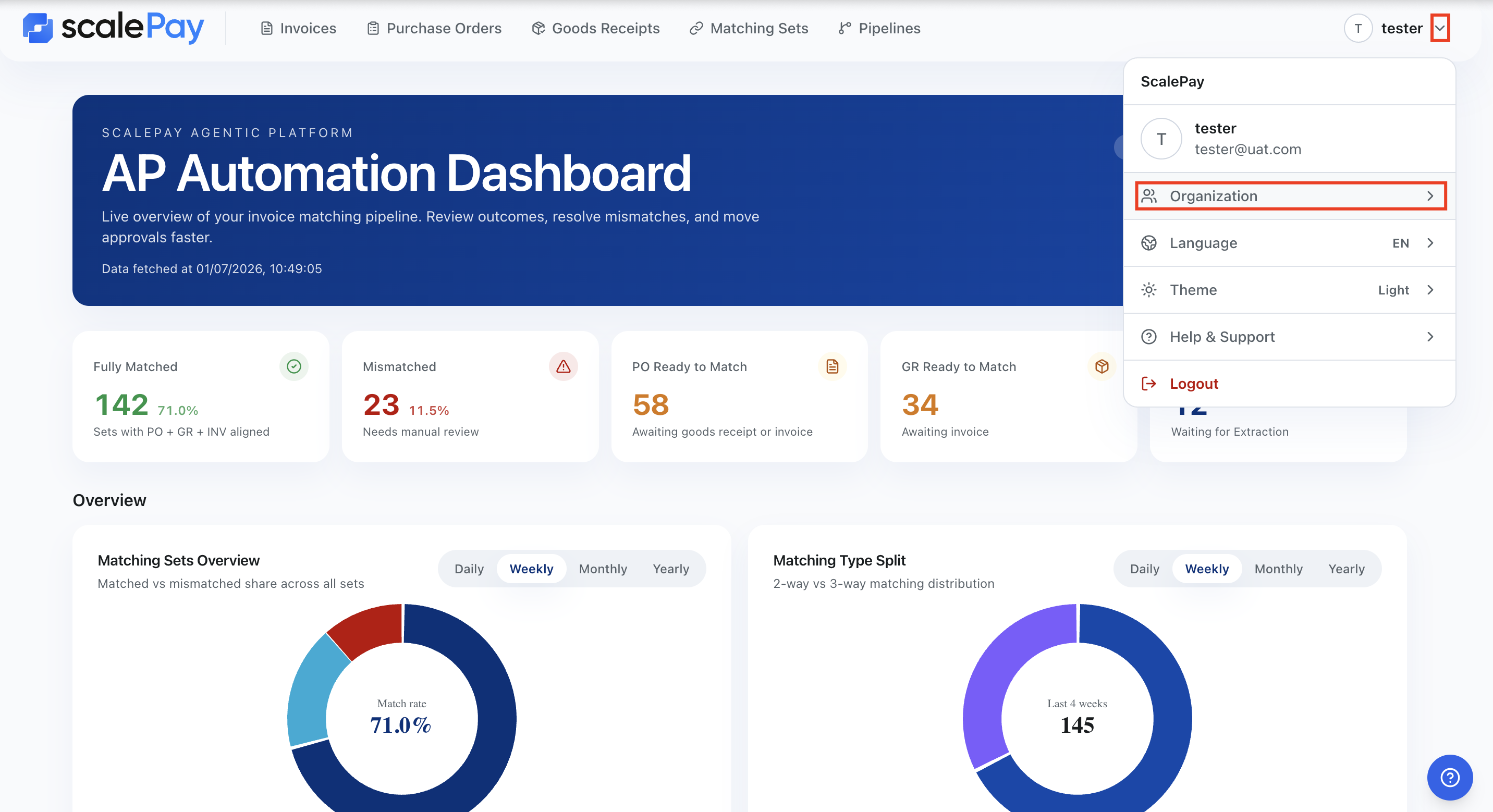
Open Subscription Management
- Click the dropdown arrow next to your avatar in the header bar.
- Select Organization.
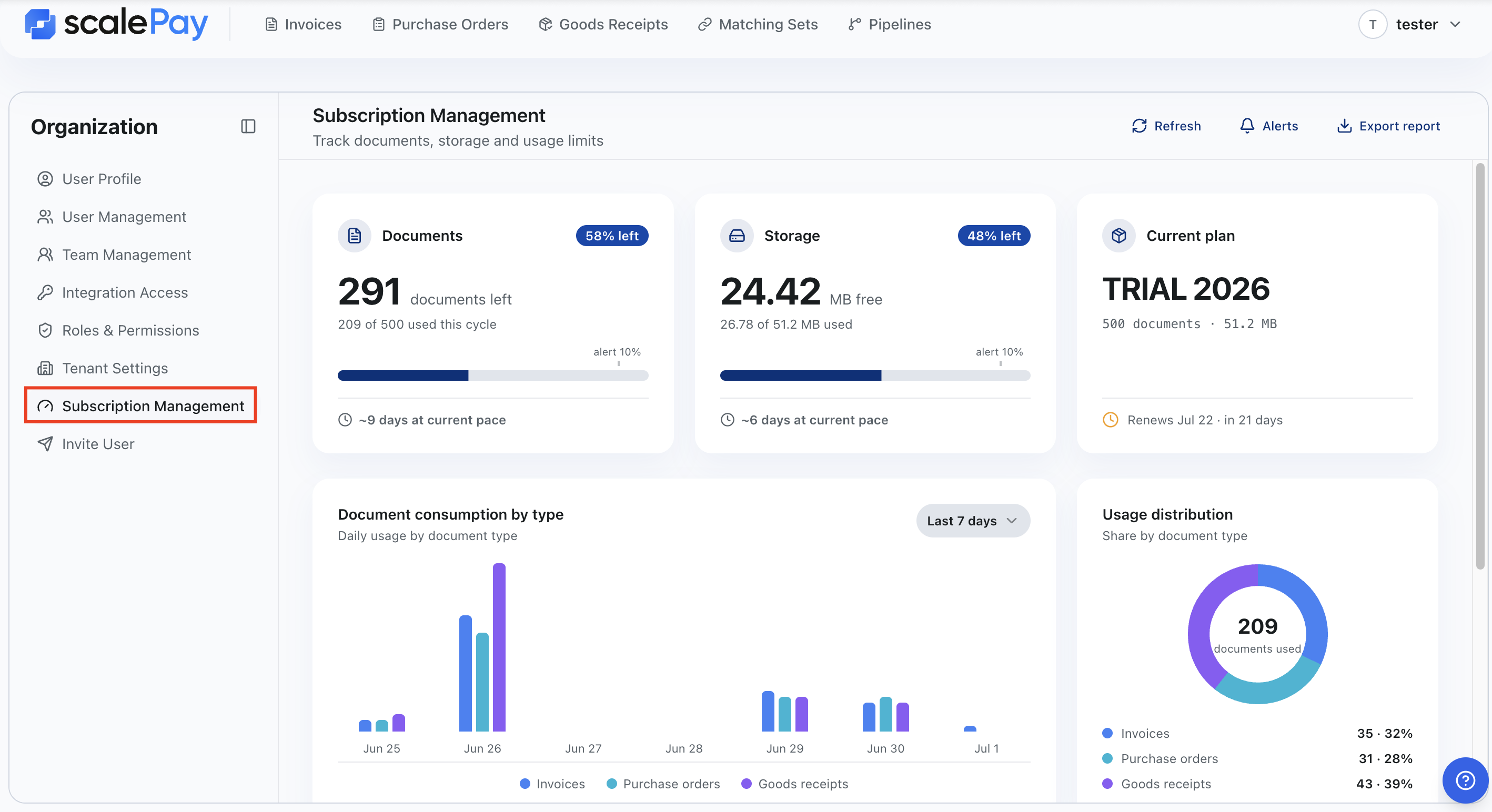
- In the left menu, choose Subscription Management.
Usage summary
The top of the page shows your current usage in three cards:
Document usage card
Shows:
- Used: total documents consumed from your plan.
- Remaining: documents still available before hitting the limit.
Storage usage card
Shows:
- Used: current storage occupied.
- Remaining: storage still available.
Both cards update automatically when you upload, match, or delete documents.
Current plan
Shows:
- Plan name (for example: Trial 2026)
- Total documents included
- Total storage included
- Expiration date: the date your current billing cycle ends
Use this card to quickly verify which plan you are on and when it renews.
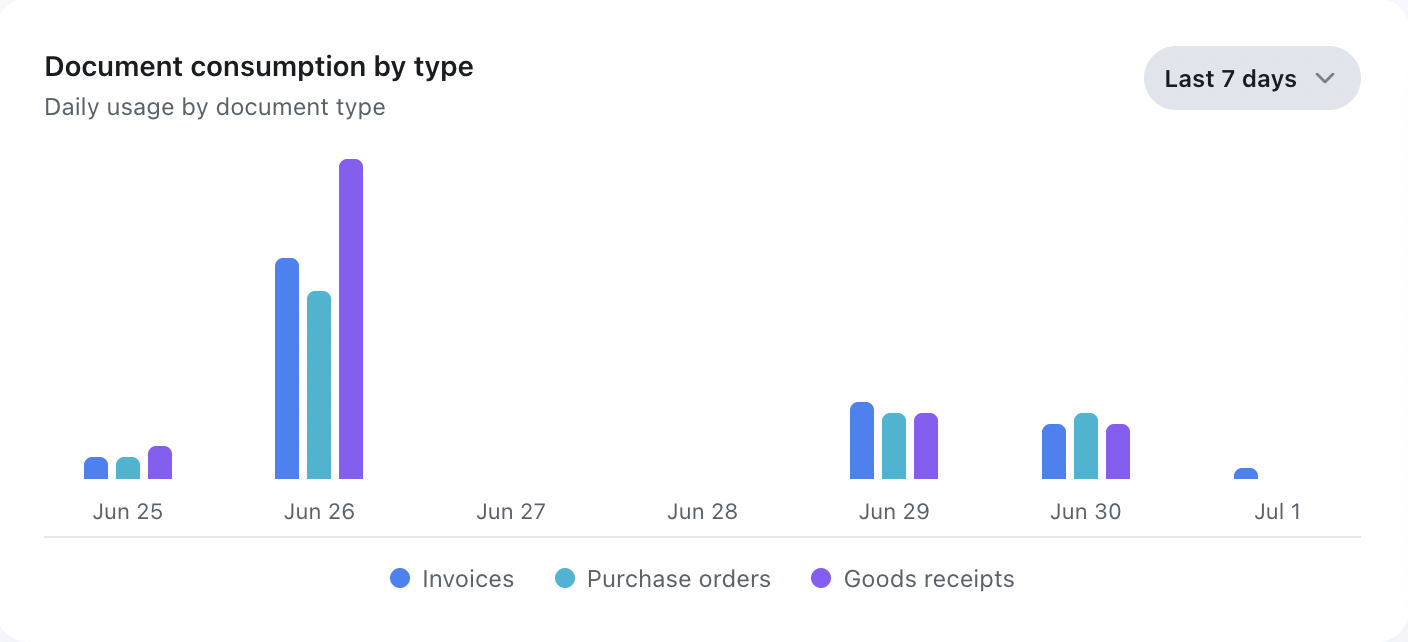
Document consumption by type
This chart breaks down your document usage by document type.
Use the filter to change the time range:
- Last 7 days
- Last 30 days
- Last 90 days
You can review which document types consume the most capacity and adjust your upload strategy if needed.
Usage distribution
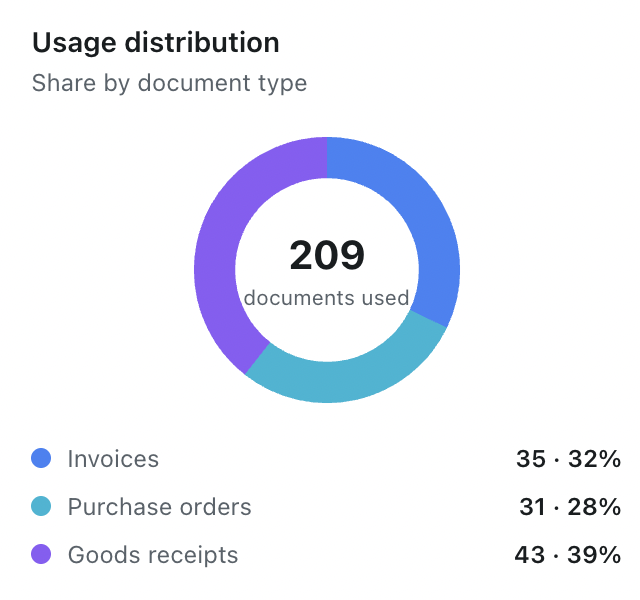
This chart shows how documents and storage are distributed across your document types.
Use it to identify heavy usage areas and plan capacity accordingly.
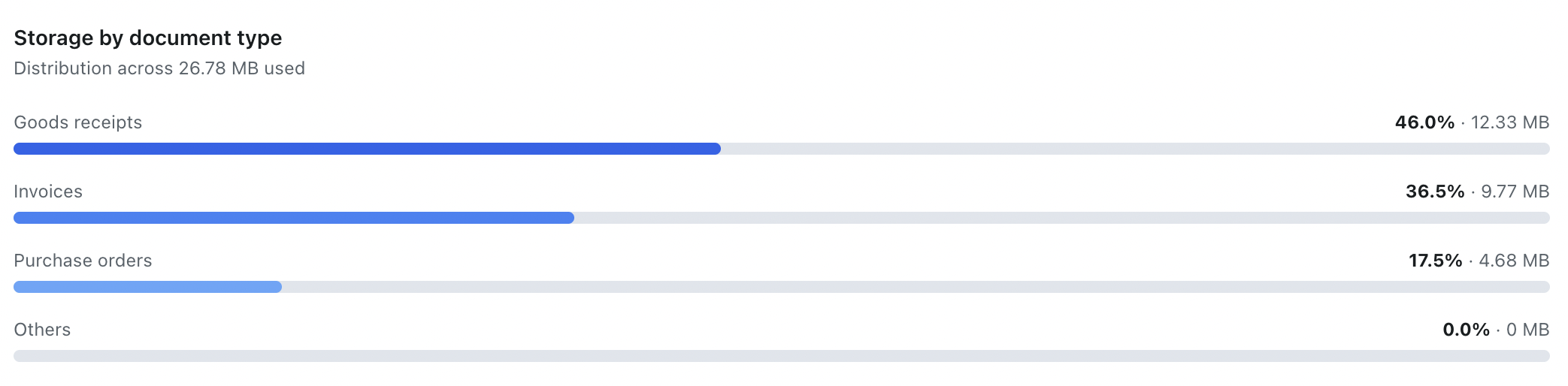
Storage by document type
This chart shows storage consumption grouped by document type.
Compare sizes across PO, GR, Invoice, and other types to understand which formats or batches take the most space.
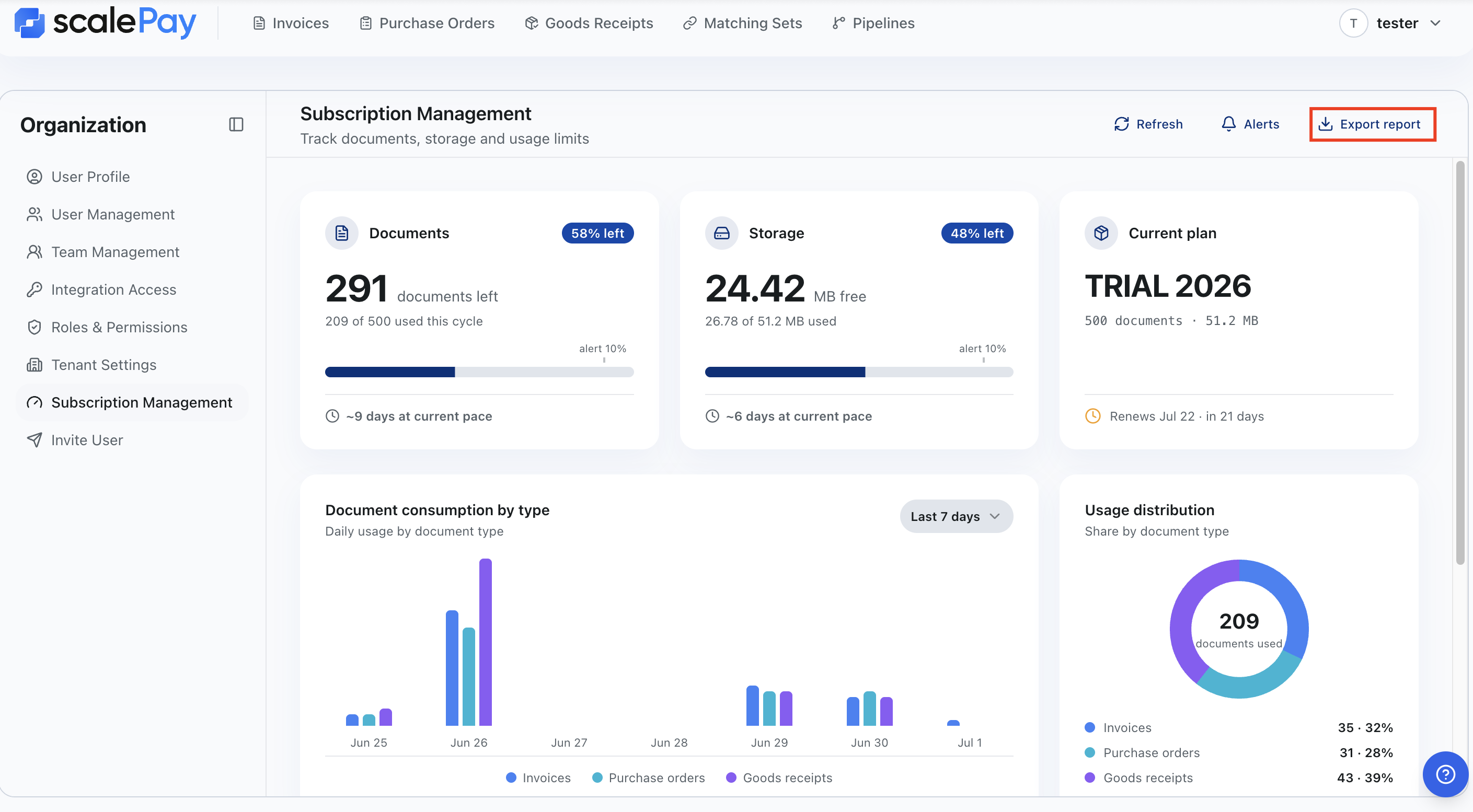
Export report
- Click Export Report.
- Download the file once it is generated.
The exported report can include document counts, storage usage, and consumption trends.
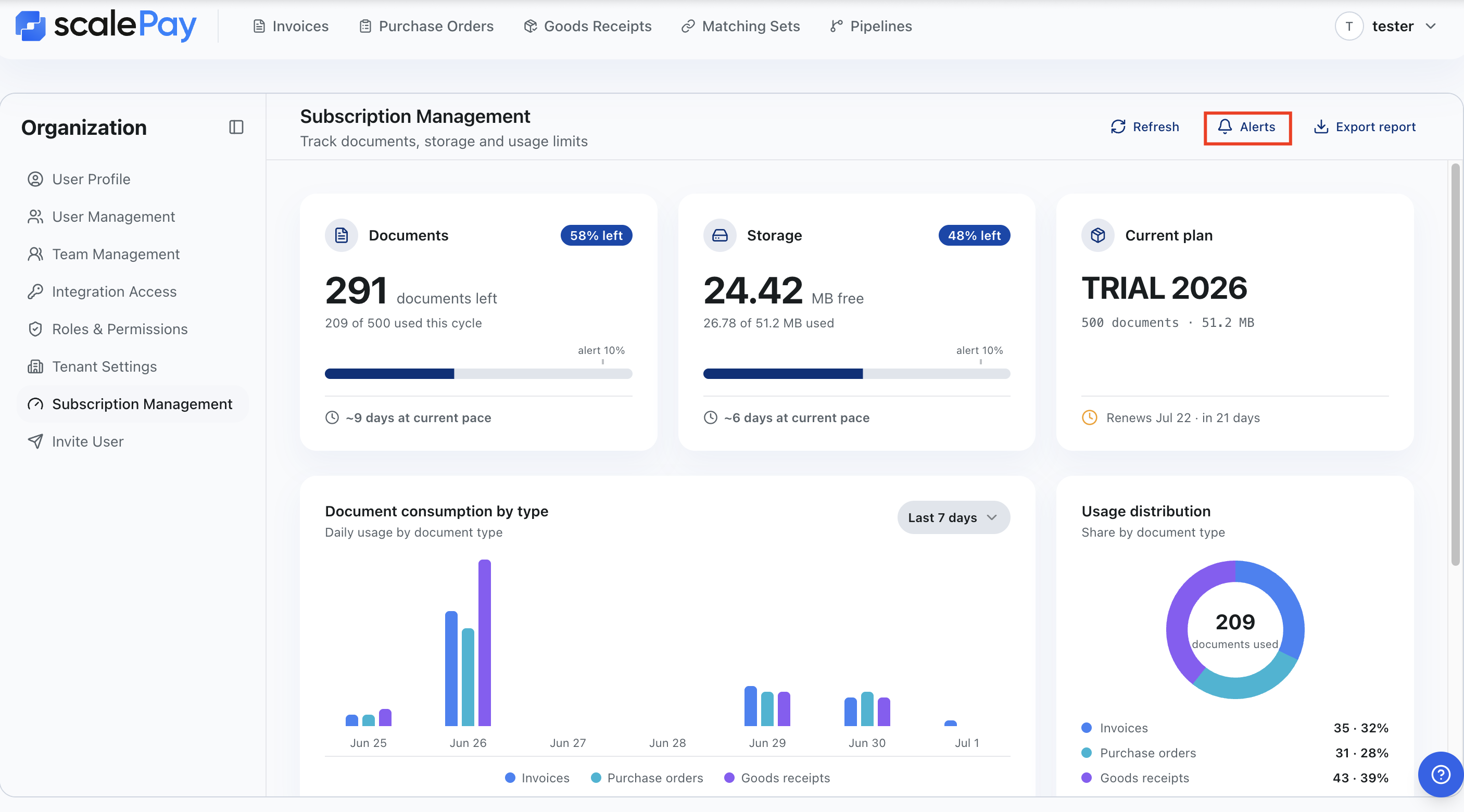
Configure alert thresholds
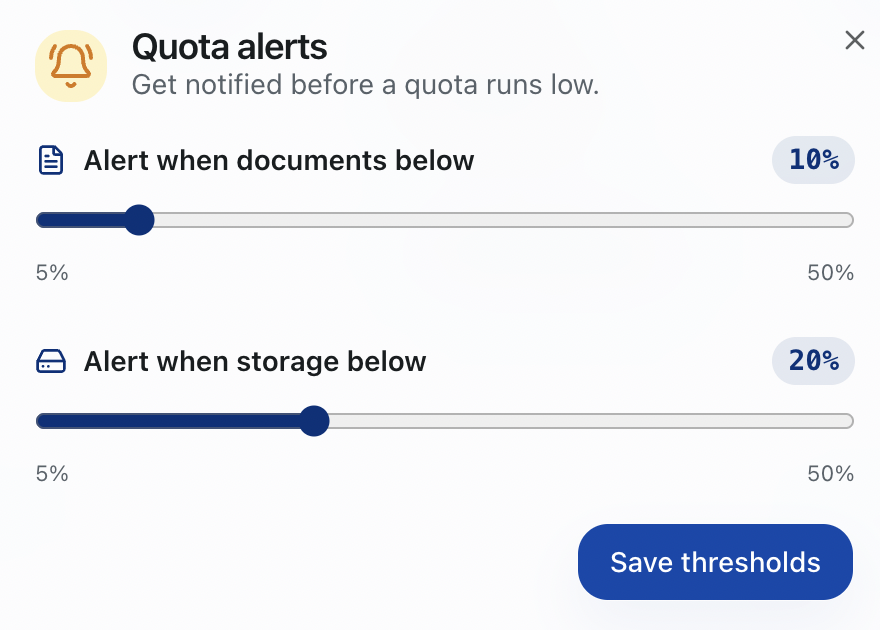
You can set thresholds so Scale Pay notifies you before you reach a limit.
- Click the Alert button.
- Set the Document threshold: choose a percentage or absolute number.
- Set the Storage threshold: choose a percentage or absolute number.
- Click Save to activate the alert.
Example: You set a storage threshold at 80%. When storage reaches 80% of your plan limit, Scale Pay sends a warning so your admin can upgrade or clean up unused documents.
What to do next
If your usage is approaching the limit and you need more capacity, contact your admin to review the current plan or upgrade.
If you want to understand why storage grows quickly, check document statuses in Import Documents.
Common issues and quick fixes
My usage looks incorrect
- Refresh the page to load the latest numbers.
- Check whether deleted documents were permanently removed or only moved to trash.
I did not receive an alert even though I reached the threshold
- Verify the alert was saved and enabled.
- Check your notification settings in Profile Usage.
The export report is empty or missing data
- Make sure the selected time range contains uploaded documents.
- Try exporting again or choose a different range.