Tenant Management
A tenant is your company's ScalePay workspace. It is the shared space where your users, channels, AI setup, conversations, contacts, and tickets belong.
Most users do not need to manage tenant settings every day. This page is mainly for workspace owners and admins.
What Tenant Management is used for
In Organization -> Tenant Management, you can:
- View workspace identity details.
- View owner information.
- Update Company Name if you have permission.
- Review workspace status.
- Copy IDs when support asks for them.
An ID is a unique code ScalePay uses to identify your workspace. You usually only need it when contacting support.
If the page is read-only or blocked, ask your admin to review your organization access.
Open Tenant Management
- In the left sidebar, select Tenant Setting.
- You will see two information cards:
- Identity
- Ownership
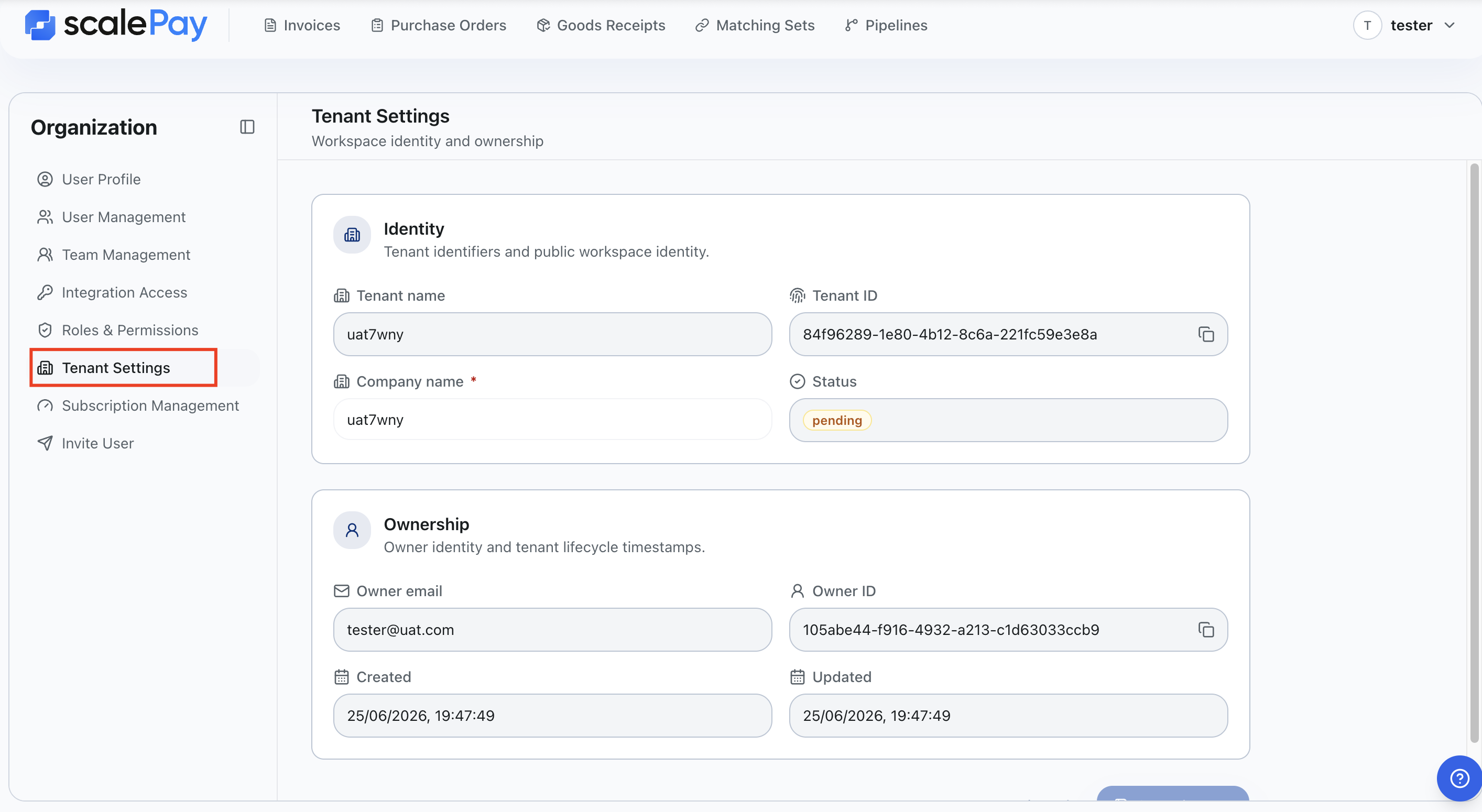
Understand the information on screen
Identity
You can review:
- Tenant Name (read-only)
- Tenant ID (read-only, copy icon available)
- Company Name
- Editable when you have management access
- Read-only when you do not
Ownership
You can review:
- Owner Email (read-only)
- Owner ID (read-only, copy icon available)
- Status badge:
ActivePendingDisabled
Dates
At the bottom of the page, you can review:
- Created At
- Updated At
These are informational fields and cannot be edited.
Real-world example
Your company changes its public brand name from "ABC Services" to "ABC Care". The workspace owner opens Tenant Management, updates Company Name, and saves it so the organization information stays current.
How this connects to other setup pages
- Use User Management to add people to the workspace.
- Use Team Management to organize staff.
- Use Roles & Permissions to control access.
Notes
- This page does not create or delete tenants.
- Only Company Name is editable from this screen.
- Save and discard action buttons are shown only to users with management access.
- Copy icon appears for ID fields to help when support asks for workspace details.
Troubleshooting
I cannot see Tenant Management in Organization
- Ask your admin to grant tenant view access.
I can open the page but cannot edit anything
- You likely have view-only access.
- Ask your admin for tenant management access if updates are required.
I clicked Save but changes are not visible
- Wait a few seconds for data refresh.
- Reopen the page or refresh the browser.
- Confirm that the success message appeared after saving.
I see "Failed to load tenant information."
- Refresh the page and try again.
- If the issue continues, contact support and share the Tenant ID if available.