AI Scope
RCA.Activities.AIServices.AIScope
Description
The AI Scope activity connects and authenticates to an AI provider. Place AI Service activities inside this scope to send prompts, generate text responses, or continue chat conversations with the configured provider.
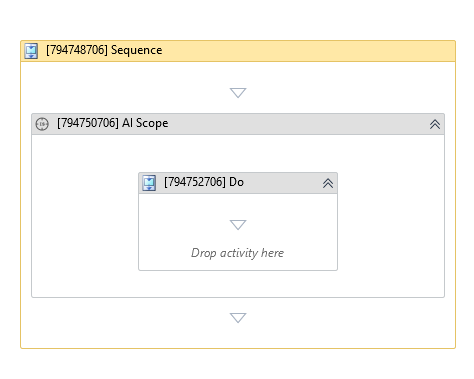
(* is mandatory)
Configuration Guide
- Drag AI Scope onto your workflow.
- Set Provider Type (e.g.,
OpenAI), paste your Api Key (see How to get an API Key below), and set Model (e.g.,gpt-4o). If Provider Type isAzureOpenAI, also fill in Endpoint. - Drop a matching AI Service activity for that provider inside the Do block — see Activity Catalog for the full list (e.g., Generate Chat Completion for OpenAI, Generate Chat Completion Using Gemini for Google Gemini).
- Write your prompt in that activity, and store its Result output in a variable to use later in your workflow.
In the body of activity
- Do - The AI Service activities you want to execute within the configured AI provider session. The activity you use here must match the Provider Type set above — see the Activity Catalog for which activity goes with which provider.
Properties
Common
- Continue On Error (Boolean) - A Boolean variable has two possible values: True or False
- True : allows the rest of the process to continue the execution even an error occurs within the activity.
- False : blocks the process from continuing the execution.
Input
- Api Key (String)* - The API key used to authenticate to the selected AI provider.
- Endpoint (String) - The endpoint URL of the service provider. Required when Provider Type is AzureOpenAI. This is a placeholder pattern, not a real address — replace
project-namewith your actual endpoint from Microsoft Foundry (or Azure Portal).
E.g:https://project-name.openai.azure.com/ - Model (String)* - Model ID used to generate the response. Must be a model your provider account has access to — see Supported AI Providers for example model IDs per provider.
E.g:gpt-4o(OpenAI),gemini-1.5-pro(Google Gemini),claude-3-5-sonnet(Anthropic) - Provider Type (AIProviderType) - The AI provider type to use. Supported values include OpenAI, GoogleGemini, Anthropic, and AzureOpenAI.
- Use Existing Session (AISession) - Existing session from a previous AI Scope. When provided, this activity reuses the session instead of creating a new one.
How to get an API Key
- OpenAI - Sign in at platform.openai.com, open API keys, and create a new secret key.
- Anthropic - Sign in at console.anthropic.com, open API Keys, and create a new key.
- Google Gemini - Sign in at aistudio.google.com and select Get API Key.
- Azure OpenAI - Sign in to Microsoft Foundry (or the Azure Portal), open your project, and copy your API key and endpoint URL from the project settings. When Provider Type is set to
AzureOpenAI, also fill in the Endpoint field with this value. For a complete walkthrough, see the Azure OpenAI Configuration Guide.
Troubleshooting
- Activity fails immediately with an authentication error - The Api Key is missing, incorrect, or has been revoked on the provider's site. Generate a new key (see How to get an API Key above) and update Api Key.
- Activity fails with a model-not-found or invalid-model error - The value in Model is misspelled, or your provider account/API key does not have access to that model. Check the exact model ID on your provider's dashboard, and confirm your account has access to it.
- AzureOpenAI provider fails to connect - Endpoint is empty or incorrect. It must be filled in only for
AzureOpenAI, using the endpoint URL from Microsoft Foundry (or Azure Portal). - Activity times out on long prompts or long documents - Increase Timeout MS (default
30000) on the specific child AI activity (e.g., Generate Chat Completion) inside the scope, rather than on the AI Scope itself.
Options
- Disposed On Completion (Boolean) - Controls whether resources are automatically disposed when the activity completes. Set to False when you want to reuse the session in subsequent AI Scope activities. Set to True for the final AI Scope in a chain to clean up resources.
Output
- Output Session (AISession) - Output session that can be passed to subsequent AI Scope activities.
Misc
- Public (Checkbox) - Check if you want to public the activity. Remember to consider data security requirement before using this property.
- Display Name (String) - The name of this activity. You can edit the name of the activity to organize and structure your code better.
E.g: AI Scope