Setup Guide: Azure OpenAI for AI Scope
This guide explains how to configure Azure OpenAI authentication and model deployments in Microsoft Foundry (ai.azure.com) for the akaBot AIScope activity.
The activity supports these Azure OpenAI activities inside its Do container:
| akaBot Activity | Capabilities covered |
|---|---|
Generate Chat Response Azure OpenAI | Multi-turn chat conversations, system instructions, user prompts, image/file attachments |
Generate Text Response Azure OpenAI | Single prompt text completion and generation |
1. Portal: Sign in to Microsoft Foundry
All Azure OpenAI models, deployments, and API credentials are managed centrally within Microsoft Foundry (formerly Azure AI Foundry / Azure OpenAI Studio).
- Navigate to the Microsoft Foundry portal.
- Sign in with your Azure corporate account.
- Select your Hub and open your Project (or create a new project).
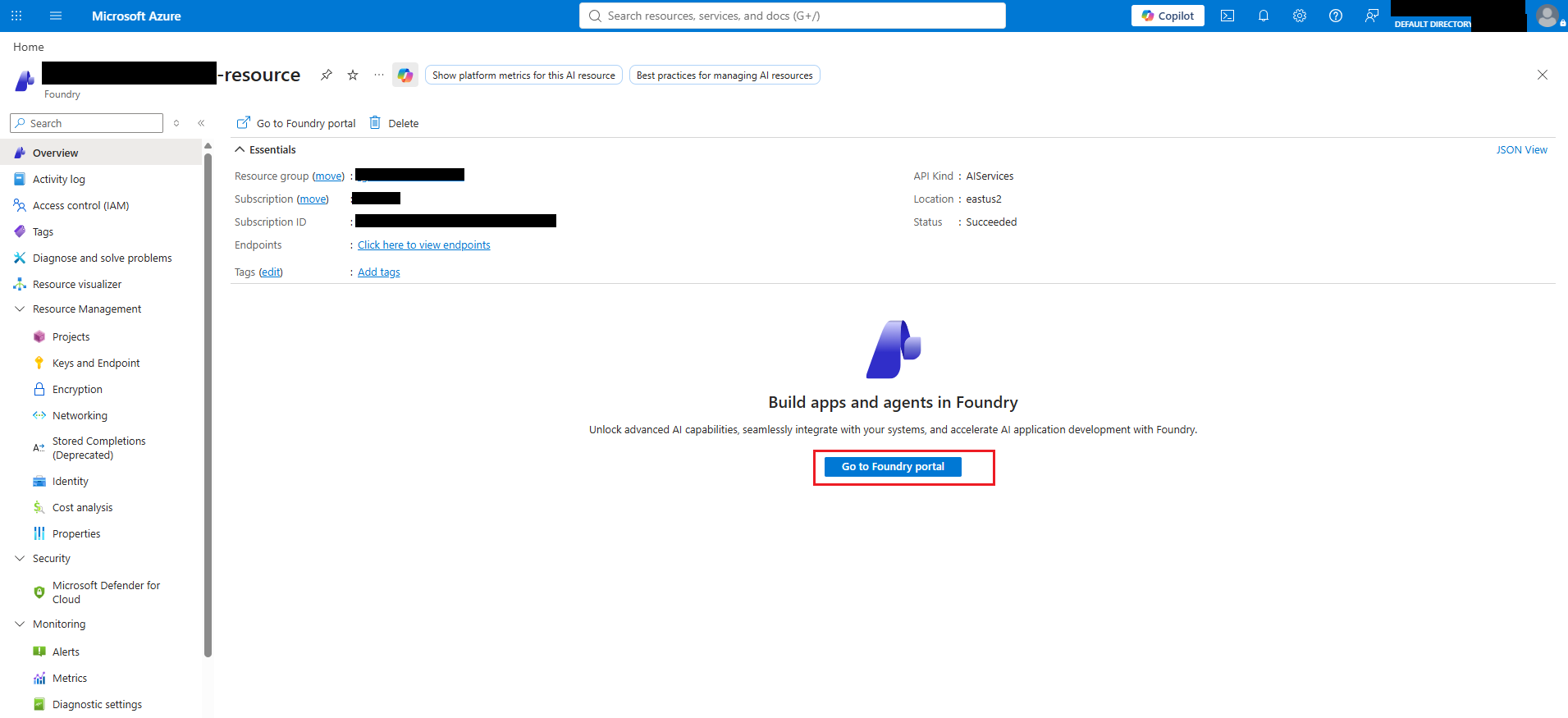
2. Models: Select Model with Responses Capability
Azure OpenAI requires a deployed model instance before receiving API requests from akaBot Studio.
2.1 Model Requirement: Must Support Responses
akaBot's Azure OpenAI activities interact via the /openai/v1/responses endpoint. You must select a model that supports the Responses capability (indicated by the Responses tag underneath the model card in the catalog, such as gpt-4o, gpt-4o-mini, gpt-5.4, gpt-chat-latest). Models supporting only Messages (e.g., Anthropic Claude) or Audio generation cannot be used with akaBot's Azure OpenAI activities.
2.2 Browse Catalog and Open Model Details
-
In the top navigation bar of Microsoft Foundry, open:
Discover -> Models -
Browse or search for an OpenAI model displaying the
Responsestag (e.g.,gpt-4oorgpt-4o-mini). -
Click directly on the model card to open its detail page.
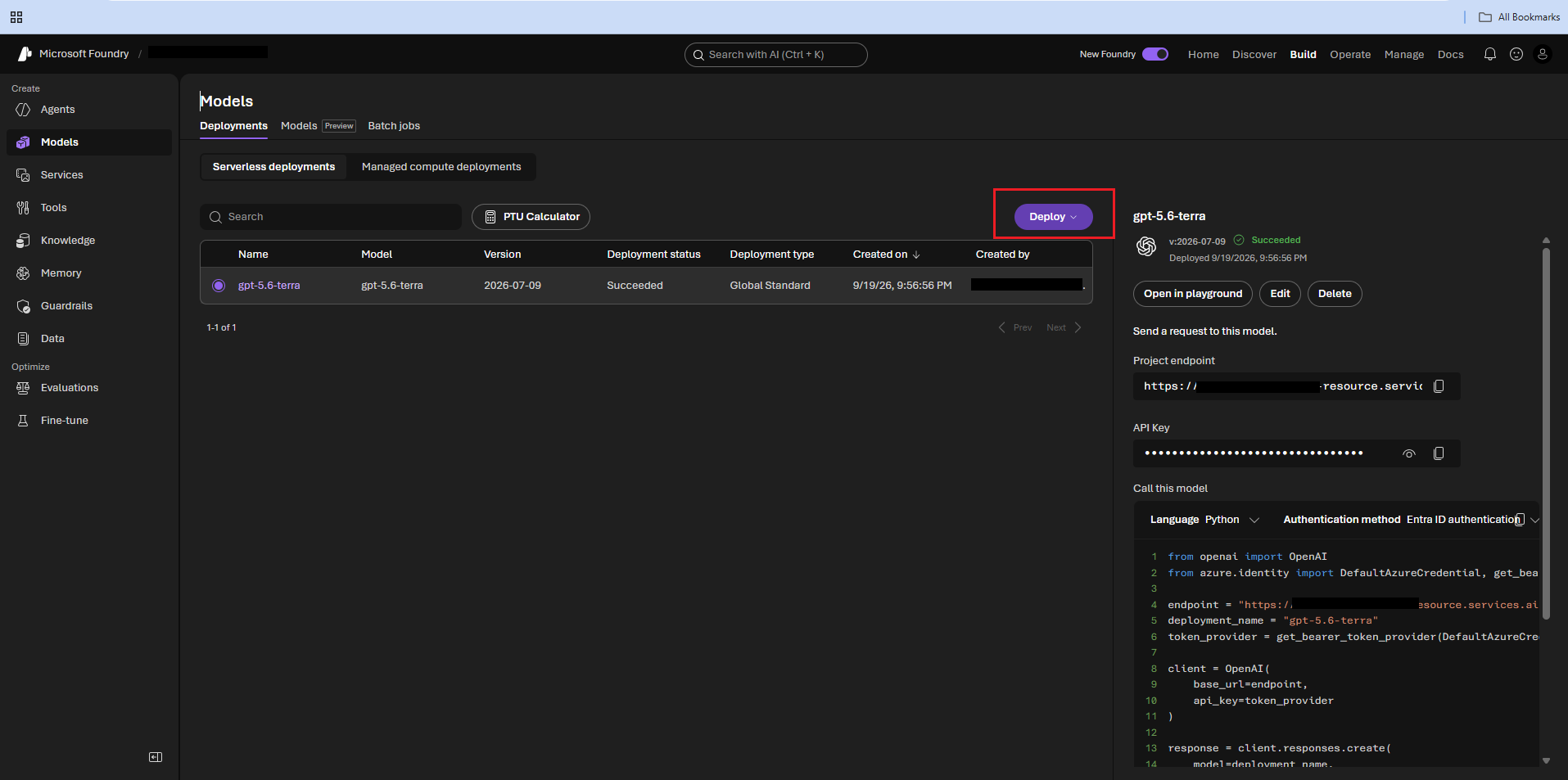
3. Deployments: Deploy the Model
-
On the top-right corner of the model detail page, click Deploy (or Deploy to this project).
-
In the deployment dialog, fill in:
Deployment name: (e.g. gpt-4o or my-gpt4o-deployment)Deployment type: Standard / Global StandardTokens Per Minute (TPM) limit: specify according to your workload quota -
Click Deploy.
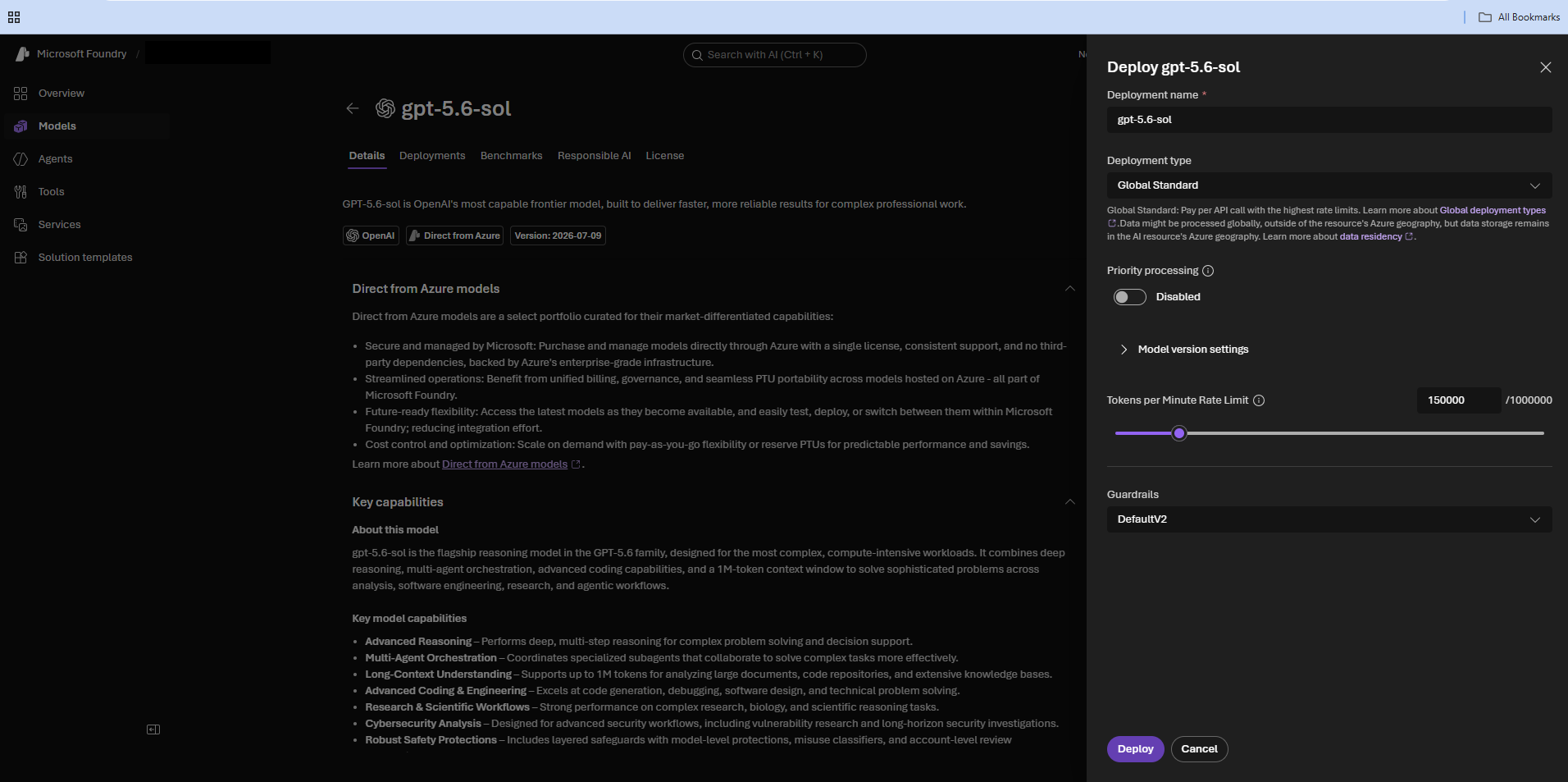
In akaBot Studio, the Model property in AI Scope must be set to your Deployment name (from step 2 above), not the underlying base model name. For example, if you named your deployment my-gpt4o-deployment, you must enter "my-gpt4o-deployment" in the Model field.
4. Credentials: Get Endpoint URL and API Key
-
In Microsoft Foundry, navigate to:
Project Settings (bottom left) -> Endpoints & Keys -
Under the Endpoints & Keys table, locate and copy:
Endpoint: https://<your-resource-name>.openai.azure.com/Key: Key 1 (or Key 2)
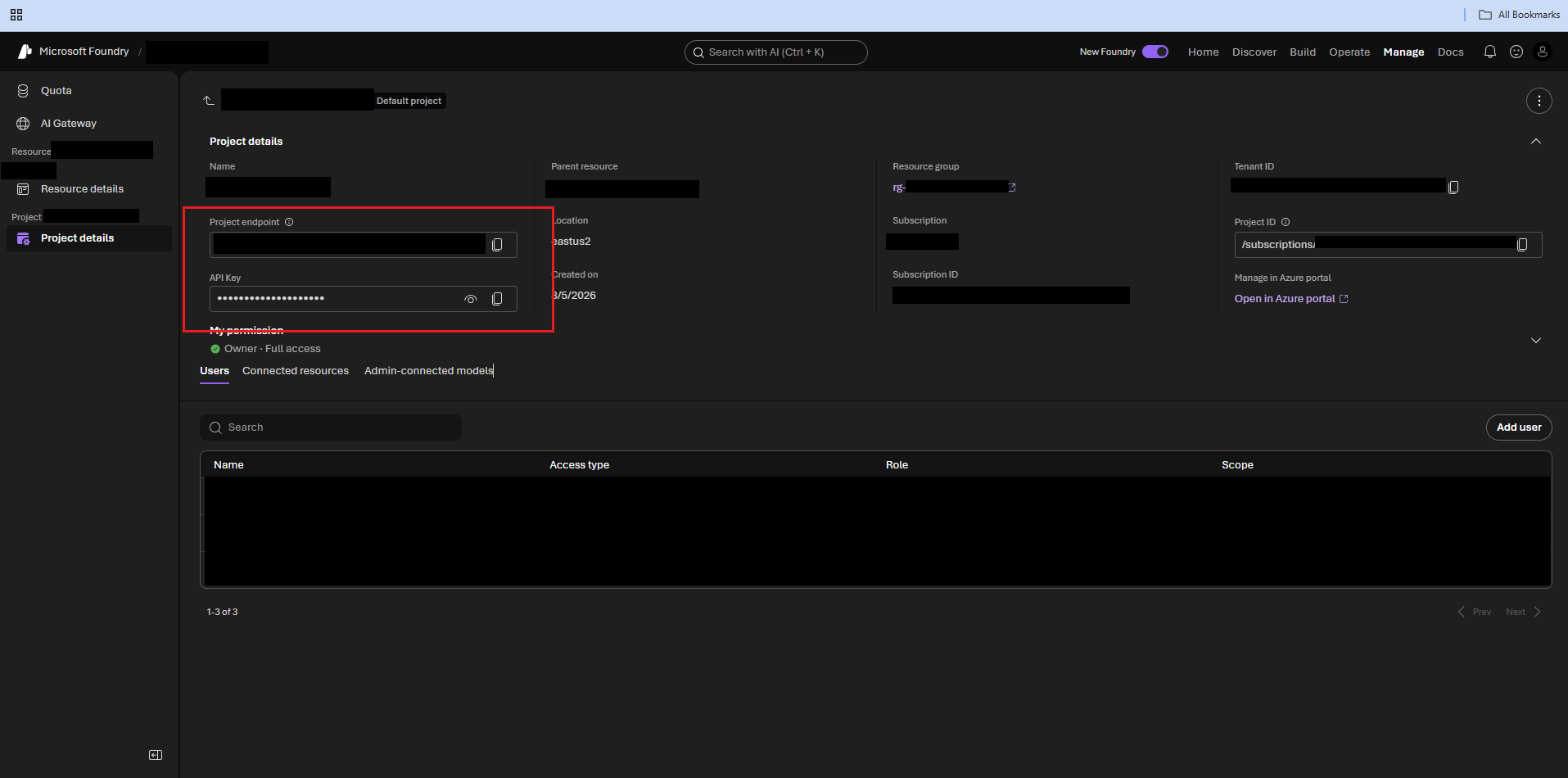
5. akaBot AIScope Setup
5.1 Configure AI Scope
- In akaBot Studio, open your workflow.
- Drag AI Services > AI Scope onto the canvas.
- In the Properties panel on the right, configure:
Provider Type = AzureOpenAI
Api Key = "<API Key copied in Section 4>"
Endpoint = "https://<your-resource-name>.openai.azure.com/"
Model = "<Deployment Name created in Section 3>"
| Property | Type | Required | Description |
|---|---|---|---|
Provider Type | AIProviderType | Yes | Select AzureOpenAI from the dropdown list |
Api Key | String | Yes | The secret key from Section 4 (quoted string or variable) |
Endpoint | String | Yes | The endpoint URL from Section 4 |
Model | String | Yes | The exact Deployment Name created in Section 3 |
Use Existing Session | AISession | No | Existing session variable if reusing a prior scope |
Disposed On Completion | Boolean | No | Default True. Set False to reuse session in subsequent scopes |
5.2 Add Child Activities inside Do Container
- Inside the Do block of AI Scope, drag Generate Chat Response Azure OpenAI (or Generate Text Response Azure OpenAI).
- Configure:
Prompt = "Your prompt text here"
Result = <Output String variable, created via Ctrl+K>
Timeout MS = 30000 (increase if processing long prompts or files)
The request timeout is configured on the child activity via Timeout MS (default 30000 ms / 30 seconds), not on the parent AI Scope.
6. Verification & Common Errors
| Error | Root Cause | Fix |
|---|---|---|
401 Unauthorized | Invalid, expired, or mistyped Api Key | Re-copy Key 1 from Section 4 and verify it belongs to the endpoint resource. |
404 DeploymentNotFound | Model property does not match the Deployment Name in Foundry | Open Section 3 in Microsoft Foundry; enter the exact Deployment name (case-sensitive) in the Model field. |
404 Resource Not Found | The Endpoint URL is wrong or points to a non-existent endpoint | Re-copy the Endpoint URL from Section 4. |
429 Too Many Requests | Exceeded Tokens Per Minute (TPM) quota | Edit deployment in Microsoft Foundry to raise TPM quota, or add a Delay between requests. |
TimeoutException | Request took longer than default timeout | Increase Timeout MS on the child activity (e.g., 60000). |