Getting Started with Semantic Selector
This guide explains how to use the Semantic Selector in akaBot Studio. Semantic Selector uses advanced AI (Computer Vision) to locate UI elements on the screen based on their visual meaning and text, rather than relying on strict HTML attributes or window properties.
1. Overview
Traditional selectors (Strict or Fuzzy) rely on technical underlying properties (like IDs, CSS classes, or tags). If a website or application updates its design or changes its underlying code, these traditional selectors often break, causing the automation to fail.
Semantic Selector solves this by finding elements the way a human would. You simply describe the element in plain English, such as "Button Save" or "InputBox Email".
By using Semantic Selector, your workflows become highly resilient to UI changes, dynamic IDs, and system updates.
Semantic Selector is scope-only because it grounds against the current application/browser screenshot.
2. Prerequisites
Before using Semantic Selector, ensure your environment meets the following requirements:
For System Administrators (IT Setup)
The Semantic Selector requires a connection to the CV (Computer Vision) Server with the AI grounding model loaded. Ensure the cvsettings.json file in your project folder is correctly configured with the server URL:
{
  "serverUrl": "http://localhost:8000/cv",
  "apiKey": "*",
  "ocr": true,
  "table": false,
  "background": false,
  "semantic": {
    "url": "http://localhost:8000"
  }
}
Health checks, grounding, and OCR endpoints are handled internally by the activity package. You only need to set semantic.url to the base CV server URL.
For RPA Developers (Studio Setup)
Because Semantic Selector analyzes the current visual state of the application, the activity must be placed inside an Open/Attach Application or Open/Attach Browser scope. It cannot be used as a standalone activity outside of these scopes.
3. Step-by-Step Guide
Follow these steps to configure a Semantic Selector for a supported UI activity, such as Click, Hover, Type Into, Type Secure Text, Select Item, Get Text, Find Element, or Element Exists.
Step 1: Add a Supported Activity
Drag and drop your desired UI activity into an Open/Attach Application or Open/Attach Browser scope.
Step 2: Indicate the Target
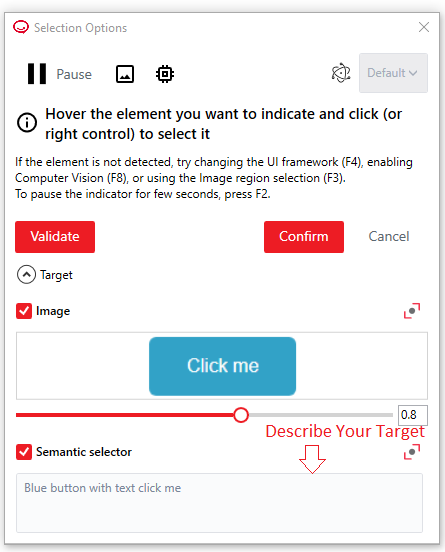
Click Indicate on screen inside the activity and select your target element normally. The Selection Options window will appear.
Step 3: Enable Semantic Selector
In the Selection Options window, check the Semantic selector box to enable AI-powered targeting.
Step 4: Describe the Target
Type a clear, short description of the element you want to interact with. Use the standard formula: [Element Role] + [Visible Text].
Example: Button Save, InputBox Email, Icon Search, CheckBox Remember me.
Step 5: Validate the Selection
Click the Validate button. The AI will analyze the screen and highlight the element it believes matches your description.
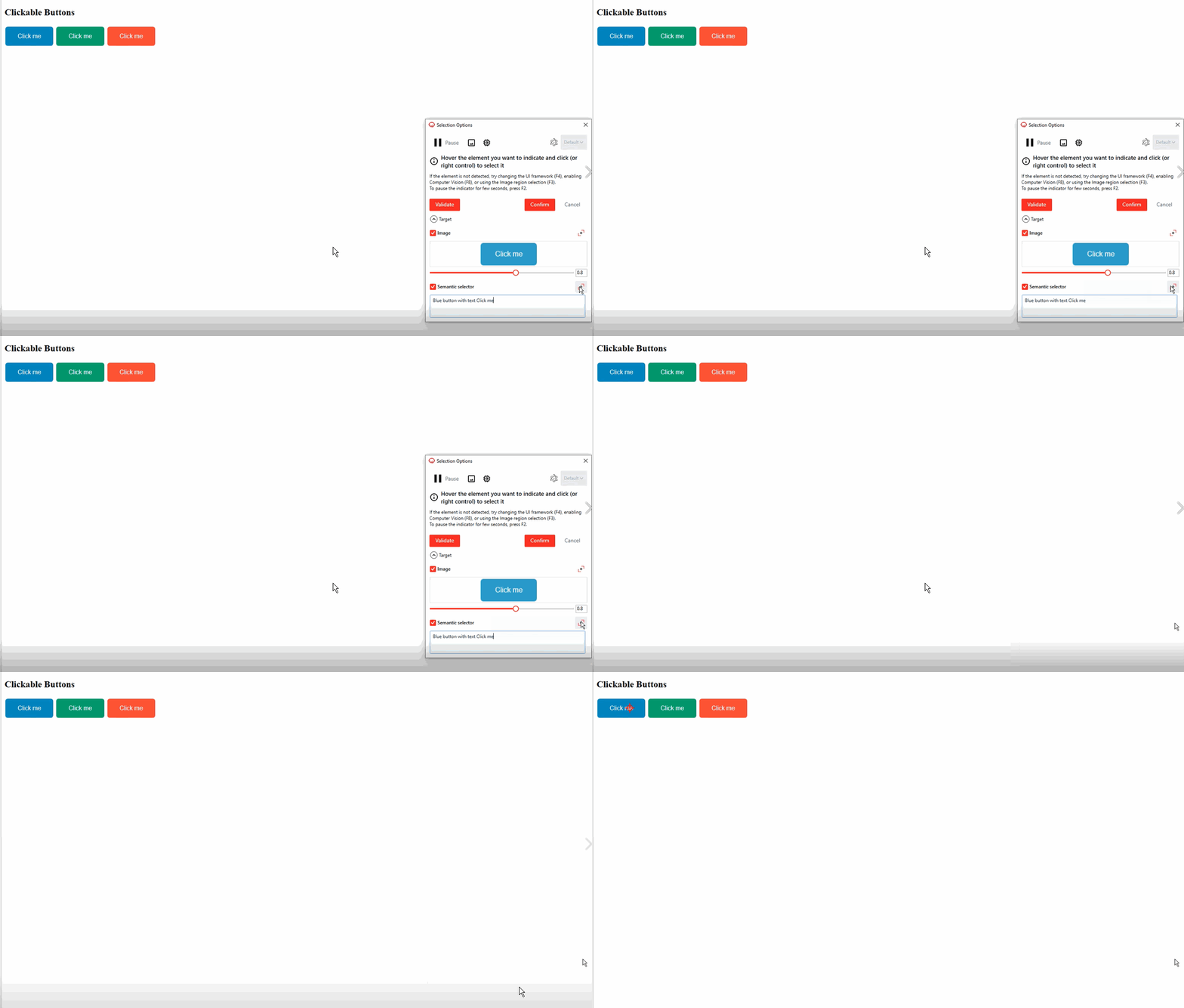
If the highlighted result is correct, click Confirm to save your target.
Semantic-only targets are allowed, but the description field must not be left blank.
4. Best Practices for Semantic Descriptions
To get the highest accuracy from the AI model, follow these guidelines when writing your descriptions (prompts):
| Do This (Recommended) | Don't Do This (Avoid) | Why? |
|---|---|---|
Button Login | Login | The word "Login" might appear in a paragraph, a header, or a button. Adding "Button" tells the AI exactly what type of element to look for. |
InputBox First Name | First Name | Adding "InputBox" helps the AI distinguish between the text label "First Name" and the actual text field you want to type into. |
Icon Search | Magnifying glass | Use standard UI component names (Icon, Button, Checkbox, Dropdown, InputBox) rather than literal visual descriptions. |
5. Troubleshooting (Validation Results)
When you click Validate, the system will return a status. Use this table to troubleshoot any issues:
| Status Message | Meaning & Solution |
|---|---|
| (Empty) + Highlight | Success: The AI successfully found and highlighted the element matching your description. |
Not same with target element | Warning: The Semantic AI found an element, but it is in a different location than the original element you clicked on. Solution: Check if your description is too generic, such as when there are two "Submit" buttons on screen. Make your description more specific. |
Found no element | Error: The AI could not find anything matching your description on the screen. Solution: Check your spelling or use a different role, such as changing Button to Icon. |
Semantic server not configured | Error: The cvsettings.json file is missing or semantic.url is empty. Solution: Contact your IT admin to configure the CV Server URL. |
Server not available | Error: The configured CV Server is down or unreachable. Solution: Verify your network connection or check if the server is running. |
Semantic selector is only available inside an Application/Browser scope. | Error: You placed the activity outside of an Attach/Open scope. Solution: Move the activity inside a browser or application scope. |
The current endpoint returns one detection, so there is no N elements found ambiguity status.