Knowledge Bases
A knowledge base is the managed collection of approved documents that a Channel searches to ground its responses and produce citations. This guide covers planning, creating, populating, sharing, and maintaining knowledge bases.
Plan a knowledge base
Before creating one, define:
- Business owner and content steward
- Purpose and intended Channels
- Document classification and permitted audience
- Update frequency and authoritative sources
- Retention and deletion rules
- Required embedding model and expected language/content type.
Keep content with materially different confidentiality levels in separate knowledge bases. Use the narrowest practical sharing scope.
Create a knowledge base
Prerequisites
- Knowledge create/edit permission.
- At least one ready embedding model, unless the administrator will configure it later.
Procedure
- Open Knowledge.
- Select Create knowledge base.
- Enter a unique, meaningful name.
- Add a short description covering purpose and owner.
- Select the semantic-search/embedding model if requested.
- Save.
✅ Expected result: The detail page opens with Documents, Access & sharing, and Settings areas as permitted.
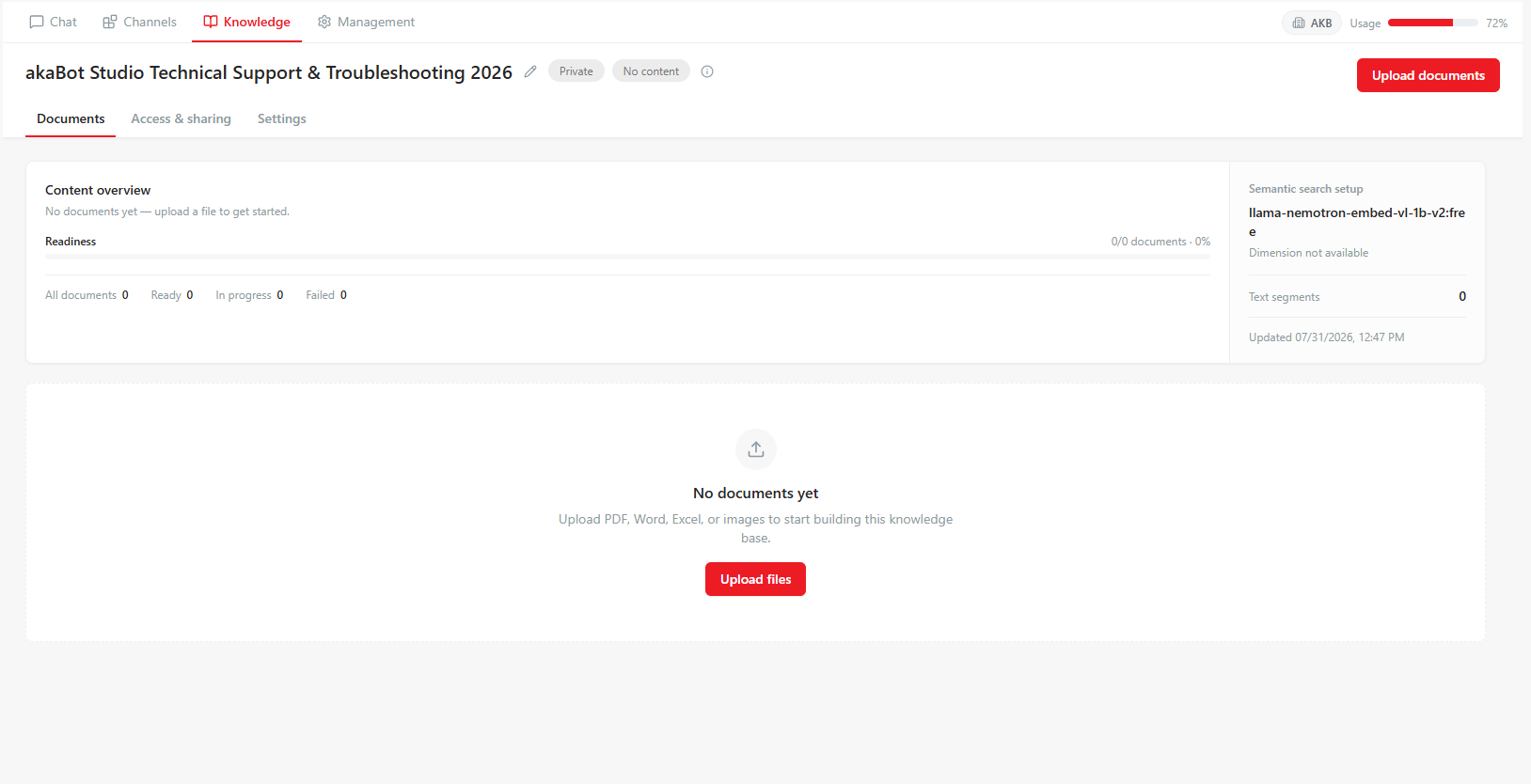
Recommended naming and description
Good name: akaBot Studio Technical Support & Troubleshooting 2026
Weak name: RPA Docs
Good description: Technical guidelines and troubleshooting procedures for akaBot Studio, including activity descriptions, error codes, and best practices.
The description should not contain credentials, system passwords, personal data, or sensitive API keys.
Upload documents
Procedure
- Open the required knowledge base.
- Select the Documents tab.
- Select Upload documents, or drag approved files into the upload area.
- Review rejected filenames before continuing.
- Wait for each accepted document to reach a terminal or decision state.
Supported UI formats include PDF, DOCX, XLSX, PPTX, HTML, CSV, JSON, Markdown, EML, EPUB, TXT, VTT, and ZIP. Convert legacy .doc and .ppt files to .docx and .pptx. The API hard limit is 200 MB per upload; an organization policy may impose a lower limit.
For ZIP archives:
- The archive is expanded into individual documents
- Unsupported or unsafe entries may be skipped
- The configured maximum number of expanded files applies
- Password-protected archives are not suitable for normal ingestion
- Review the skipped-file message after upload.
Understand document states
| UI state | Meaning | Next action |
|---|---|---|
| Pending | Accepted and waiting for a worker | Wait; check operations if the queue does not move |
| Processing | Text extraction, chunking, or indexing is active | Wait and avoid uploading a duplicate |
| Waiting to be indexed | No suitable embedding model is bound | Ask an administrator to enable/select an embedding model |
| Text scan needs confirmation | The file has little or no extractable text | Inspect the source and choose OCR or existing text |
| Ready | Searchable by authorized Channels | Optionally review extracted content/chunks |
| Failed | Processing stopped with an error | Open details, correct the cause, and retry or replace the file |
Only Ready documents are reliably available for retrieval.
Decide whether to use OCR
Choose Scan text from images (OCR) when the source is an image or scanned document with no useful text layer. Choose Use existing text when extraction already contains the correct readable text.
Before using OCR:
- Confirm the document is permitted to be sent to the configured OCR service
- Verify language/support requirements
- Expect OCR errors in handwriting, low-resolution scans, complex tables, and rotated pages
- Review the extracted preview after processing.
Inspect extracted content
Procedure
- Open a document's details.
- Review the extraction preview.
- Browse chunks and page/sheet indicators.
- Check that headings, tables, numbers, and key clauses remain understandable.
- If extraction is materially wrong, replace the file or reprocess with the appropriate method.
Do not mark a knowledge base operational solely because its health indicator is green; sample important documents and test retrieval through a draft Channel.
Retry, reprocess, or remove documents
- Retry re-attempts a failed processing job.
- Reprocess extracts and indexes the document again.
- Reprocess all queues every document and may consume significant model and worker capacity.
- Delete permanently removes the document from the knowledge base.
Before bulk reprocessing, confirm provider capacity, queue health, maintenance timing, and whether an embedding-model change requires the operation.
Choose a sharing mode
| Mode | Effective audience | Recommended use |
|---|---|---|
| Private | Explicitly granted principals within the organization | Sensitive or limited-team content |
| Organization | All users within the active organization (OU_SHARED) | Common internal content for the active organization |
ℹ️ Note: System-wide knowledge bases are published and managed centrally by System Administrators within the root system organization (OU 0). Standard users cannot select cross-organization sharing.
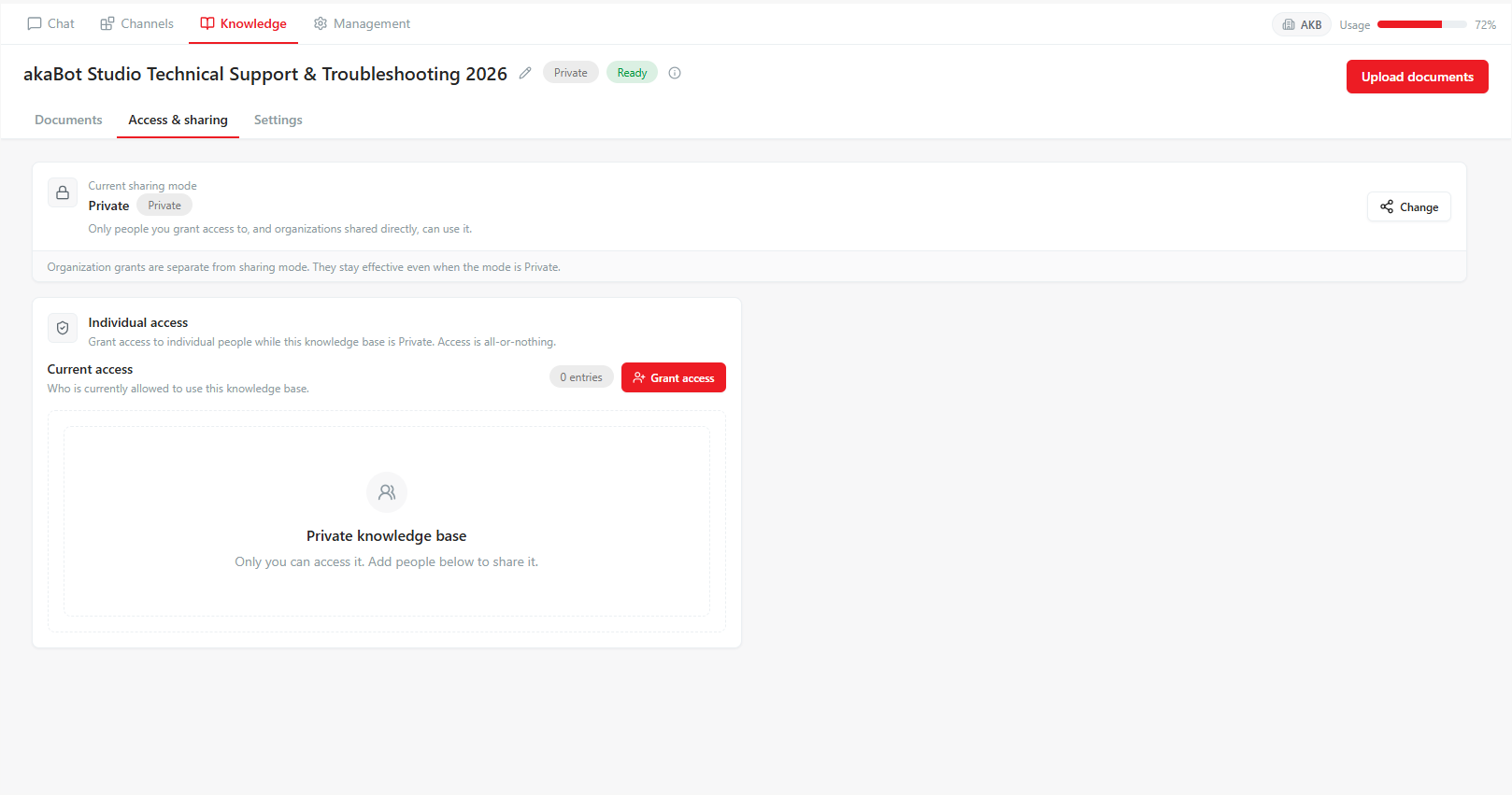
Grant individual access
Prerequisites
- Access-management permission for the knowledge base.
- The knowledge base sharing mode is set to Private or another mode that supports individual access grants.
Procedure
- Open Access & sharing.
- Select Grant access or the equivalent action.
- Search for a user, robot, token, or service identity.
- Confirm the exact identity within the active organization.
- Grant access.
- Verify that the principal appears in Current access.
To revoke, select the entry, choose Revoke, read the impact, and confirm. Test effective access if the principal also belongs to a group grant.
Change the embedding model
Changing the embedding model requires re-indexing all documents because vector representations are model-specific.
Procedure
- Confirm the new model is ready and approved.
- Schedule the change outside peak hours for a large knowledge base.
- Record affected Channels and expected unavailability.
- Change the model and save.
- Select Reprocess all when instructed by the UI/process.
- Monitor until all required documents are Ready.
- Re-run retrieval tests on affected Channels.
Delete a knowledge base
Deletion is permanent and removes its documents. Before deletion:
- Identify Channels that reference it
- Confirm retention/legal-hold requirements
- Export or retain authoritative source documents through the owning business process
- Obtain required approval
- Type the exact knowledge-base name when prompted.
After deletion, test affected Channel drafts and active versions as required by change policy.
Best practices
Update documents without disrupting users
- Identify affected knowledge bases and Channels.
- Upload the new document version with a distinguishable name/date.
- Wait for Ready and inspect extraction.
- Test retrieval through a Channel draft.
- Remove the obsolete document only after validation and retention approval.
- Re-test the active user flow if the change is material.
Where to go next
- Ready to use this knowledge base in a Channel? Attach it to a Channel — see Channels: Attach Knowledge Bases.
- Documents stuck in Pending, Failed, or Waiting to be indexed? See Troubleshooting.