Troubleshooting Common Activities
This document provides causes, diagnostic guidelines, and solutions for the most frequent runtime errors and exceptions encountered when executing workflows with the Common Activities package (RCA.Activities.Common) in akaBot (covering Browser, Windows, Element, Java, and SAP automation).
Note: For troubleshooting issues specifically related to Semantic Selectors, refer to the Semantic Selector Guide.
Common Exceptions and Issues
The table below details the most common exceptions thrown by the Common Activities package (RCA.Activities.Common):
| Exception / Error | Root Causes in akaBot | Troubleshooting Steps & Solutions |
|---|---|---|
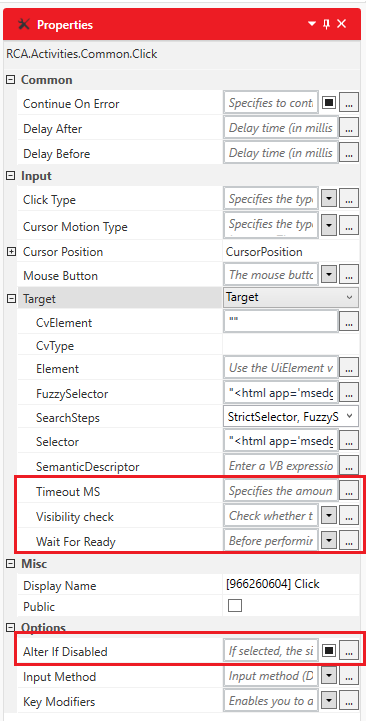
ElementNotFoundException(Cannot find element with selector) | • Dynamic Attributes: Element technical attributes (id, class, idx) change between sessions or reloads.• Render Latency: The element is not yet created in the DOM or UI tree when the activity executes. • UI Framework Incompatibility: The default framework cannot detect the element. • Iframe / Container Mismatch: The target element resides in a separate iframe, frame, or shadow root. | • Tune the Selector: Open the Selector Dialog via Properties > Input > Target > Selector. Uncheck volatile attributes, and replace dynamic values with wildcards (*, ?) or variables ({{var}}). Refer to the Selector Guide.• Use UI Explorer: Open UI Explorer to inspect the complete visual hierarchy, find stable ancestor nodes, and select reliable attributes or anchors. • Switch UI Framework (F4): During indication, press F4 to cycle between Default, UIA, and MSAA. • Enable Fallback Search Steps: Enable Fuzzy selector (Accuracy: 0.4 → 1.0) or visual matching via Image (F3) and CV (F8) in the Selection Options window. • Increase TimeoutMS: Increase TimeoutMS under Target (in milliseconds, default: 30000).• Pre-check with Element Exists: Add an Element Exists activity before the action to ensure the element is loaded. |
BrowserNotSetException / WindowNotSetException | • A web or window activity (e.g., Click, Type Into, Get Text, Close Tab) is executed outside its required scope container without a container variable passed. | • Wrap Inside Scope Container: Place web activities inside the Do block of an Open Browser or Attach Browser scope activity. • Place desktop window activities inside Open Application or Attach Window. • Pass Scope Variable: If the activity is used standalone, pass the output UiBrowser (or UiWindow) variable into the activity's Browser (or Window) property. |
BrowserTabNotFoundException(Cannot find browser tab with selector) | • In Attach Browser, the specified selector does not match any open tab in the selected browser. • The page URL redirected or the tab title changed dynamically. | • Use Wildcards in Title: In the Attach Browser selector, replace dynamic title fragments with wildcards (e.g., <html app='chrome.exe' title='*Dashboard*' />).• Verify Browser Type: Ensure the Browser Type property ( BrowserName) matches the actual running browser (Chrome, Edge, Firefox, IE). |
InvalidSelectorException | • The selector XML string is malformed (e.g., unescaped quotes, unclosed tags, invalid characters). • Missing mandatory root tag (e.g., <html app='...' /> for web or <wnd app='...' /> for desktop). | • Validate XML in Selector Dialog: Open the selector in the Selector Dialog to verify XML formatting. • Check Variable Syntax: When injecting variables into selectors, ensure they follow the double curly brace syntax {{variableName}} and use valid variable identifiers. |
ActivityTimeoutException | • Wait activities (such as Wait Web Attribute, Wait Web Title, or Wait Page Load Complete) timed out before the expected condition was met.• Heavy network delay or background scripts preventing page completion. | • Adjust WaitForReady: Under Target > WaitForReady, set to Complete for full document load, or Interactive / None if background polling scripts prevent the browser from reporting complete. • Increase TimeoutMS: Increase the activity timeout value (in milliseconds). |
| Disabled Element / Action Blocked | • The element is found on screen but is currently in an inactive or disabled state (IsEnabled = False), causing click or type actions to fail. | • Verify Business Flow: Ensure preceding prerequisites (e.g., required form inputs completed, terms checkbox checked) are satisfied before clicking the action button. • Enable Alter If Disabled: On activities that support it (Click, Type Into, Check, SelectItem, SelectMultipleItems), check the Alter If Disabled property to force the interaction. |
Background Automation and Input Methods
If clicks or keyboard input fail during unattended execution or when the target window is behind other windows, check the Input Method property on the activity:
| Input Method | How It Works | Best Used For | Considerations |
|---|---|---|---|
Default | Emulates hardware mouse and keyboard events at the OS level. | Legacy desktop applications that do not support API or window messages. | Foreground only: Requires the window to be active and visible. Fails if the workstation is locked or screen saver is active. |
Simulate | Directly triggers internal event handlers in the application or DOM (e.g., JavaScript click() or value assignment). | Web browsers and standard desktop applications in unattended automation. | 100% background compatible: Works when the window is minimized or behind other windows. Fastest execution speed. Does not move the mouse cursor. |
WindowMessage | Sends Win32 messages (WM_LBUTTONDOWN, WM_KEYDOWN) directly to the window control handle. | Windows desktop controls (Win32, WinForms). | Works in the background for supported desktop applications without moving the physical cursor. |
Tip — Adding Delays: For UI controls with hover animations or slow JavaScript event listeners, use DelayBefore and DelayAfter (in milliseconds) on the Click or Type Into activity to give the application time to stabilize.
Browser Automation Troubleshooting
When automating web applications (Chrome, Edge, Firefox), check the following common failure points:
1. akaBot Web Extension and Native Host
- Web Extension Status: Ensure the akaBot Web Extension is installed, enabled, and allowed in Incognito/InPrivate mode if automating private sessions.
- Native Host Communication: akaBot communicates with the browser via
Aka.RPA.NativeMessagingHost. If enterprise antivirus or group policy blocks native messaging hosts, the robot cannot interact with tabs. - For setup instructions, see the akaBot Web Extension Installation Guide.
2. Browser Type Mismatch
- In Open Browser and Attach Browser, ensure the Browser Type property matches the browser executable you are launching or attaching to (
Chrome,Edge,Firefox,IE).
3. User Data Folder and Multiple Profiles
- If an existing Chrome/Edge profile is locked by another running browser instance, Open Browser may fail to start or connect.
- In Open Browser, configure User Data Folder Mode:
Default: Uses the user's default browser profile.AutomaticFolder: Automatically creates an isolated user data directory to prevent profile lock conflicts.CustomFolder: Specifies a custom folder path via User Data Folder Path.
4. Windows Privilege Level (UIPI)
- If akaBot Studio or Robot runs with elevated privileges (Run as Administrator) while the web browser runs as a standard user (or vice versa), Windows User Interface Privilege Isolation (UIPI) will block communication between the processes. Always launch both Studio/Robot and the browser with matching privilege levels.
Technology-Specific Troubleshooting
Java Applications
To inspect and automate UI elements in Java applications (Swing, AWT), Java Access Bridge must be enabled on the robot machine.
Step 1 — Verify 64-bit Java installation:
Open Command Prompt (cmd) and verify that 64-bit Java is installed:
java --version
Example output:
C:\Users\AKB-DatBA>java --version
java 17.0.12 2024-07-16 LTS
Java(TM) SE Runtime Environment (build 17.0.12+8-LTS-286)
Java HotSpot(TM) 64-Bit Server VM (build 17.0.12+8-LTS-286, mixed mode, sharing)
Step 2 — Navigate to your JDK bin directory and enable Java Access Bridge:
Navigate to the bin folder of your installed 64-bit JDK. Note that jdk-17 in this path is an example—replace jdk-<version> with your actual installed JDK folder name (e.g., jdk-11, jdk-17, jdk-21, or custom JDK installation directory):
cd "C:\Program Files\Java\jdk-<version>\bin"
jabswitch -enable
(Note: If your JDK bin directory is already added to the system PATH environment variable, you can simply run jabswitch -enable directly from any command prompt without changing directories).
Example (for JDK 17 at default location):
cd "C:\Program Files\Java\jdk-17\bin"
jabswitch -enable
Example output:
C:\Program Files\Java\jdk-17\bin>jabswitch -enable
The Java Access Bridge has been enabled.
Important Notes:
- 64-bit Architecture: akaBot supports 64-bit Java applications with a 64-bit JDK/JRE (32-bit Java applications are not supported).
- Restart Applications: After enabling Java Access Bridge, restart akaBot Studio and the target Java application for the change to take effect.
- Check Status or Disable: To check the current status, run
jabswitch. To disable, runjabswitch -disable.
SAP GUI Automation
- Enable SAP Scripting: SAP automation requires scripting to be enabled on both the SAP server (parameter
sapgui/user_scripting = TRUE) and the SAP GUI client (SAP GUI Options > Accessibility & Scripting > Scripting > Enable scripting). - If scripting is disabled, akaBot will throw a timeout or fail to locate SAP elements.
See Also
- Selector Guide - How to diagnose, fix, and parameterize selectors using the Selector Editor.
- How to Use UI Explorer - How to inspect UI trees and build robust selectors using UI Explorer.
- Semantic Selector Guide - How to use AI-powered element targeting when traditional selectors fail.