Setup Guide: Save Mail & Attachments
After the Agent has read emails, you can:
- save each email as an
.emlfile with Save Mail, and - save the attached files to a folder with Save Mail Attachments.
Both activities work with emails read by Get Outlook Mail Messages, Get IMAP Mail Messages, Get POP3 Mail Messages or Get Exchange Mail Messages.
Reading emails from your company's own Exchange Server? Set up Get Exchange Mail Messages first with Setup Exchange (EWS), then continue with this guide.
1. Information You Need
| Information | Where to get it | Example |
|---|---|---|
| Emails | The Messages output of a Get activity | mailList |
| File Path (Save Mail) | A full path ending in .eml. The folder must already exist | "C:\Mails\invoice.eml" |
| Folder Path (Save Mail Attachments) | The folder for the attachments. It is created if it does not exist | "C:\Mails\Attachments" |
| Filter (optional) | A pattern for the file names to keep (see Step 2.4) | "(?i)\.pdf$" |
2. Build the Workflow
Step 2.1: Read the Emails
- Add any Get activity, for example Get Outlook Mail Messages.
- In its Messages output, click the box, press Ctrl+K and type
mailList. In the Variables panel, check that the type isList<MailMessage>and the scope is the Sequence that also contains the For Each loop.
Step 2.2: Loop Through the Emails
- Drag a For Each activity below the Get activity.
- Set Foreach to
itemand in tomailList. - In the Properties panel, set TypeArgument to
System.Net.Mail.MailMessage. If it is not in the list, click Browse for Types... and search forMailMessage.
Step 2.3: Save Mail
All settings for this activity: Save Mail
- Drag Save Mail into the Body of the For Each loop.
- Fill in:
-
Mail Message:
item -
File Path (required): the full path and file name, for example:
"C:\ArchivedEmails\mail_" + DateTime.Now.ToString("yyyyMMdd_HHmmssfff") + ".eml"
-
- The folder (
C:\ArchivedEmailsin the example) must already exist, otherwise the activity fails. Add an activity that creates the folder before the loop if needed, or create it manually. - A file with the same name is overwritten.
- If you put the email subject in the file name, characters such as
\ / : * ? " < > |make the activity fail. The example above uses the date and time instead.
Step 2.4: Save Mail Attachments
All settings for this activity: Save Mail Attachments
- Drag Save Mail Attachments into the Body of the For Each loop.
- Fill in:
-
Message (required):
item -
Folder Path: for example
"C:\ArchivedEmails\Attachments". The folder is created if it does not exist. If empty, the files are saved in the project folder. Files with the same name are overwritten. -
Filter (optional): keep only some files. Leave empty to save all attachments.
- Only PDF files:
"(?i)\.pdf$" - PDF and Excel files:
"(?i)\.(pdf|xlsx|xls)$"
(
(?i)makes the filter ignore upper/lower case, soINVOICE.PDFalso matches.) - Only PDF files:
-
Attachments (output, optional): a variable of type
IEnumerable<String>that receives the paths of the saved files.
-
Complete Workflow
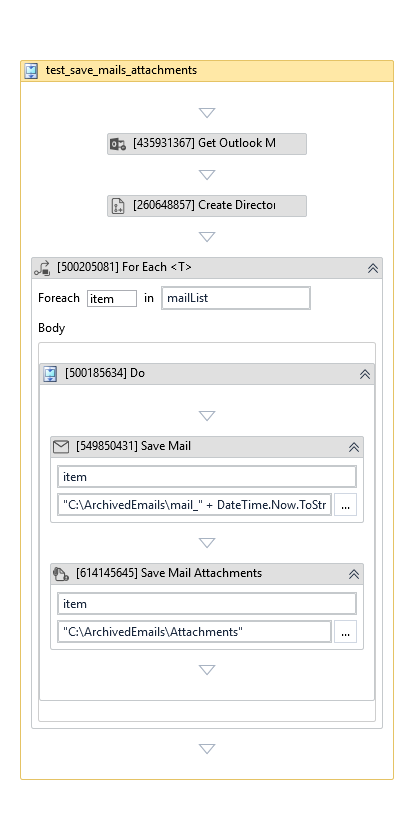
Example workflow: read the emails into mailList, create the folder, then for each item save the email as an .eml file and save its attachments.