Team Management
Teams help organize users into working groups, such as Accounting, Purchasing,...
Use teams when conversations or tickets should be assigned to a group instead of one person.
What Team Management is used for
In Organization -> Team Management, you can:
- View all teams in your workspace
- Search teams by name
- Create a new team
- Edit team information
- Add or remove team members
- Delete a team when it is no longer needed
Access and permissions
If a button is missing, contact your workspace admin to update your permissions.
Open Team Management
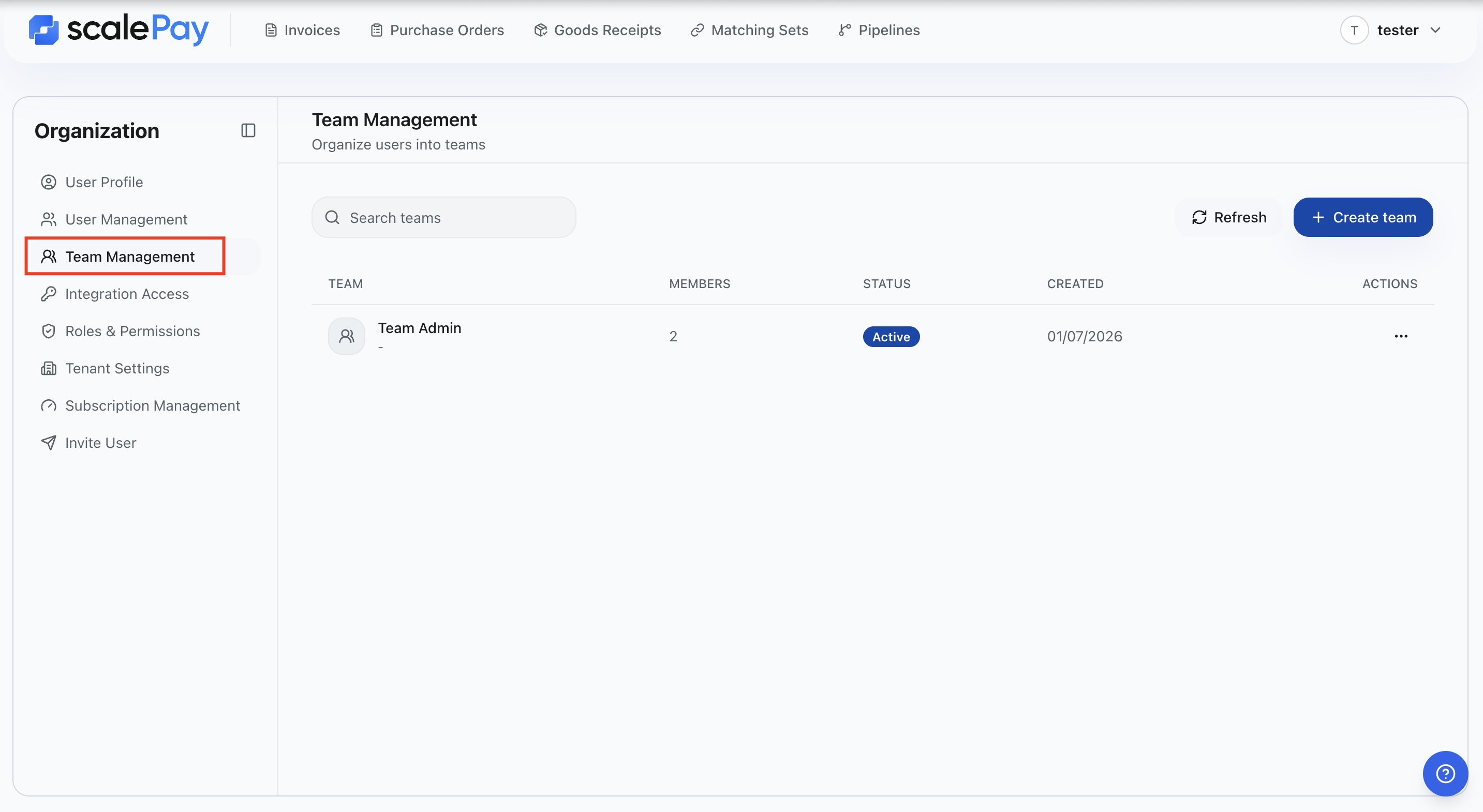
- Open Organization tab under avatar.
- Select Team Management.
- You will see the team list with key information such as:
- Team name
- Description
- Number of members
- Status
- Created date
- Actions (if you have manage)
Create a new team
Create a team when several users share the same responsibility.
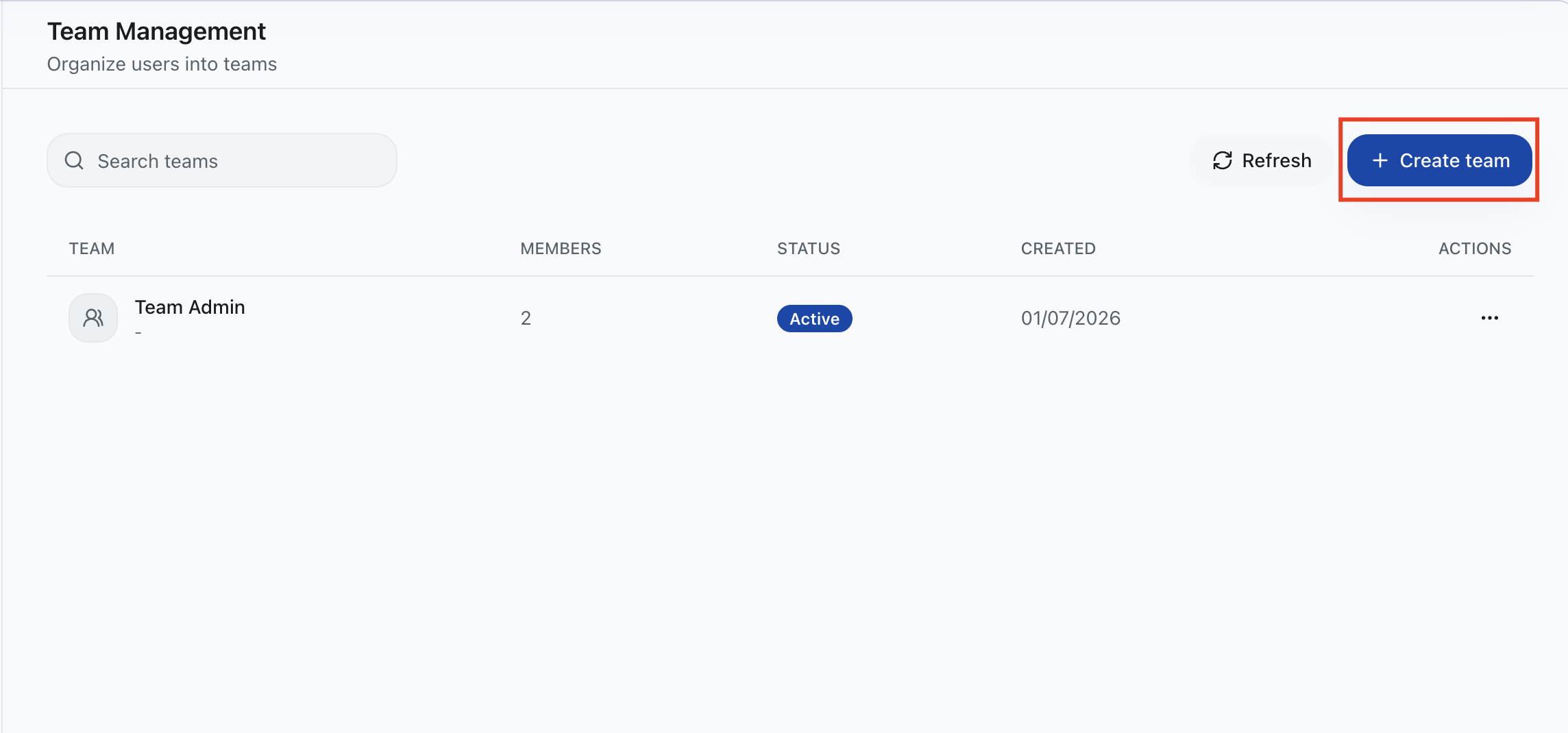
- Click + Add Team.
- Fill in required fields:
- Team name
- Optionally add:
- Description
- Initial members
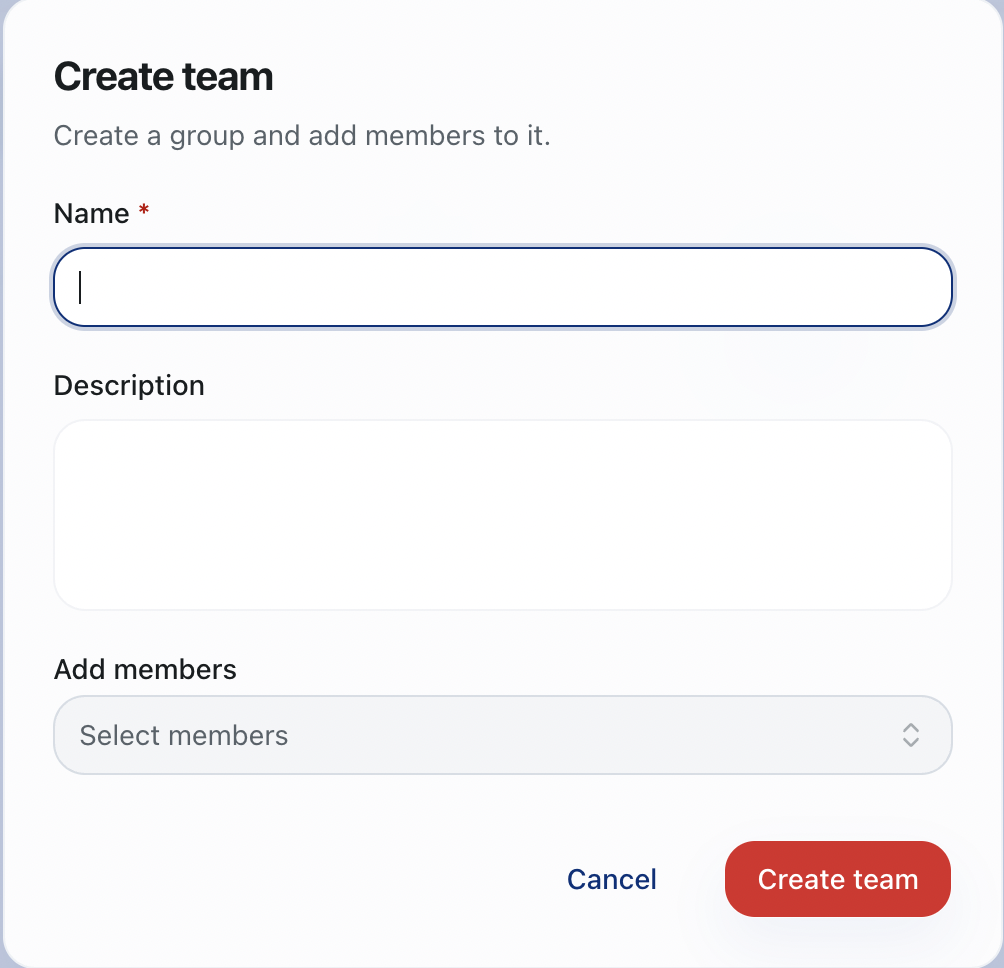
- Click Create Team.
Tips:
- Use a clear naming convention (for example:
Support - APAC,Accounting - SMB). - Create smaller teams based on workflows to improve ownership.
Add or remove team members
- In the team row, click the Edit icon.
- In Manage Members, open the member picker.
- Add users to the member list or remove users who no longer belong to the team.
- Click Save Changes.
Notes:
- A user can be moved between teams based on your organization policy.
- Update members whenever responsibility changes.
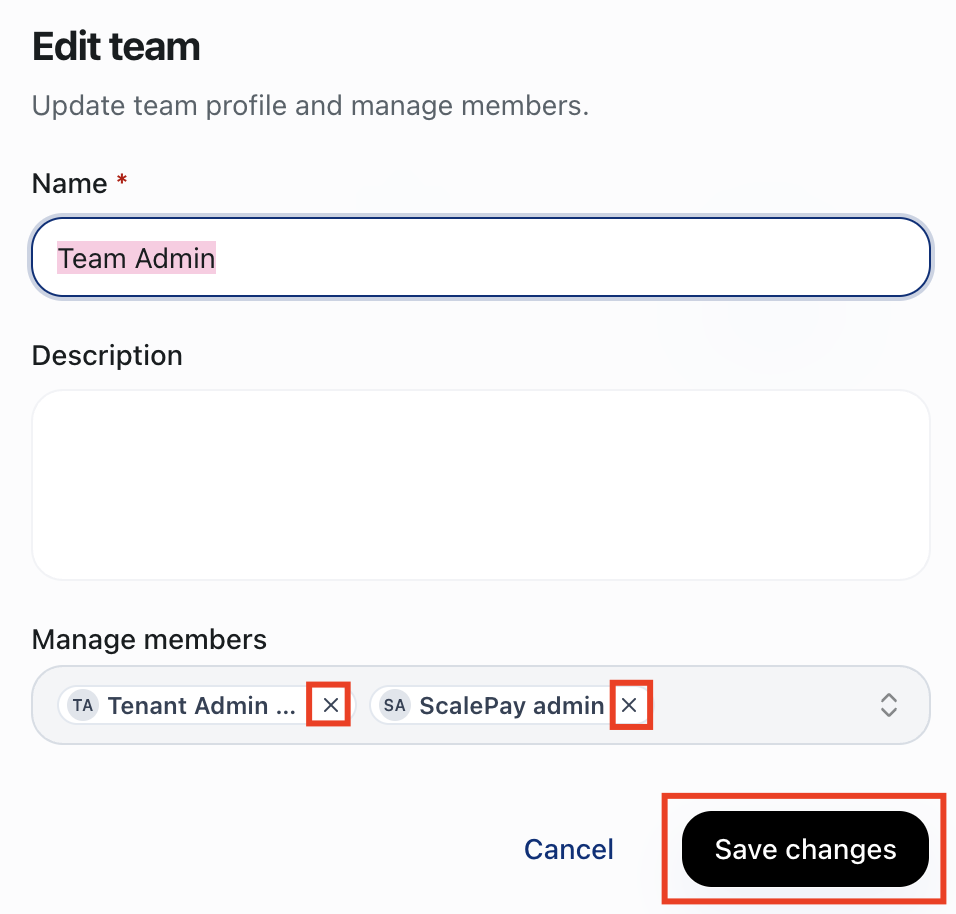
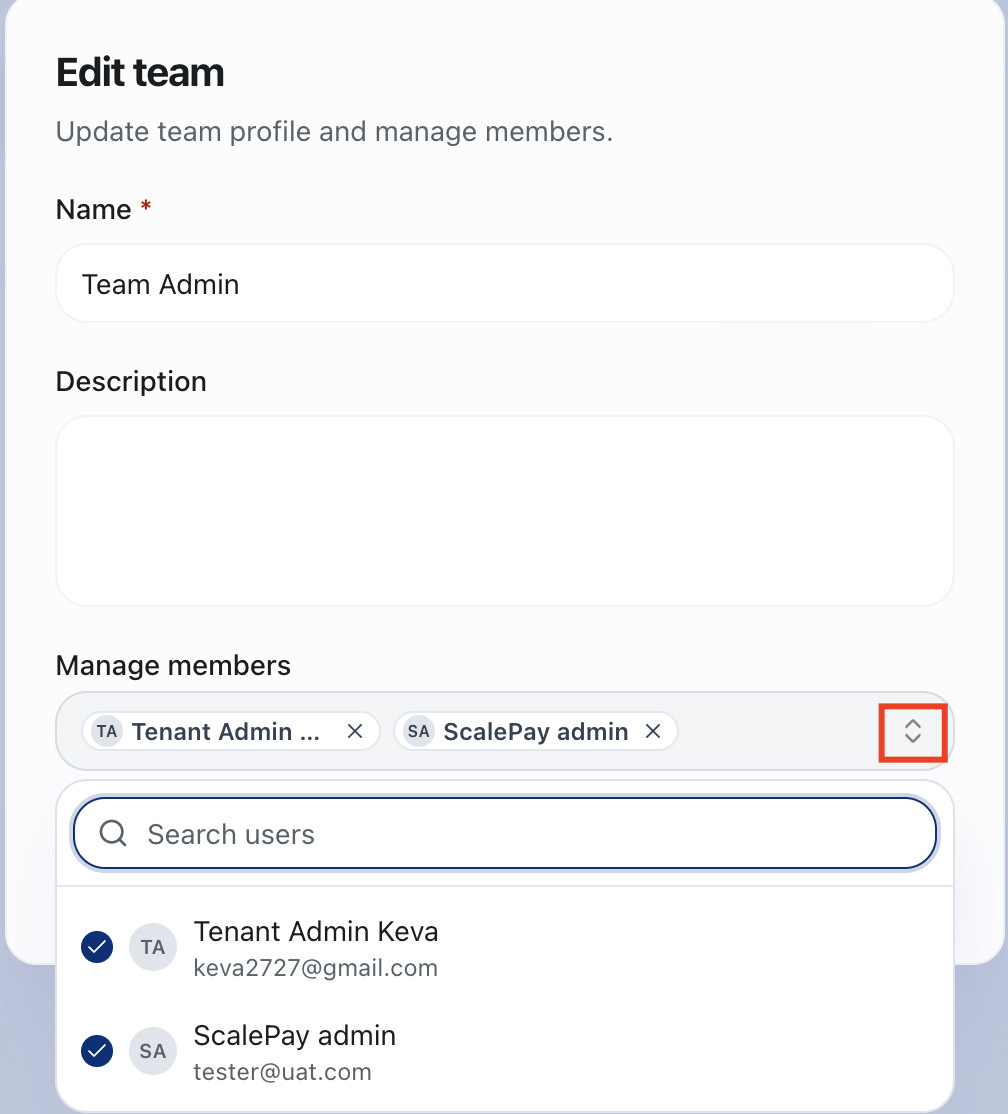
Edit team details
-
In the team row, click the Edit icon.
-
Update fields such as:
- Team name
- Description
- Members
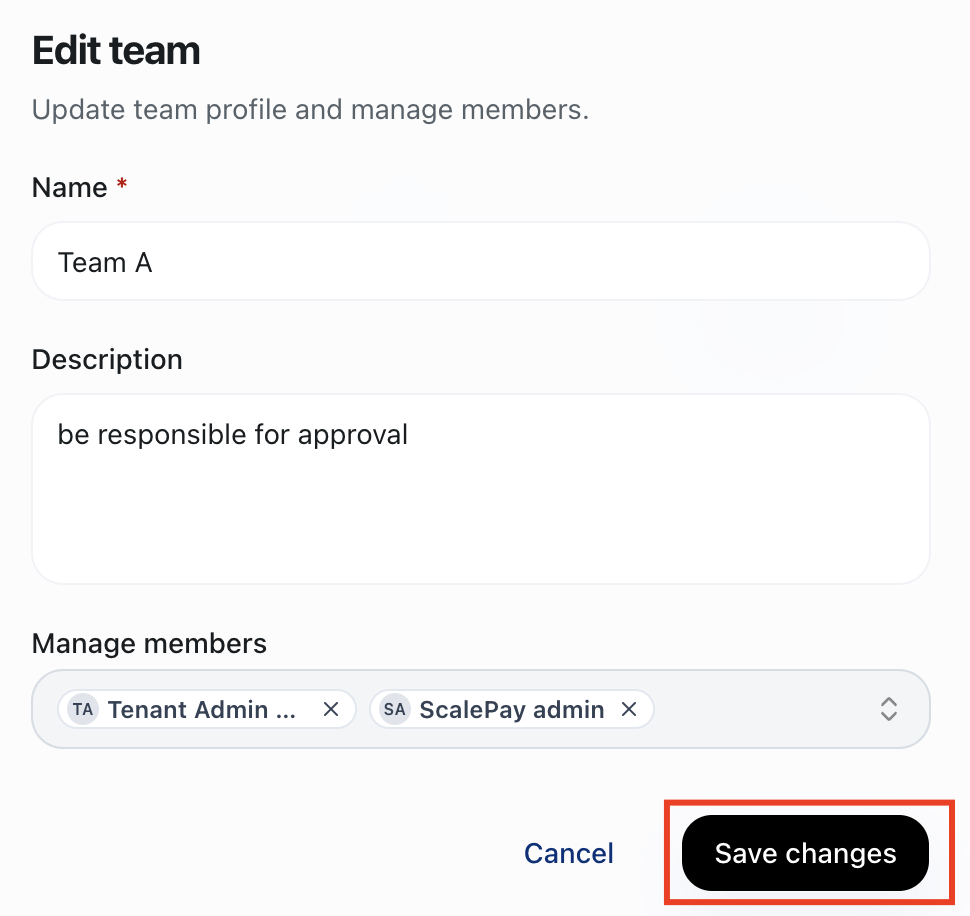
-
Click Save Changes.
Delete a team
- In the team row, click the Delete icon.
- Confirm the action in the dialog.
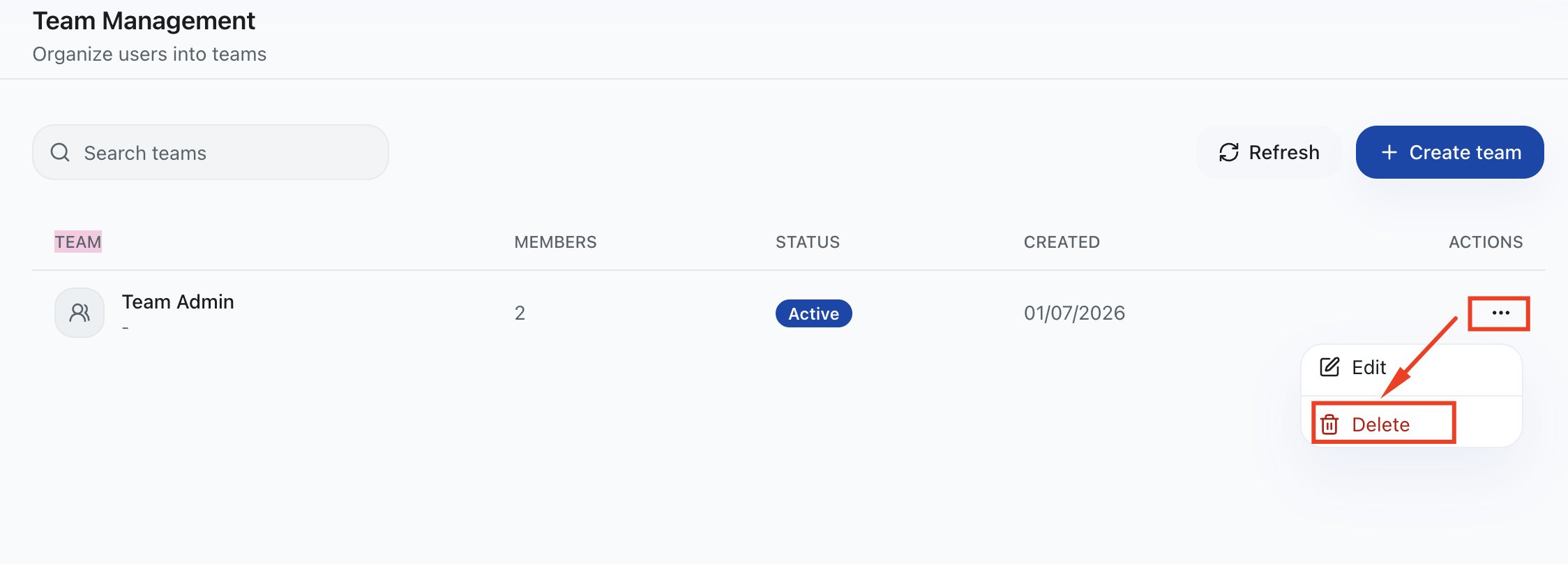
- The team is removed after successful confirmation.
Use this action carefully. Before deletion, make sure members are reassigned to another team if required by your workflow.
Notes about current UI behavior
- Team status (Active/Inactive) is displayed in the list.
- Team status is currently read-only from this page.
- Team edits are done in a modal dialog (there is no separate team detail page).
- The list supports pagination (page and page size controls).
Troubleshooting
I cannot see Team Management
- You may not have team view permission.
- Ask your admin to grant organization team view access.
I can view teams but cannot create or edit
- You may only have view permission.
- Ask your admin for team management permission.
I cannot assign members
- Member management is part of manage.
- Ask your admin to grant team management access.
My updates are not visible immediately
- Wait a few seconds and refresh the page.
- Re-open the team to verify saved changes.
- If needed, sign out and sign in again.