Wait Element Exist
RCA.Activities.Browser.WaitElementExist
Description
The Wait Element Exist activity waits for a selected element to appear in a webpage and throws an error (if required) if the desired element still is not visible after a specified time.
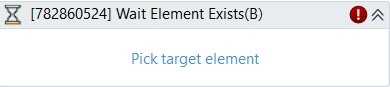
(* For Mandatory)
Container Requirement: This activity must run inside an Open Browser, Attach Browser, or Browser Scope container.
In the body of activity
- Pick target element*- Chooses the field to wait until it appears. This activity will generate a string variable (Selector) to specify the location of that field.
Properties
Common
- Continue On Error (Boolean) - A Boolean variable has two possible values: True or False.
True - allows the rest of the process to continue the execution even an error occurs within the activity.
False (default) - blocks the process from continuing the execution. - Timeout MS (Int32) - The maximum amount of time (in milliseconds) to wait for the activity to complete before an error is thrown. If the timeout expires, the activity will be terminated. Default value: 30000 (milliseconds).
E.g: 30000
Input
- Selector (String) - String of characters that identifies the specified field.
- Wait Visible (Checkbox)- Check this box if you want the automation waits for the target to be visible before executing the activity. This is checked by default
Misc
- Display Name (String) - The name of this activity. You can edit the name of the activity to organize and structure your code better.
E.g: [2343154764] Wait Elements Exists - Public (Checkbox) - Check if you want to public it. Remember to consider data security requirement before using it.
Output
- Found Element (IWebElement)* - The resulted UI element. This field supports only UiElement variables.
Scroll: To control how the system scrolls the screen to make the target element visible before performing an action*.*
- Horizontal scroll: Enter a numeric value (pixels) to scroll horizontally.
- Positive value → scroll right
- Negative value → scroll left
- E.g: 200
- Scroll element to view (checkbox): The system automatically scrolls until the target element is visible. Default setting is unchecked.
- Vertical scroll: Enter a numeric value (pixels) to scroll vertically
- Positive value → scroll down
- Negative value → scroll up
- E.g: 300
Step-by-Step Usage
- Place inside a browser container: Drag the Wait Element Exist activity into the Do container of Open Browser, Attach Browser, or Browser Scope.
- Select the target element: Click Pick target element in the activity body and select the element on the webpage you want to wait for.
- Configure properties (optional): Adjust the Timeout MS in the properties panel if you want to wait longer than the default 30 seconds.
- Run the workflow: akaBot pauses execution until the target element appears on the page or the timeout is reached.
For more information about selecting web elements and selectors, see Working with Web Elements.
Troubleshooting
- SelectorNotFoundException / Element Not Found:
- Ensure that the webpage has loaded completely before performing the action. If needed, insert a Wait Page Load Complete activity first.
- Verify that the selector is correct. If the target element contains dynamic attributes (such as changing IDs), open the Selector Editor and replace the dynamic parts with wildcard characters (* or ?).
- Ensure the target element is visible and not hidden behind overlays or loader animations. Check the Wait Visible property.
- Extension Not Enabled: Ensure the akaBot Web Extension is active and has permissions to run on the target website. Without it, Studio cannot highlight or interact with web elements.