JavaScript Alert Handling
A hands-on guide demonstrating how to handle JavaScript browser alerts on a real test website.
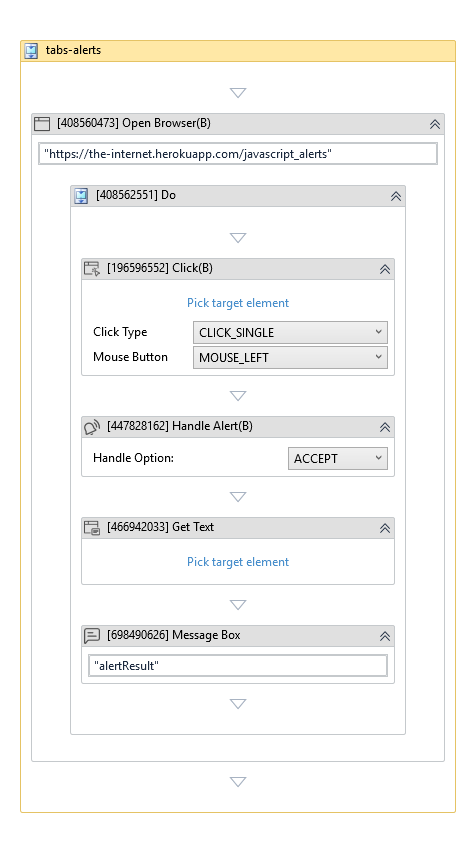
This guide shows you how to automate browser popups (JS Alerts) using a real-world testing sandbox: https://the-internet.herokuapp.com/javascript_alerts.
You will use activities including Open Browser, Click, Handle Alert, and Get Text.
What You Will Learn
- How to detect and accept JavaScript
alert()popups that block the DOM. - How to extract the result message after dismissing an alert.
- How to verify your automation worked using a Message Box.
Step-by-Step Instructions
- Open akaBot Studio and create a new Process.
- Drag an Open Browser activity inside the main Sequence.
- In the Properties panel under Input, set the Url field to
"https://the-internet.herokuapp.com/javascript_alerts". - Set Browser Type to
Chrome.
- In the Properties panel under Input, set the Url field to
- Drag a Click activity inside the Do container of Open Browser.
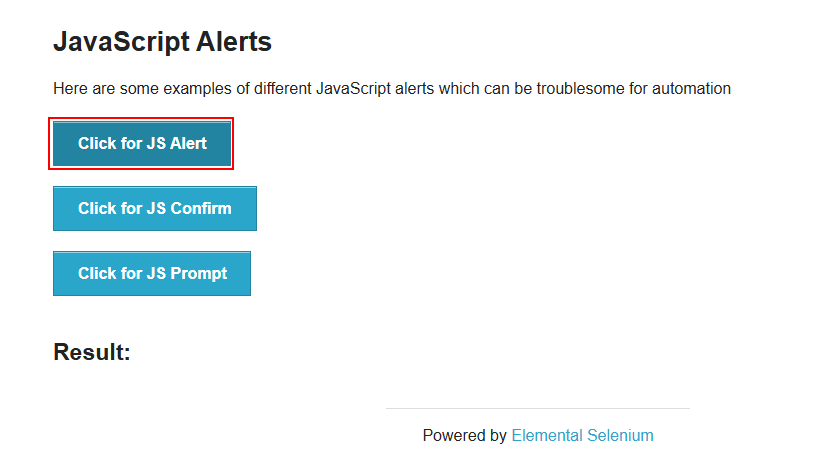
- Click Pick target element and select the button labeled Click for JS Alert on the web page.
- Drag a Handle Alert activity immediately below the Click activity.
- Select
ACCEPTfrom the Handle Option dropdown list in the activity block or in the Properties panel.
- Select
- Drag a Get Text activity below Handle Alert.
- Click Pick target element and select the result message block below the buttons (which should display "You successfully clicked an alert").
- Save the result to a variable
alertResult(usingCtrl + Kin the Result field).
- Place a Message Box activity below the Get Text activity to display the content of the
alertResultvariable. - Run the process to verify that the robot successfully clicks the button, clicks OK on the popup, extracts the result text, and shows it.