SAP Login
RCA.Activities.Common.SapLogin
Description
Use this activity to log into an SAP system.
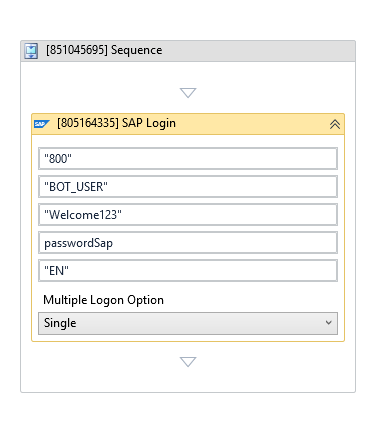
(* For mandatory)
Note: This activity logs into an SAP session window that is already open. Use a SAP Logon activity first — with SAP Logon Path and a Connection Name matching a connection saved in your SAP Logon Pad — to open that connection. Place SAP Login right after it in your workflow; this activity automatically connects to the active SAP GUI session and does not require an input window variable. This activity also requires SAP GUI Scripting to be enabled; see the Prerequisites note on the SAP Logon page.
Properties
Common
- Continue On Error (Boolean) - Specifies if the workflow should continue running even when this activity encounters an error. Only Boolean values (
True,False) or variables are supported.- True - Allows the workflow to ignore the error and continue executing subsequent activities.
- False (Default) - Stops the workflow execution and throws an error if this activity fails.
- Timeout MS (Int32) - The maximum time (in milliseconds) to wait for the login process to complete before throwing an error. Default is
5000(5 seconds).
Input
- Client (String)* - The SAP client number you want to log into (e.g.,
"800"). - Language (String)* - The language code for the SAP session interface (e.g.,
"EN"for English). - Password (String) - The password for logging into the SAP system. This is required if Is Secure is unchecked.
- Secure Password (SecureString) - The secure password (stored as a SecureString variable) used to log in. This is required if Is Secure is checked.
- Username (String)* - The username for logging into the SAP system.
Misc
- Display Name (String) - The name displayed for this activity in the designer panel. You can edit this name to organize and structure your workflow better.
E.g: [805164335] SAP Login - Public (Checkbox) - If selected, logs the execution details and variables of this activity. Consider data security requirements before enabling this option, as sensitive details could be written to the logs.
Options
- Is Secure (Checkbox) - If selected, the activity uses the Secure Password property. Otherwise, it uses the standard Password property. Default is selected.
- Multiple Logon Option (Dropdown List) - Specifies how to handle the logon if the user is already logged into the system. Default is
Single. Options include:Single(Default) - Continues with this logon and terminates any other active logons for this user.Multiple- Continues with this logon without ending any other active logons.Terminate- Terminates this logon attempt.