Password Policy
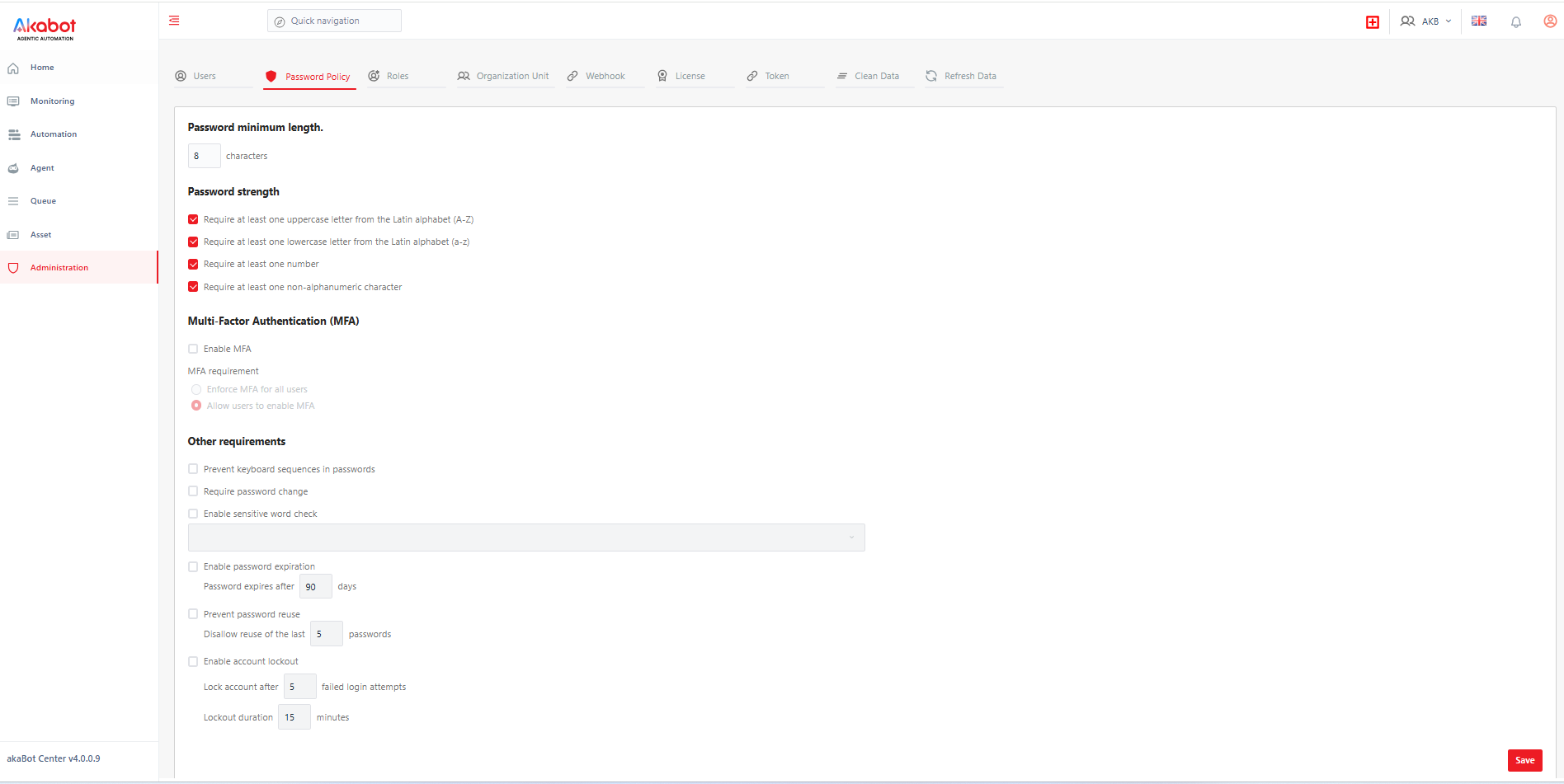
The Password Policy screen allows administrators to define the security rules that all users must follow when creating or changing their passwords, along with related account-security controls such as Multi-Factor Authentication (MFA) and account lockout.
This guide walks through each setting, explains what it does, and describes how it behaves based on the current configuration shown in the screen.
a. Password Minimum Length
The Password minimum length field controls the shortest password a user is allowed to set. Any password shorter than this value will be rejected when a user tries to create an account, reset a password, or change their password.
In the current configuration, this value is set to 8 characters. This means a password like Ab1! (4 characters) would be rejected for being too short, while a password like Passw0rd! (9 characters) would pass this particular check.

Tip: 8 characters is generally considered the minimum acceptable baseline for security. Raising it to 10–12 characters further reduces the risk of brute-force attacks.
b. Password Strength
This section defines the character composition a password must contain. In the current configuration, all four requirements below are turned on, meaning a password must satisfy all of them at the same time in order to be accepted:
- Require at least one uppercase letter (A–Z) — the password must include at least one capital Latin letter, such as
AinAkabot. - Require at least one lowercase letter (a–z) — the password must include at least one lowercase Latin letter, such as
kabotinAkabot. - Require at least one number — the password must include at least one digit, such as
2026. - Require at least one non-alphanumeric character — the password must include at least one special character, such as
!,@,#, or$.
Example of a password that satisfies all four rules: Akabot@2026 — it contains an uppercase letter (A), lowercase letters (kabot), digits (2026), and a special character (@).
Example of a password that would be rejected: akabot2026 — it is missing both an uppercase letter and a special character, so it fails two of the four requirements.

Tip: Turning off one or more of these checkboxes relaxes the rules and allows simpler passwords. This is generally not recommended unless your organization has a specific reason to do so.
c. Multi-Factor Authentication (MFA)
The Enable MFA setting turns on the ability for users to verify their identity with a second factor (such as an authenticator app or an OTP code) in addition to their password when logging in. In the current configuration, this is turned on.
Once MFA is enabled, the MFA requirement option decides how strictly it is applied, with two choices:
- Enforce MFA for all users — every user is required to set up and use MFA before they can access the system. A user who hasn't configured MFA yet will be prompted to do so on their next login and won't be able to proceed until they finish setup.
- Allow users to enable MFA — MFA becomes an optional, opt-in feature. Users can turn it on for their own account from their personal security settings if they want extra protection, but nobody is forced to.
In the current configuration, "Allow users to enable MFA" is selected. In practice, this means MFA is available to anyone who wants to use it, but logging in with just a password is still allowed — the system does not force every user to set up a second factor.

Note: If your organization needs to guarantee that every account is protected by a second authentication factor (for example, when handling sensitive data), switch this to "Enforce MFA for all users."
The two sections below explain exactly what happens for end users in each of these scenarios.
c.1 What happens when "Enforce MFA for all users" is selected
Once this policy takes effect, every user will be asked to set up MFA the next time they log in, before they can access the system:
-
Log in with your username and password as usual.
-
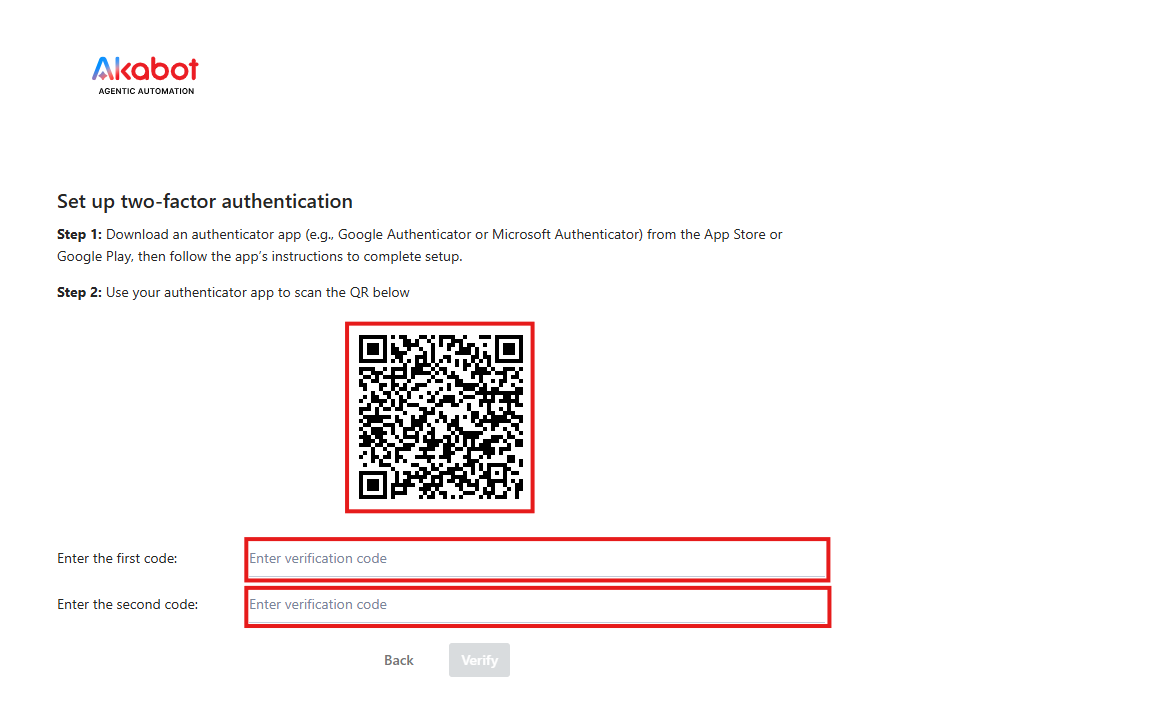
Scan the QR code shown on screen using an authenticator app (Google Authenticator, Microsoft Authenticator, etc.) on your phone. If scanning isn't possible, select Manual Entry and type in the Secret Key shown on screen instead.
-
Enter two consecutive codes generated by the app to confirm the setup: enter the current code in the first field, wait about 30 seconds for the app to generate a new one, then enter that second code in the following field.
-
Click Verify to complete the setup.
-
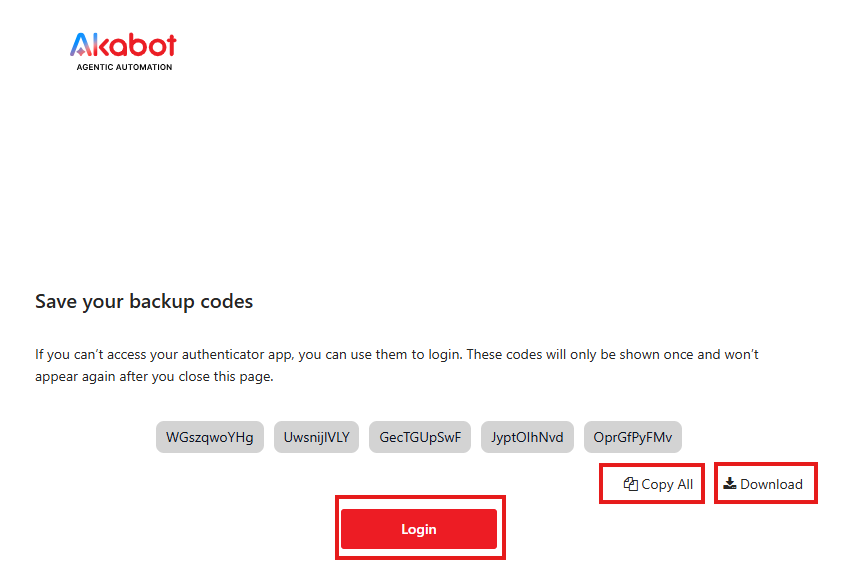
(Recommended) Save the Backup Codes shown on screen in a safe place — these let you log in if you ever lose access to your authenticator app. You can either Copy All and store them in a password manager or secure file, or Download them as a file.
-
Click Login to finish setup and enter the system. If you can't access your authenticator app for any reason, you can use one of your saved Backup Codes instead of a live code.
c.2 What happens when "Allow users to enable MFA" is selected
In this mode, MFA is optional, so it isn't automatically triggered at login. Instead, administrators can turn it on for a specific user, or users can turn it on for themselves.
Enabling MFA for a user, as an administrator:
-
Log in to Akabot Center with an administrator account.
-
Go to Administration → Users.
-
From the user list, select the account you want to enable MFA for.
-
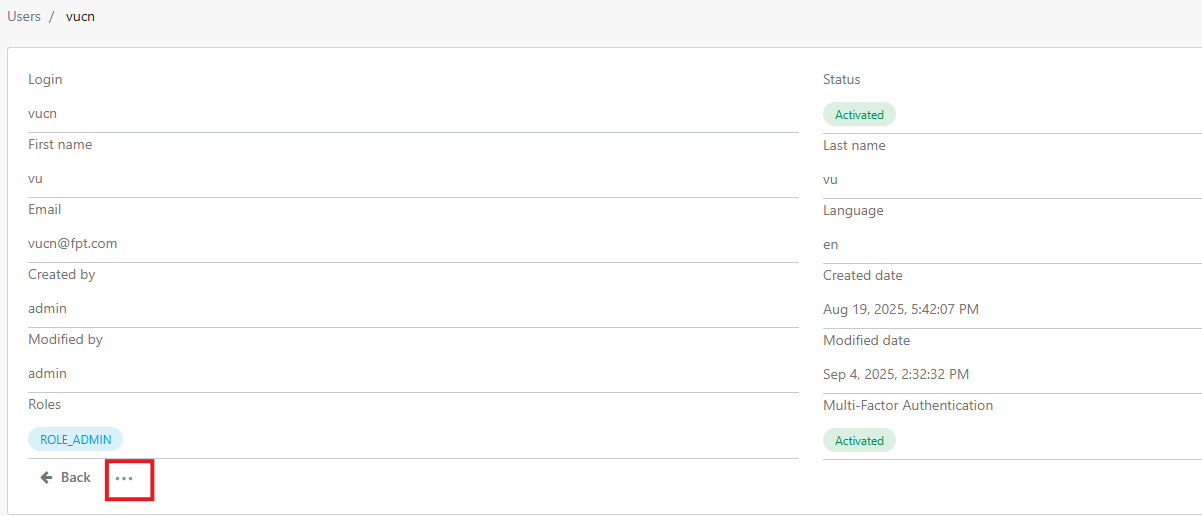
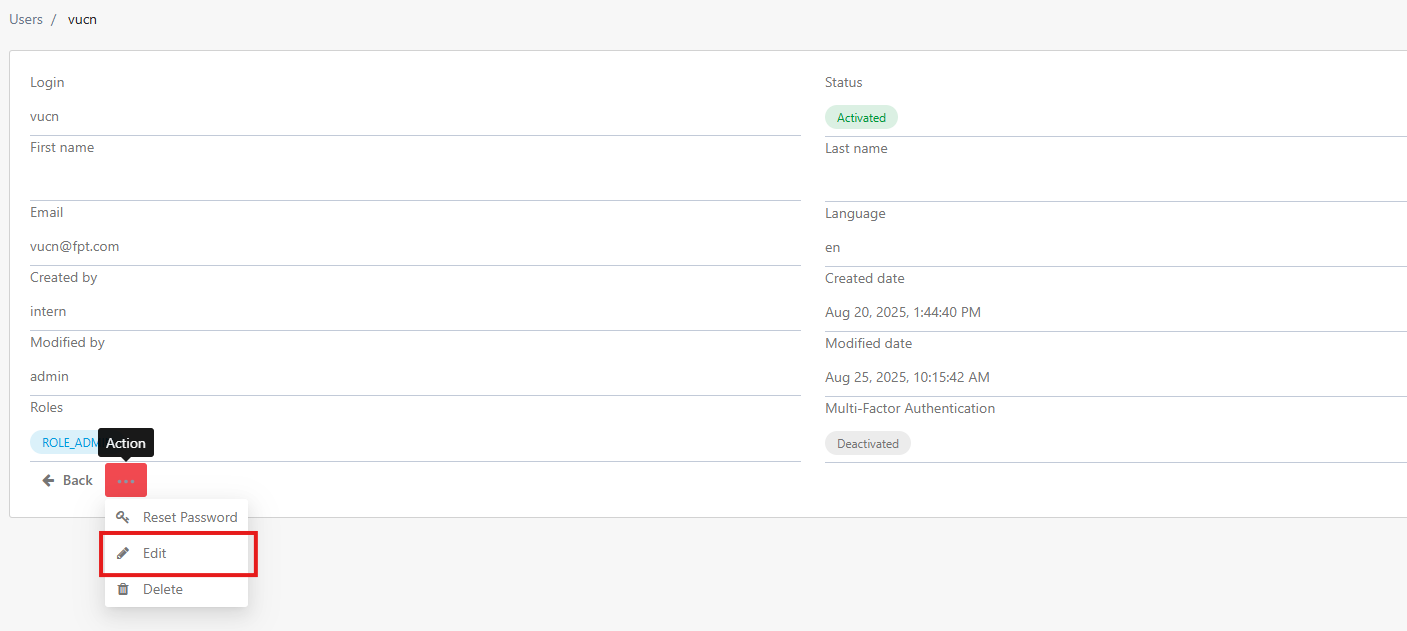
Open the account's details and click the Action button.
-
Select Edit.
-
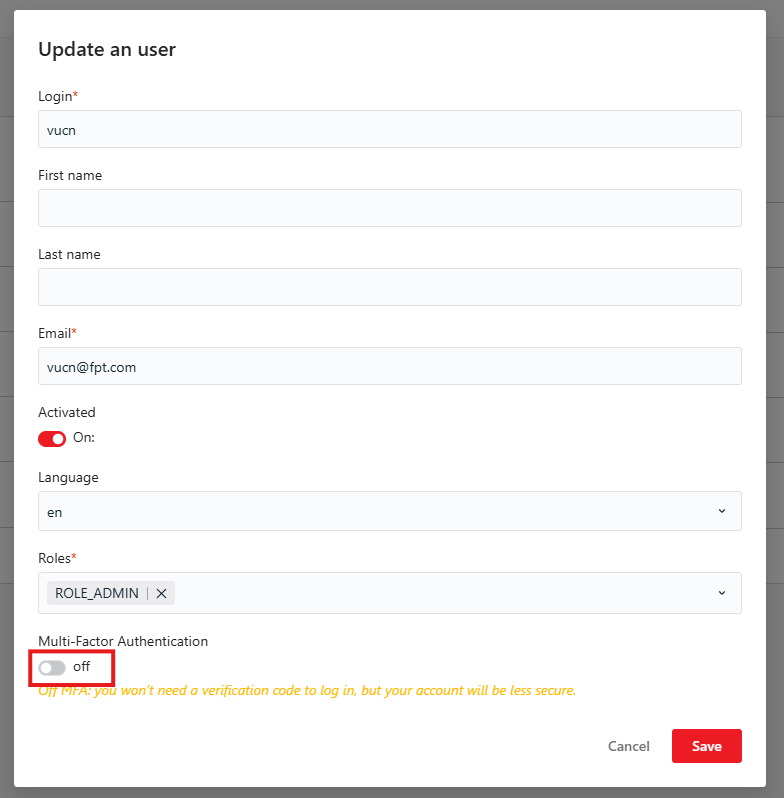
On the Update a User screen, switch the MFA toggle from Off to On.
-
Click Save to confirm. The user will now be required to complete MFA setup (scan QR code, enter authentication codes, and save Backup Codes) the next time they log in.
Enabling MFA for your own account, as a user:
-
Log in to Akabot Center.
-
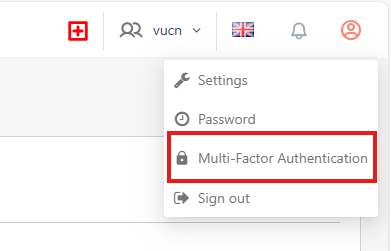
Click My Profile.

-
Select Multi-Factor Authentication.
-
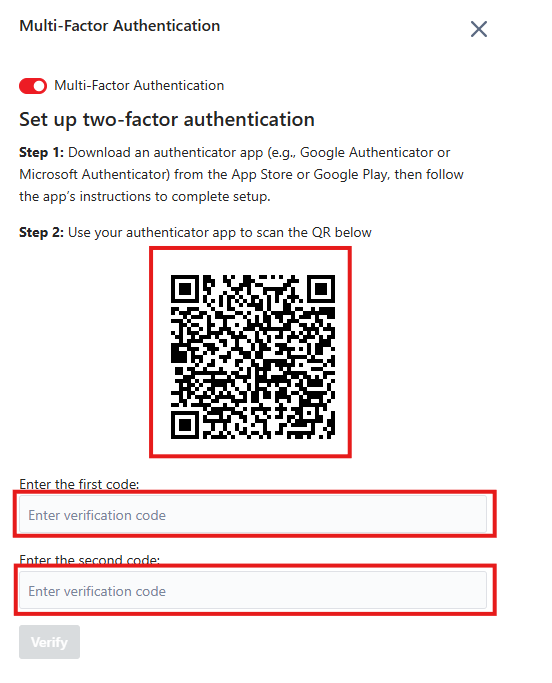
On the Multi-Factor Authentication screen, switch the toggle to enable MFA.

-
Scan the QR code shown on screen using an authenticator app (Google Authenticator, Microsoft Authenticator, etc.), or choose Manual Entry and type in the Secret Key if scanning isn't possible.
-
Enter two consecutive codes generated by the app: the current code first, then, after waiting about 30 seconds for the app to refresh, the next code that appears.
-
Click Verify to complete the setup.
-
Save the Backup Codes shown on screen — by copying and storing them in a password manager or file, or by downloading them — then click Save to finish.
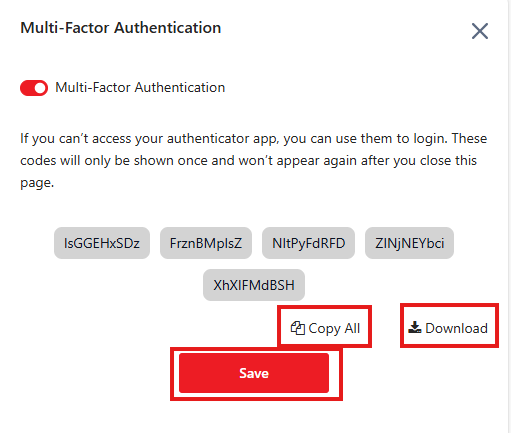
Disabling MFA for your own account, as a user:
-
Log in to Akabot Center.
-
Click My Profile.
-
Select Multi-Factor Authentication.
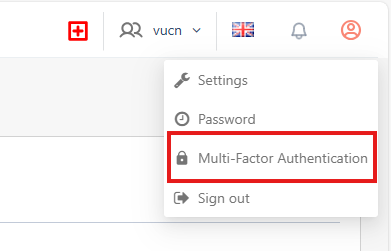
-
On the Multi-Factor Authentication screen, switch the toggle off and confirm to disable MFA.

c.3 Managing and troubleshooting MFA
Resetting MFA for a user (administrator only):
If a user loses access to their authenticator app and has no backup codes left, an administrator can reset their MFA so they can set it up again from scratch:
-
Log in to Akabot Center with an administrator account.
-
Go to Administration → Users.
-
From the user list, open the account that needs its MFA reset. (Note: only accounts that already have MFA enabled can be reset.)
-
Click the Action button.
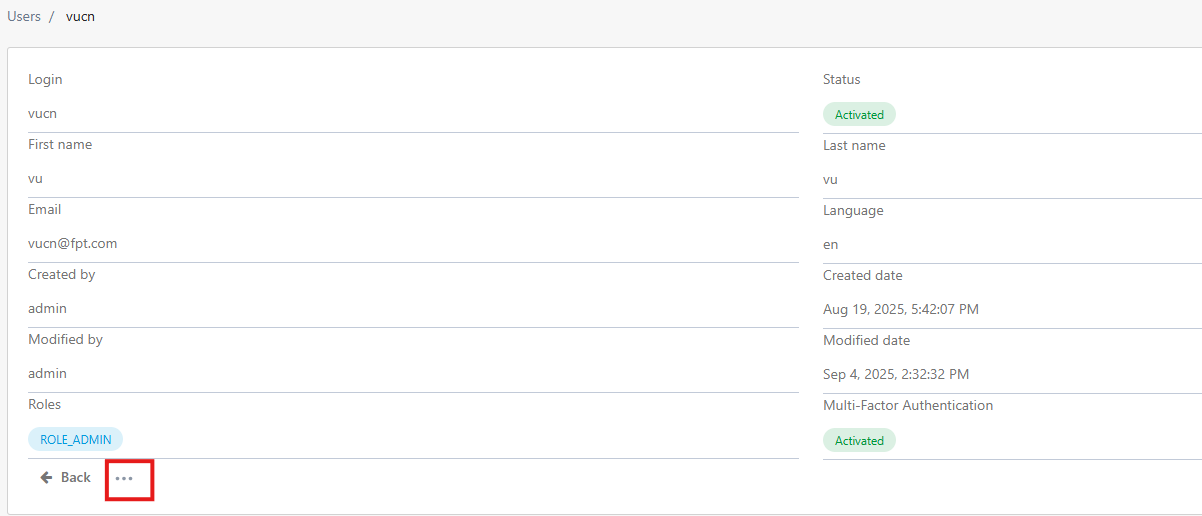
-
Select Reset MFA.
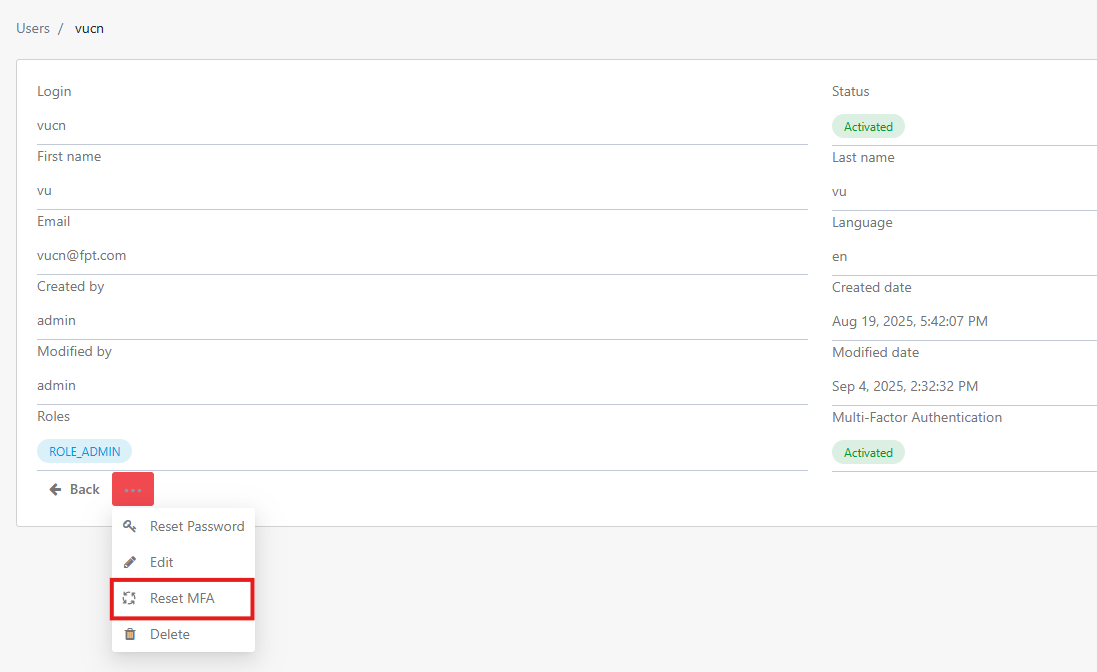
-
Confirm the action. The user's existing MFA setup is cleared, and they will be prompted to set up MFA again the next time it's required.
Common issues and how to resolve them:
- Can't scan the QR code — check that your phone's camera has a clear view and there's enough light. If scanning still doesn't work, use Manual Entry and type in the Secret Key shown on screen instead.
- "Invalid code" error when entering the authentication code — this is most often caused by the phone's clock being out of sync, since authenticator codes are time-based; make sure your device's time is set to sync automatically. Also double-check that the code was generated for the correct Akabot Center account, especially if you have multiple accounts set up in the same authenticator app.
- Lost phone or authenticator device — log in using one of your previously saved Backup Codes, then go to your account's MFA settings to disable the old setup and configure MFA again on your new device. If no backup codes were saved, contact your system administrator to have your MFA reset.
d. Other Requirements
This section groups several independent, optional security controls. Each one can be turned on or off on its own, and the current configuration keeps most of them off except for account lockout.
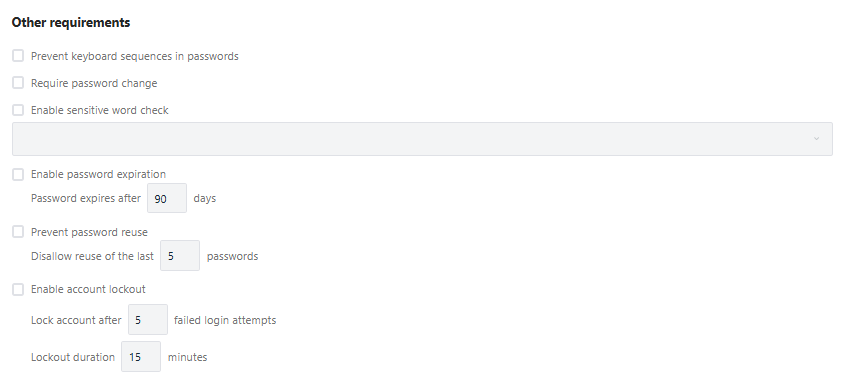
d.1 Prevent keyboard sequences in passwords
When turned on, this rule blocks passwords built from predictable keyboard patterns — for example qwerty, asdf, or 123456 — since these are easy to guess simply by looking at where the keys sit on a keyboard. In the current configuration this checkbox is left unchecked, so a password like qwerty123! would still pass, even though the pattern is easy to guess, as long as it satisfies the length and strength rules above.
d.2 Require password change
When turned on, this forces a user to change their password right after a specific event, most commonly the very first login or a password reset performed by an administrator. It's a way of making sure a temporary password an admin assigns isn't kept permanently. In the current configuration this is unchecked, so a user who receives a password from an admin can continue using it indefinitely without being prompted to change it.
d.3 Enable sensitive word check
When turned on, this stops users from including specific restricted words in their password — for example the company name, or common words like "password" or "admin" — using a word list that becomes editable in the box below the checkbox once it's enabled. In the current configuration this is unchecked, so the word list is inactive and a password such as Akabot@2026 (which contains the company name) would still be accepted.

d.4 Enable password expiration
When turned on, this forces users to change their password after a set number of days, entered in the "Password expires after" field. For example, setting it to 90 would require a password change every 90 days. In the current configuration this is unchecked, and the field shows 0 days — since the feature itself is off, this number has no effect and passwords never expire.
d.5 Prevent password reuse
When turned on, this stops a user from setting a new password that matches one of their previous passwords, based on how many past passwords are remembered, entered in the "Disallow reuse of the last ___ passwords" field. For example, setting it to 5 would prevent reusing any of the last 5 passwords. In the current configuration this is unchecked and the field shows 0, so users are free to reuse an old password at any time.
d.6 Enable account lockout
This is the one setting in the "Other requirements" section that is currently turned on, and it protects against brute-force login attempts by temporarily locking an account after repeated failed logins.
Two fields work together here:
- Lock account after ___ failed login attempts, currently set to
3— meaning a user who enters the wrong password three times in a row will have their account locked. - Lockout duration ___ minutes, currently set to
2— meaning the account stays locked for 2 minutes before the user can try logging in again.

Example: A user mistypes their password on attempts 1, 2, and 3. After the third failed attempt, the account locks automatically. The user must wait 2 minutes before attempting to log in again.
Tip: A 2-minute lockout is fairly short and mainly slows down automated attacks rather than stopping them completely. For higher-security environments, consider a longer duration (for example, 15–30 minutes) or a lower attempt threshold.
e. Saving Changes
After adjusting any of the settings above, click the Save button in the bottom-right corner of the screen to apply the changes.
Two things worth keeping in mind:
- Changes to the length and strength rules only apply going forward — existing passwords that don't meet the new rules aren't automatically invalidated unless combined with "Require password change" or "Enable password expiration."
- Switching the MFA requirement to "Enforce MFA for all users" may prompt users who are already logged in to set up MFA the next time they log in.
f. What This Means in Practice
Put together, the current configuration means that when someone creates or changes a password in the system, it must be at least 8 characters long and include an uppercase letter, a lowercase letter, a number, and a special character — for example, Akabot@2026 would work, while akabot2026 would not.
MFA is available for anyone who wants extra protection on their account, but it isn't required to log in. There's no restriction yet on keyboard patterns, restricted words, or password reuse, and passwords never expire on their own. The one safeguard actively working in the background is account lockout: three wrong password attempts in a row will lock an account for 2 minutes, which helps slow down anyone trying to guess a password by brute force.