Refresh Data
The Refresh Data screen allows administrators to manually synchronize and refresh system data across akaBot Center entities (such as Tasks, Logs, Queues, Users, and Workflows). In an enterprise automation environment, akaBot Center maintains search and indexing records to deliver high-performance searching, filtering, and analytical queries across large volumes of operational records.
Under specific circumstances—such as after direct database maintenance, backup restorations, data migrations, or when search results show temporary discrepancies—search records may fall out of sync with underlying database records. The Refresh Data feature empowers administrators to trigger an on-demand data synchronization for individual entities or across the entire platform to restore full data consistency.
To access the Refresh Data screen, navigate to Administration in the left navigation sidebar and select the Refresh Data tab from the top navigation bar.
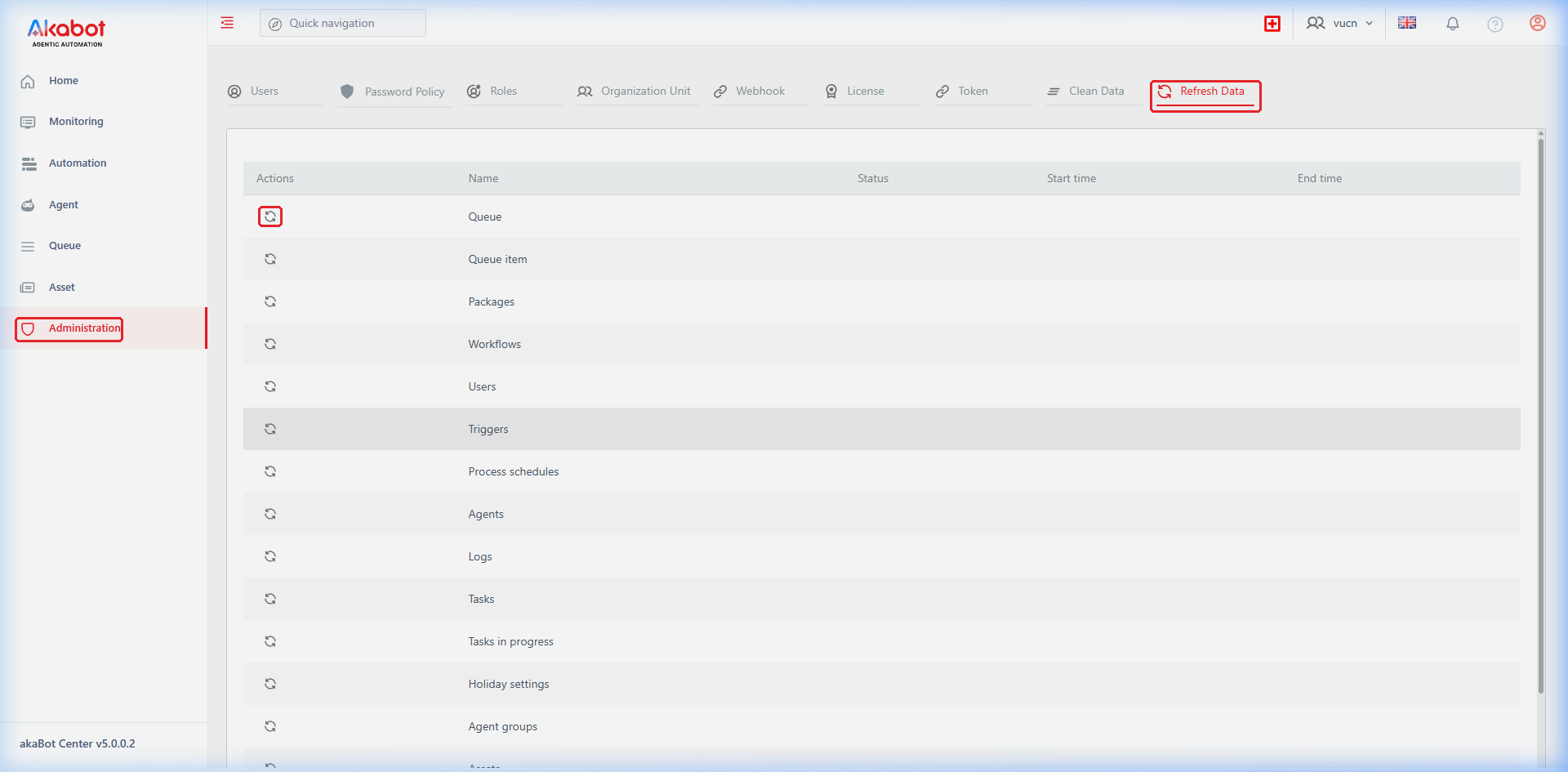
Refresh Data Dashboard Overview
The main listing screen displays all system entities eligible for data synchronization, along with their current status and execution timestamps.
| No | Column | Description |
|---|---|---|
| 1 | Actions | Action controls for each system entity: • Refresh (Sync Icon): Opens a confirmation dialog to initiate data synchronization for that specific entity. |
| 2 | Name | The formal name of the system entity eligible for synchronization (e.g., Queue, Users, Agents, or All data). |
| 3 | Status | Current state of the refresh task: • Completed: The data synchronization finished successfully. • In Progress: Synchronization is actively executing in the background. • (Empty): No refresh operation has been performed for this entity in the current session. |
| 4 | Start time | Date and exact timestamp when the synchronization process began. |
| 5 | End time | Date and exact timestamp when the synchronization process finished. |
a. Supported System Entities for Data Refresh
akaBot Center supports selective data synchronization for 15 core system entities:
| No | Entity Name | Description & Synchronized Data |
|---|---|---|
| 1 | Queue | Synchronizes queue definitions, configuration properties, and transaction state summaries. |
| 2 | Queue item | Synchronizes individual queue transaction items, specific content payloads, retry counts, and processing states. |
| 3 | Packages | Updates published automation package metadata, Studio workflow packages, and version manifests. |
| 4 | Workflows | Synchronizes process definitions, deployed package versions, and agent assignment rules. |
| 5 | Users | Synchronizes user profiles, permission mappings, organization unit memberships, and security policies for user search. |
| 6 | Triggers | Synchronizes automated schedule triggers, condition triggers, and fire event listeners. |
| 7 | Process schedules | Synchronizes preplanned execution schedules, recurring cron triggers, and linked robot queues. |
| 8 | Agents | Updates connected Agent records, machine availability states, runtime licenses, and IP endpoints. |
| 9 | Logs | Updates historical robot logs, message severities, and log content for fast searching and log analytics. |
| 10 | Tasks | Synchronizes task execution instances, historical execution parameters, and completed process states. |
| 11 | Tasks in progress | Updates active workflow runs, current execution locks, and real-time agent allocations. |
| 12 | Holiday settings | Synchronizes enterprise non-working calendar definitions, national holidays, and scheduler pause rules. |
| 13 | Agent groups | Refreshes agent group clusters, capacity limits, and deployment group memberships. |
| 14 | Assets | Synchronizes asset names, scopes, and types (excluding encrypted secrets) for asset search. |
| 15 | All data | Initiates a comprehensive, sequential synchronization across all 14 entities listed above. |
b. Performing On-Demand Data Refresh
Administrators can initiate data refresh at any time when search results, dashboard filters, or entity lists fail to reflect current database records.
Step-by-Step Instructions:
-
On the Refresh Data screen, locate the target entity row (e.g., Queue or All data).
-
Click the Refresh (Sync Icon) button in the Actions column.
-
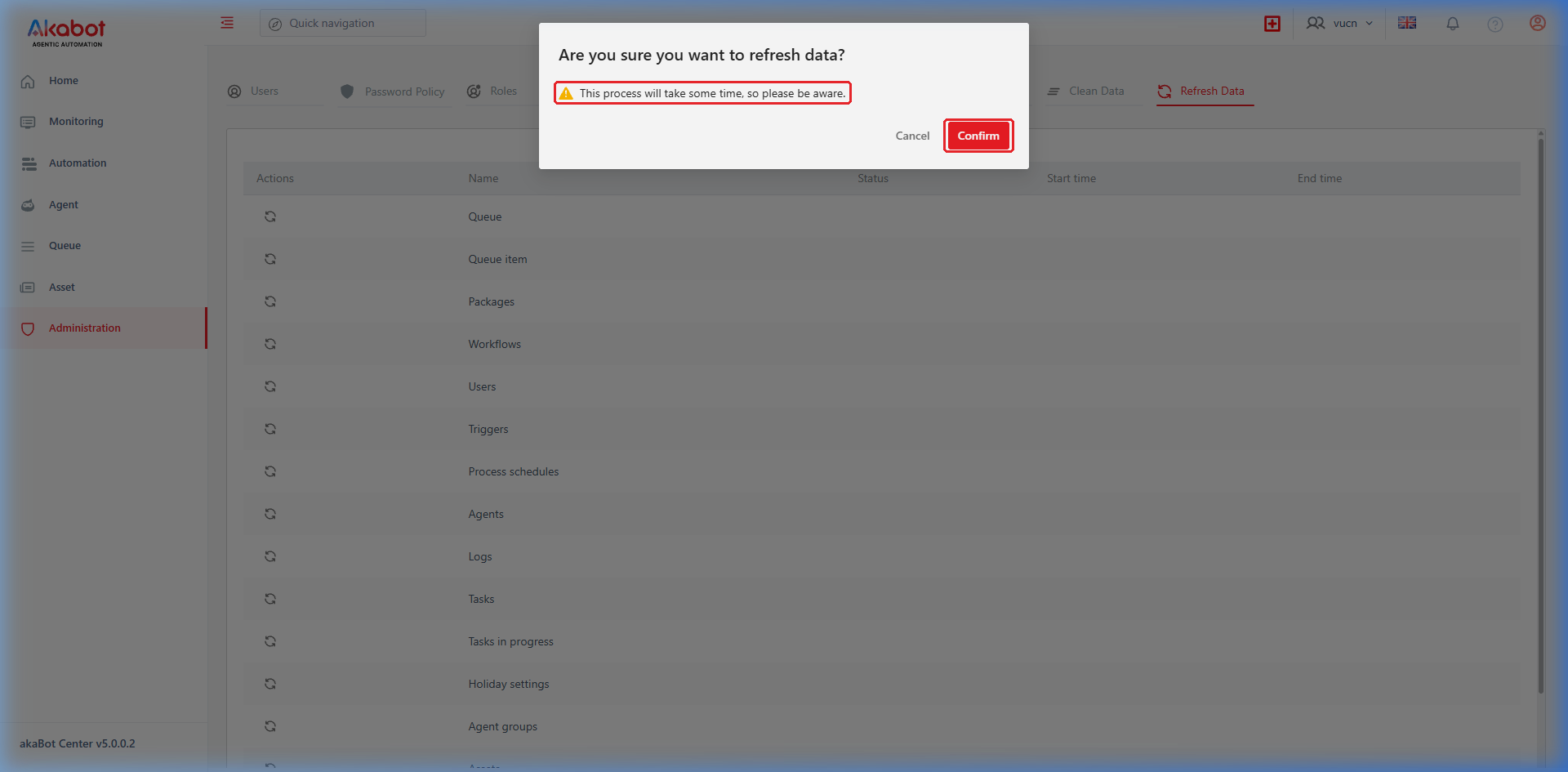
A confirmation dialog appears with the message:
"Are you sure you want to refresh data? This process will take some time, so please be aware."
-
Click the red Confirm button to start the synchronization process (or Cancel to dismiss).
-
A confirmation notification "Refresh data successfully" appears in the top-right corner, and the system submits the background synchronization job.
c. Monitoring Refresh Execution & Status
Once a refresh job is submitted, its progress and outcome are reflected in real time on the dashboard:
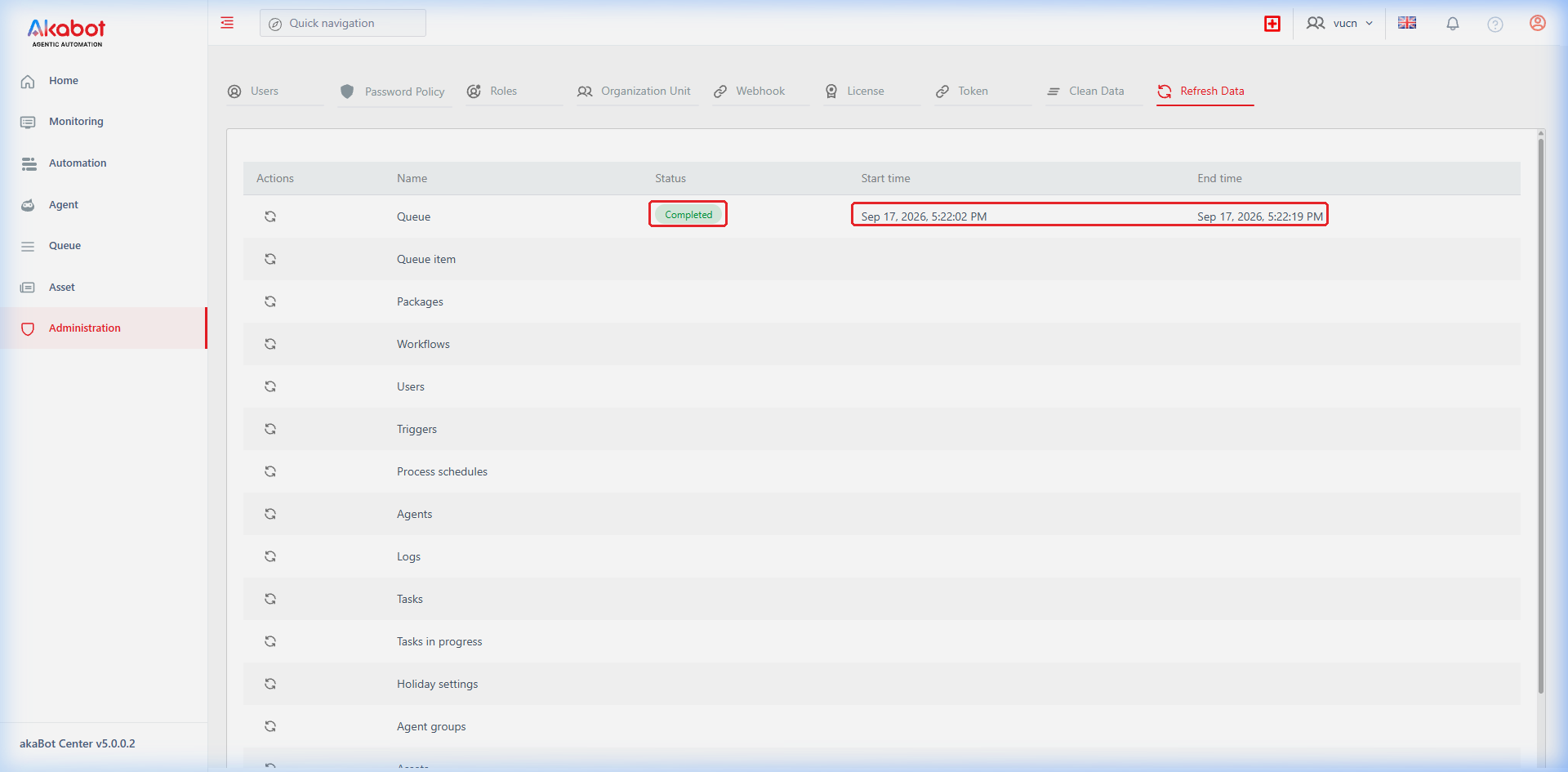
- In Progress State:
The status badge transitions to In Progress, and the Start time column records the exact moment synchronization began. - Completed State:
When the data is fully synchronized and aligned with the database:- The status badge transitions to green Completed.
- The End time column is populated with the exact completion timestamp.
- The difference between Start time and End time indicates the total elapsed duration of the synchronization run.