Organization Unit
Organization Units (OU) provide the separation of Orchestrator components into tenants for designated users. The user's perspective of akaBot Center is determined by the organization unit in which they are placed, as well as the role(s) appointed to them. The following categories of entities make up an organization unit:
- Agent group
- Agents
- Workflows
- Tasks
- Schedules
- Packages Repository
- Assets
- Queue
- Logs
- Report
! Statistics are produced for each organizational unit and shown on the Dashboard.
Notes:
A user with no assigned Organization Unit does not have access to any type of resources.
The same agent cannot be provisioned on two different Organization Units. Resources cannot be moved from one organization unit to another.
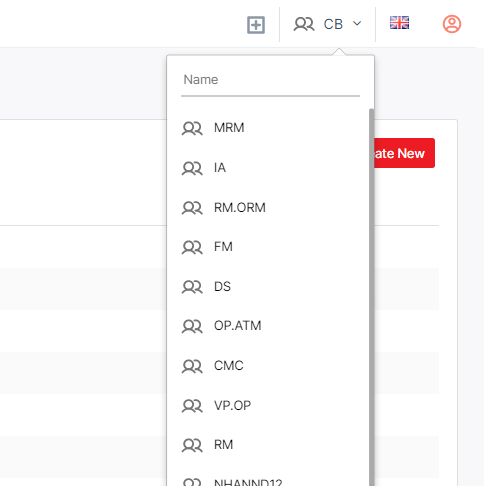
A drop-down list displays all of the units assigned to a user located at the header of the page, available at all times. User can also use this to switch between OU.
To access the OU page, click on the Administration tab in the left menu, then click Organization Unit tab. All previously created OU shall be in display there as below:
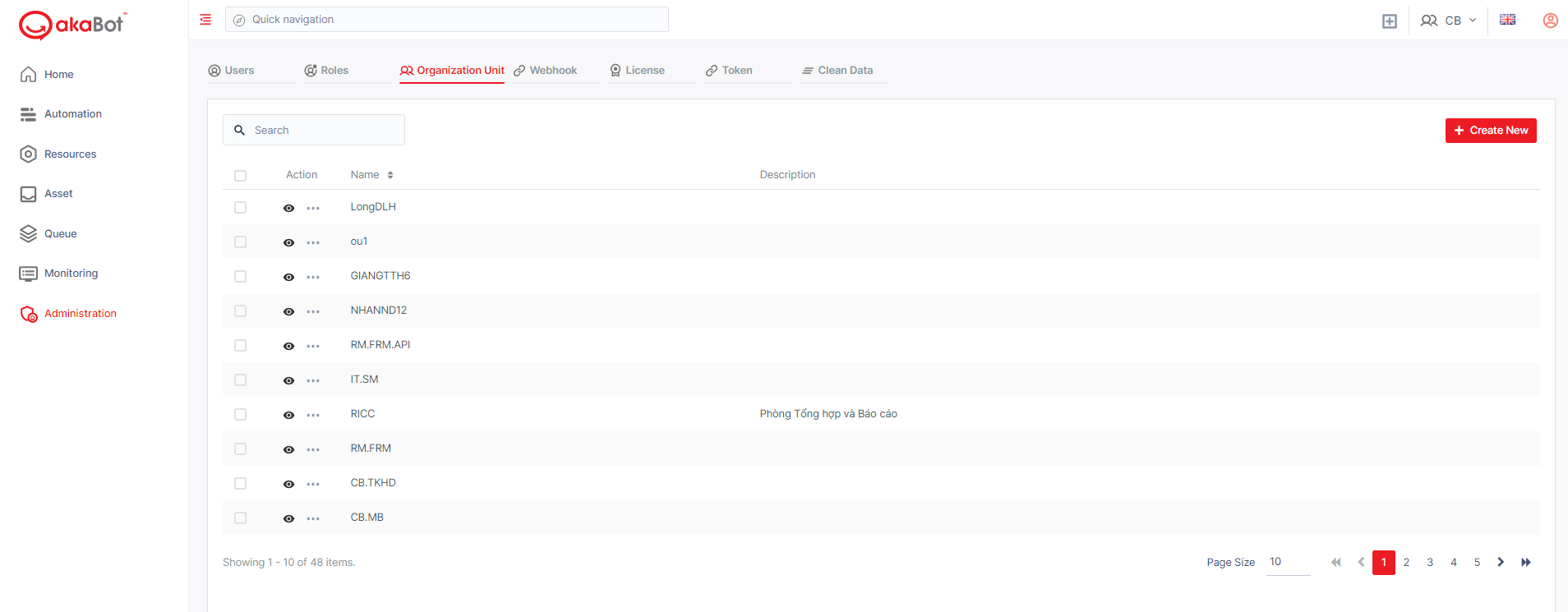
As an Admin, you may view the details of specific OU, create, update, or remove or filter the OU, as well as manage the users that are allocated to them.
a. View an OU
In order to view all the details of an OU, you can click the eye button.
Once clicking, you will be redirected to the Details page.
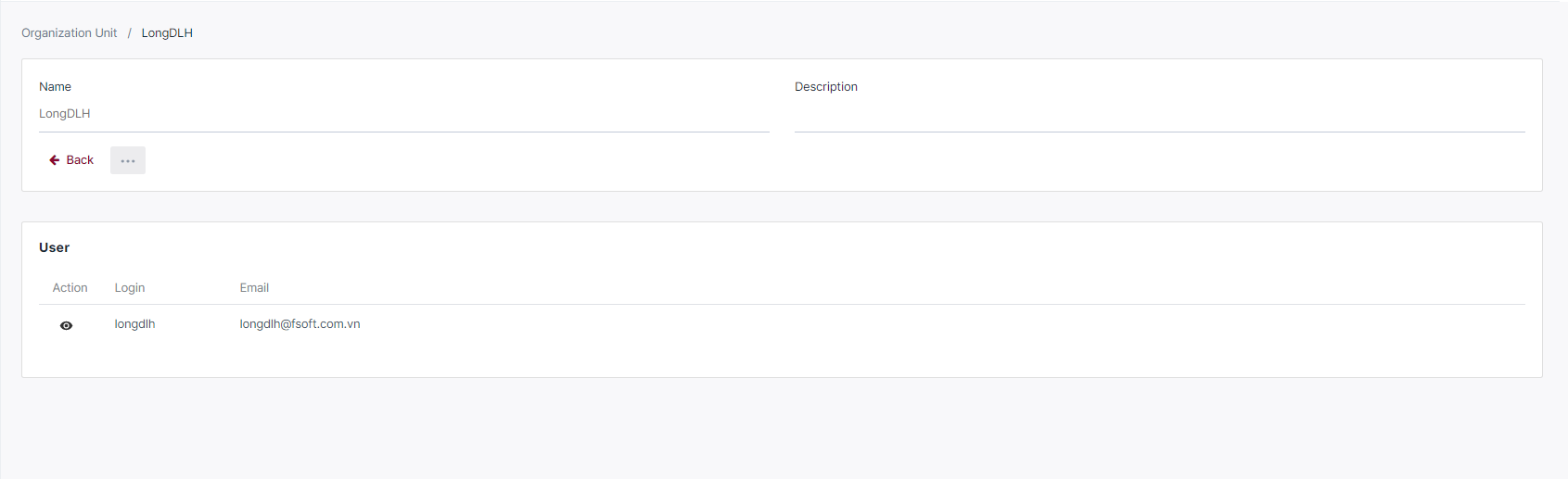
| No | Column/Label | Description |
|---|---|---|
| Name | The name of the OU | |
| *Description | The description of the OU | |
| User | The list of all the Users assigned in this OU. This list included: Username Email * Assigned roles |
b. Create/edit an OU
To create a new organization unit, you click "Create New” button. If you want to edit an OU, select the edit option from Action next to the corresponding OU Name.
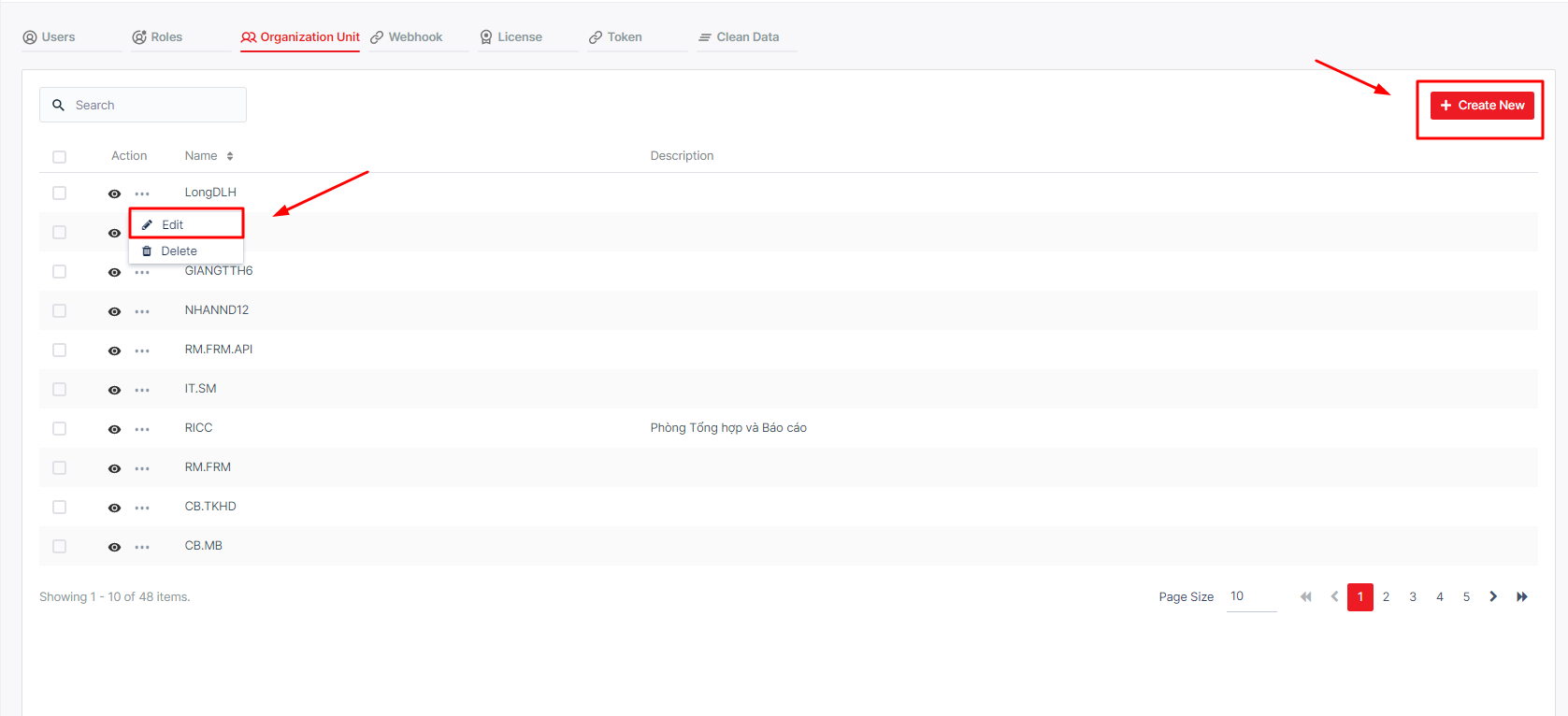
After clicking, the system shows a pop-up form for you to fill the information:
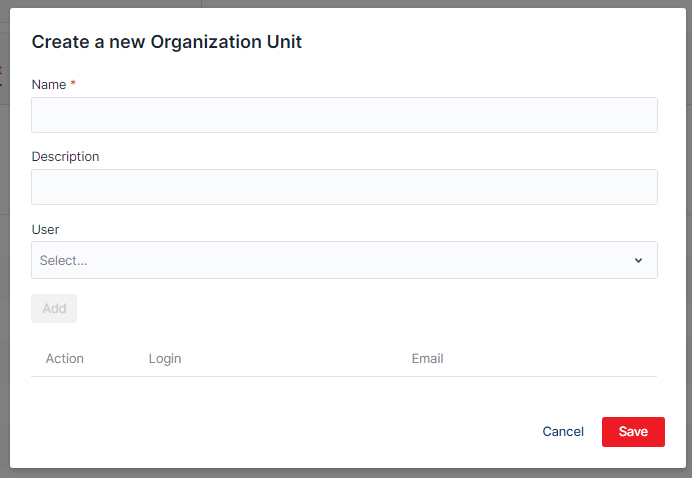
| No | Column /Label | Description | Type | Maximum | Is Mandatory ? | Input Requirement |
|---|---|---|---|---|---|---|
| 1 | Name | Enter the custom name of the OU you want to create/edit | String | 255 char | Yes | |
| 2 | Description | Enter the description of the OU you want to create/edit | String | 1000 char | No | |
| 3 | User | Select user you want to add into the OU that you are creating/editing | Input searching | No limit | Yes | You can add many users, but you can only add one by one |
If you want to unassign a user from an organization unit, open the Edit windows and hit the bin icon in the action field. Once all the information is filled/edited, hit Save. Your OU is created.
c. Remove an OU
Important! Delete an Organization Unit will delete all resources within the unit. To remove an OU, click the corresponding Deletebutton next to the Organization Unit name on the Organization Unit page.Type your warning message here.
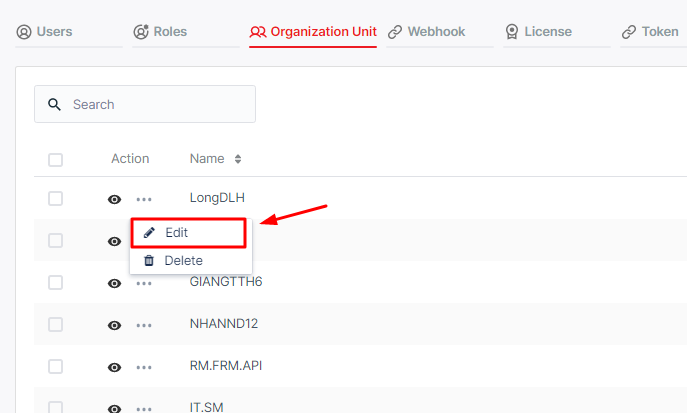
A confirmation pop-up will appear. Select Delete to finish the operation.