Build Workflow to Library Package
Overview
The Build Workflow to Library feature compiles and packages your current workflow project into a reusable NuGet package (.nupkg). The resulting library can be published to akaBot Center or distributed through a local NuGet feed for use across multiple automation projects.
1. Prerequisites
Before building a library package, ensure the following conditions are met:
- Save all workflows: All workflow files (
.xaml) in the project must be saved. - Resolve all validation errors: The project must have no validation errors. Resolve any missing arguments or misconfigured activity properties before proceeding.

2. Build the Library Package
-
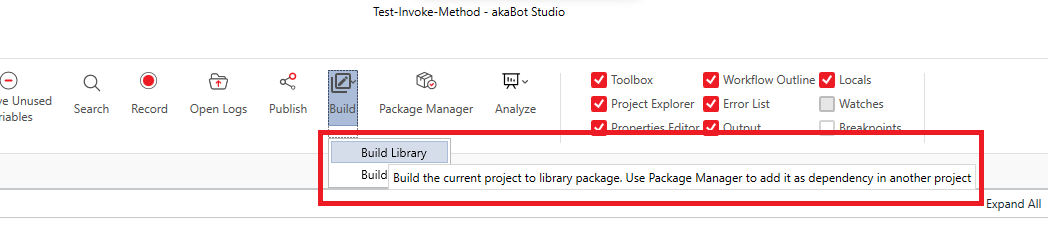
In the Studio ribbon, click Build, then select Build Library. Studio saves the project first.
-
In the Build Library dialog, fill in the following fields:
Field Description Library name The name of the library. By default, this is the project name (or the name you used the last time you built this project). It is also used as the group name of the library activities in the Activities panel. Full library name Read-only preview of the package ID, updated as you type. It is Lib.Activities.followed by the library name with every character that is not a letter, digit or underscore (_) removed, keeping the casing you typed. For example,Invoice ToolsbecomesLib.Activities.InvoiceTools. A leading underscore is added if the name starts with a digit. The same name is used for the package file and the library DLL.Current Version Read-only. The version of the last library built from this project ( 0.0.0.0for a project that has never been built).New Version The version of the package to build, in the format major.minor.build.patchwith exactly four numbers (e.g.,1.0.0.4). By default, the last number of the current version is increased by one. The new version must be greater than the current version.Release Notes: Describe the changes, fixes, or enhancements included in this version. The notes are written into the package. Icon Select one of the five icons (Default, Document, Code, Run, Data). The selected icon is shown for every activity of the library in the Activities panel. (Available from Studio v3.2.5.0.) 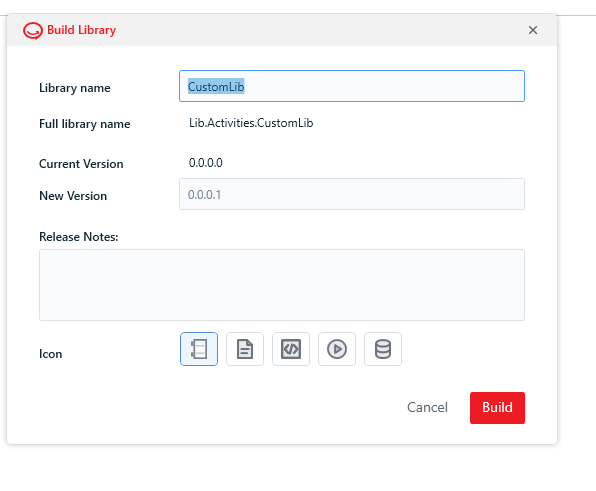
-
Click Build (or press
Enter). Click Cancel (or pressEsc) to close the dialog without building.If a value is not valid, a message is shown and the dialog stays open:
Message Cause Please enter library name. Library name is empty. Please enter a version. New Version is empty. Invalid version format. Please enter version as: major.minor.patch.build (e.g., 1.0.0.0) New Version does not consist of exactly four numbers separated by dots. New version must be greater than current version. New Version is not higher than Current Version. -
Studio compiles all workflows, resolves project dependencies, and generates the output package
<Full library name>.<New Version>.nupkg(e.g.,Lib.Activities.InvoiceTools.1.0.0.4.nupkg) in%LOCALAPPDATA%\akaBot\Packages\Compiled\. A package with the same name is overwritten. -
A completion dialog confirms the build with the library name, version, and output folder. Click Open Output Folder to access the generated file.
Available from Studio v3.2.5.0.
Settings are remembered per project. When you click Build, Studio saves the Library name, New Version, Release Notes, and Icon into the project's project.json file (as LibraryName, ProjectVersion, ReleaseNotes, and LibraryIcon). The next time you build the library from the same project, the dialog is pre-filled with these values, and Current Version shows the version you last built.
Required arguments. If an argument of a workflow is marked as required, the matching property of the generated library activity is also required. When the library activity is used in another project and that property is left empty, the designer shows the validation error The value for argument '<name>' is not set or is invalid. In the generated activities, In arguments appear under the Input category and Out arguments under the Output category in the Properties panel.

3. Using the Library in Other Projects
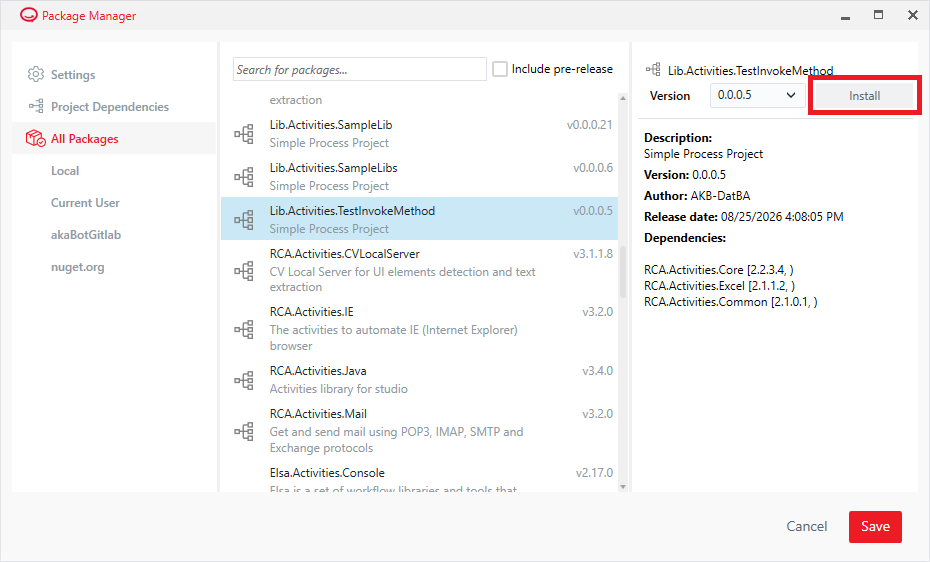
- In the target project, open Manage Packages from the Studio ribbon.
- Select the appropriate feed (akaBot Center or a custom local repository).
- Search for the library package by name, select the desired version, and click Install → Save.
- The library's custom activities will appear in the Activities Toolbox, ready for use in your workflows.