How to install Akabot Web Extension
1. Introduction
The Akabot Browser Extension is required to enable web automation capabilities within Akabot Studio. When the extension is installed and enabled in the user’s web browser, Akabot Studio can natively detect and interact with web elements during automation recording and execution.
2. Prerequisites
Before installing the Akabot Browser Extension, ensure the following conditions are met:
2.1 System requirements
- Windows 10/11, Windows Server 2016/2019/2022.
- Akabot Studio installed (supported version)
- User has local installation permissions
2.2 Browser requirements
- Google Chrome (supported version: 3.0.0; 3.0.3) or
- Microsoft Edge (Chromium-based, supported version: 3.0.3)
- Firefox (supported version: 1.1.6; 2.0.0; 2.0.1)
2.3 Choose an installation mode
Akabot Studio can install the extension in three modes. Choose the mode in the list next to the Install button.
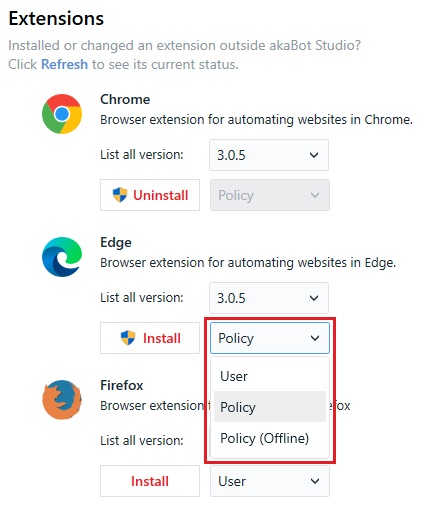
| Mode | Browsers | Applies to | Extension source | Administrator rights | Use when |
|---|---|---|---|---|---|
| User (default) | Chrome, Edge, Firefox | Current Windows user | Package shipped with Akabot Studio | No | Standard machines without browser restrictions. |
| Policy | Chrome, Edge, Firefox | All users of the machine | Chrome Web Store / Edge Add-ons (Chrome, Edge); package shipped with Akabot Studio (Firefox) | Yes | Your organization blocks extensions or native messaging hosts by policy, or the extension must be installed for every user. |
| Policy (Offline) | Chrome, Edge | All users of the machine | Package shipped with Akabot Studio, copied to C:\ProgramData\akaBot\Extensions | Yes | Same as Policy, on machines that cannot reach the Chrome Web Store or Edge Add-ons. |
- In Policy and Policy (Offline) mode the extension is force-installed: it is turned on automatically and users cannot turn it off or remove it.
- Policy (Offline) requires a managed machine: joined to an Active Directory domain or enrolled in device management (MDM, for example Intune). Chrome also accepts Chrome Browser Cloud Management. Chrome and Edge ignore extensions force-installed from outside their store on other machines.
- For the policies that Akabot writes and the policies that can block the extension, see Browser Group Policies.
3. Install Akabot extension for Google Chrome
3.1 Launch Installation from Akabot Studio
- Open Akabot Studio
- Navigate to Options / Extensions/ Chrome
- In List all version, select the extension version.
- In the list next to Install, select the installation mode: User, Policy or Policy (Offline) (see 2.3 Choose an installation mode).
- Click “Install”. In Policy and Policy (Offline) mode, click Yes in the Windows User Account Control prompt.
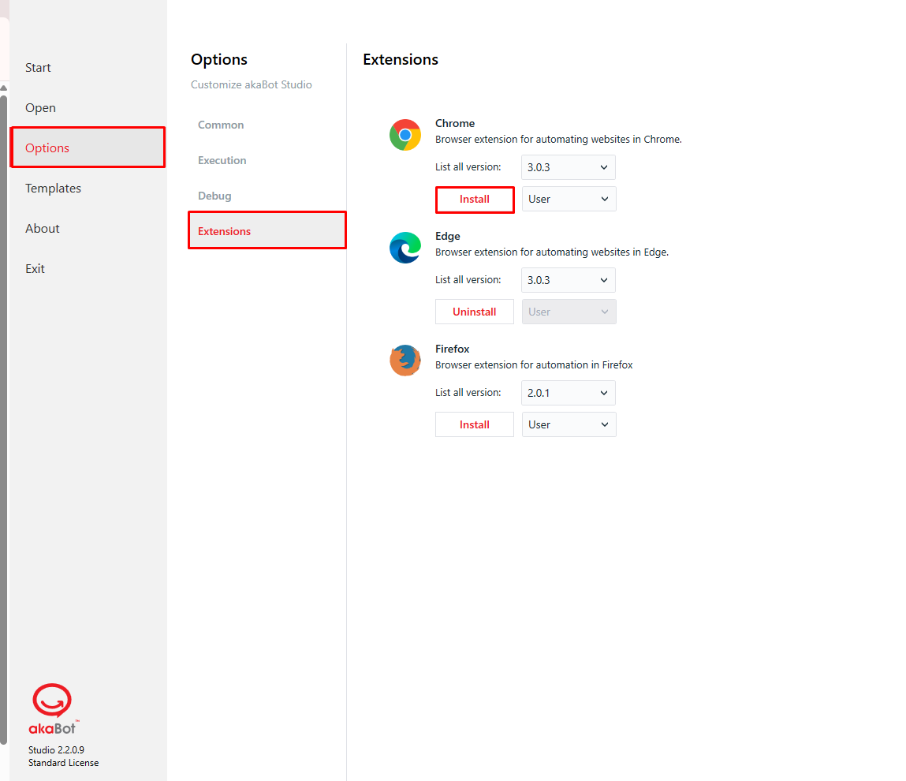
- Once you click “Install”, the system will check for any running browser instances.
- If the browser is currently open, a confirmation dialog will appear prompting you to click “OK” to close all running browser instances before proceeding with the installation.

- If no browser instances are running, the installation will proceed automatically and a success message will be displayed. Click “OK” to complete.
3.2 Enable Extension in Chrome
Note: If you installed in Policy or Policy (Offline) mode, the extension is turned on automatically and is shown as installed by your organization. You can skip this step.
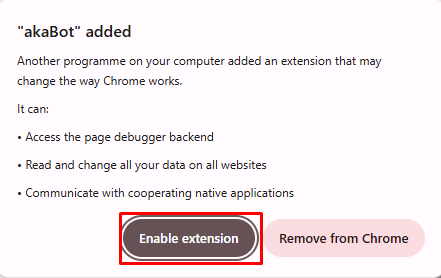
- Reopen Chrome. A notification pop-up will appear prompting you to enable the extension.
Click “Enable extension” to activate it.
- Alternatively, you can navigate to Extensions and turn on the extension using the toggle button.
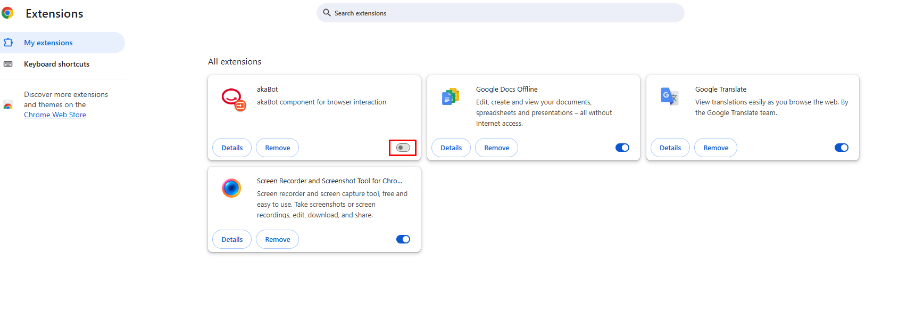
- Once the toggle is enabled, AkaBot can interact with the browser to perform automation activities.
4. Install Akabot Extension for Microsoft Edge
4.1 Launch Installation from Akabot Studio
- Open Akabot Studio
- Navigate to Options/ Extensions/ Edge
- In List all version, select the extension version.
- In the list next to Install, select the installation mode: User, Policy or Policy (Offline) (see 2.3 Choose an installation mode).
- Click “Install”. In Policy and Policy (Offline) mode, click Yes in the Windows User Account Control prompt.
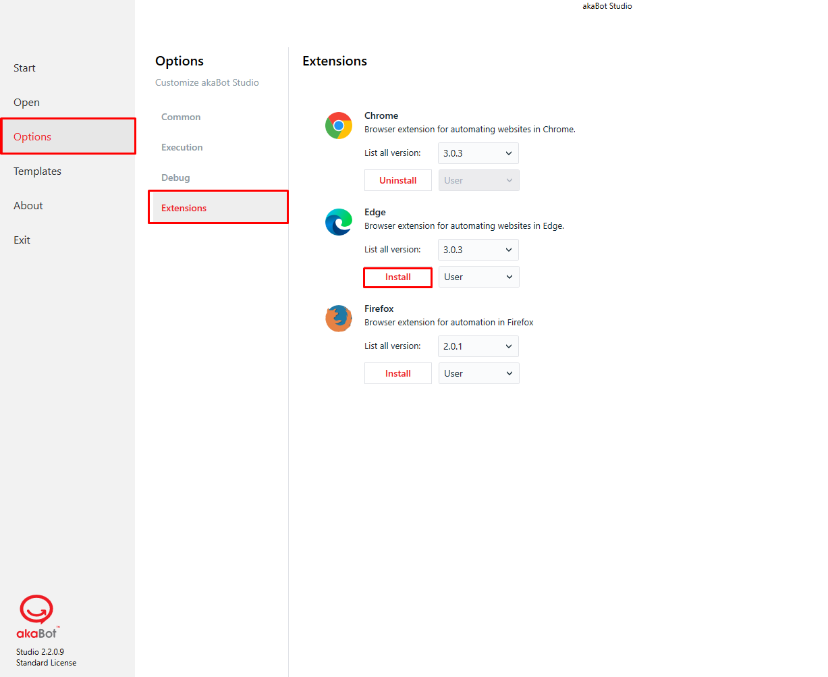
- Once you click “Install”, the system will check for any running browser instances.
- If the browser is currently open, a confirmation dialog will appear prompting you to click “OK” to close all running browser instances before proceeding with the installation.

- If no browser instances are running, the installation will proceed automatically and a success message will be displayed. Click “OK” to complete.
4.2 Enable Extension in Edge
Note: If you installed in Policy or Policy (Offline) mode, the extension is turned on automatically and is shown as installed by your organization. You can skip this step.
Reopen Edge. A notification pop-up will appear prompting you to enable the extension. Click “Turn on extension” to activate it.
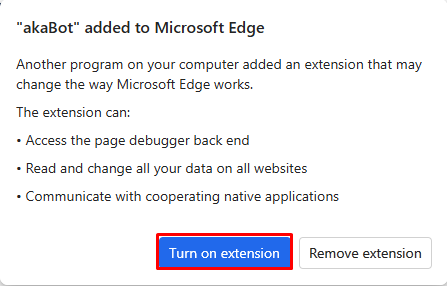
- Alternatively, you can navigate to Extensions and turn on the extension using the toggle button.
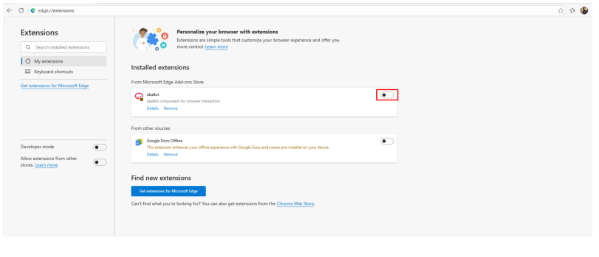
- Once the toggle is enabled, AkaBot can interact with the browser to perform automation activities.
5. Install Akabot Extension for Firefox
5.1 Launch Installation from Akabot Studio
- Open Akabot Studio
- Navigate to Options/ Extensions/ Firefox
- In List all version, select the extension version.
- In the list next to Install, select the installation mode: User or Policy (see 2.3 Choose an installation mode).
- Click “Install”. In Policy mode, click Yes in the Windows User Account Control prompt.
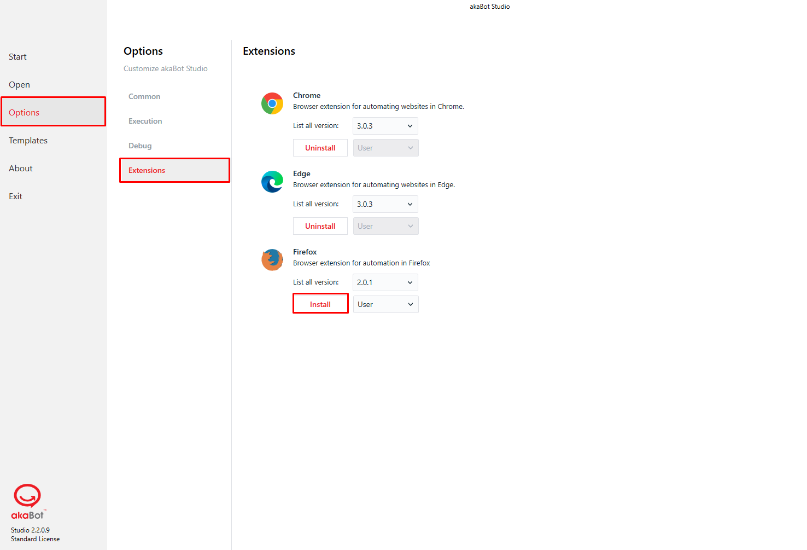
- Once you click “Install”, the system will check for any running browser instances.
- If the browser is currently open, a confirmation dialog will appear prompting you to click “OK” to close all running browser instances before proceeding with the installation.
- If no browser instances are running, the installation will proceed automatically and a success message will be displayed. Click “OK” to complete.
5.2 Enable Extension in Firefox
Note: If you installed in Policy mode, the extension is turned on automatically and is shown as installed by your organization. You can skip this step.
- Reopen Firefox. A notification pop-up will appear prompting you to enable the extension. Click “Turn on extension” to activate it.
- Alternatively, you can navigate to Extensions and turn on the extension using the toggle button.
- Once the toggle is enabled, AkaBot can interact with the browser to perform automation activities.
6. Install in Policy mode
Use this mode when your organization blocks extensions or native messaging hosts by Group Policy, or when the extension must be available to every user of the machine. Chrome and Edge download the extension from the Chrome Web Store / Edge Add-ons, so the machine needs access to the store.
- Open Akabot Studio and navigate to Options / Extensions.
- Under the browser (Chrome, Edge or Firefox), select the version in List all version.
- In the list next to Install, select Policy. The Install button shows the administrator icon.
- Click Install, then click Yes in the Windows User Account Control prompt.
- If the browser is running, click OK to close all its instances.
- When the success message appears, click OK, then reopen the browser. The extension is turned on automatically.
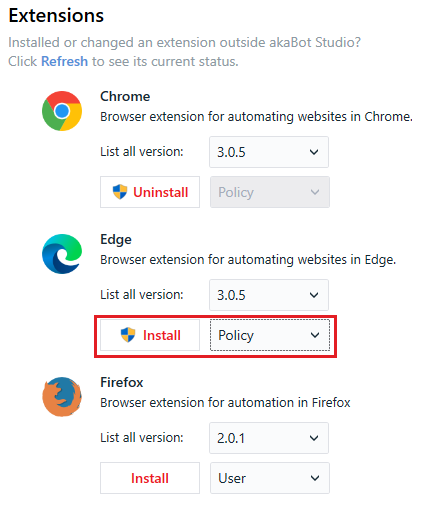
After installation, the button changes to Uninstall and the mode list is locked, as for Chrome in the picture above.
In Policy mode, Akabot:
- adds the extension to the
ExtensionInstallForcelistandExtensionInstallAllowlistpolicies (Chrome, Edge) or toExtensions\InstallandExtensions\Locked(Firefox); - adds the native messaging host to the
NativeMessagingAllowlistpolicy and registers it for the whole machine; - allows the developer tools for the Akabot extension only (
DeveloperToolsAvailabilityAllowlist/DeveloperToolsAvailabilityBlocklist, Chrome and Edge); - removes the User-mode installation of the current user, if any, so that the two installations do not conflict.
For the exact values, see Browser Group Policies.
To install the extension on many machines without opening Akabot Studio, use the command line: see akaBot Commander (Command Line).
7. Install in Policy (Offline) mode
Use this mode on managed machines (domain-joined or MDM-enrolled) that cannot reach the Chrome Web Store or Edge Add-ons, for example robot machines in a closed network. It is available for Chrome and Edge.
- Open Akabot Studio and navigate to Options / Extensions.
- Under Chrome or Edge, select the version in List all version.
- In the list next to Install, select Policy (Offline).
- Click Install, then click Yes in the Windows User Account Control prompt.
- If the browser is running, click OK to close all its instances.
- When the success message appears, click OK, then reopen the browser. The extension is turned on automatically.
Akabot writes the same policies as in Policy mode, but instead of the store it copies the extension package to the machine and points the browser to it:
| Browser | Package folder | ExtensionInstallForcelist value |
|---|---|---|
| Chrome | C:\ProgramData\akaBot\Extensions\chrome | pflniglmkbjhmlcpcgpnhnpicdfalkjb;file:///C:/ProgramData/akaBot/Extensions/chrome/update.xml |
| Edge | C:\ProgramData\akaBot\Extensions\msedge | idcmnficjddehpcjmkfcmomijikkgdgh;file:///C:/ProgramData/akaBot/Extensions/msedge/update.xml |
- Do not delete the files in
C:\ProgramData\akaBot\Extensions. If the package is missing, the browser removes the extension; install again in Policy (Offline) mode to restore it. - When you install a new version, the package in the folder is replaced.
- Switching from Policy (Offline) to Policy mode removes the copied package.
7.1 Errors in Policy (Offline) mode
| Message | Cause | Solution |
|---|---|---|
| "... only loads an extension installed by Policy (Offline) on a machine that is joined to a domain or enrolled in device management (MDM), and this machine is neither." | The machine is not managed. Chrome and Edge ignore the extension on this machine. | Use Policy mode, or ask your IT administrator to join the machine to the domain or enroll it in MDM. |
| "The ... extension package could not be copied to C:\ProgramData\akaBot\Extensions." | The folder already exists and was not created by an administrator, or it cannot be written. | Delete C:\ProgramData\akaBot\Extensions (or the chrome / msedge folder in it) and install again. |

8. Check the status and switch the mode
-
Refresh: if you installed or changed an extension outside Akabot Studio (for example by Group Policy), click Refresh on the Extensions page to see its current status.
-
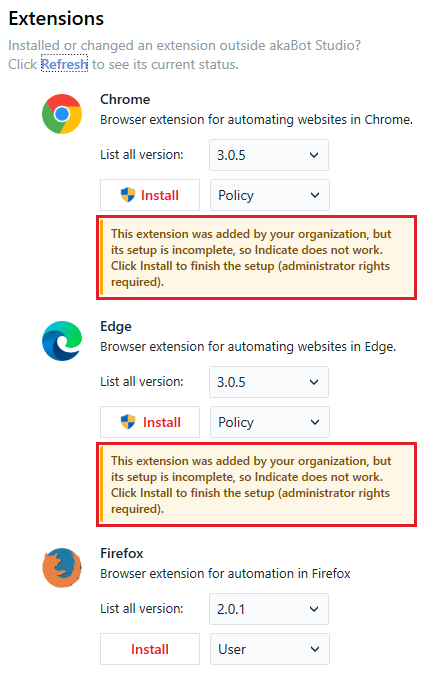
Incomplete policy setup: if your organization force-installs the extension by Group Policy but some required policies are missing, Akabot Studio shows "This extension was added by your organization, but its setup is incomplete, so Indicate does not work." under the browser. Click Install (administrator rights required) to add the missing values. If the values keep disappearing, the Group Policy resets them: give your IT administrator the values in Browser Group Policies.
-
Switch between Policy and Policy (Offline): select the other mode and click Install. If the extension is already force-installed in the other mode, Akabot Studio asks for confirmation before it replaces the policy entry.
-
Indicate cannot reach the browser: Akabot Studio opens the browser environment check, which shows the installation mode, the problems found, and fixes them where possible. See Browser Group Policies.