Setup Guide: Outlook Desktop App
Use the Outlook activities when the Agent machine has the Outlook desktop app installed and signed in. The Agent works through that app, so you do not need any server name, port or password.
If Outlook is not installed on the Agent machine but your mailbox is on your company's own Exchange Server, use the Exchange activities instead (in akaBot Studio: Mail > Exchange). See Setup Exchange (EWS).
1. Information You Need
| Information | Where to get it | Example |
|---|---|---|
| Account (optional) | Outlook > File > Account Settings (see Step 2.2). Leave empty to use the default account | "bot.operator@company.com" |
| Mail Folder | The folder name exactly as shown in Outlook's folder list. Use \ for sub-folders | "Inbox" or "Inbox\Invoices" |
Folder names must match the language of Outlook. In a Japanese Outlook, for example, the Inbox is called 受信トレイ.
2. Prepare Outlook on the Agent Machine
Step 2.1: Use Outlook Classic
The activities only work with Outlook Classic (the version with a File tab in the ribbon). They do not work with the New Outlook for Windows or Outlook on the web.
- On the Agent machine, open Outlook Classic and sign in to the mailbox.
- Check that you can send and receive email without any password prompt or setup wizard.
Step 2.2: Find the Account Name
You need this only if Outlook has more than one email account.
- In Outlook, click File > Account Settings > Account Settings....
- On the Email tab, copy the address in the Name column, for example
bot.user@company.com.
You can also get the list automatically with Get Outlook Accounts (Step 3.1).
Step 2.3: Stop the Security Pop-up
Outlook may show "A program is trying to access email address information..." and wait until someone clicks Allow. The Agent stops until then. To prevent this:
- In Outlook, click File > Options > Trust Center > Trust Center Settings....
- Click Programmatic Access.
- Check Antivirus status:
- Valid: select Warn me about suspicious activity when my antivirus software is inactive or out-of-date (recommended). No pop-up will appear.
- Invalid or not shown: select Never warn me about suspicious activity (not recommended).
- Click OK twice.
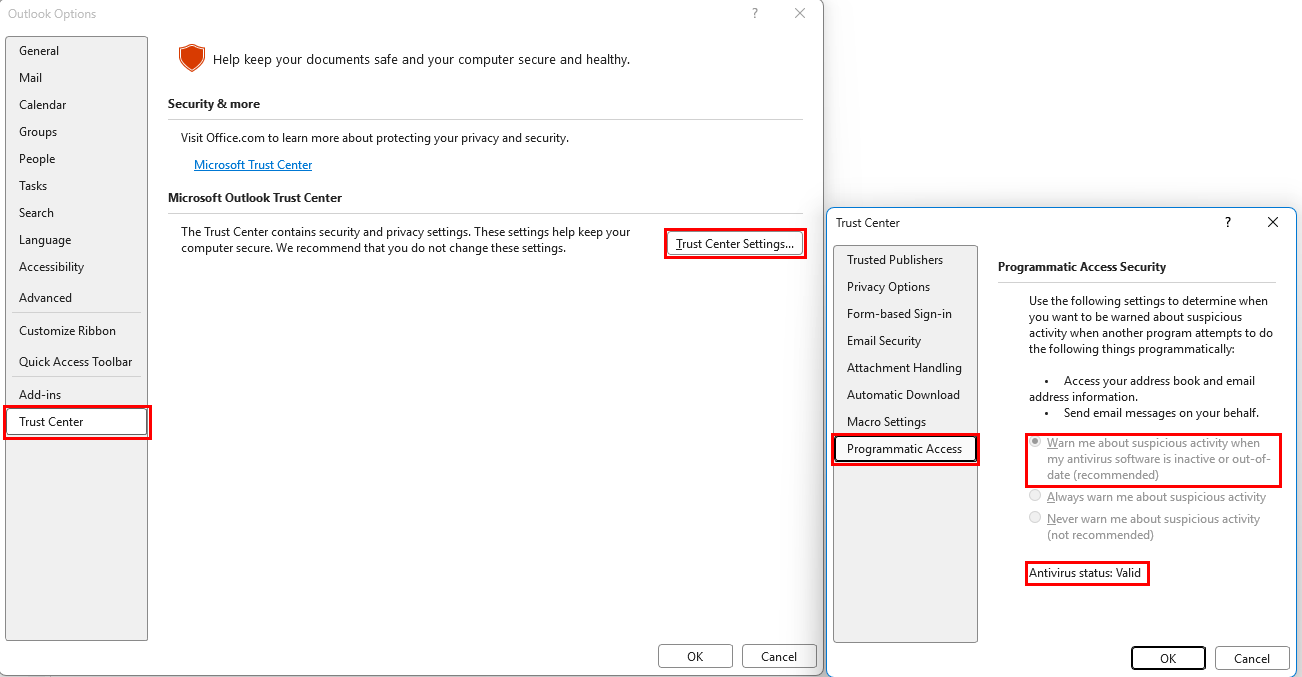
Example: Antivirus status is Valid and the recommended option is selected.
If the options are grayed out, close Outlook, right-click the Outlook icon and choose Run as administrator, then try again. If they are still grayed out, the setting is controlled by your company – ask your IT team.
3. Enter the Information in akaBot Studio
All Outlook activities are under Mail > Outlook in the Activities panel.
Step 3.1: Get Outlook Accounts
All settings for this activity: Get Outlook Accounts
- Output Account Names: create a variable, for example
accountList(typeString[]). - Result: the email addresses of all accounts in Outlook.
Step 3.2: Get Outlook Mail Messages
All settings for this activity: Get Outlook Mail Messages
| Property | Value |
|---|---|
| Account | "bot.user@company.com", or leave empty for the default account |
| Mail Folder | "Inbox" (default), or a sub-folder such as "Inbox\Processing" |
| Top | 30 (default) – how many emails to read |
| Only Unread Messages | Selected by default – clear it to also read emails you have already opened |
| Mark As Read | Select to mark the emails as read |
| Messages | mailList (type List<MailMessage>). Create the variable by clicking the box and pressing Ctrl+K; check in the Variables panel that its scope is the Sequence that also contains the For Each loop. |
Step 3.3: Send Outlook Mail
All settings for this activity: Send Outlook Mail
| Property | Value |
|---|---|
| Account | "bot.user@company.com", or leave empty for the default account |
| To (required) | "manager@company.com" – separate several addresses with ; |
| Subject | "Report Completed" |
| Body | "The workflow completed successfully." |
| Is Body Html | Select only if Body contains HTML |
| Attachments | Click ... and add file paths |
Step 3.4: Move Outlook Message
All settings for this activity: Move Outlook Message
| Property | Value |
|---|---|
| Mail Message | One email, for example the current item of a For Each loop over mailList |
| Mail Folder | The destination folder, for example "Inbox\Completed". The folder must already exist in Outlook |
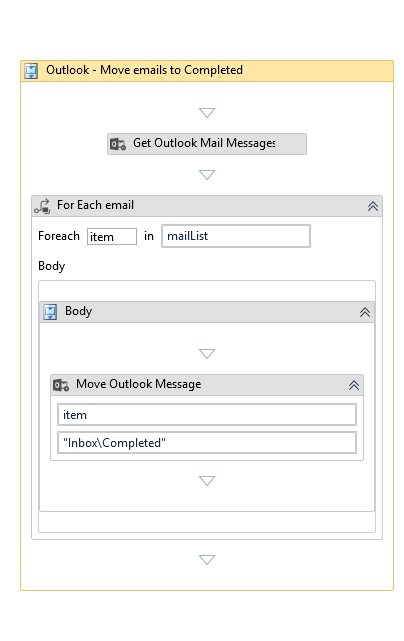
Example workflow: read the emails into mailList, then move each item to Inbox\Completed.