Setup Guide: SMTP (Send Email)
Use Send SMTP Mail Message when the Agent needs to send emails through a mail server such as Gmail, Yahoo Mail or your company's mail server.
This guide helps you collect the information the activity needs and shows where to enter it. You do not need to install or configure a mail server.
If you send from a mailbox on your company's own Exchange Server, you can also use Send Exchange Mail (in akaBot Studio: Mail > Exchange). See Setup Exchange (EWS).
1. Information You Need
| Information | Where to get it | Example |
|---|---|---|
| Server | Table in section 3, or ask your IT team | "smtp.gmail.com" |
| Port | Table in section 3, or ask your IT team | 587 |
| The address that sends the email | "bot.notifications@gmail.com" | |
| Password | An App Password, or the account password if your provider allows it. Leave empty for a company relay without login | 16 letters, no spaces |
| To | The people who receive the email | "user1@company.com;user2@company.com" |
2. Get the Information
Gmail / Yahoo Mail
Create an App Password as described in the IMAP setup guide. Use it as Password. Sending does not require IMAP to be turned on.
Microsoft 365
Sending with a normal password only works if your administrator has turned on Authenticated SMTP for the mailbox, and Microsoft is switching this off from late 2026. Use Send Mail in the Office 365 package instead.
Company mail relay (no login)
Many companies have an internal mail server ("relay") that accepts email from approved computers without a password. Send your IT team this request:
Please send me the SMTP relay server name and port for the Agent machine
<computer name or IP address>, and confirm that it can send email without a login. The Agent will send from the address<address>.
3. Server and Port Reference
| Provider | Server | Port | Secure Connection | Login needed |
|---|---|---|---|---|
| Gmail | smtp.gmail.com | 587 | StartTls (or Auto) | Yes – App Password |
| Gmail (alternative) | smtp.gmail.com | 465 | SslOnConnect | Yes – App Password |
| Yahoo Mail | smtp.mail.yahoo.com | 465 | SslOnConnect | Yes – App Password |
| Company relay | Ask your IT team | Usually 25 | None or Auto | Usually no |
4. Enter the Information in akaBot Studio
Send SMTP Mail Message
All settings for this activity: Send SMTP Mail Message
- In the Activities panel, open Mail > SMTP and drag Send SMTP Mail Message into your workflow.
- In the Properties panel, fill in:
| Category | Property | Value |
|---|---|---|
| Host | Server | "smtp.gmail.com" |
| Host | Port | 587 |
| Logon | "bot.notifications@gmail.com" | |
| Logon | Password | Your App Password |
| Receiver | To (required) | "manager@company.com;finance@company.com" – separate addresses with ; |
| Receiver | Cc / Bcc | Optional, same format as To |
| Subject | "Daily Report - " + DateTime.Now.ToString("dd/MM/yyyy") | |
| Body | "All items have been processed." | |
| Options | Is Body Html | Select only if Body contains HTML, for example "<h2>Done</h2>" |
| Options | Secure Connection | StartTls or Auto for port 587, SslOnConnect for port 465 |
| Attachments | Attachments | Click ... and add file paths, for example "C:\Reports\Summary.xlsx" |
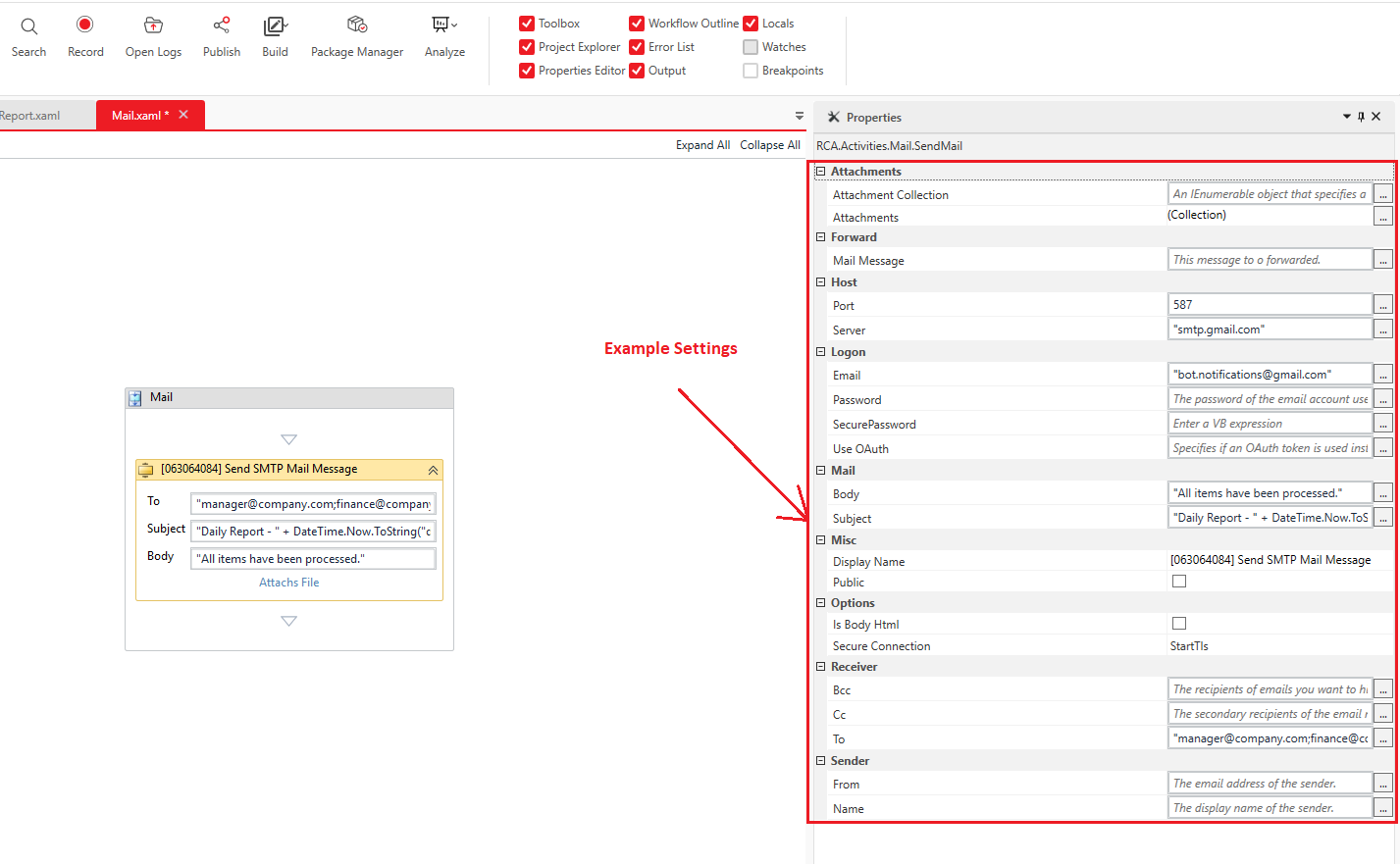
Example settings for Gmail. The password is hidden in this screenshot – enter your App Password in Password.
For a company relay without login: leave Email and Password empty, and enter the sender address in Sender > From. If you leave From empty too, the email is sent from noreply@anonymous.com.
- You can enter the password in SecurePassword (type
SecureString) instead of Password. - If Email is filled in, the Agent tries to log in whenever the server offers a login. For a relay without login, keep Email empty.