Setup Guide: POP3 (Download Email)
Use Get POP3 Mail Messages when the Agent needs to download emails from a mailbox. POP3 always reads from the Inbox only. If you need other folders, unread-only filtering or moving emails, use IMAP instead.
This guide helps you collect the information the activity needs and shows where to enter it. You do not need to install or configure a mail server.
For Microsoft 365 / Outlook.com mailboxes, use the Office 365 package instead. Microsoft no longer accepts a normal password for POP3.
If your mailbox is on your company's own Exchange Server, use the Exchange activities instead (in akaBot Studio: Mail > Exchange). See Setup Exchange (EWS).
1. Information You Need
| Information | Where to get it | Example (Gmail) |
|---|---|---|
| Server | Table in section 3, or ask your IT team | "pop.gmail.com" |
| Port | Table in section 3, or ask your IT team | 995 |
| The mailbox address the Agent reads | "bot.account@gmail.com" | |
| Password | An App Password, or the account password if your provider allows it | 16 letters, no spaces |
2. Get the Information
Gmail
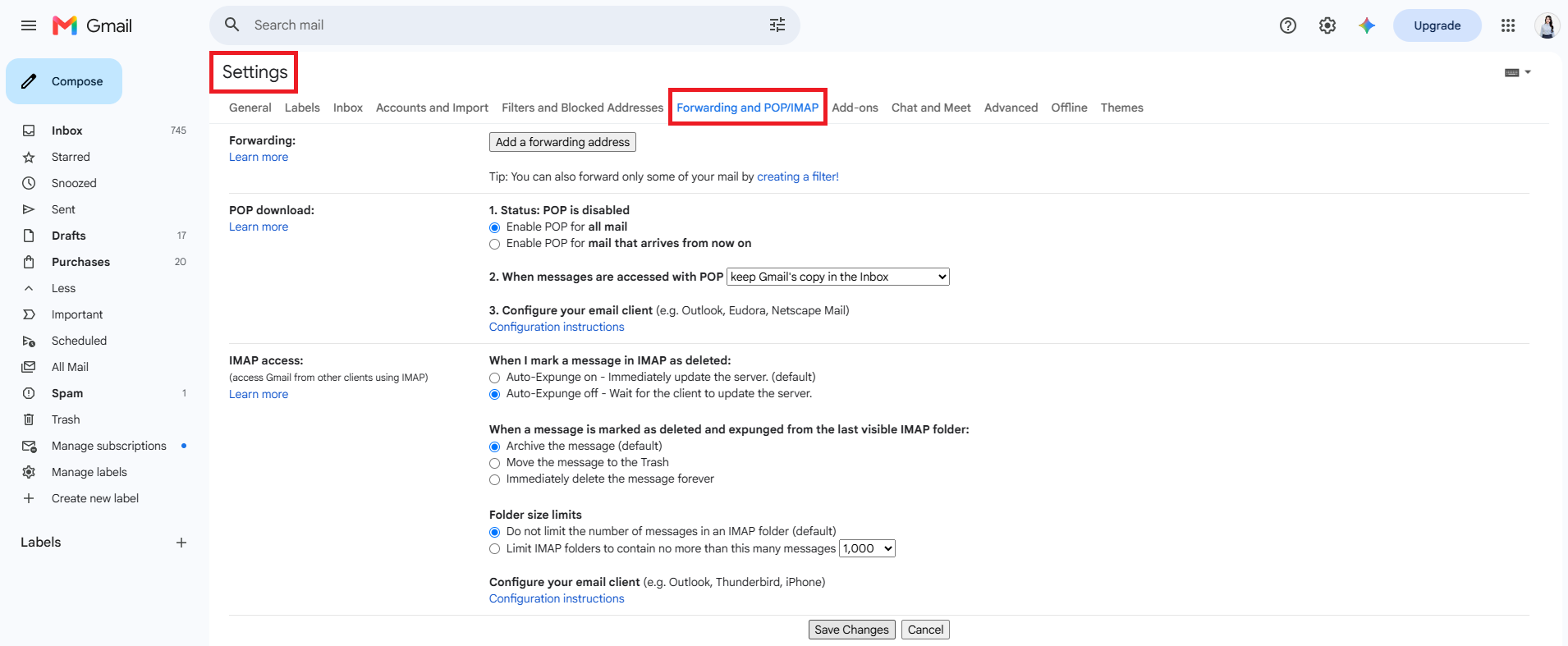
- Open Gmail > gear icon > See all settings.
- Open the Forwarding and POP/IMAP tab.
- In POP download:
- Select Enable POP for all mail (or Enable POP for mail that arrives from now on).
- In When messages are accessed with POP, choose keep Gmail's copy in the Inbox if you want to keep the emails in Gmail.
- Click Save Changes.
- Create an App Password as described in the IMAP setup guide.
Company mail server
Send your IT team this request:
Please send me the POP3 settings for the mailbox
<address>: server name, port, security type (SSL or STARTTLS), and whether I should use my normal password or an App Password.
3. Server and Port Reference
| Provider | Server | Port | Secure Connection |
|---|---|---|---|
| Gmail | pop.gmail.com | 995 | SslOnConnect |
| Yahoo Mail | pop.mail.yahoo.com | 995 | SslOnConnect |
| Company server | Ask your IT team | 995 (SSL) or 110 | SslOnConnect for 995, Auto for 110 |
4. Enter the Information in akaBot Studio
Get POP3 Mail Messages
All settings for this activity: Get POP3 Mail Messages
- In the Activities panel, open Mail > POP3 and drag Get POP3 Mail Messages into your workflow.
- In the Properties panel, fill in:
| Category | Property | Value |
|---|---|---|
| Host | Server | "pop.gmail.com" |
| Host | Port | 995 |
| Logon | "bot.account@gmail.com" | |
| Logon | Password | Your App Password |
| Options | Secure Connection | SslOnConnect (or Auto) |
| Options | Top | 30 (default) – how many of the newest emails to download |
| Options | Delete Messages | Leave cleared. If selected, downloaded emails are permanently deleted from the server. (Gmail follows its own POP setting from section 2 instead.) |
| Output | Messages | popMails – create it with Ctrl+K (step 3) |
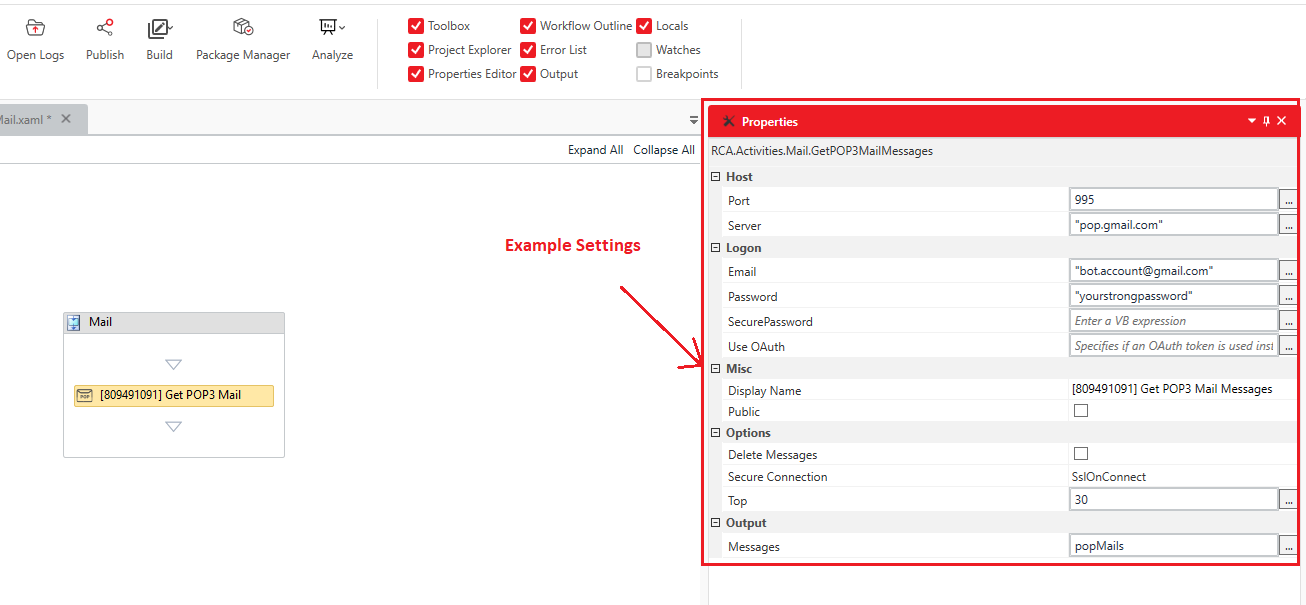
Example settings for Gmail. Enter your App Password in Password, and keep Delete Messages cleared.
- In the Properties panel, click the Messages box (in the Output category) and press Ctrl+K.
- Type
popMailsand press Enter. - Open the Variables panel at the bottom of the designer and check:
- Variable type is
List<MailMessage>. - Scope is the Sequence that contains both Get POP3 Mail Messages and the For Each loop. If it shows a smaller container, change it to that Sequence – otherwise the loop cannot use the variable.
- Variable type is
You can enter the password in SecurePassword (type SecureString) instead of Password. Fill in only one of them.
Check the Result
Print the subject of each downloaded email to confirm the connection works:
- Drag a For Each activity below the Get activity (inside the same Sequence) and set:
- Foreach:
item - in:
popMails - TypeArgument (in the Properties panel):
System.Net.Mail.MailMessage. If it is not in the list, choose Browse for Types... and search forMailMessage.
- Foreach:
- Drag a Log Message activity into the Body of the loop and set Message to
item.Subject. - Run the workflow. The subjects of the downloaded emails appear in the Output panel.
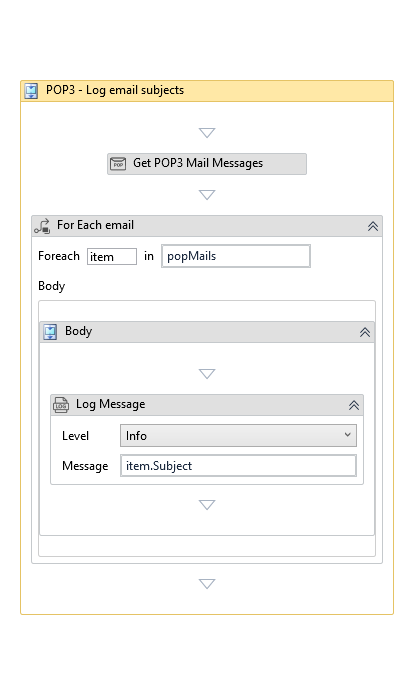
Example workflow: download the emails into popMails, then log item.Subject for each email.
POP3 does not mark emails as read. Each run downloads the newest emails again, including ones the Agent has already processed. If you need to process each email only once, use IMAP with Only Unread Messages and Mark As Read.