Display Form
RCA.Activities.FormBuilder.DisplayForm
Description
Allows you to design, load, and display a user interface Form based on a pre-defined JSON schema. This is the container activity for the Form Builder package; other form actions (like getting or setting values, enabling/disabling controls) must run dynamically inside this activity's execution block.
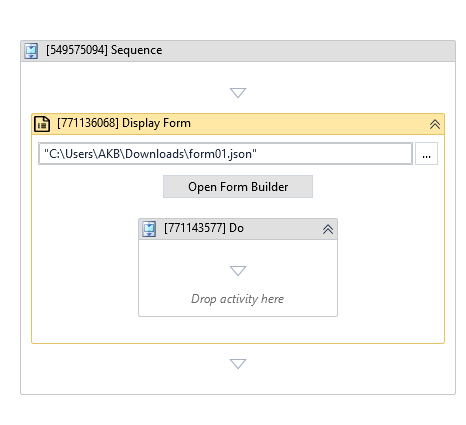
(*For mandatory)
In the body of the activity
- Open Form Builder (Button) - Opens the visual, drag-and-drop Form Builder editor to design your form interface and export the JSON schema. For a detailed guide on how to design layouts and configure validation rules in the editor, see the Build your first form documentation.
- Do - The execution container block. Any activities placed here run asynchronously while the form is open, allowing the robot to dynamically update field values, disable fields, or handle custom events before the user submits or closes the form.
Properties
Input
| Property Name | Data Type | Required | Default | Description & User-Centric Guide |
|---|---|---|---|---|
| Json Schema File Name | InArgument<String> | Yes | None | The path to the .json schema file generated from the Form Builder tool. |
| Form Arguments | Dictionary<String, Argument> | No | None | Maps workflow variables directly to form components. Key names must match the Field Keys (Property Names) of the fields. Supported types: String, Int32, Double, Decimal, Float, Boolean, JObject, JArray. |
| Form Fields Input Data | InArgument<String> | No | None | A raw JSON-formatted string to populate form data. If a key is defined in both Form Arguments and here, the value here takes precedence. Example of where to get this: 1. Read a template .json file using the Read Text File activity and pass the text output variable here.2. Retrieve a JSON string from a REST API response. 3. Construct a JSON string using an Assign activity: "{""customerName"": ""John Doe"", ""agreement"": true}" |
Form Format
| Property Name | Data Type | Required | Default | Description & User-Centric Guide |
|---|---|---|---|---|
| Form Title | InArgument<String> | No | "Form Builder" or "Form Runner" | The window title shown to the end-user. |
| Form Width | InArgument<Int32> | No | 540 | The width of the form window in pixels. |
| Form Height | InArgument<Int32> | No | Auto-fit | The height of the form window. Automatically adjusts to fit all components if left empty. |
| Form Position X | InArgument<Int32> | No | Center | Horizontal distance (pixels) from the top-left corner of the window to the left side of the screen. |
| Form Position Y | InArgument<Int32> | No | Center | Vertical distance (pixels) from the top-left corner of the window to the top of the screen. |
| Is Minimize On Start | InArgument<Boolean> | No | False | If set to True, the form window minimizes to the taskbar immediately when opened. |
| Form Icon Path | InArgument<String> | No | Default Icon | The path to an .ico file to use as the window icon. |
| Always On Top | Boolean | No | False | If True, keeps the form window focused on top of all other windows. |
| Form Zoom Level | InArgument<Int32> | No | 100 | Visual zoom scale percentage (e.g. 120 to enlarge content). |
Output
| Property Name | Data Type | Required | Description & User-Centric Guide |
|---|---|---|---|
| Form Id | OutArgument<Int32> | No | The process ID (PID) of the active form window. Save this to a variable (e.g. formId) to pass into child activities inside the Do block. |
| Is Dismissed | OutArgument<Boolean> | No | Outputs True if the user closed the form window using the X button without submitting data, and False if they clicked the submit button. |
| Selected Key | OutArgument<String> | No | The key/ID of the specific button or component that was clicked to trigger form submission. |
| Output Data | OutArgument<Object> | No | A JSON-formatted string representing all data submitted by the user. You can parse this object using JSON activities or direct string manipulation to extract user input. |
Common
| Property Name | Data Type | Required | Default | Description |
|---|---|---|---|---|
| Continue On Error | Boolean | No | False | If True, the workflow continues running even if the form fails to open. |
| Execute Do Block First | Boolean | No | False | If True, executes the activities inside the Do container block exactly once immediately after the form is rendered and ready. |
| Timeout MS | InArgument<Int32> | No | 0 (Infinite) | The maximum time (in milliseconds) the form stays open before closing automatically. |
Misc
| Property Name | Data Type | Required | Default | Description |
|---|---|---|---|---|
| Display Name | String | No | Display Form | Name displayed in the workflow designer. |
| Public | Boolean | No | False | Check if you want to publish the activity to orchestrator logs (consider security risks if sensitive data is handled). |
Step-by-Step Usage
-
Add the Activity: Drag the Display Form activity into your Studio workflow canvas.
-
Link the Schema: In the Json Schema File Name property, enter the path to your form
.jsonfile (e.g."customer_form.json"). If you do not have a schema yet, click Build your first form in the activity body to design one. -
Configure the Display Form activity in your sequence.
a. Select the Display Form activity on your canvas.
b. At the bottom of akaBot Studio, click the Variables tab and create the following variables:
fullName(Variable type:String)email(Variable type:String)phone(Variable type:String)startDate(Variable type:String)department(Variable type:String)employmentType(Variable type:String)
d. Look at the Properties panel on the right side of the screen.
e. Under the Input category, click the
...button next to Form Arguments to open the arguments collection window. f. Add the following arguments exactly as shown:Key Type Direction Value employeeId(the Property Name of the Hidden component)StringIn"EMP-001"(a value to pre-fill into the form)fullName(the Property Name of the Text Field component)StringOutfullNameemail(the Property Name of the Email component)StringOutemailphone(the Property Name of the Phone Number component)StringOutphonedepartment(the Property Name of the Select component)StringOutdepartmentemploymentType(the Property Name of the Radio component)StringOutemploymentTypestartDate(the Property Name of the Date / Time component)StringOutstartDateNote: Use
Indirection to push data from the workflow into the form (pre-fill), andOutdirection to capture data entered by the user back into your workflow variables. -
Add a Log Message activity below Display Form to log the registration result. Set its Text to:
"Registered: " + fullName + " | " + email + " | " + department + " | " + employmentType + " | Start: " + startDate.
Workflow example
To follow the steps and try out the tutorial yourself, download the sample project here.
Self-Service Troubleshooting
Design-Time Validation
- Symptom: Red exclamation warning icon on the activity in akaBot Studio.
- Cause: The Json Schema File Name field is empty or contains an invalid path expression.
- Solution: Ensure you provide a valid path enclosed in double quotes (e.g.,
"C:\Project\Schemas\Survey.json") or assign it to a valid String variable.
Run-Time Errors
- Symptom:
FileNotFoundExceptionwhen running the process.- Cause: The path specified in Json Schema File Name does not exist at runtime.
- Solution: Use relative paths (e.g.,
Path.Combine(Environment.CurrentDirectory, "Schemas\Survey.json")) to make sure the tệp is located correctly on the execution machine.
- Symptom: Form displays completely blank or crashes on start.
- Cause: The schema file contains malformed JSON syntax.
- Solution: Open the JSON schema file in a text editor and validate it using a JSON linter tool to ensure there are no missing curly braces or double quotes.
- Symptom: Variables mapped in Form Arguments do not sync.
- Cause: Key name mismatch. The keys inside the dictionary must match the Property Name under the Field Key tab of the Form Builder component exactly (case-sensitive).
- Solution: Verify the component names in the Form Builder layout designer.