Enable
RCA.Activities.FormBuilder.Enable
Description
Enables a previously disabled component (e.g., input field, dropdown, submit button) on an active form window. Once enabled, the component becomes active and fully interactive, allowing the end-user to type, select options, or click buttons. This activity works in tandem with the Disable activity to control user input flows dynamically.
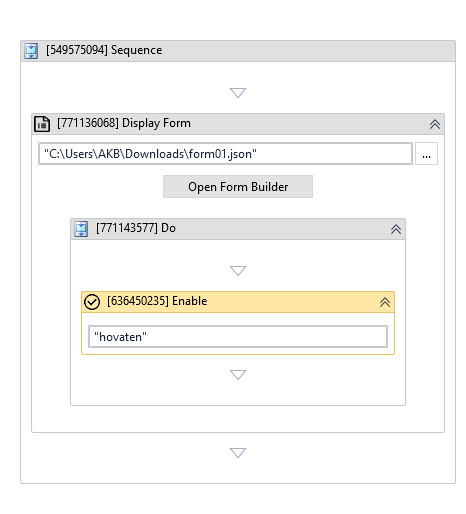
In the body of the activity
- Key Name - The unique key name of the form element you want to enable. This value must match the component's Property Name (Field Key) from the Form Builder layout, and must be enclosed in double quotes (e.g.,
"submit").
Properties
Input
| Property Name | Data Type | Required | Default | Description & User-Centric Guide |
|---|---|---|---|---|
| Form Id | InArgument<Int32> | Yes | None | The ID of the form target. Bind this to the Form Id output variable generated by the parent Display Form. |
| Key Name | InArgument<String> | Yes | None | The target component's Property Name (Field Key). Must be enclosed in double quotes (e.g. "address"). |
Common
| Property Name | Data Type | Required | Default | Description |
|---|---|---|---|---|
| Continue On Error | Boolean | No | False | If True, the workflow continues running even if enabling the component fails. |
Misc
| Property Name | Data Type | Required | Default | Description |
|---|---|---|---|---|
| Display Name | String | No | Enable | Name displayed in the workflow designer. |
| Public | Boolean | No | False | Check if you want to publish the activity execution logs. |
Step-by-Step Usage
The Enable activity must run inside the Do block of Display Form because it operates on a live form instance.
For example, to enable a text box ("feedback") only when a checkbox ("provideFeedback") is ticked:
- Configure components in Form: In the Form Builder, add a Checkbox component (set Label to
Provide Feedback, Property Name under the Field Key tab toprovideFeedback, and check Execute DO on change under the Display tab). Add a Text Field component (set Label toFeedbackand Property Name under the Field Key tab tofeedback). - Assign Form Id: On the Display Form activity, go to the Properties panel, under Output -> Form Id, press
Ctrl + Kto create a variable namedformId(Variable type:Int32). - Get Checkbox Status: Inside the Do block of the
Display Formactivity, drag a Get Element Value activity:- Form Id:
formId - Key Name:
"provideFeedback" - Output Data:
provideFeedback(Create a variable of typeObject)
- Form Id:
- Check Condition: Below that, drag an If activity:
- Condition:
Convert.ToBoolean(provideFeedback) = True
- Condition:
- Enable Text Box: Inside the Then branch (checkbox is ticked), drag an Enable activity:
- Form Id:
formId - Key Name:
"feedback"
- Form Id:
- Disable Text Box: Inside the Else branch (checkbox is unticked), drag a Disable activity:
- Form Id:
formId - Key Name:
"feedback"
- Form Id:
Self-Service Troubleshooting
Design-Time Validation
- Symptom: Studio displays a warning that
Key NameorForm Idis required.- Cause: One of these properties is empty or the
Key Namestring lacks quotes. - Solution: Ensure
Key Nameis formatted as a string (e.g."submit") andForm Idis mapped to yourForm Idvariable.
- Cause: One of these properties is empty or the
Run-Time Errors
- Symptom:
KeyNotFoundException: Component key 'xyz' not foundat runtime.- Cause: The key passed in Key Name (e.g.
"xyz") does not match any Field Key (Property Name) inside the JSON schema file. - Solution: Open the JSON schema file in Form Builder, verify the component's Property Name under the Field Key tab, and update the Key Name to match it exactly (case-sensitive).
- Cause: The key passed in Key Name (e.g.
- Symptom:
ArgumentException: Form ID does not exist.- Cause: The form is already closed.
- Solution: Ensure this activity is executed within the boundaries of the Do block execution loop.