Sign In, Navigation, and Roles
Sign In
- Open the application address from your administrator.
- Enter
Username or emailand selectSign In. You can also chooseGoogleunderOr sign in with. New users selectRegister.Remember mekeeps you signed in on this browser. - Check the company name at the top of the page. Continue only if it is correct.
If you do not have an account or are not a member of the company, ask an administrator to invite or add you.
Profile and Preferences
| Task | How |
|---|---|
| Change language or appearance | Open the avatar menu. The browser saves your choice |
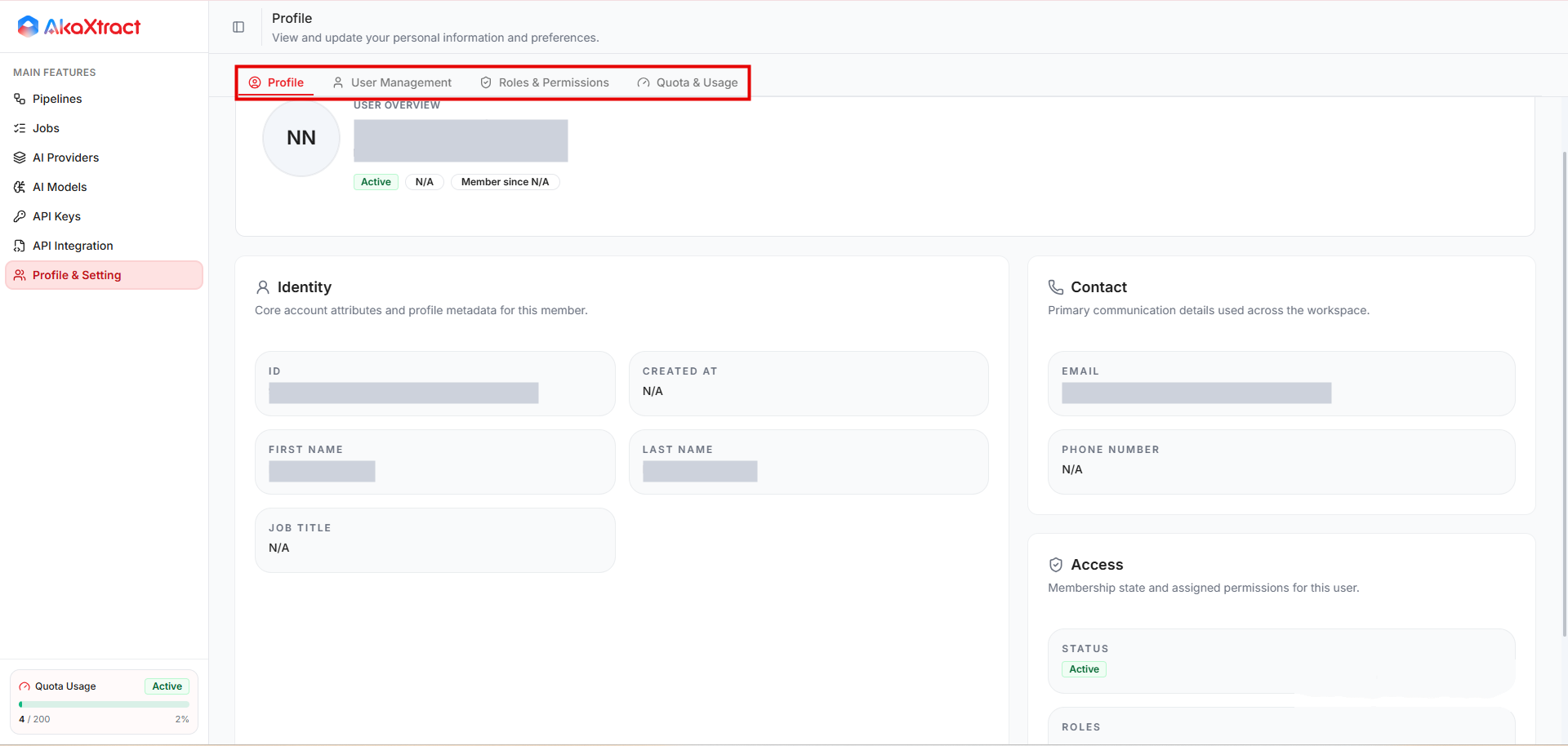
| View your profile | Open Profile & Setting. Change Password, when available, opens the ScaleX portal in a new tab |
| Switch company | Use the company option in the avatar menu and confirm. You sign in again, so finish unsaved work first |
| Sign out | Select Logout, especially on a shared computer |
Navigation
| Menu | Use it to |
|---|---|
Pipelines | Create and manage Pipelines and their versions |
Jobs | Monitor processing, read errors, retry, cancel, or delete Jobs |
AI Providers | View AI providers and models, and manage custom models |
AI Models | Manage AI provider keys (page title AI Model API Keys) |
API Keys | Issue keys for external systems |
API Integration | Read the API reference with examples |
Profile & Setting | View your profile; manage users, roles, and quota |
Inside a Pipeline, the tabs are Pipeline Setting, Documents, ScaleConnect, Webhook, and Webhook History.
Default Roles
These are system roles. For a system role other than Owner, you can change only the quota-read permission. To grant other combinations of permissions, create a custom role.
| Role | Can | Cannot |
|---|---|---|
Owner | Everything in the workspace | Be assigned to another member like an ordinary role |
Administrator | Manage processing, models, integrations, and the organization | Transfer company ownership |
Supervisor | Manage and publish Pipelines, manage Webhooks, retry or cancel Jobs, review results | Manage AI keys, API Keys, or ScaleConnect |
Member | View resources, submit documents, monitor Jobs | Review, publish, or edit configuration |
Guest | View resources and results | Upload, review, or edit |
note
Reviewing, submitting, exporting, and publishing each need their own permission. Opening Review needs the review permission even if you only want to look. Users without it can export confirmed results from the Documents list.