Send Results by Webhook
A Webhook sends the result of each processed document to a URL that you provide.
Before you begin: you need permission to manage Webhooks, a Pipeline that processes real documents, and the receiver's address.
Set Up a Webhook
- Open the Pipeline, select
Webhook, and turn onEnable Webhook. - Enter
Callback URLand choose theHTTP Methodyour receiver needs. Use a valid address that your network policy allows. HTTPS is recommended. - Optional: select
Add Headerto add headers, for examplex-api-keyfor authentication. Header names cannot repeat. - Optional: reshape the data.
Body (Custom JSON)must be a valid JSON object. UseQuick Insertto add placeholders.Result Mapping (TypeScript)changes the result before it is sent. Leave it blank to send the original result. - Select
Save Webhook, then reopen it to check the saved values.
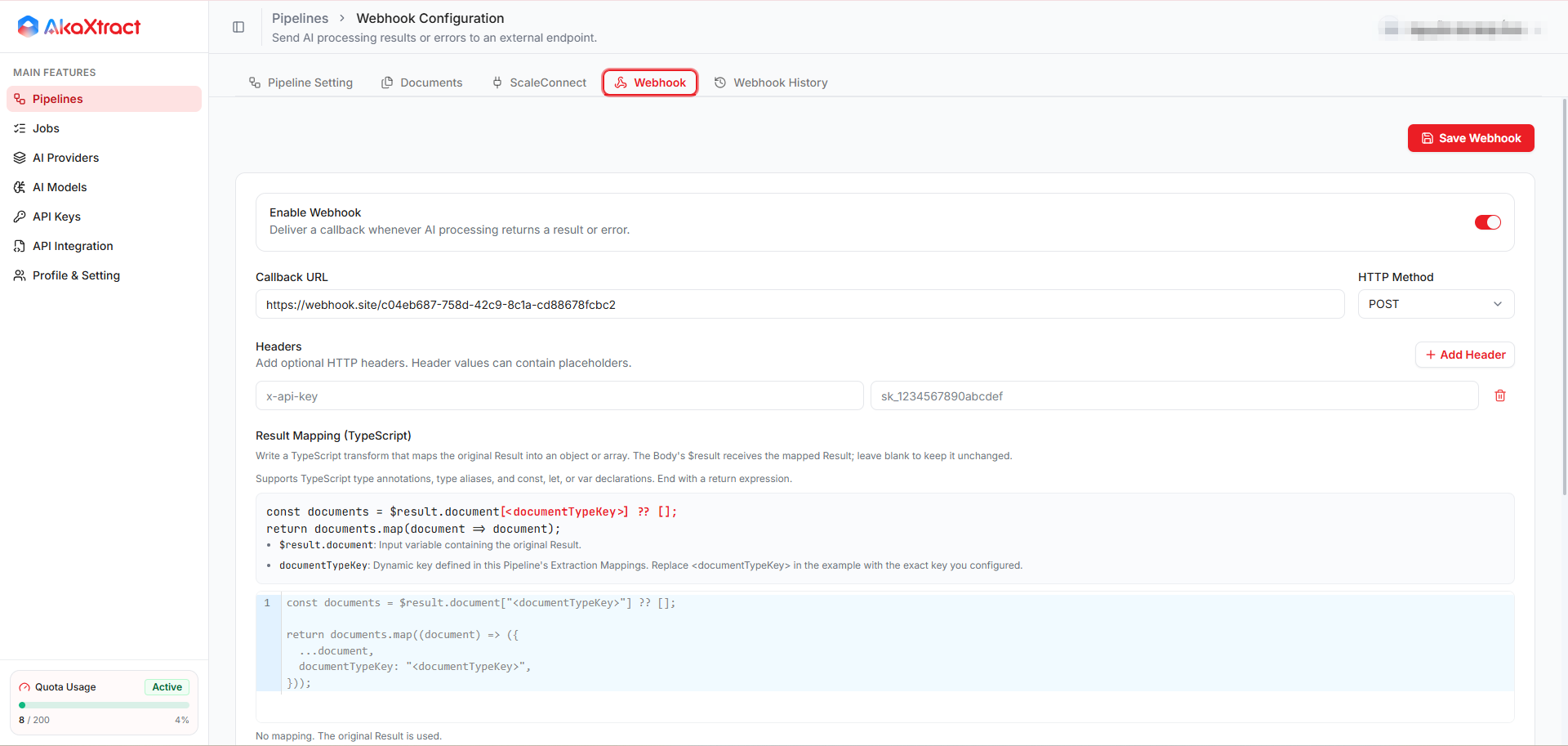
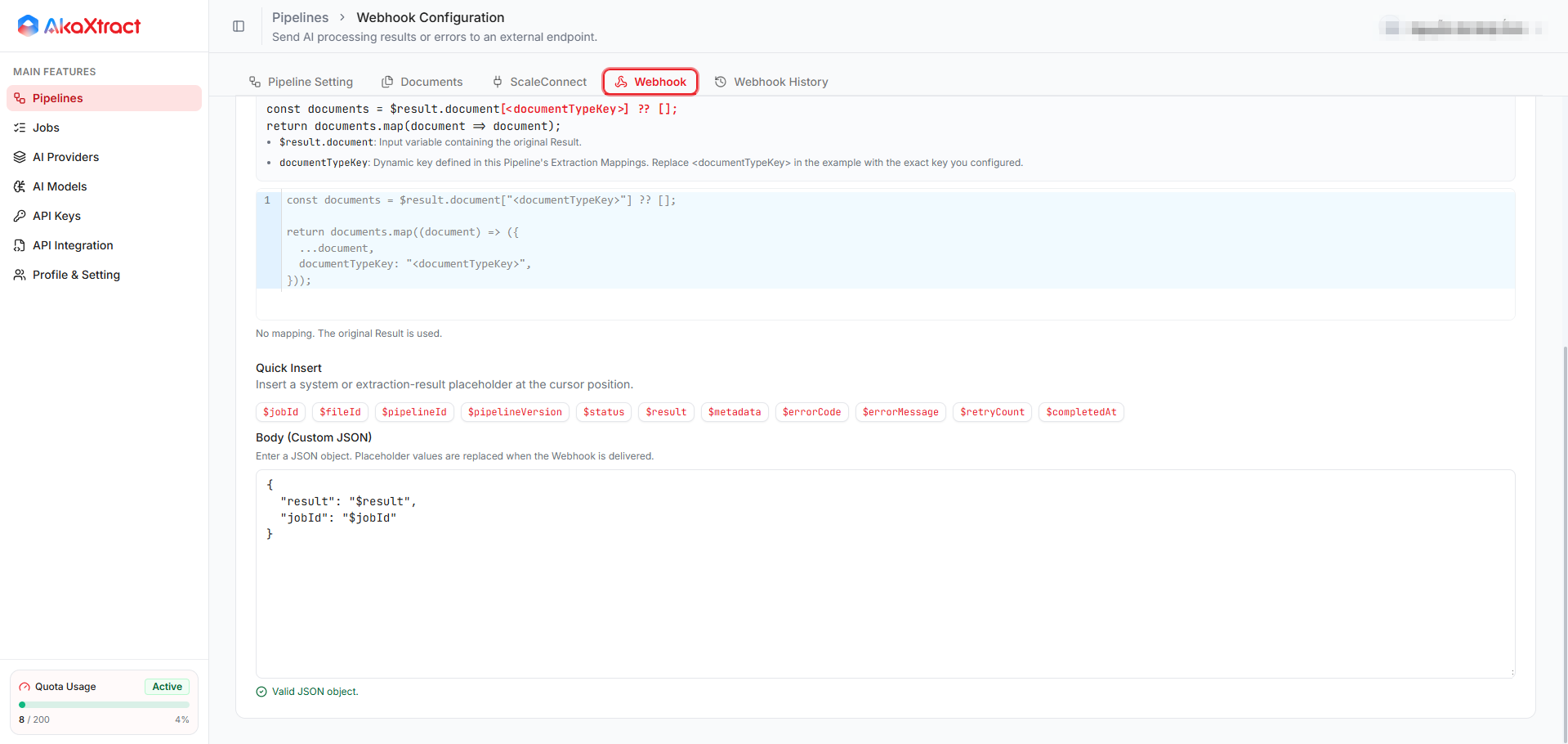
Result: the configuration is saved. Saving does not send a test.
Available placeholders include $jobId, $fileId, $pipelineId, $pipelineVersion, $status, $result, $metadata, $errorCode, $errorMessage, $retryCount, and $completedAt.
When a Webhook Is Sent
- The Webhook sends results and processing errors.
- If the Pipeline needs Human Review, the result is sent after the reviewer selects
Confirm. A rejected result is not sent. Test Pipelinedoes not send Webhooks.
Check Deliveries
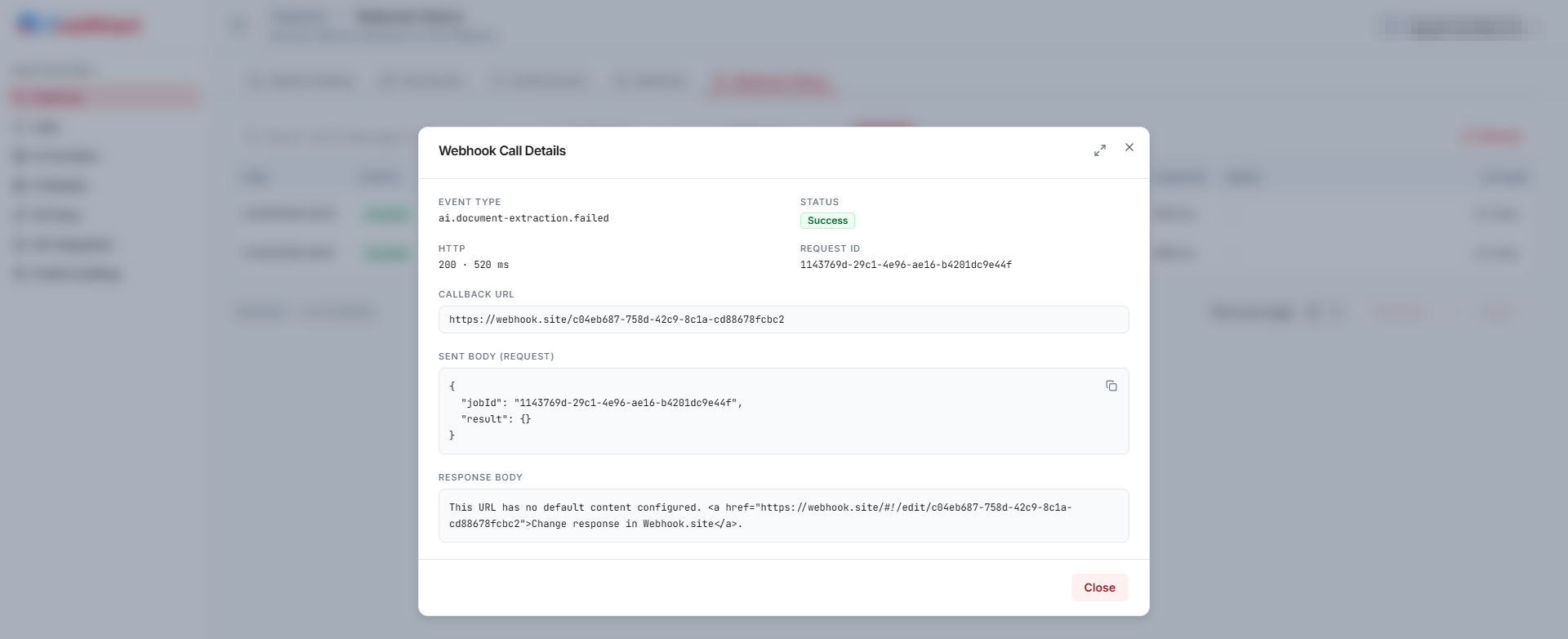
Open Webhook History, filter by Job ID, status, or method, and select View to see the request, the response, the HTTP status, and any error.
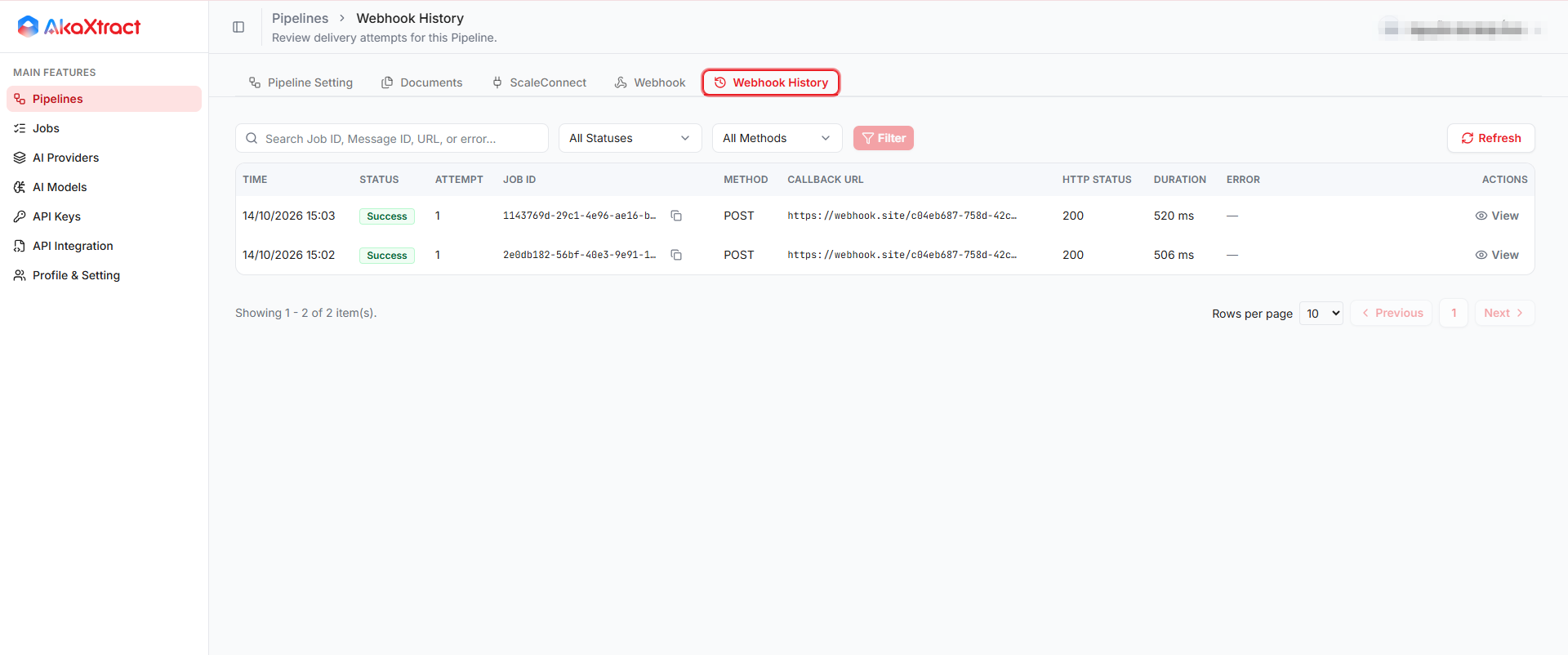
| Status | Meaning |
|---|---|
SUCCESS | The receiver returned an HTTP 2xx status. Check the receiver's own record to confirm |
FAILED | One attempt failed |
EXHAUSTED | All attempts are used |
If the receiver returns a status other than 2xx, AkaXtract retries automatically, up to 3 times, 1 minute apart. Correct the address or the authentication, and agree with your integration team how to resend and reconcile.
A result can be delivered more than once, so make the receiver handle duplicates. Do not retry a successful Job only to resend a Webhook.