Create a Pipeline
A Pipeline defines what AkaXtract extracts from a type of document and when a person reviews the result.
Choose a Method
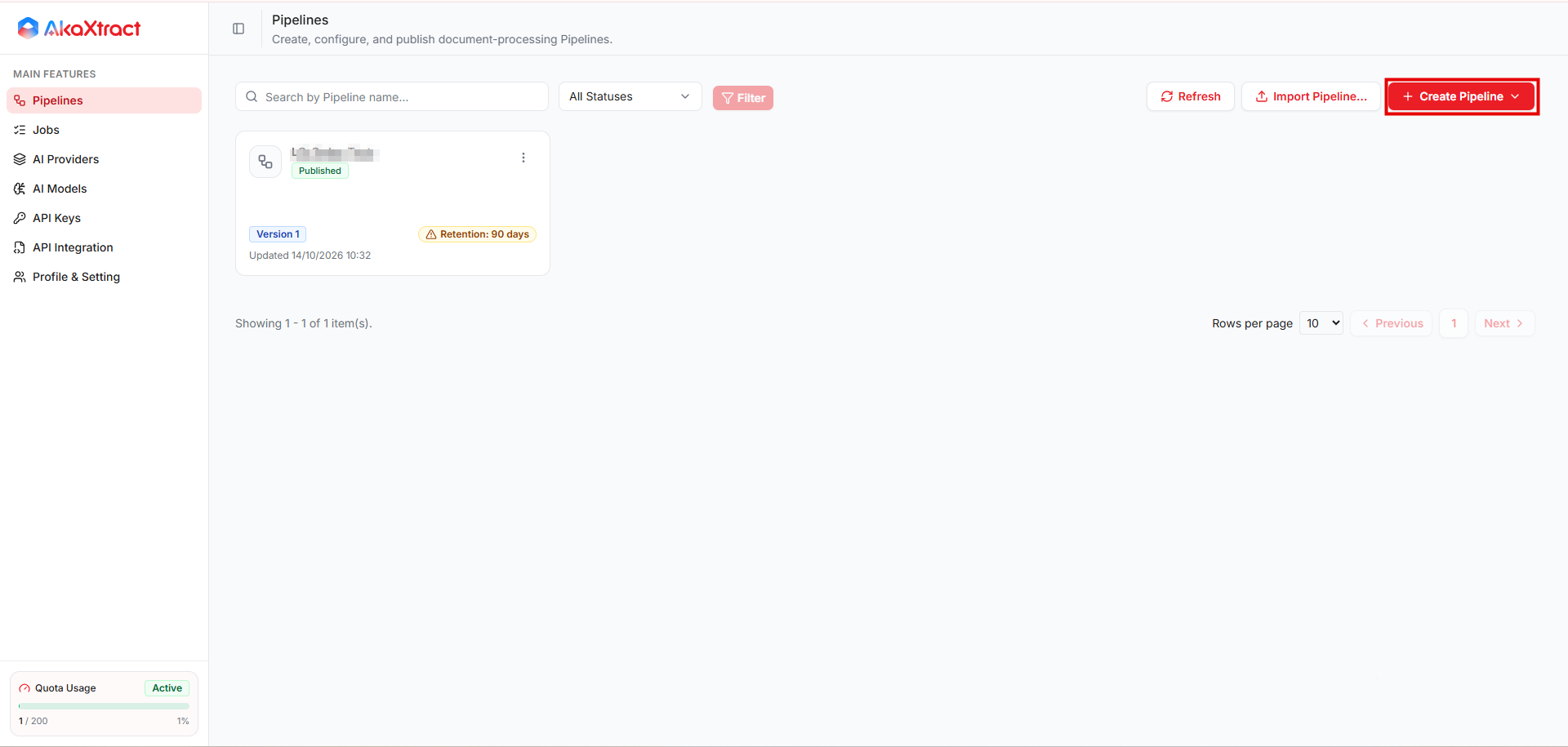
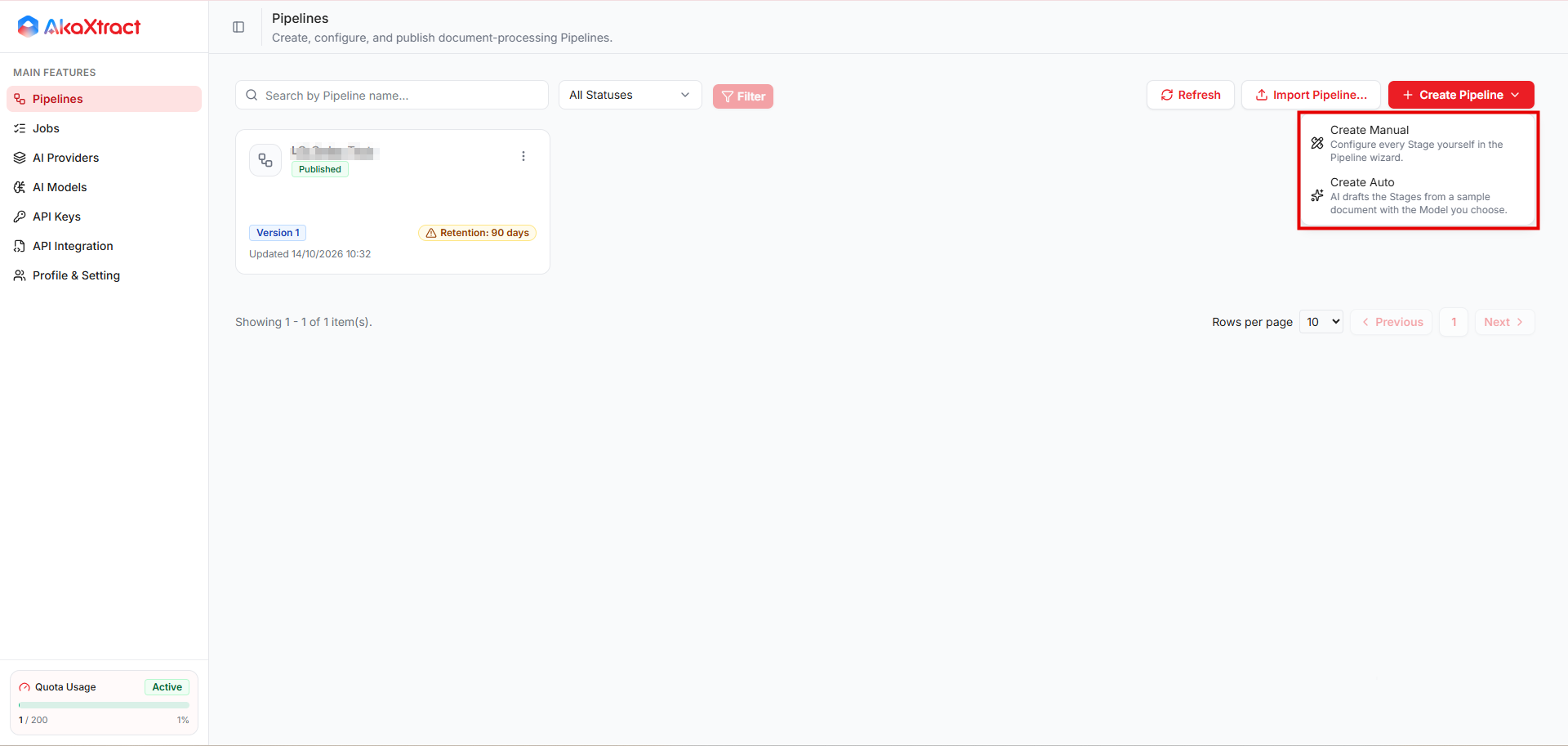
Open Pipelines -> Create Pipeline and choose:
| Method | Use it when |
|---|---|
Create Auto | You have a sample document and want AI to draft the configuration. Best if you are new to JSON |
Create Manual | You want to configure every step yourself in the wizard |
Create Auto
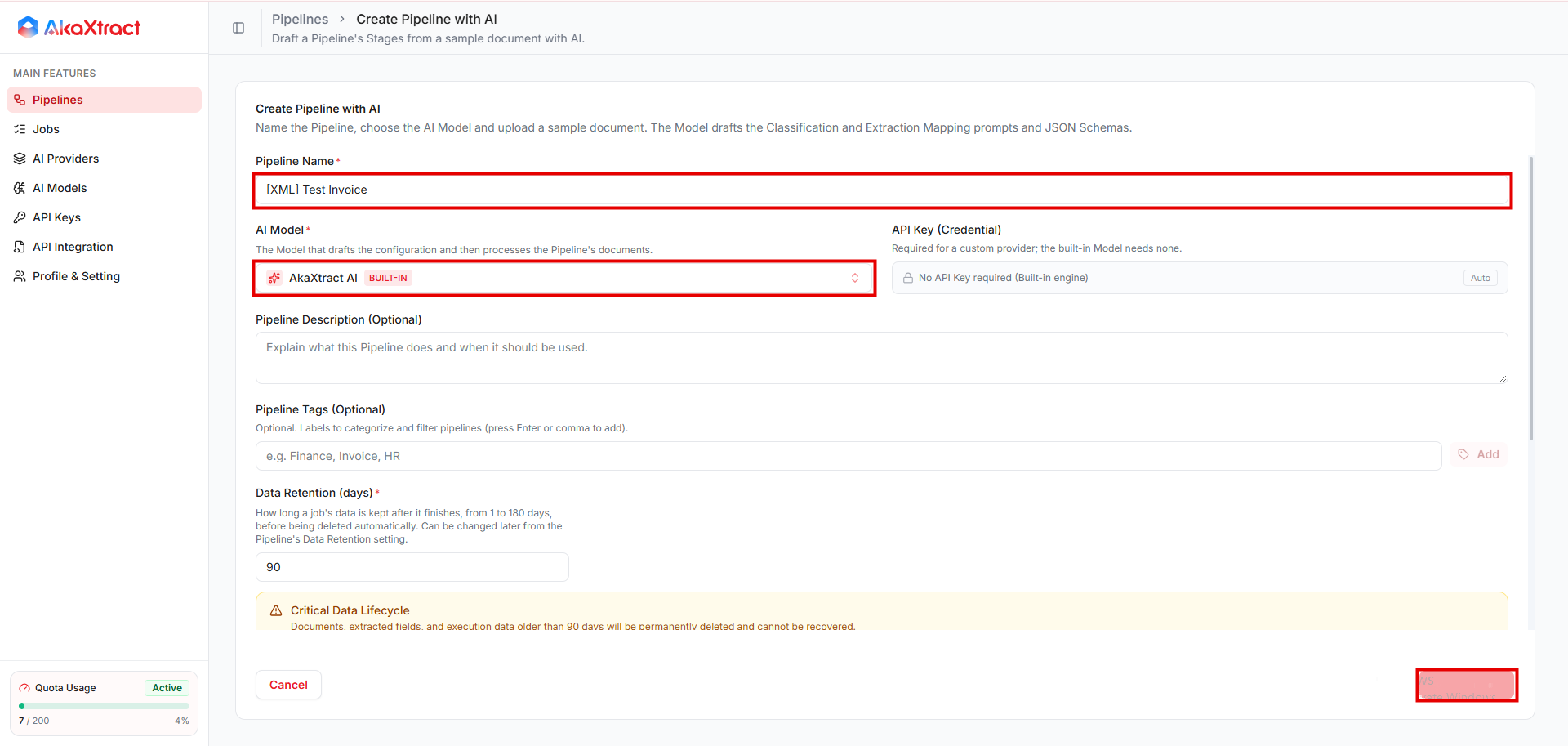
- Enter the
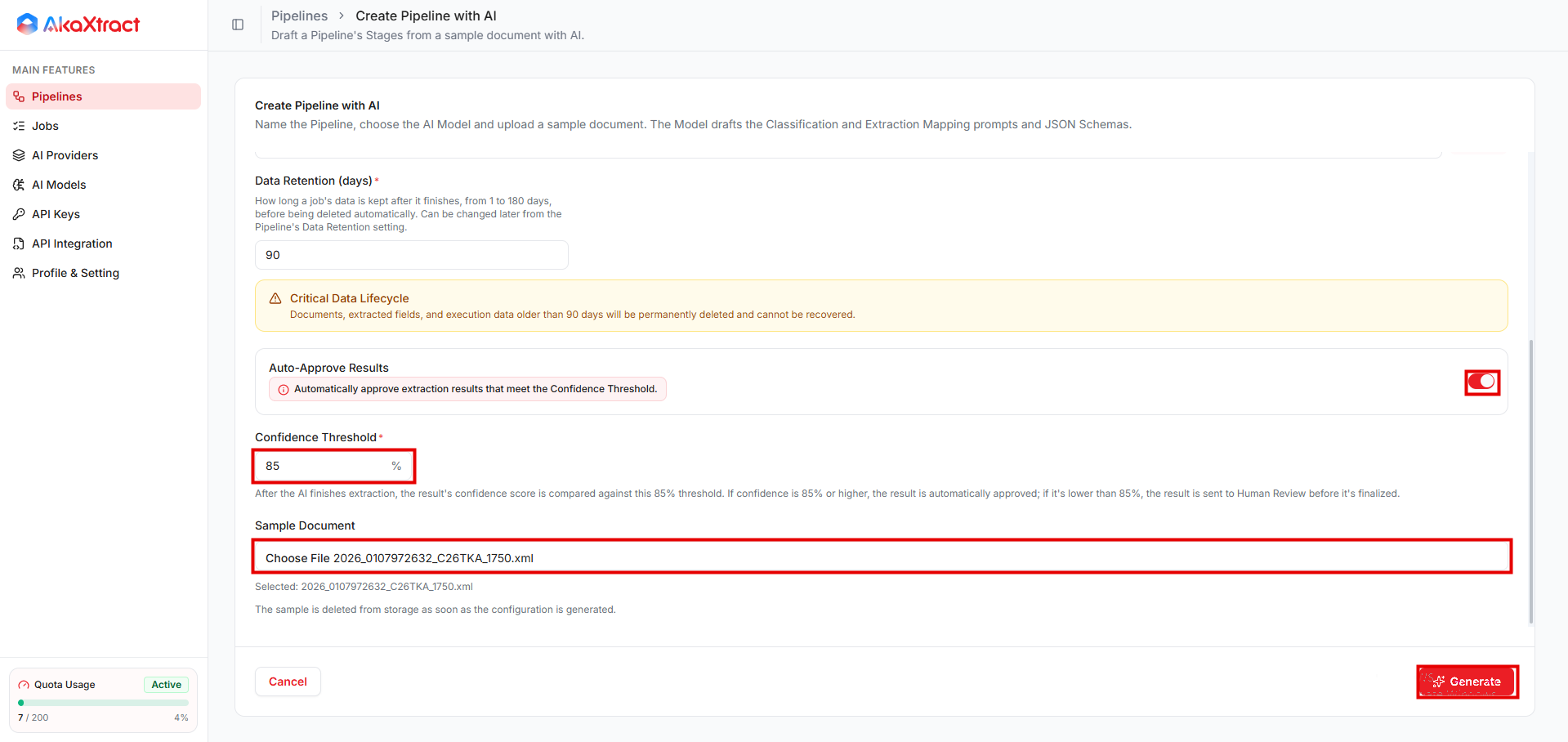
Pipeline Nameand choose theAI Model. Set the other options as in the manual wizard, includingAuto-Approve ResultsandConfidence Threshold. - Choose a
Sample Document: PDF, PNG, JPG/JPEG, or XML, up to 25 MB. - Select
Generate. This can take a few minutes. The sample is deleted from storage as soon as the configuration is generated. - In
Review Generated Configuration, check and edit the prompts and schemas. Valid syntax does not mean the content fits your documents. - Select
Create Draftto test it, orPublishif you have checked it.
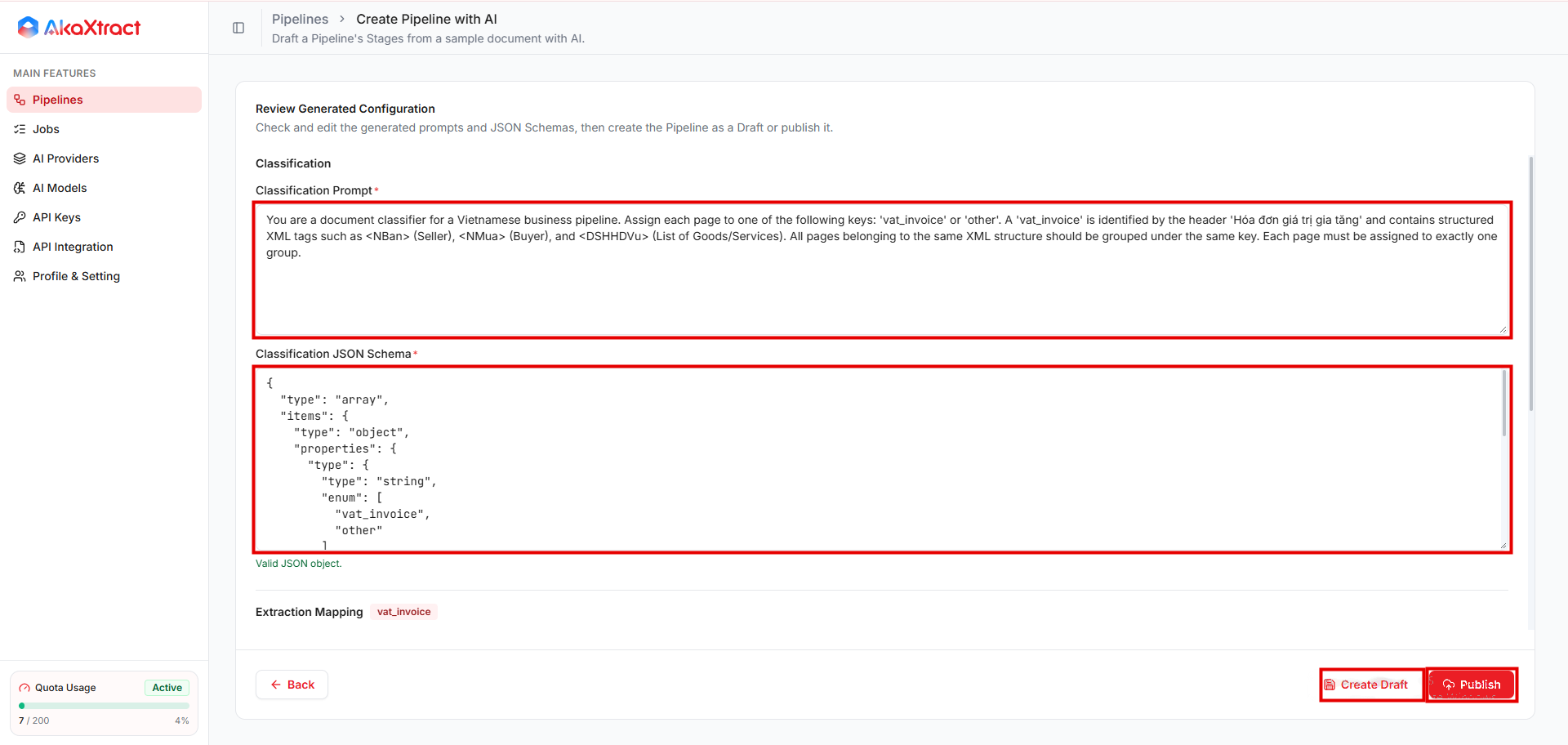
If publishing fails after the Pipeline is created, open the draft that was created instead of creating a new one.
Create Manual
The wizard has five steps.
| Step | What you set | Notes |
|---|---|---|
| 1. Pipeline Details | Pipeline Name (unique, up to 200 characters), AI Model, optional description (up to 500 characters) and tags, Data Retention (days) | The AI model you choose processes the Pipeline's documents. Retention is 1 to 180 days, and the default is 90. A model from another provider needs an AI key in API Key (Credential) |
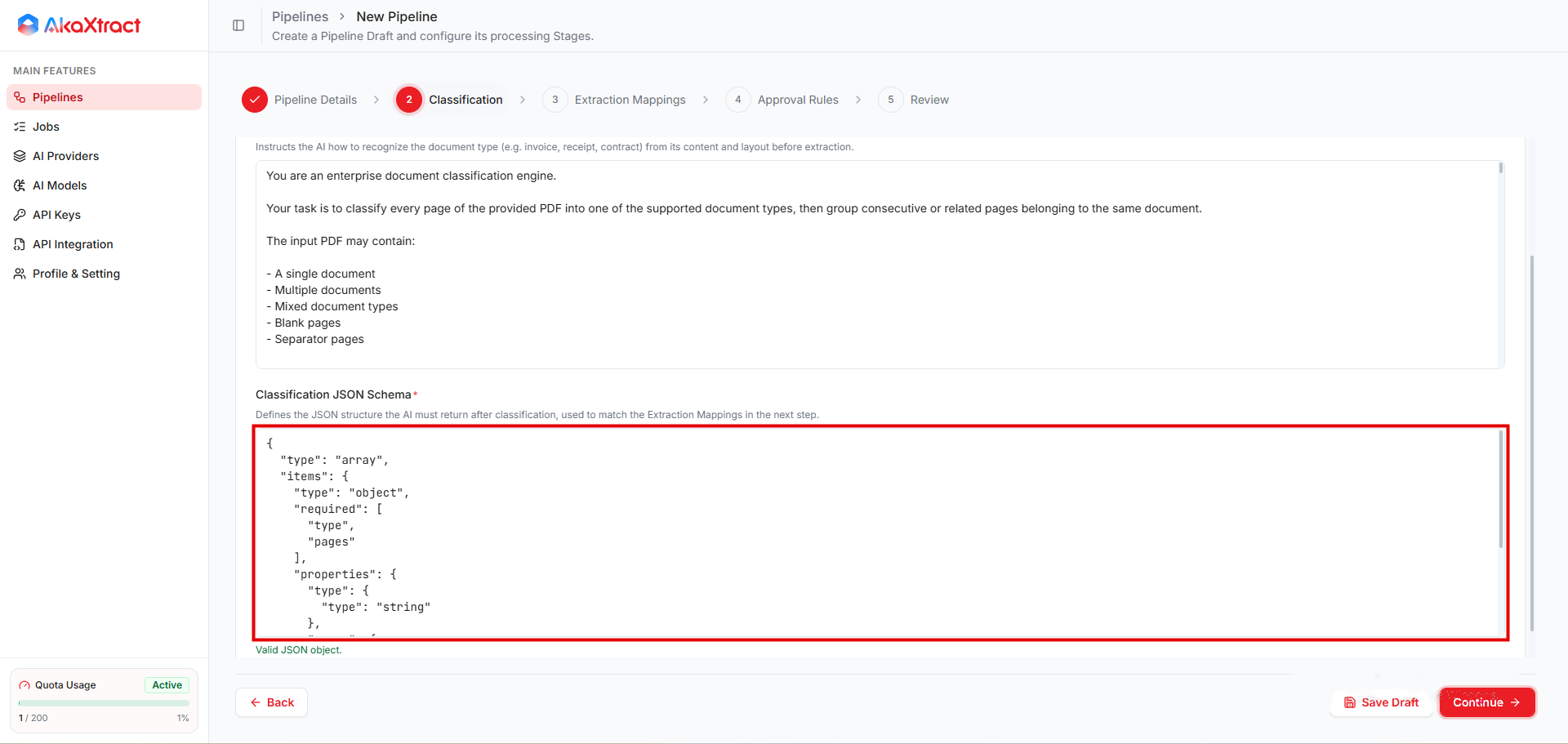
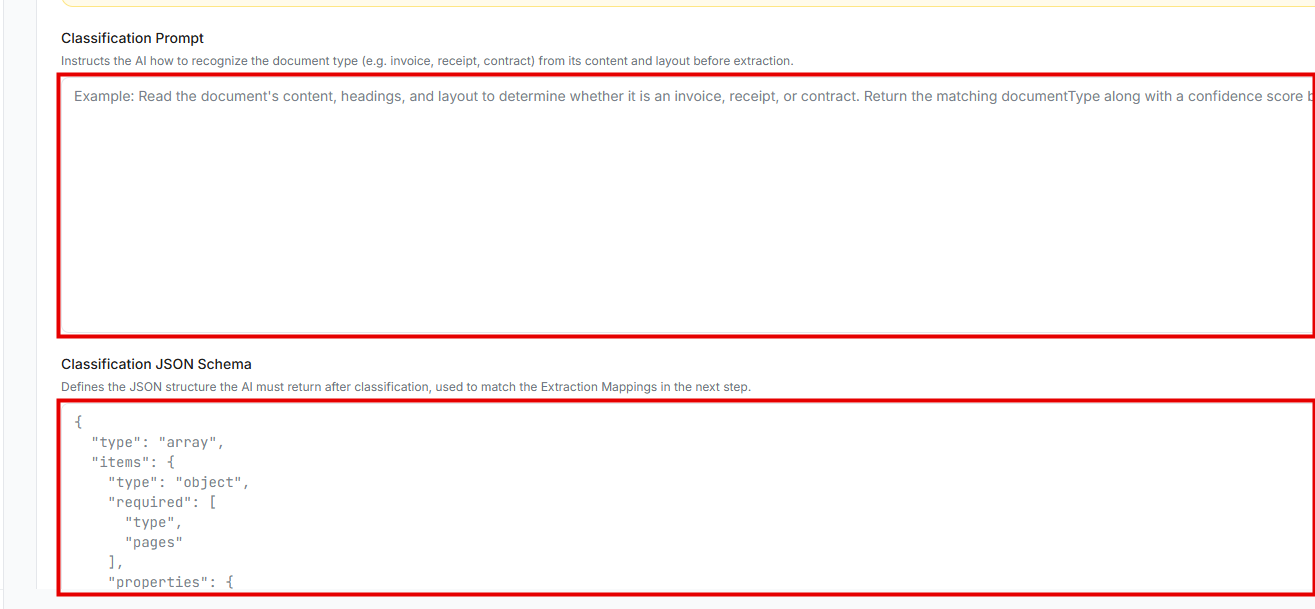
| 2. Classification | Classification Prompt and Classification JSON Schema | Optional. Tells AI how to recognize document types and group pages. If you enter a prompt, enter a schema as well. You can leave both empty when the Pipeline has a single document type. With several document types, keep classification so that AI can tell which type to extract. Start from the default template |
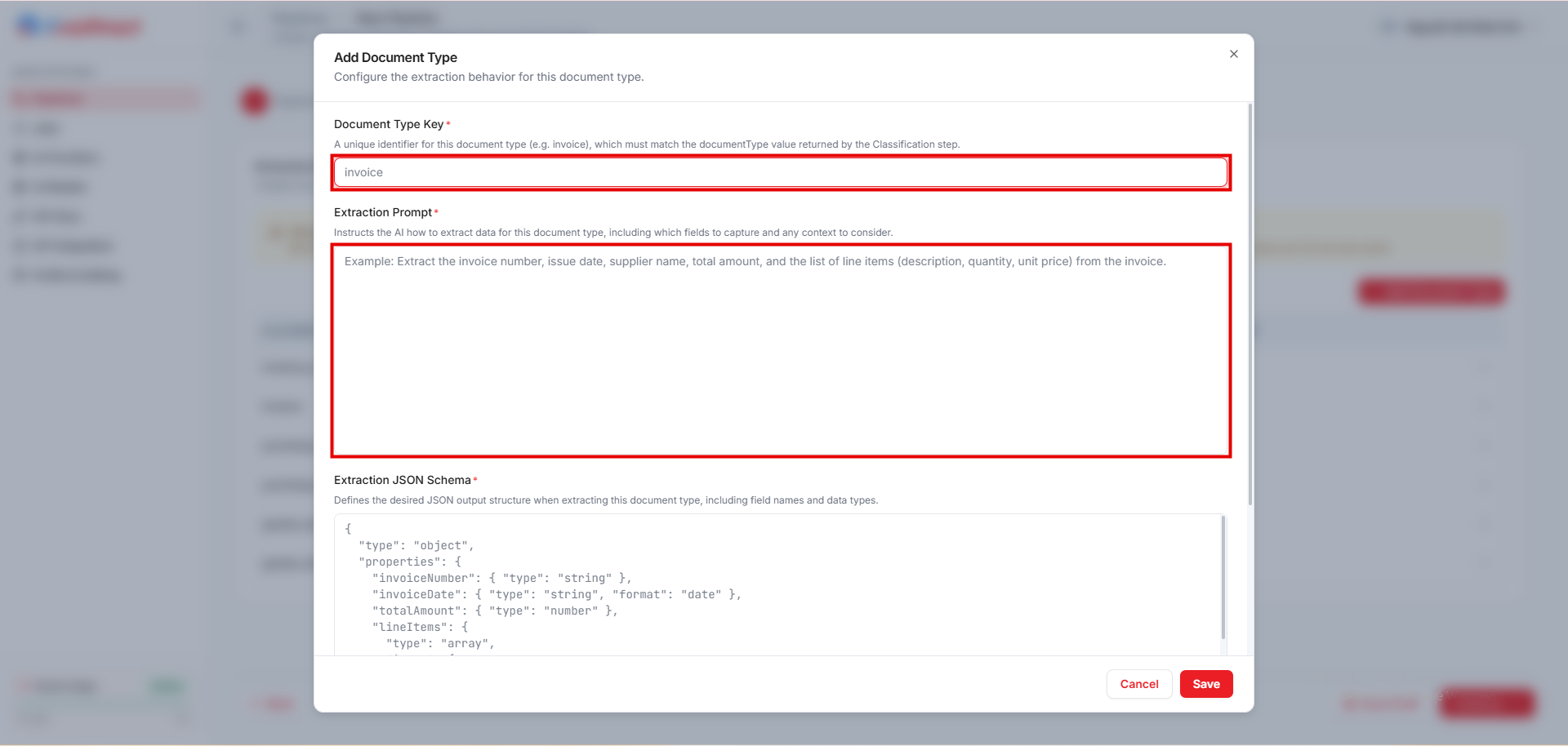
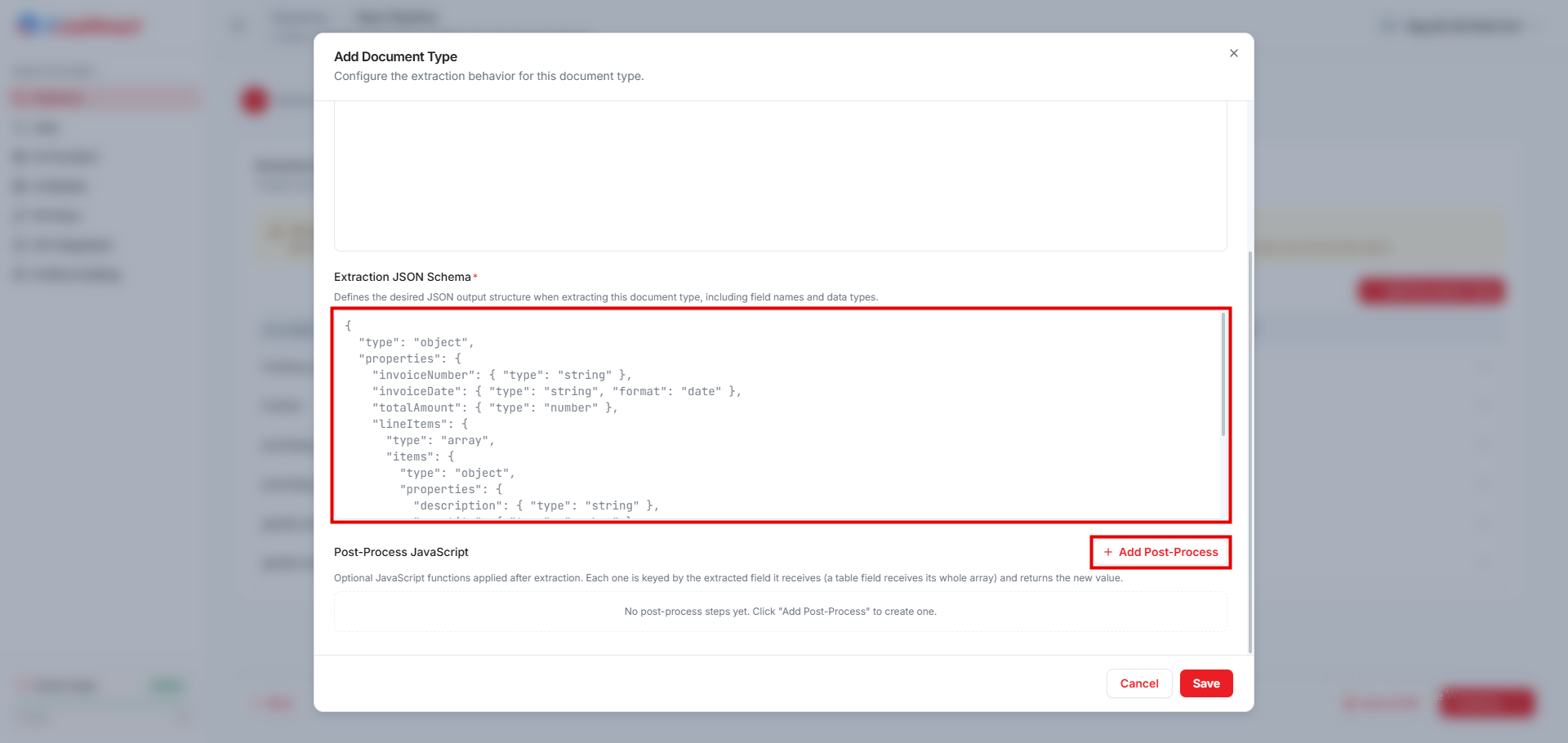
| 3. Extraction Mappings | One entry per document type: Document Type Key, Extraction Prompt, Extraction JSON Schema, and optional post-processing | Templates are available for invoices, purchase orders, and goods receipts |
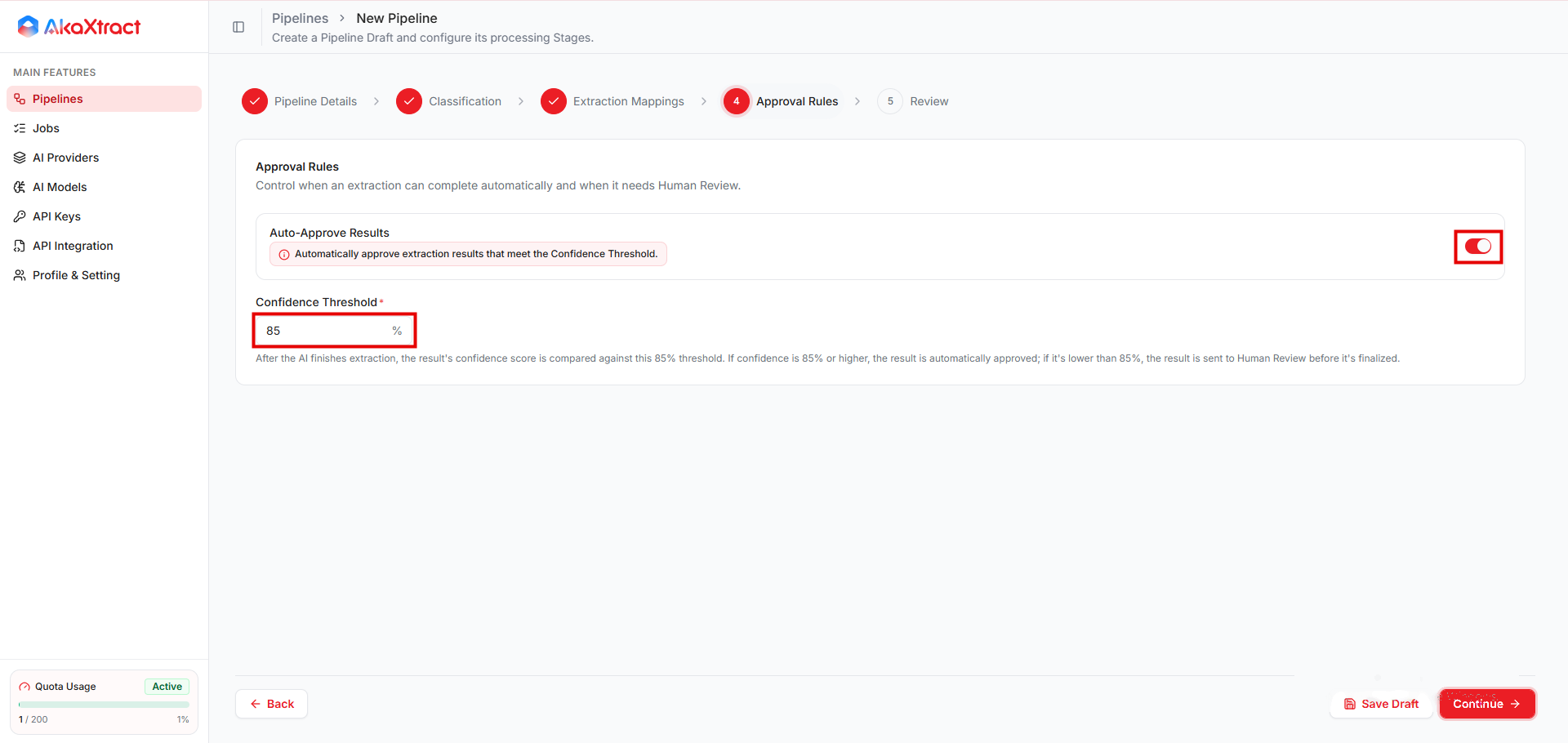
| 4. Approval Rules | Auto-Approve Results and Confidence Threshold | See Approval Rules |
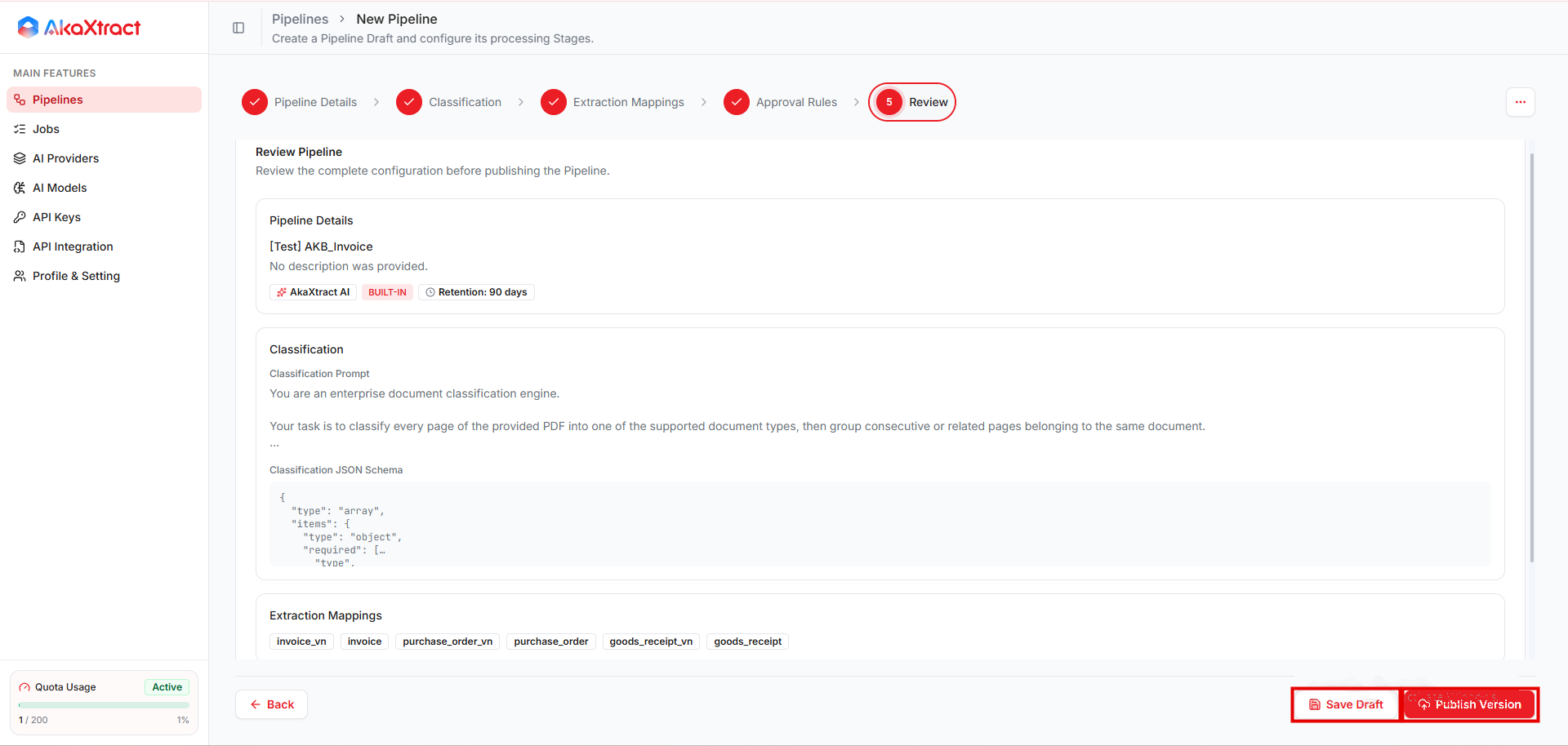
| 5. Review | Check the configuration, then Save Draft or Publish Version | A Draft does not accept documents until you publish it |
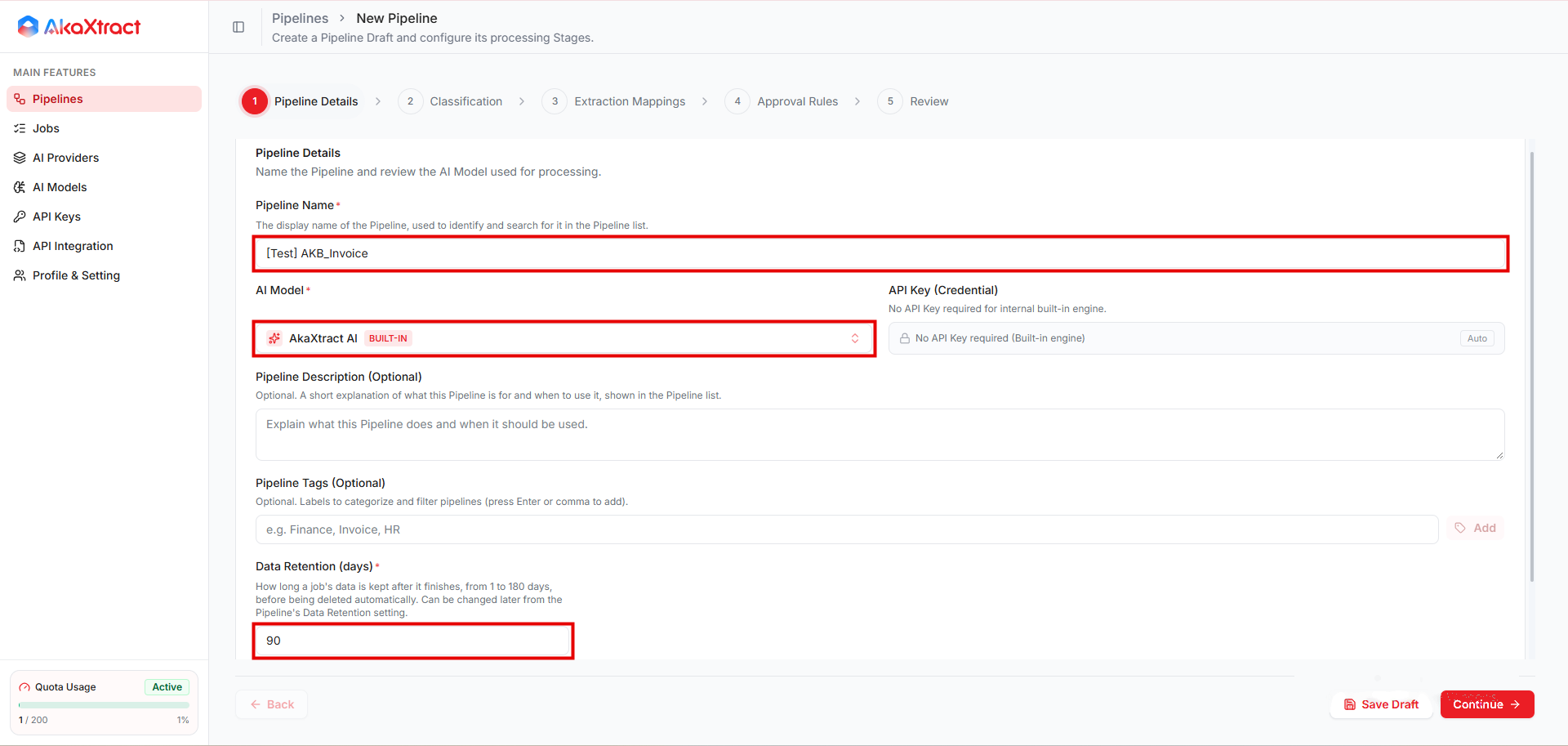
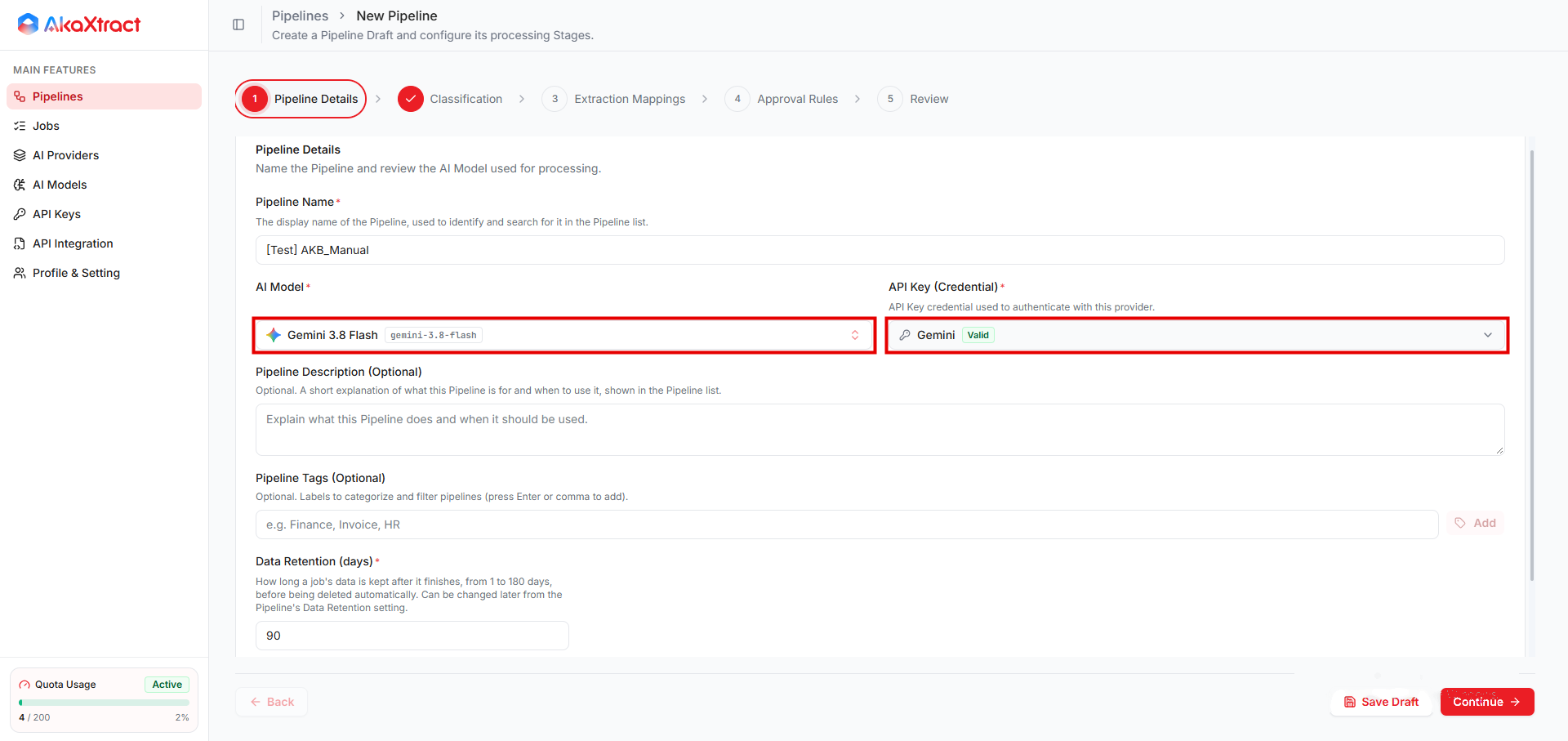
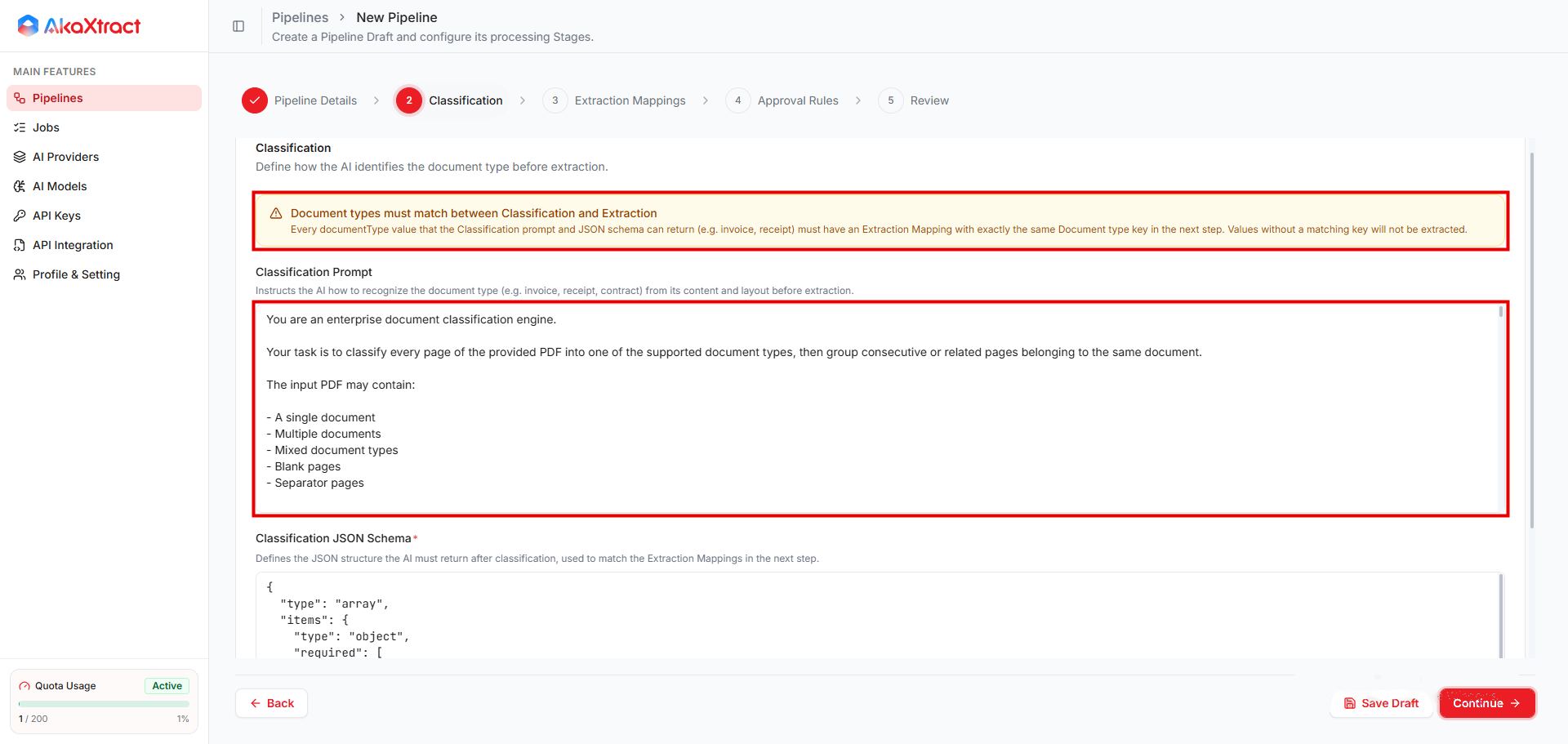
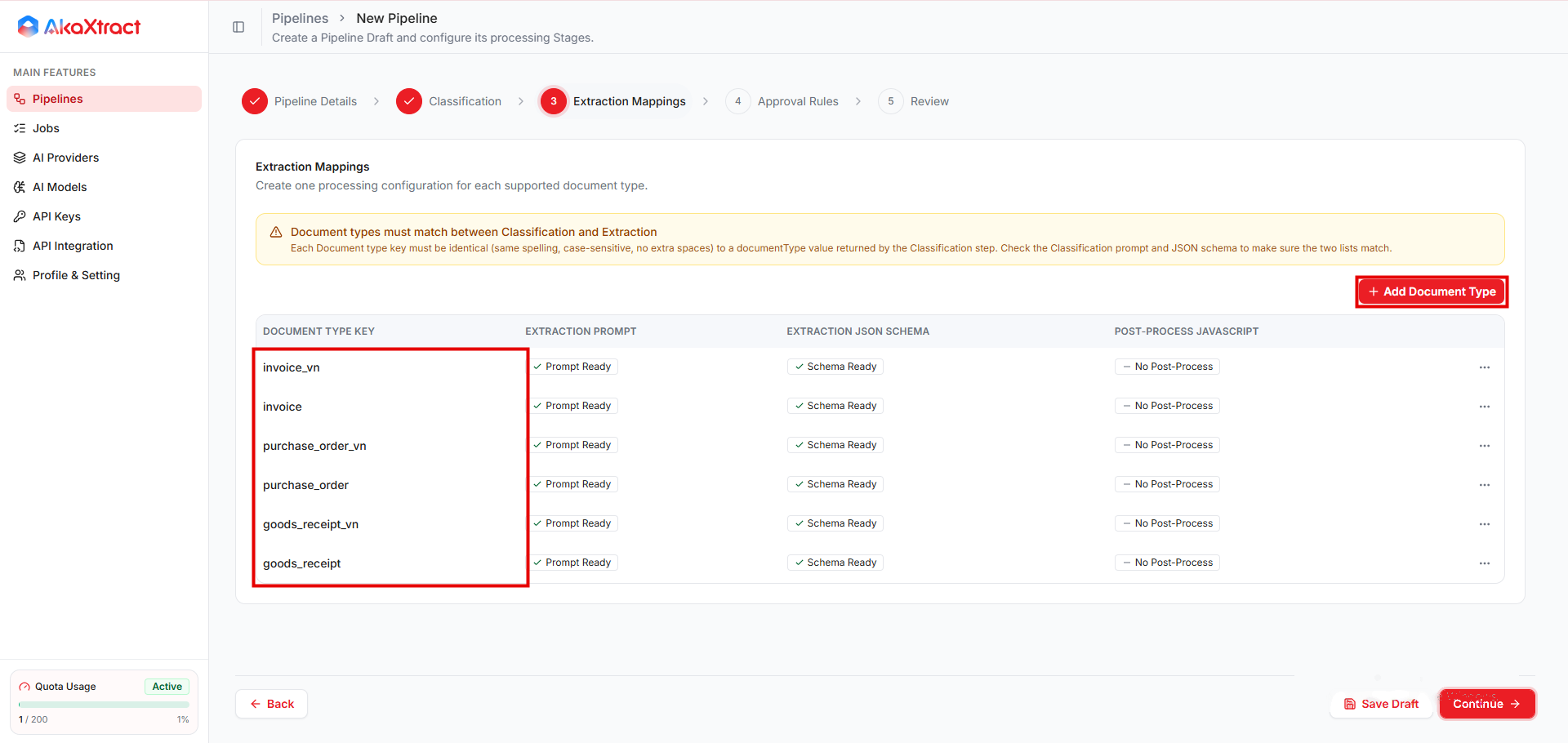
Each Document Type Key must exactly match a type that classification returns (same spelling, case-sensitive, no extra spaces). A type without a matching key is not extracted.
Extraction prompt and schema. The prompt describes the fields to extract, how to handle missing values, and how to read tables. The schema is a JSON object that lists the fields and their data types.
Post-processing (optional). A JavaScript function changes the value of one field after extraction, one function per field name. A function receives the extracted value of its field (a table field receives the whole array) and returns the new value. Use code that your process owner approved. Python post-processing is no longer run.
Approval Rules
| Condition | Result |
|---|---|
Auto-Approve Results is off | A reviewer checks every result |
| Confidence meets the threshold, data exists, and there are no warnings | The result completes automatically: Document Confirmed, Job Completed |
| Confidence is below the threshold or missing, there are warnings, or no data was extracted | A reviewer checks the result |
The threshold is a percentage from 0 to 100, with a default of 85. Automatic approval is on by default.
For important data, turn automatic approval off while you validate the Pipeline.
Next Step
Test and publish the Pipeline before you upload real documents.
Reference: Default Classification Template
A new Pipeline starts with the default Classification Prompt and Classification JSON Schema below. Each document type that you want to extract, such as invoice or purchase_order, needs an Extraction Mapping with exactly the same key. The other type has no Extraction Mapping by default, so those pages are not extracted. Edit the list of types to match your documents. The default list includes international and Vietnamese (_vn) variants.
Default Classification Prompt
You are an enterprise document classification engine.

Your task is to classify every page of the provided PDF into one of the supported document types, then group consecutive or related pages belonging to the same document.

The input PDF may contain:

- A single document
- Multiple documents
- Mixed document types
- Blank pages
- Separator pages

--------------------------------------------------
Supported document types
--------------------------------------------------

invoice_vn

Commercial invoice requesting payment for goods or services (Vietnamese invoice).

Typical indicators:

- Invoice
- Tax Invoice
- Commercial Invoice
- Hóa đơn
- Hóa đơn GTGT
- Hóa đơn điện tử
- Invoice Number
- Invoice Date
- Due Date
- Total Amount
- Amount Due
- VAT
- Tax
- Payment Terms

--------------------------------------------------

invoice

Commercial invoice requesting payment for goods or services (International invoice).

Typical indicators:

- Invoice
- Tax Invoice
- Commercial Invoice
- Bill
- Invoice Number
- Invoice Date
- Due Date
- Total Amount
- Amount Due
- VAT
- Tax
- Payment Terms

--------------------------------------------------

purchase_order_vn

Purchase Order issued by a buyer requesting goods or services from a supplier (Vietnamese purchase order).

Typical indicators:

- Purchase Order
- PO
- PO#
- Purchase Order No
- Đơn đặt hàng
- Số PO
- Order Date
- Requested Delivery Date
- Buyer
- Supplier
- Vendor
- Ship To
- Requestor

A Purchase Order is created BEFORE goods are delivered and BEFORE an invoice is issued.

--------------------------------------------------

purchase_order

Purchase Order issued by a buyer requesting goods or services from a supplier (International purchase order).

Typical indicators:

- Purchase Order
- PO
- PO#
- Purchase Order No
- Order Date
- Requested Delivery Date
- Buyer
- Supplier
- Vendor
- Ship To
- Requestor

A Purchase Order is created BEFORE goods are delivered and BEFORE an invoice is issued.

--------------------------------------------------

goods_receipt_vn

Document confirming that goods have been physically received (Vietnamese goods receipt).

Typical indicators:

- Goods Receipt
- Goods Receipt Note
- GR
- GRN
- Goods Receipt No
- Phiếu nhập kho
- Phiếu nhập
- Warehouse Receipt
- Received Quantity
- Actual Quantity
- Posting Date
- Receipt Date
- Đơn vị giao
- Đơn vị nhận

A Goods Receipt confirms receipt of goods, not payment.

--------------------------------------------------

goods_receipt

Document confirming that goods have been physically received (International goods receipt).

Typical indicators:

- Goods Receipt
- Goods Receipt Note
- GR
- GRN
- Goods Receipt No
- Warehouse Receipt
- Received Quantity
- Actual Quantity
- Posting Date
- Receipt Date
- Delivering Party / Supplier
- Receiving Party / Consignee

A Goods Receipt confirms receipt of goods, not payment.

--------------------------------------------------

other

Any document that is NOT one of the above.

Examples include:

- Delivery Note
- Packing List
- Credit Note
- Debit Note
- Statement
- Receipt
- Email
- Cover Letter
- Contract
- Quotation
- Attachment
- Blank page
- Separator page
- Unknown document

--------------------------------------------------
Classification Rules
--------------------------------------------------

Classify documents by their PRIMARY purpose, not by referenced document numbers.

Examples:

- Invoice containing PO Number
→ invoice / invoice_vn

- Goods Receipt containing Invoice Number
→ goods_receipt / goods_receipt_vn

- Purchase Order containing supplier quotation
→ purchase_order / purchase_order_vn

Never classify based solely on keywords.

Use the overall document structure and business purpose.

--------------------------------------------------
Grouping Rules
--------------------------------------------------

Pages belonging to the same document MUST be grouped together.

Do NOT split one document into multiple objects.

If the document type changes, start a new object.

If the same document type appears later as a different document, create another object.

Example:

Page 1-2 : Invoice A

Page 3 : Purchase Order

Page 4-5 : Invoice B

Return

[
  {
    "type":"invoice_vn",
    "pages":[1,2]
  },
  {
    "type":"purchase_order_vn",
    "pages":[3]
  },
  {
    "type":"invoice_vn",
    "pages":[4,5]
  }
]

--------------------------------------------------
OUTPUT

Return ONLY a JSON array.

Do NOT return markdown.

Do NOT explain anything.

Output format:

[
  {
    "type":"invoice_vn",
    "pages":[1,2]
  },
  {
    "type":"purchase_order_vn",
    "pages":[3]
  },
  {
    "type":"goods_receipt_vn",
    "pages":[4,5]
  },
  {
    "type":"invoice",
    "pages":[6]
  },
  {
    "type":"purchase_order",
    "pages":[7]
  },
  {
    "type":"goods_receipt",
    "pages":[8]
  },
  {
    "type":"other",
    "pages":[9]
  }
]
Default Classification JSON Schema
{
  "type": "array",
  "items": {
    "type": "object",
    "required": [
      "type",
      "pages"
    ],
    "properties": {
      "type": {
        "type": "string"
      },
      "pages": {
        "type": "array",
        "items": {
          "type": "integer"
        }
      }
    }
  }
}