Users and Roles
Invite or Add Members
Before you begin: you need permission to manage users, and permission to assign roles if you set roles. Members belong to the ScaleX company, not to a list for documents only.
- Open
Profile & Setting->User Management. Search first to avoid duplicates. - Choose how to add the member:
| Method | How | Result |
|---|---|---|
| Invite | Invite Users, enter Email Addresses separated by commas, spaces, or new lines, choose roles, then Send Invitations | The invitation shows pending. The recipient completes it in the account system and signs in, and the roles apply at sign-in |
| Add directly | Add User, enter Email. For a new account also enter First Name, Last Name, and a Password of at least 6 characters. Choose roles, then Create User | An existing ScaleX account joins right away. A new user must change the password at first sign-in |
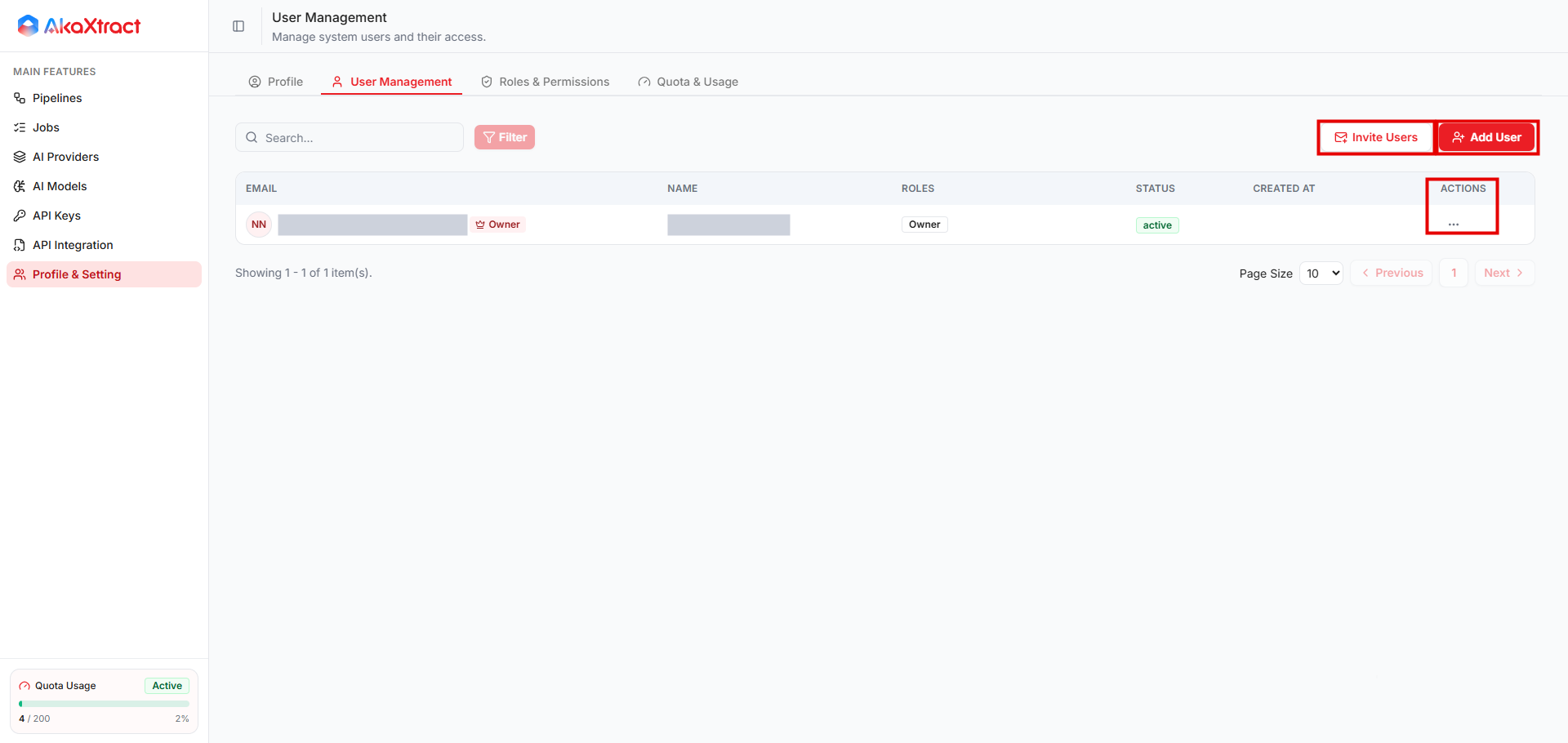
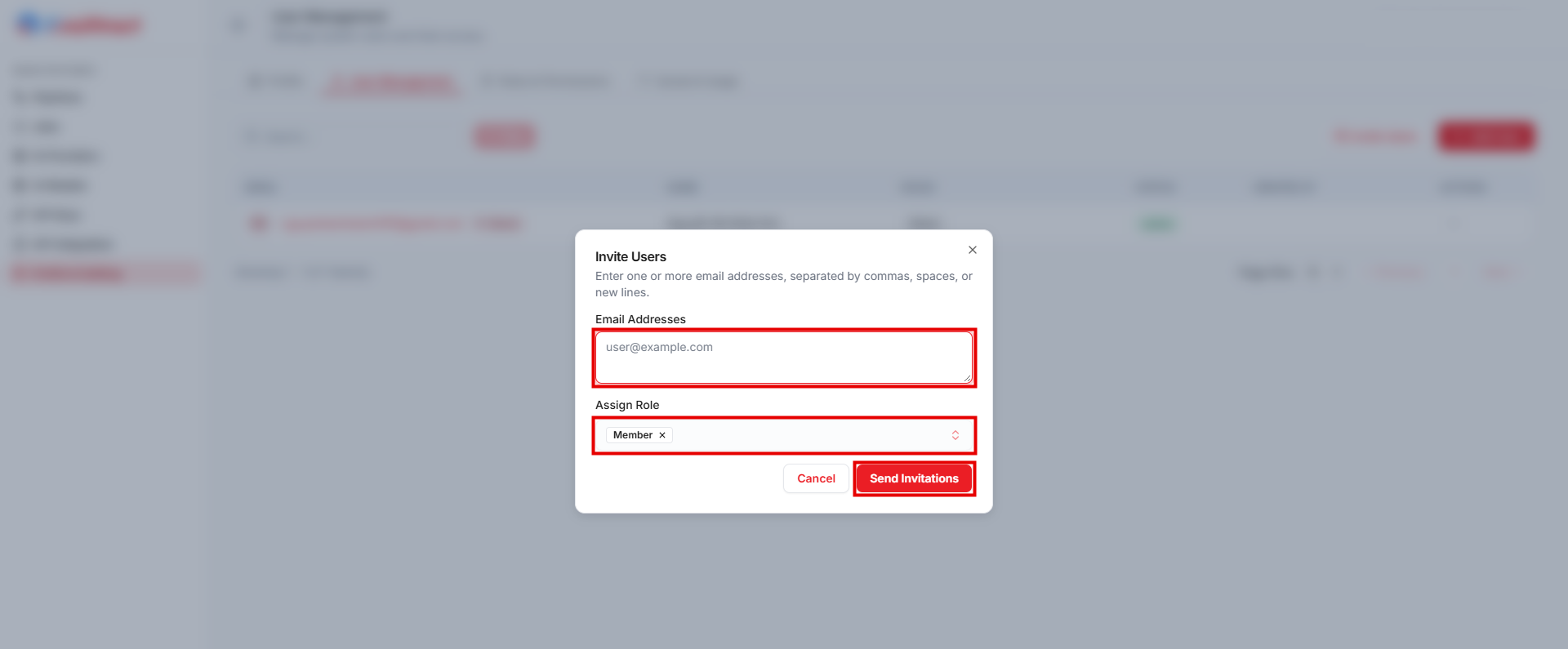
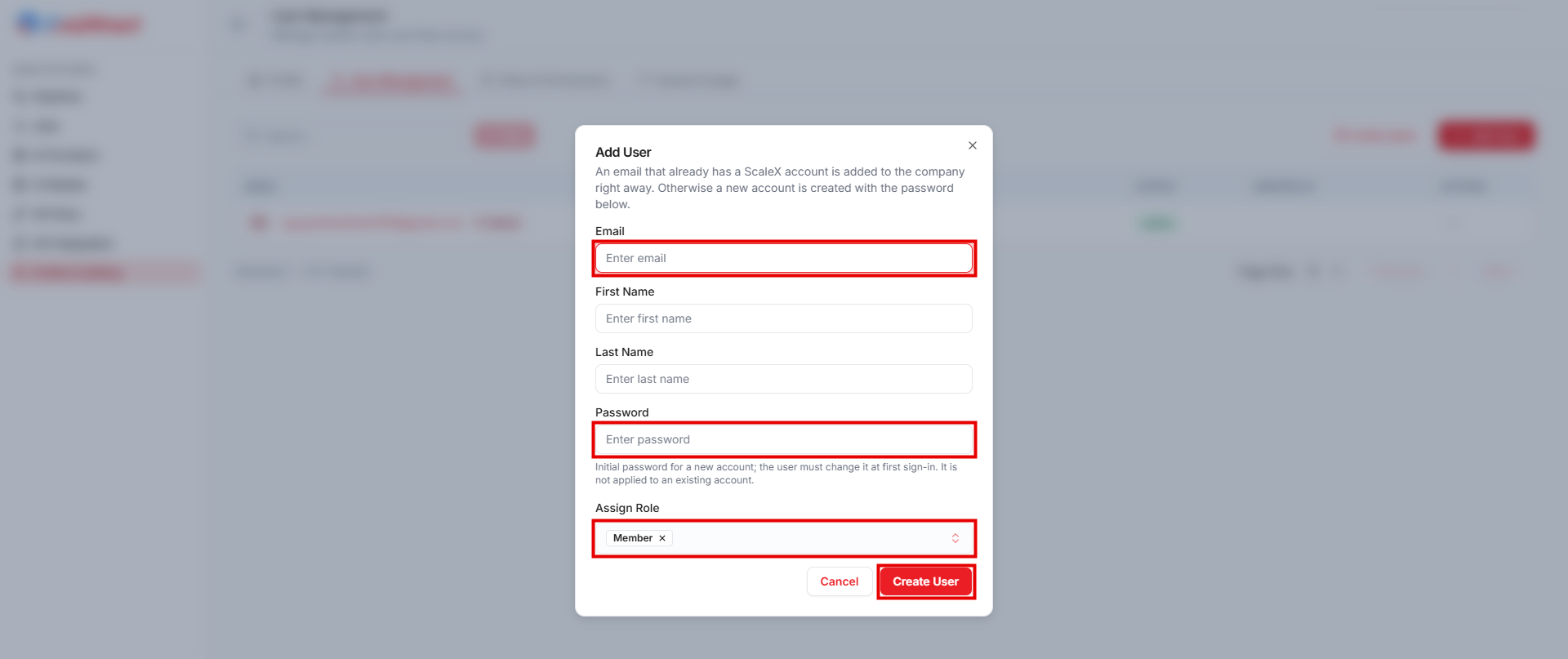
If a user was added but the roles were not saved, use Assign Role instead of creating the account again.
A member without a role cannot process documents. A multi-address invitation can partly succeed, so check each address before you resend. Deleting a member removes that person from the company or cancels a pending invitation. You cannot delete yourself, and the owner is protected. Because the company can be shared with other applications, removal can affect more than AkaXtract.
Create a Role
- Open
Profile & Setting->Roles & Permissionsand selectCreate new role. - Enter a unique
Role nameand an optional description. To start from an existing role, useCopy permissions from role. SelectContinue. - Select the permissions and select
Create role.
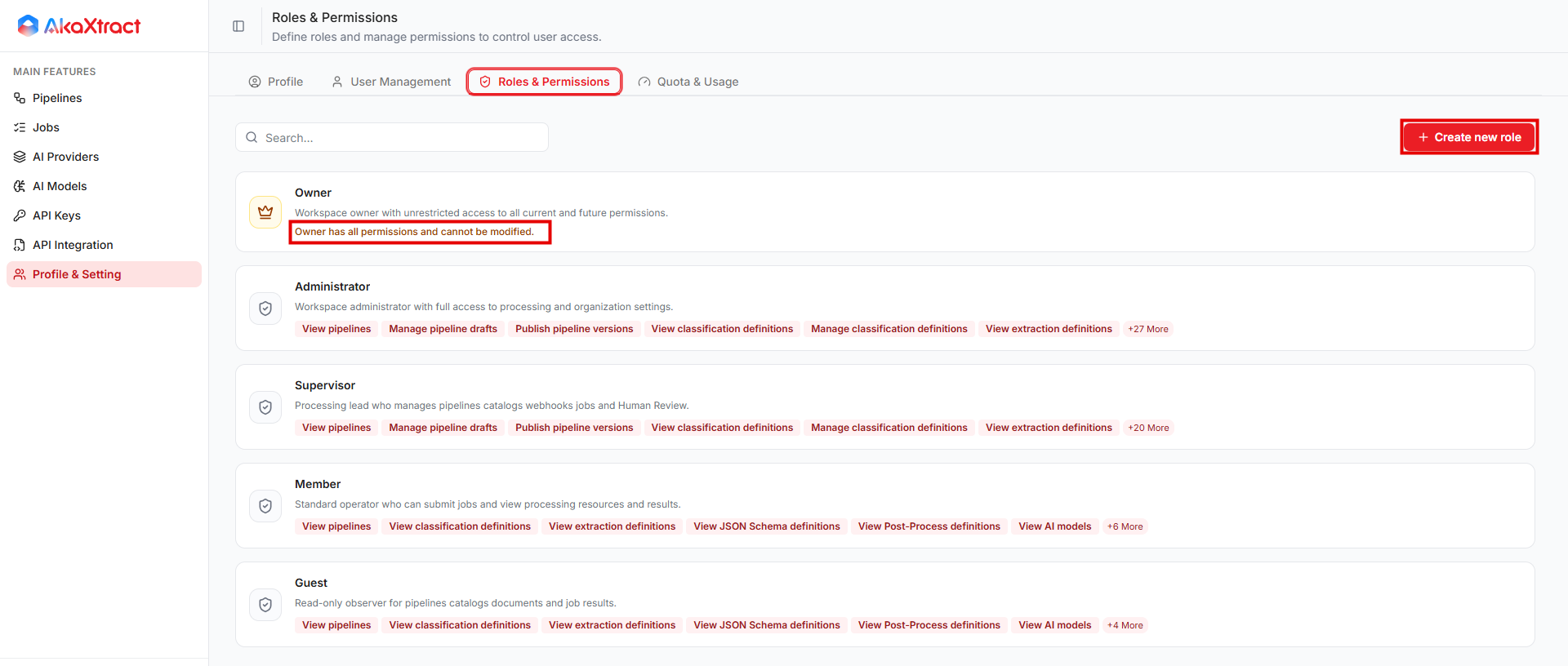
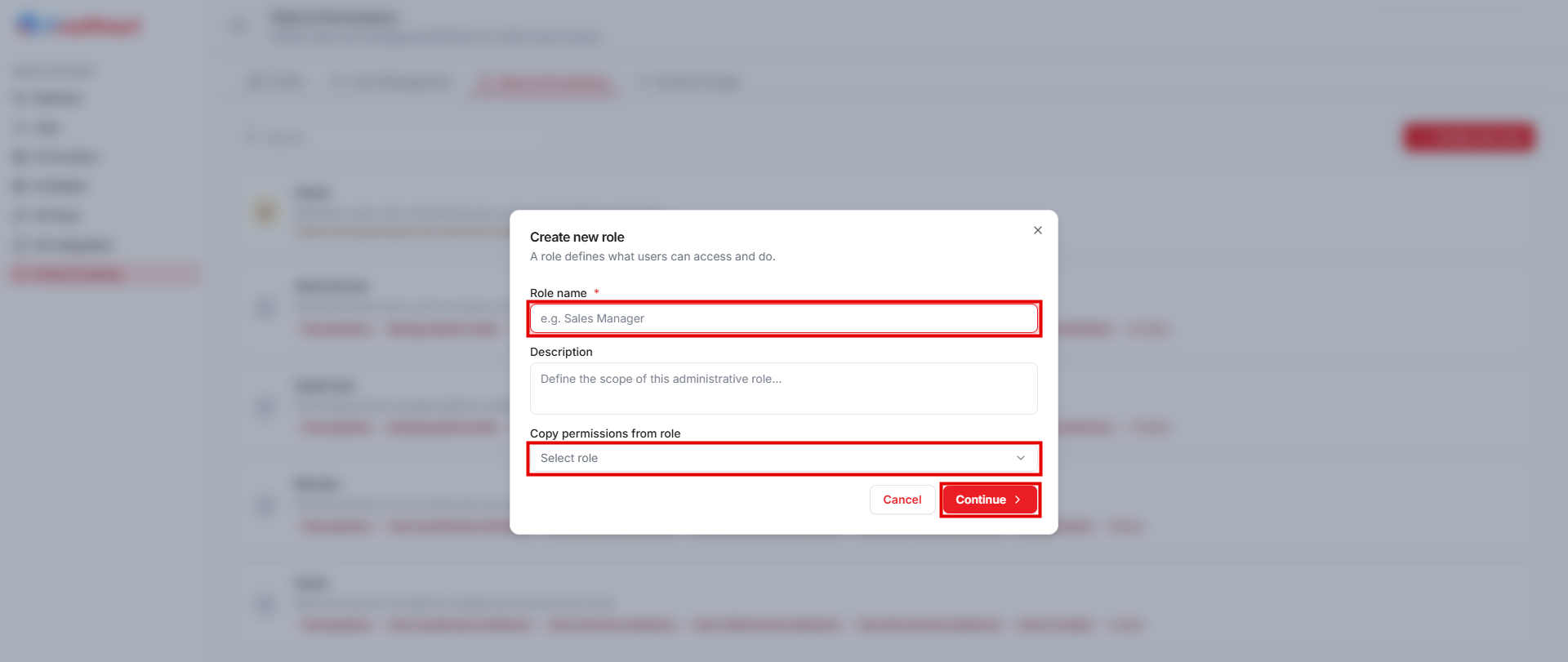
A new role starts with only the quota-read permission selected. Some management permissions include the view permissions they depend on.
Assign and Edit Roles
- In
User Management, open the member menu and selectAssign Role. - Choose the roles and save. This replaces the selected set, so keep the roles that are still needed. Ask the member to reload the page or sign in again.
For a custom role, you can edit the permissions and the description, but not the name. For a system role other than Owner, you can change only the quota-read permission. The Owner role cannot be edited and is reserved for the company owner. System roles cannot be deleted.
Deleting a custom role removes its assignments and can remove users' access. Check the members first.