Upload Documents and Track Jobs
Upload a Document
Before you begin: the Pipeline needs a Published version, and you need permission to submit documents and enough quota.
- Open the Pipeline and select
Documents->Upload Document. - Choose the
Document Fileand selectUpload Document. Upload one file at a time. One file can contain several documents.
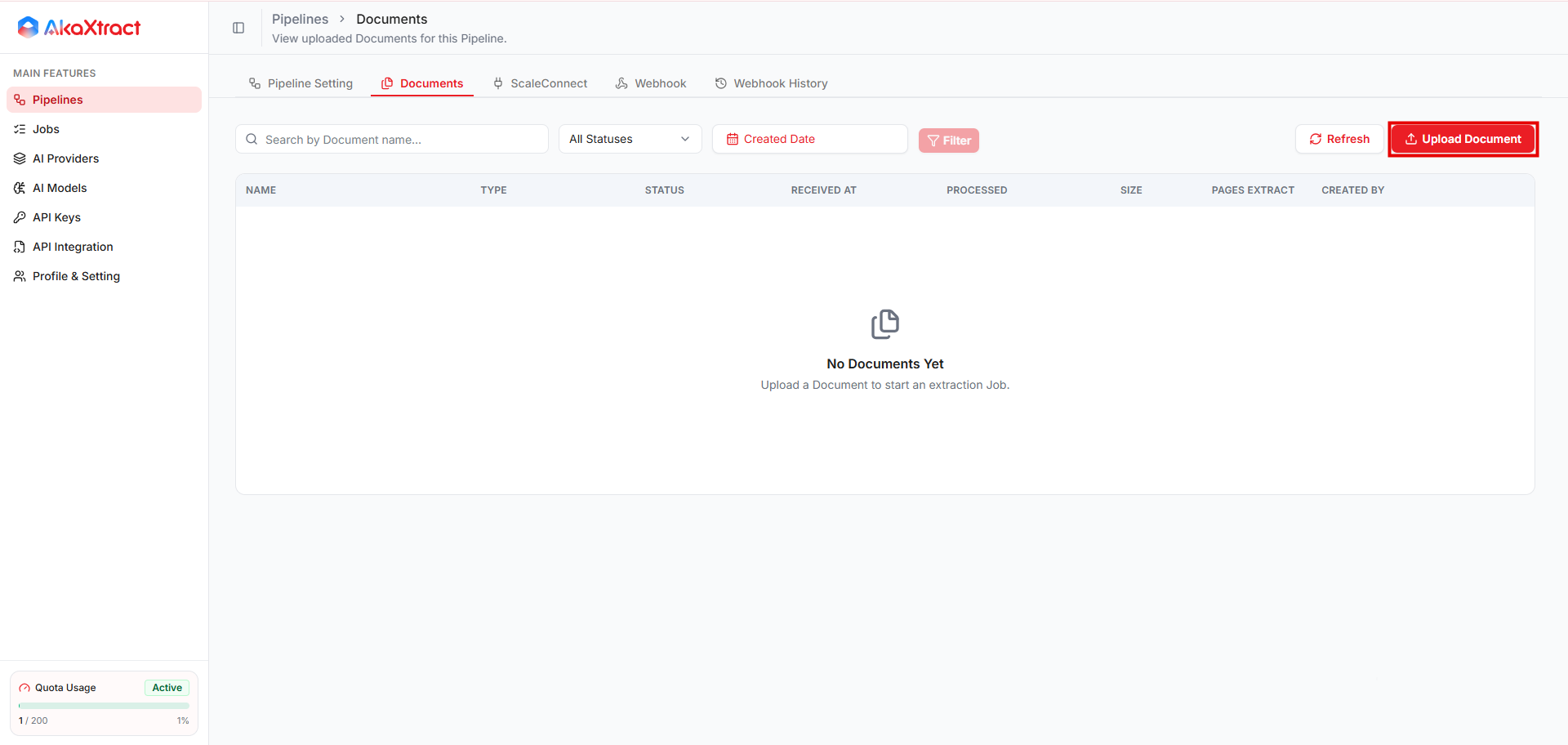
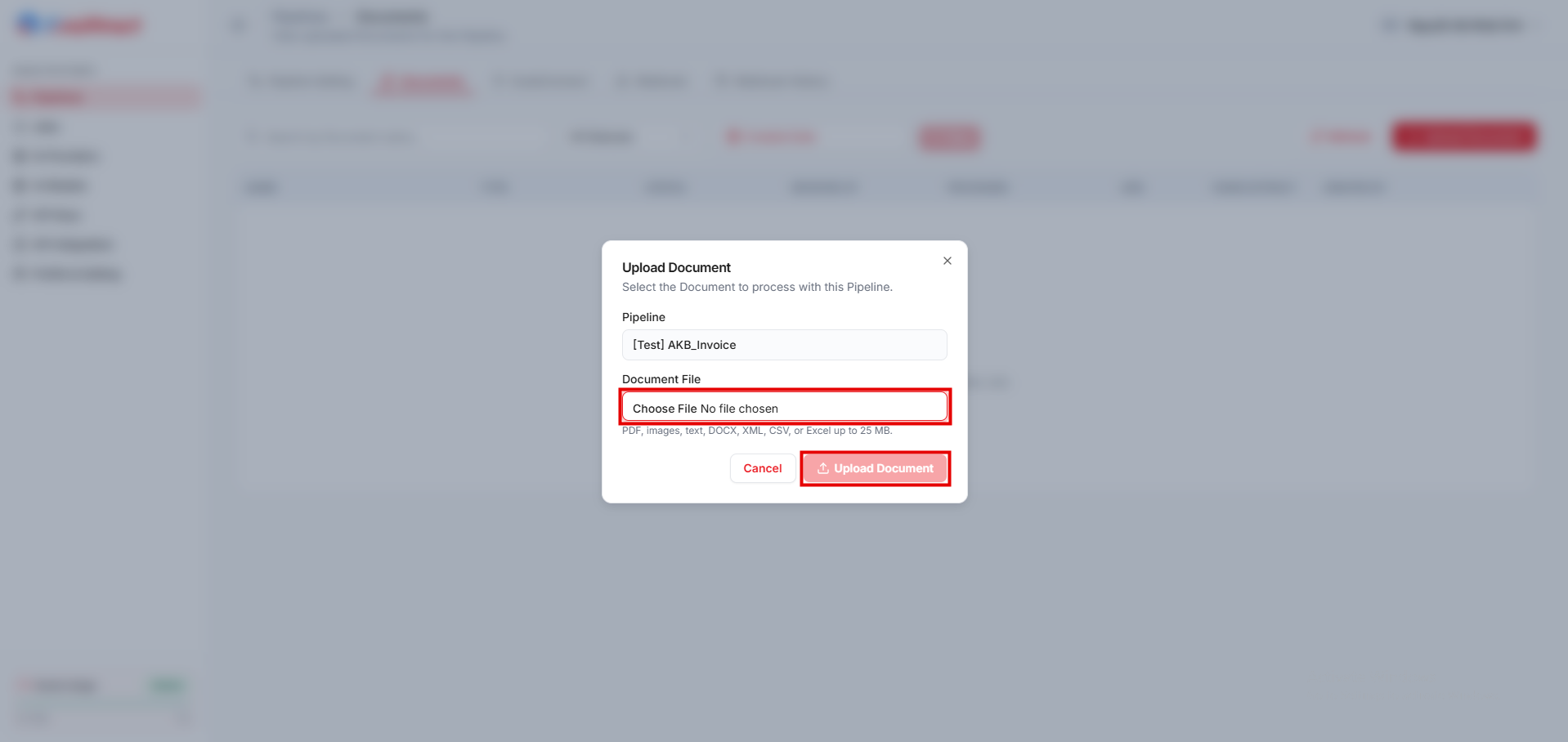
Result: the document appears in the list and processing starts. The upload message does not mean extraction succeeded.
Use search, status, date range, and Filter to find documents. Clear the filters if you cannot see a new document.
Supported Files and Limits
| Item | Details |
|---|---|
| File types processed | PDF, PNG, JPG/JPEG, TIFF, TXT, DOCX, XML, CSV |
| Excel (XLS, XLSX) | Not processed yet. Convert the file to PDF or CSV before you upload it |
| Maximum file size | 25 MB |
| File name | Up to 255 characters. The file must not be empty |
| Several documents in one file | Supported, including different document types |
Sample for Create Auto | PDF, PNG, JPG/JPEG, or XML, up to 25 MB |
An accepted file can still fail to preview or extract. Preview works mainly for PDF, images, and XML. Do not rename a file extension to get past validation. Prepare encrypted, damaged, or oversized files again with a tool that your organization approves.
Track Jobs
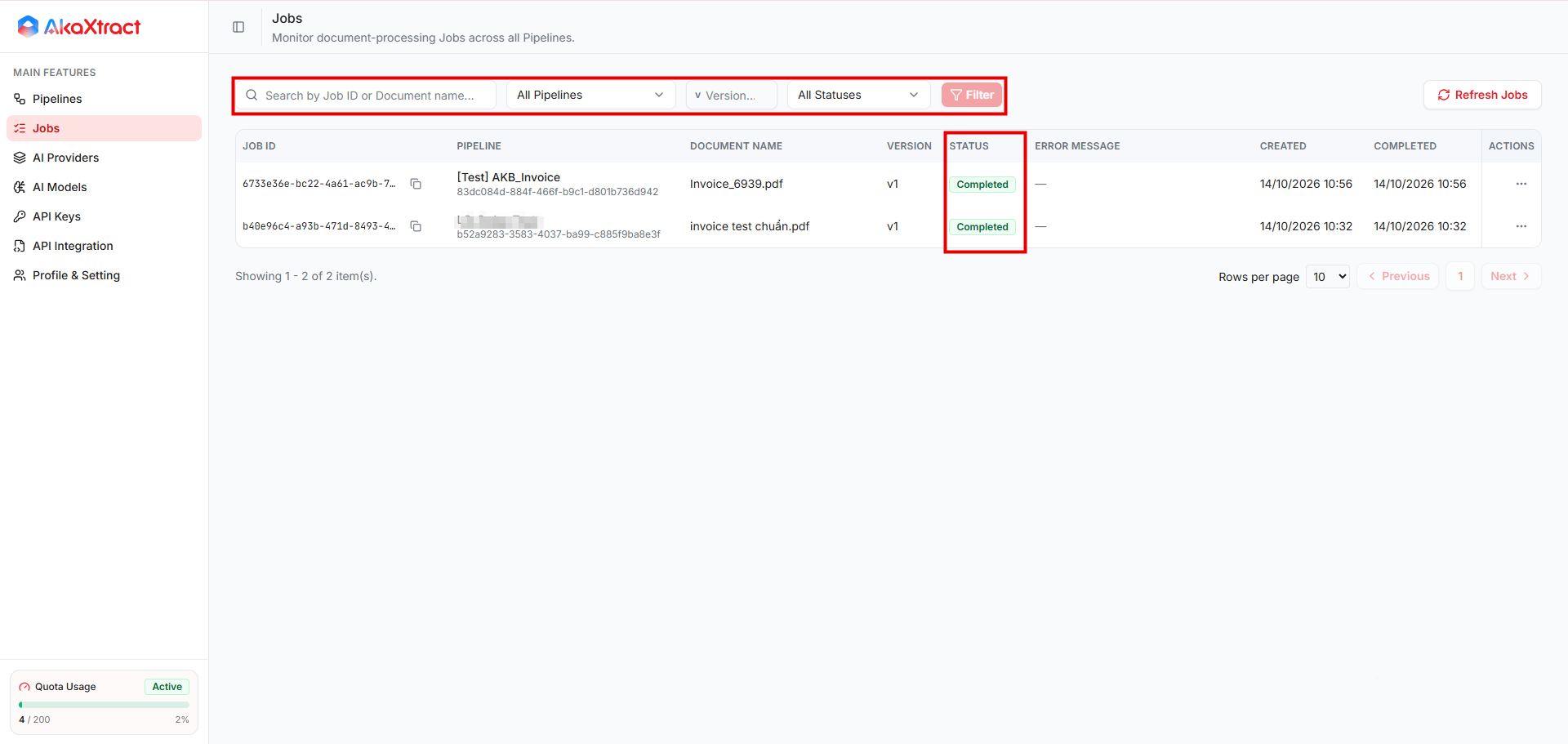
Open Jobs to see every processing run. Search by Job ID or document name, and filter by Pipeline, version, or status. Select Refresh Jobs to update the list.
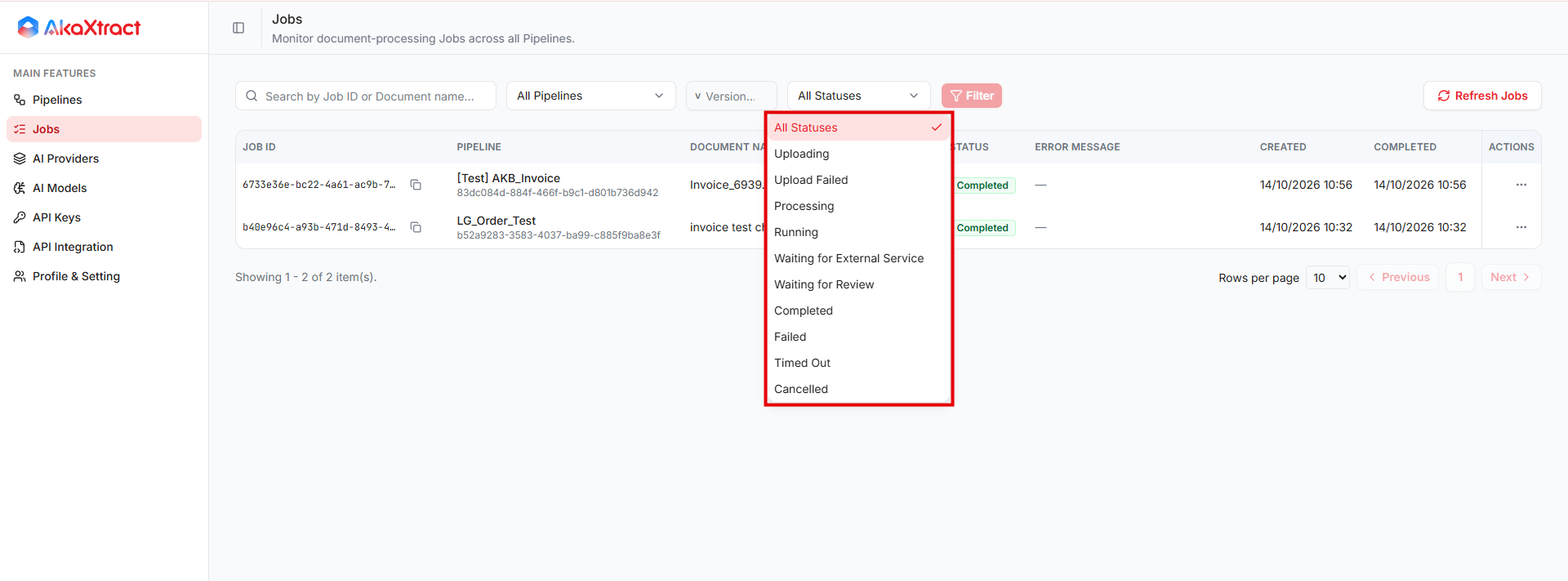
| Job status | Meaning and next step |
|---|---|
Uploading | The file is being received. Wait |
Upload Failed | Check the file and your connection, then upload again |
Processing, Running, Waiting for External Service | The Job is running. Wait before you submit again |
Waiting for Review | A reviewer must confirm the result. Find the Document in To Review or Reviewing |
Completed | The run ended. The Document shows Confirmed or Rejected |
Failed, Timed Out | Read Error Message, fix the cause, then retry |
Cancelled | The Job was cancelled and cannot be retried |
Document status describes the document and its result. Job status describes the run. A Document can be Uploading, Upload Failed, Processing, To Review, Reviewing, Confirmed, Rejected, Failed, or Cancelled.
Retry or Cancel a Job
- Retry a
FailedorTimed OutJob: fix the cause, open the row menu, and selectRetry. The Job returns toProcessingand keeps its Pipeline version. If the fix needs a newly published configuration, upload the document again as a new Job. - Cancel a Job in
Uploading,Processing,Running, orWaiting for External Service: selectCancel, enter aCancellation Reasonif needed, and selectCancel Job.
A Job in Waiting for Review cannot be cancelled. Decide the result in Review instead. A Completed Job cannot be cancelled, and cancelling does not recall a request already sent to an AI provider.
If an action fails, refresh the status first because the Job may already have changed state.