Review and Export Results
Review a Document
Before you begin: you need the review permission and a document in To Review. If another user is reviewing it, you can only view it.
-
In
Documents, open the row menu of the document and selectReview.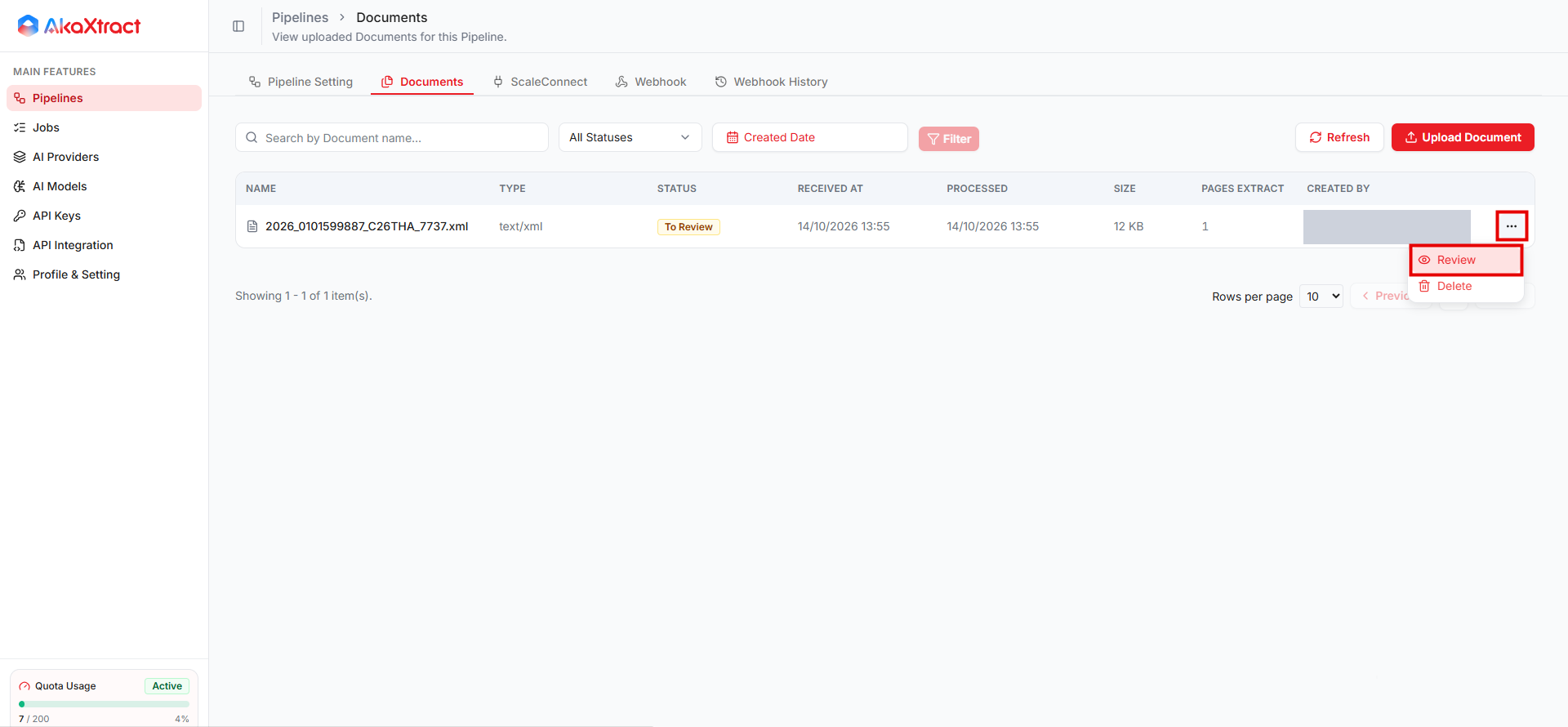
-
Compare the extracted fields on the left with the source document on the right. Check the warnings at the top and the overall
Confidence. A warning, such as model output that does not match the schema, means the document needs review.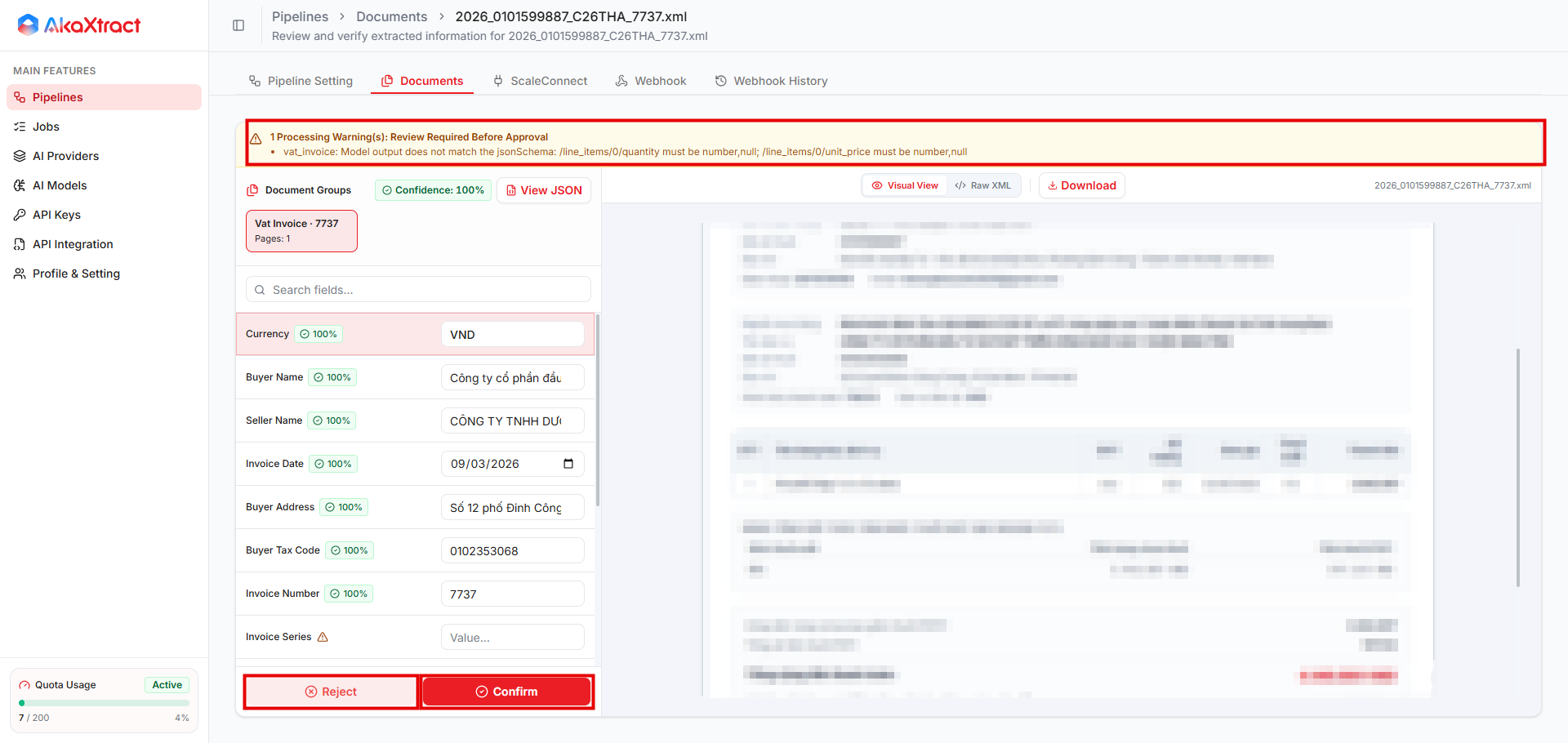
-
Correct any value that is wrong or missing. In a table field, edit cells and add or remove rows.
-
Select
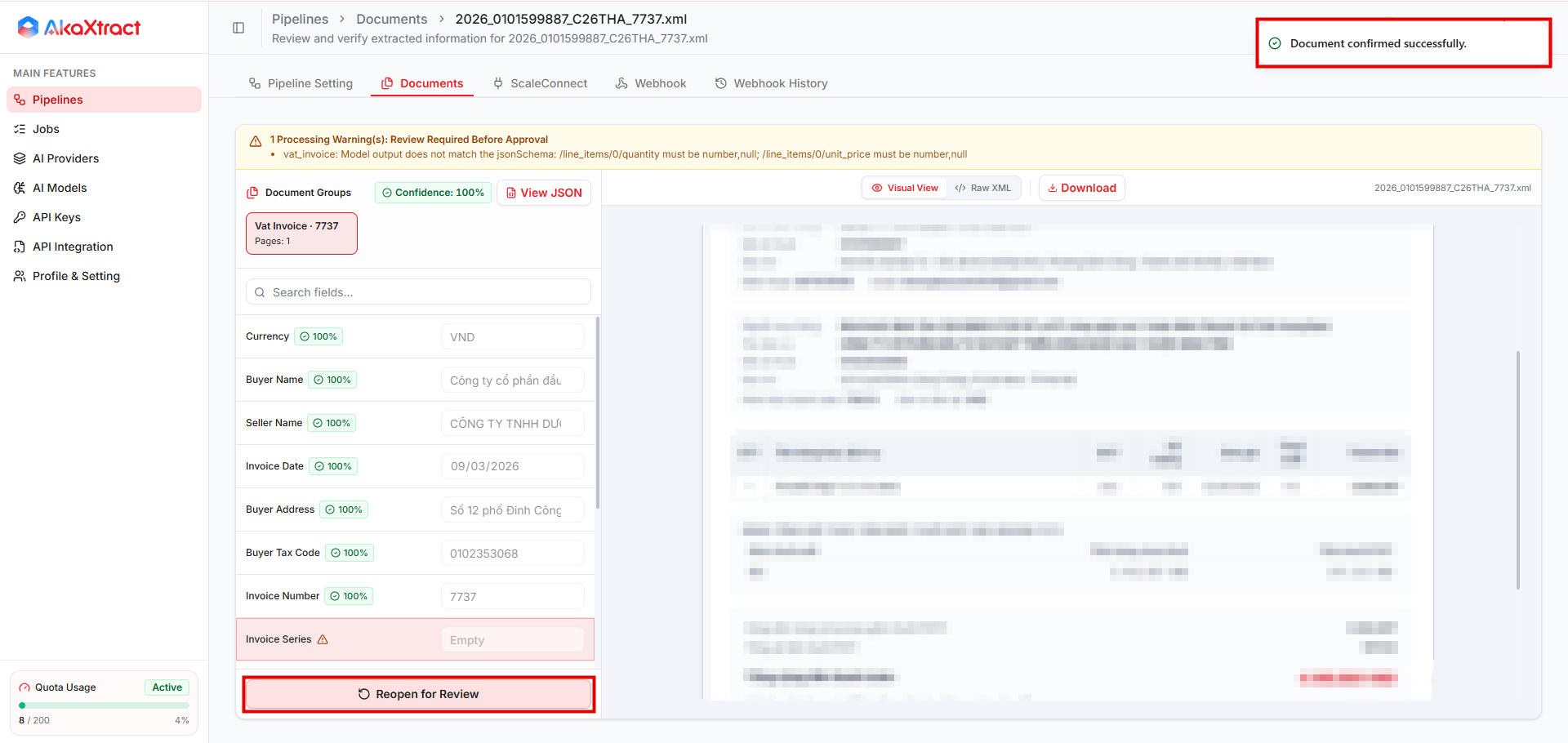
Confirmto save your corrections.
Result: the message Document confirmed successfully. appears. The Document is Confirmed and the Job is Completed.
| Action | Result |
|---|---|
Confirm | Saves your corrections. Document Confirmed, Job Completed |
Reject | Document Rejected, Job Completed. A rejected result cannot be exported, and your edits are not submitted |
Reopen for Review | For a Confirmed or Rejected document. It returns to review, and the Job becomes Waiting for Review. The earlier confirmed result is cleared until you confirm again |
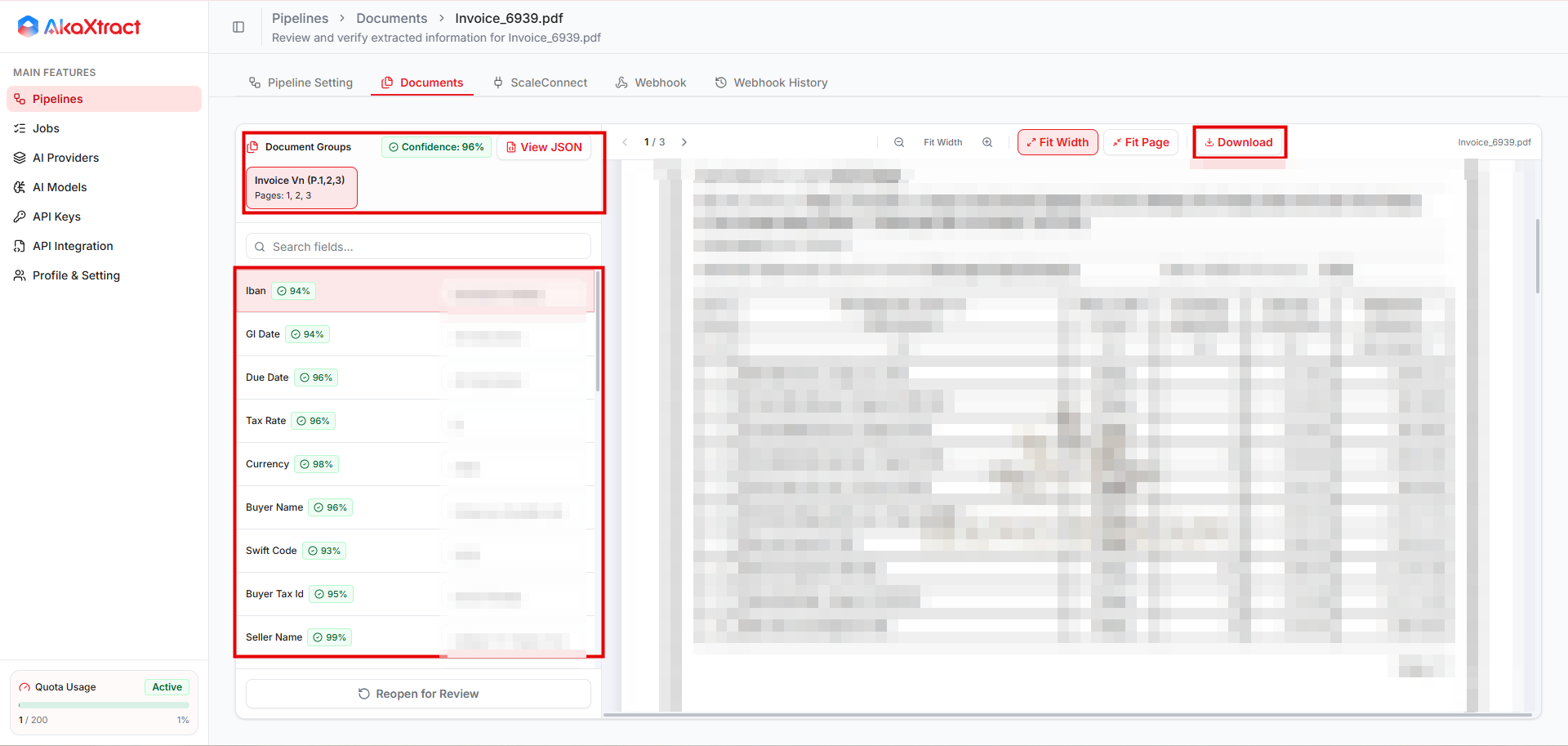
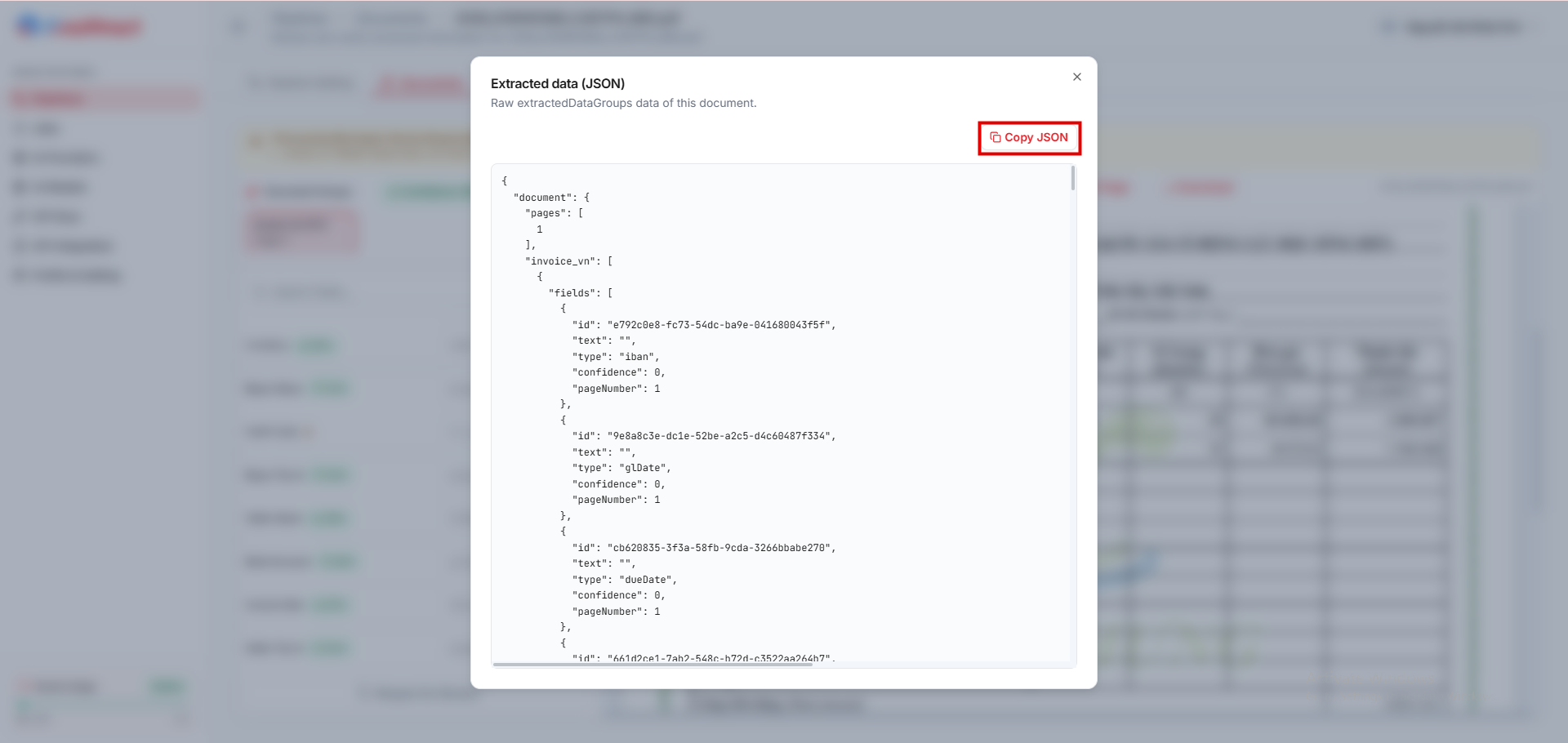
Other tools on this screen: View JSON opens Extracted data (JSON) with a Copy JSON button, and Download saves the source file, not the extracted data. For XML, use Visual View or Raw XML.
Select Confirm before you leave the screen. Leaving releases your editing rights, and unconfirmed changes are not saved. If you are inactive for about 2 minutes, another reviewer can take over.
Reopening a result does not recall data that was already downloaded or sent. Tell the receiver and reconcile separately.
Export a Document
-
In
Documents, find aConfirmedrow, open its menu, and selectExport....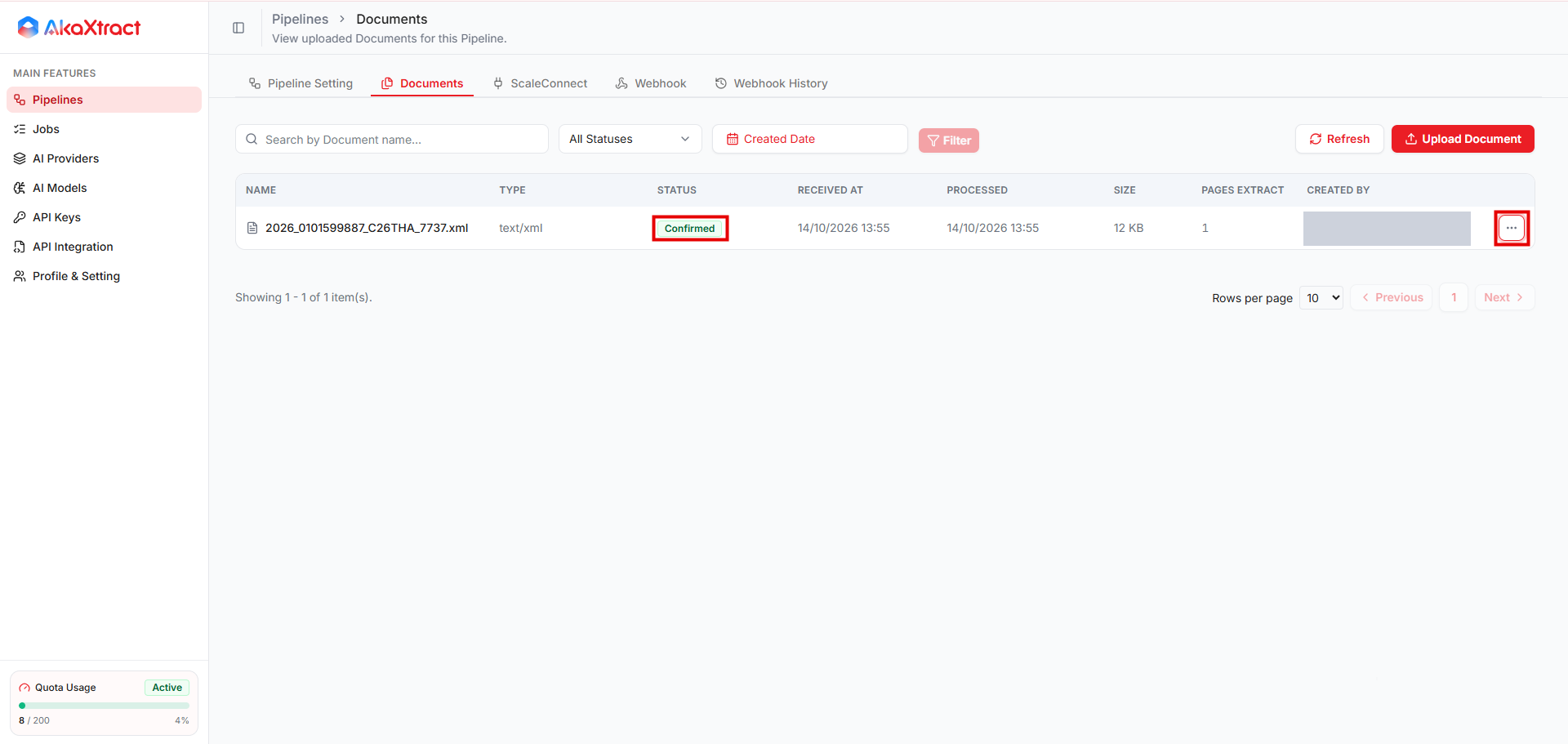
-
Choose
Export Format: XML, CSV, XLSX, or JSON, then selectExport.

Result: your browser downloads the extracted data, not the source document, as records of field, value, confidence, and source. CSV files use the columns Field, Value, Confidence, and Source.
Only Confirmed documents can be exported, and only while the final result still exists.