Tạo Pipeline
Pipeline quy định AkaXtract trích xuất gì từ một loại tài liệu và khi nào cần người duyệt kết quả.
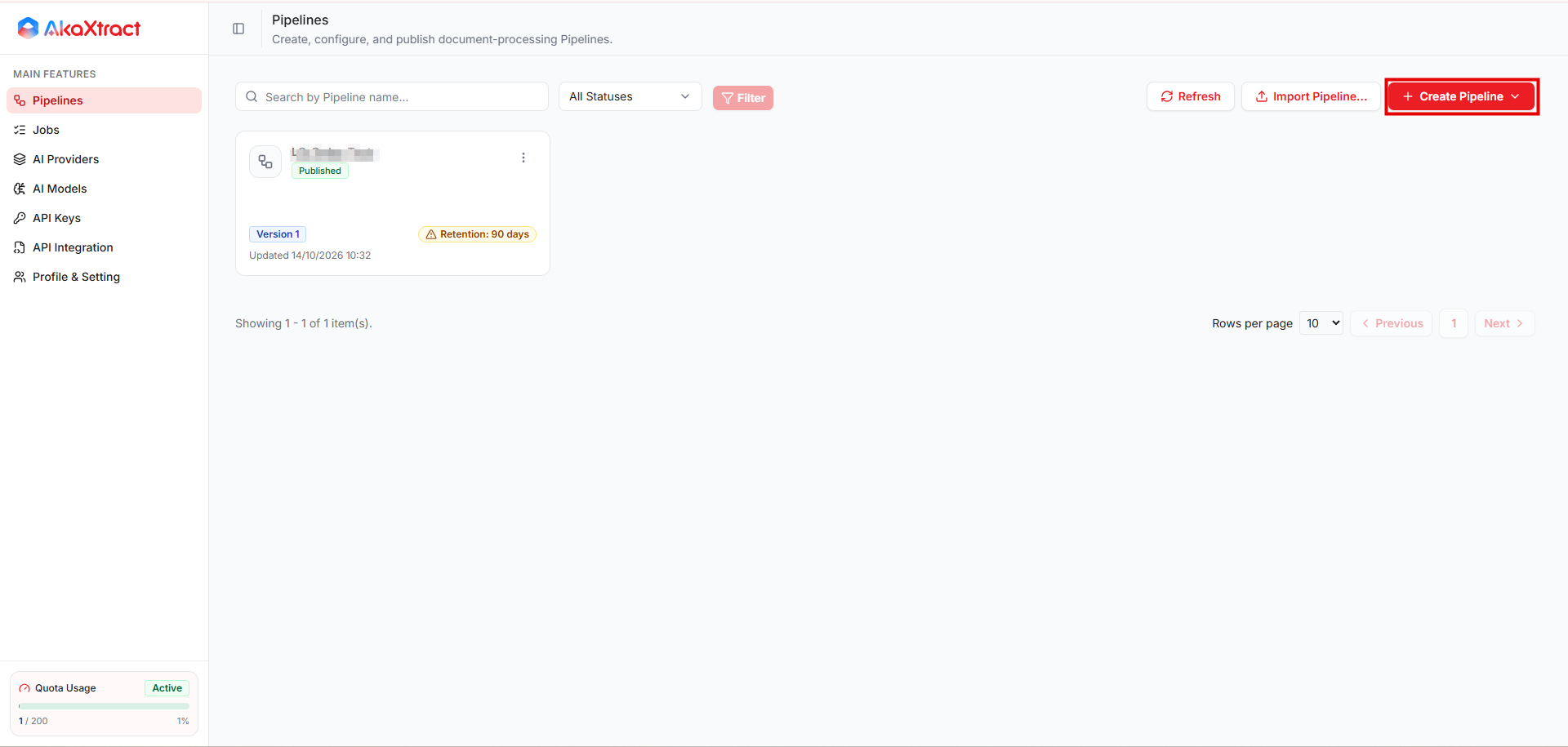
Chọn phương thức
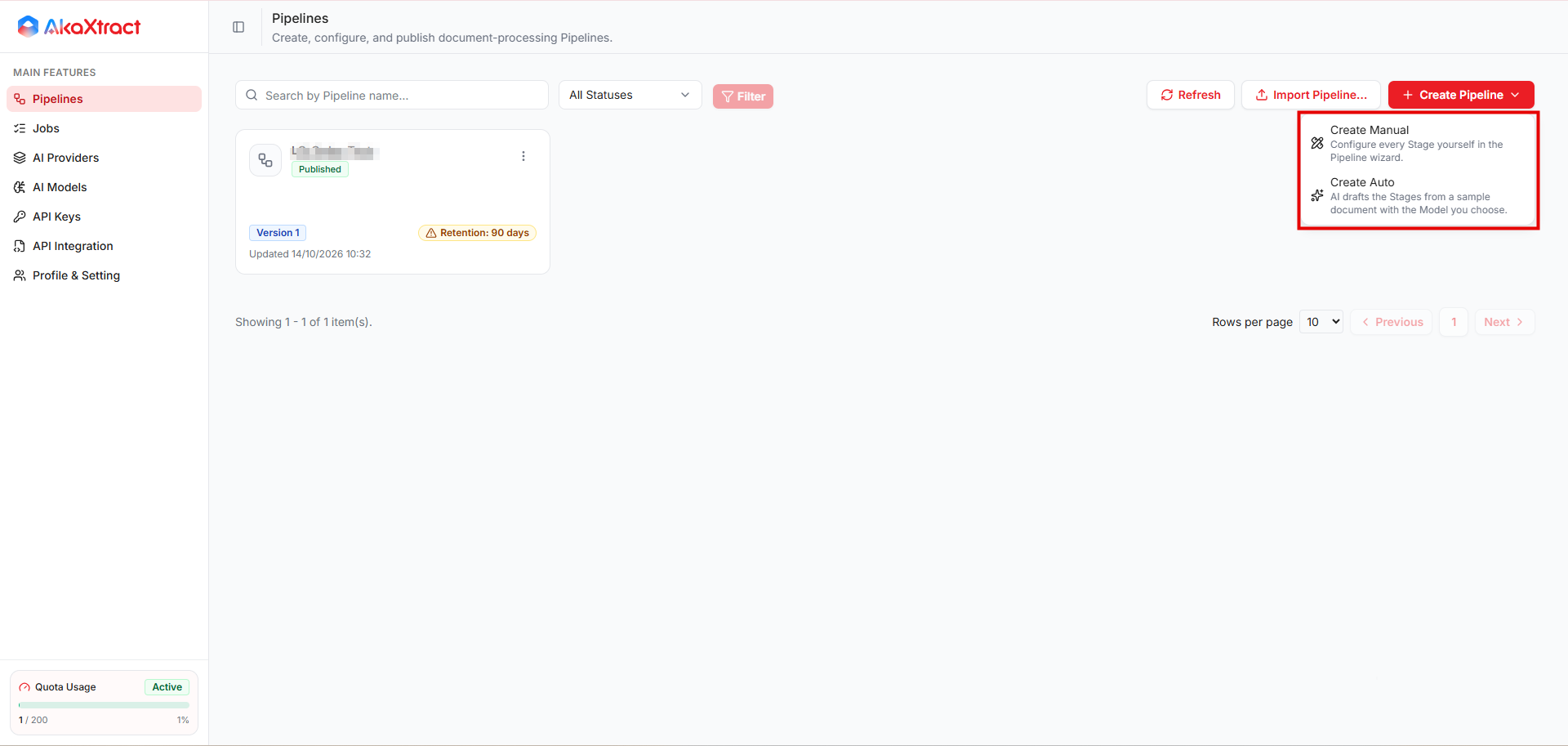
Mở Pipelines -> Create Pipeline và chọn:
| Phương thức | Dùng khi |
|---|---|
Create Auto | Bạn có tài liệu mẫu và muốn AI soạn nháp cấu hình. Phù hợp nếu bạn chưa quen với JSON |
Create Manual | Bạn muốn tự cấu hình từng bước trong wizard |
Create Auto
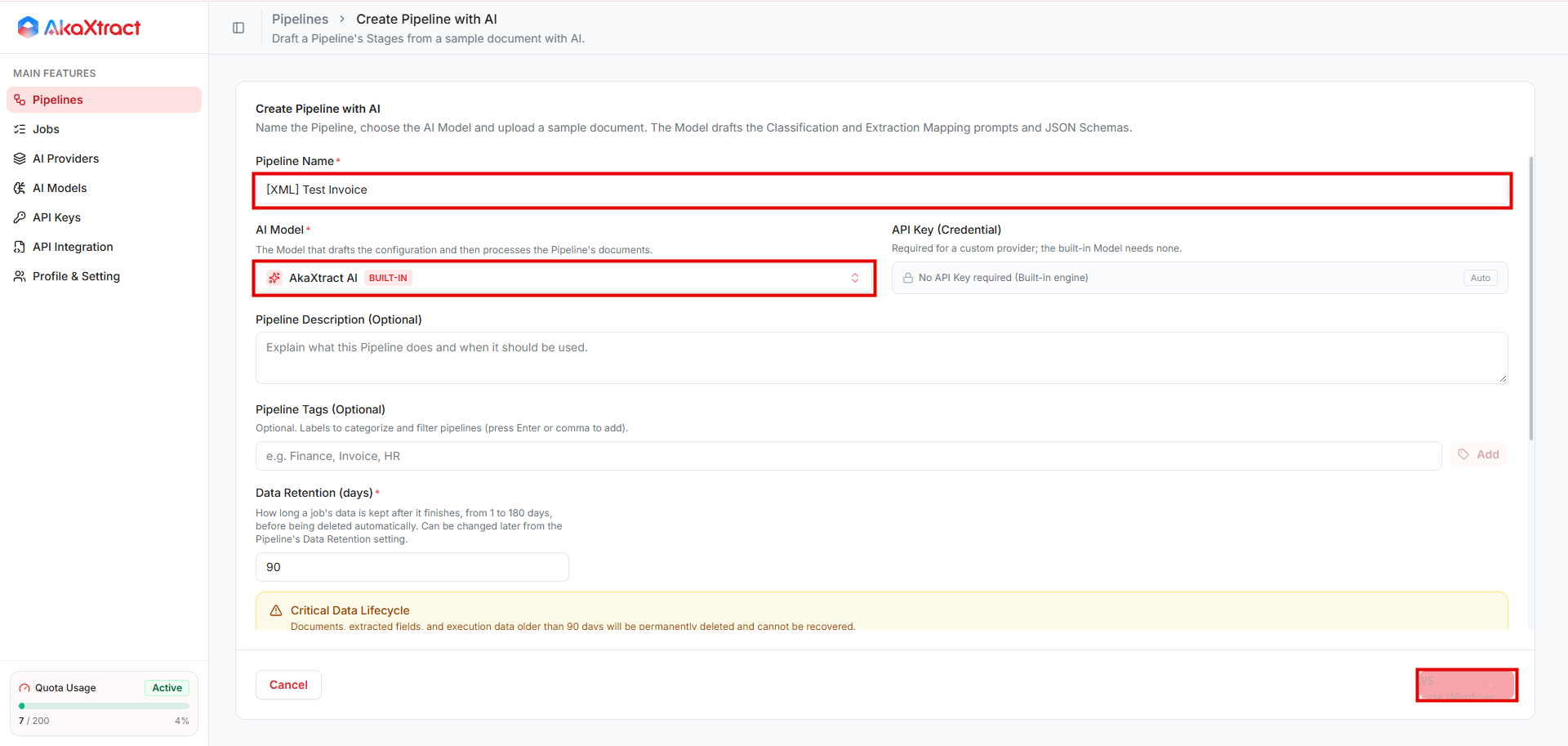
- Nhập
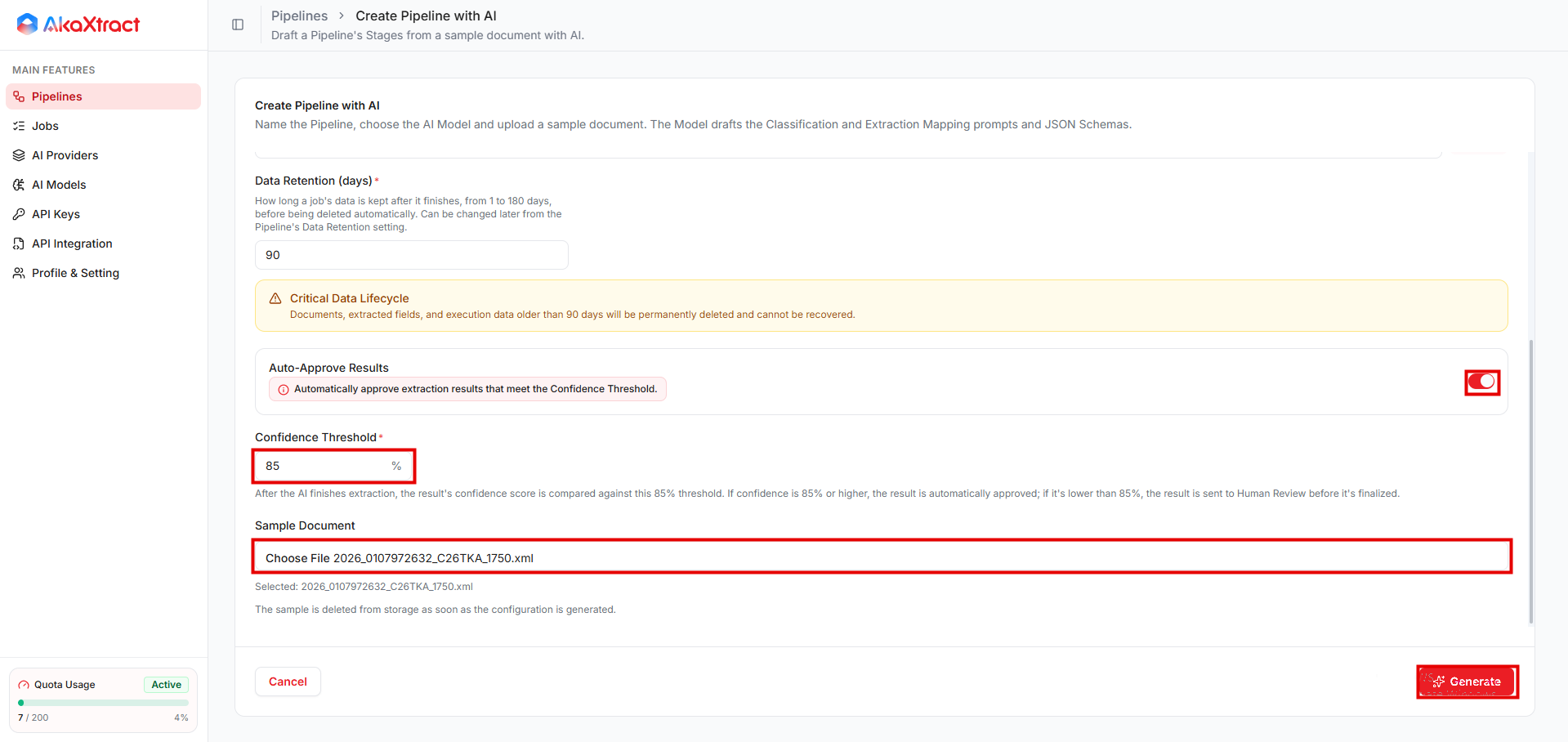
Pipeline Namevà chọnAI Model. Đặt các tùy chọn khác như trong wizard thủ công, gồmAuto-Approve ResultsvàConfidence Threshold. - Chọn
Sample Document: PDF, PNG, JPG/JPEG hoặc XML, tối đa 25 MB. - Chọn
Generate. Việc này có thể mất vài phút. Tài liệu mẫu bị xóa khỏi kho lưu trữ ngay khi cấu hình được sinh ra. - Ở
Review Generated Configuration, kiểm tra và chỉnh sửa các prompt và schema. Cú pháp hợp lệ không có nghĩa là nội dung phù hợp với tài liệu của bạn. - Chọn
Create Draftđể kiểm thử, hoặcPublishnếu bạn đã kiểm tra.
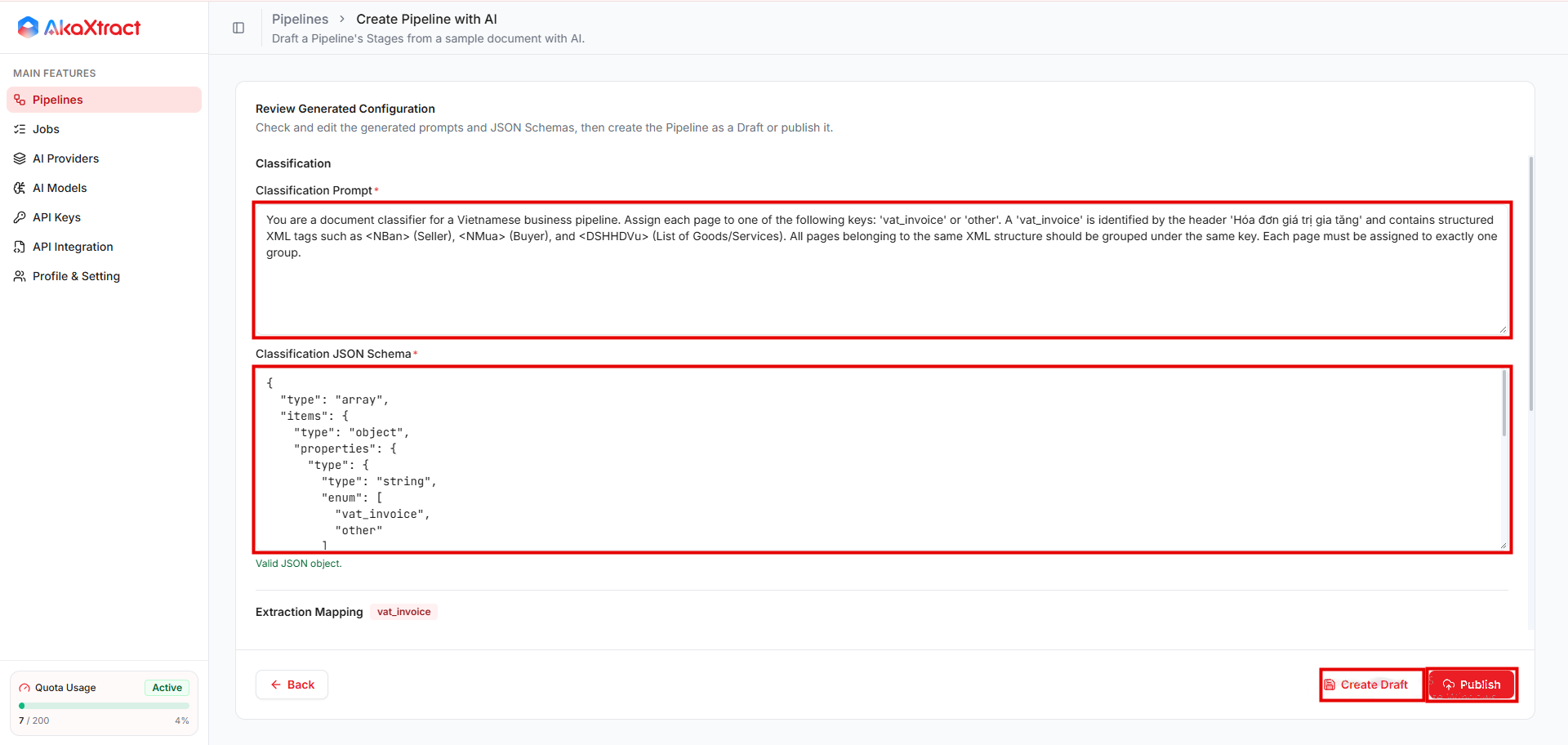
Nếu công bố thất bại sau khi Pipeline đã được tạo, hãy mở bản nháp đã tạo thay vì tạo bản mới.
Create Manual
Wizard có năm bước.
| Bước | Bạn thiết lập | Ghi chú |
|---|---|---|
| 1. Pipeline Details | Pipeline Name (duy nhất, tối đa 200 ký tự), AI Model, mô tả (tối đa 500 ký tự) và nhãn tùy chọn, Data Retention (days) | Mô hình AI bạn chọn sẽ xử lý tài liệu của Pipeline. Thời gian lưu trữ từ 1 đến 180 ngày, mặc định là 90. Mô hình của nhà cung cấp khác cần khóa AI ở API Key (Credential) |
| 2. Classification | Classification Prompt và Classification JSON Schema | Tùy chọn. Hướng dẫn AI nhận biết loại tài liệu và gom trang. Nếu nhập prompt thì phải nhập cả schema. Có thể để trống cả hai khi Pipeline chỉ có một loại tài liệu. Khi có nhiều loại tài liệu, hãy giữ phân loại để AI biết cần trích xuất theo loại nào. Bắt đầu từ mẫu mặc định |
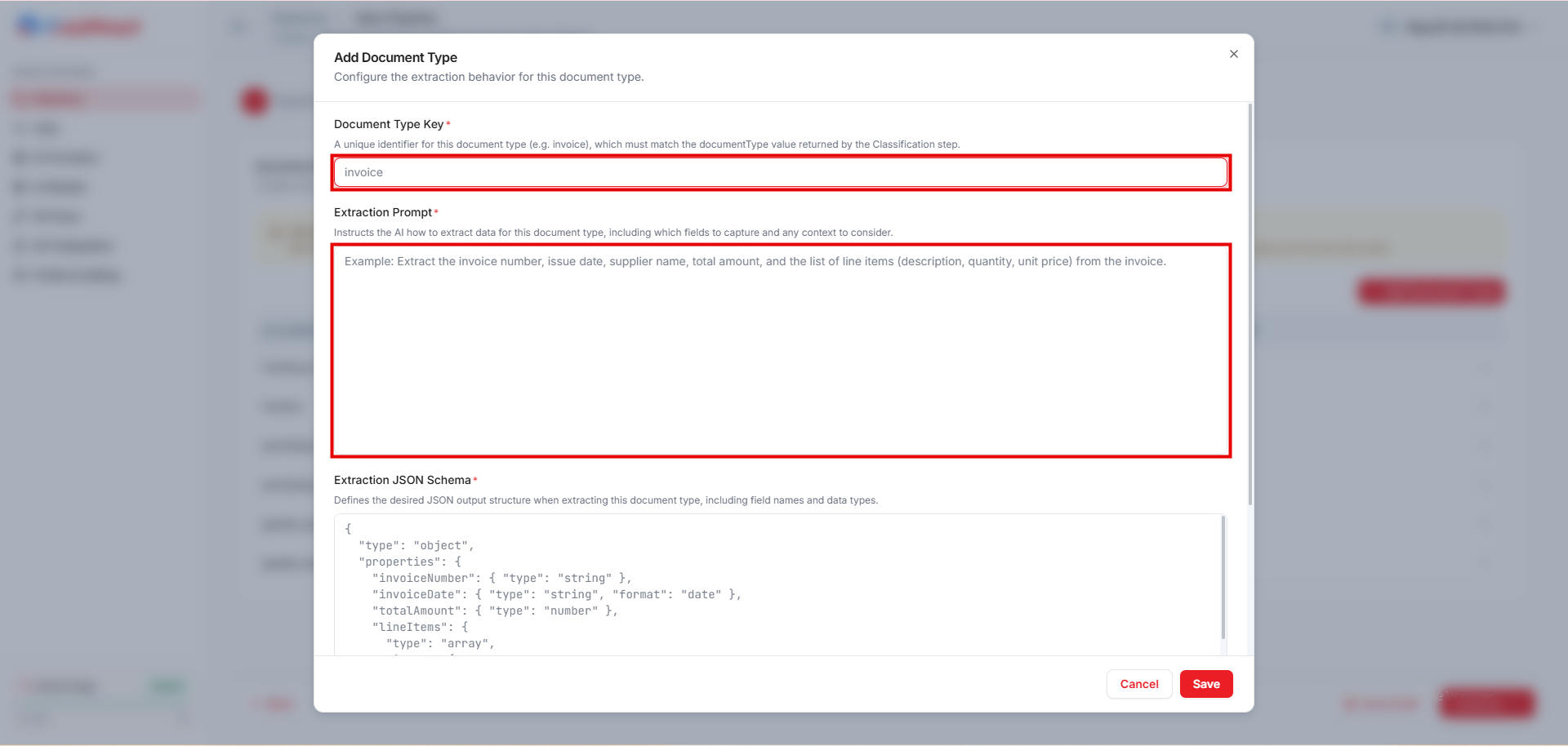
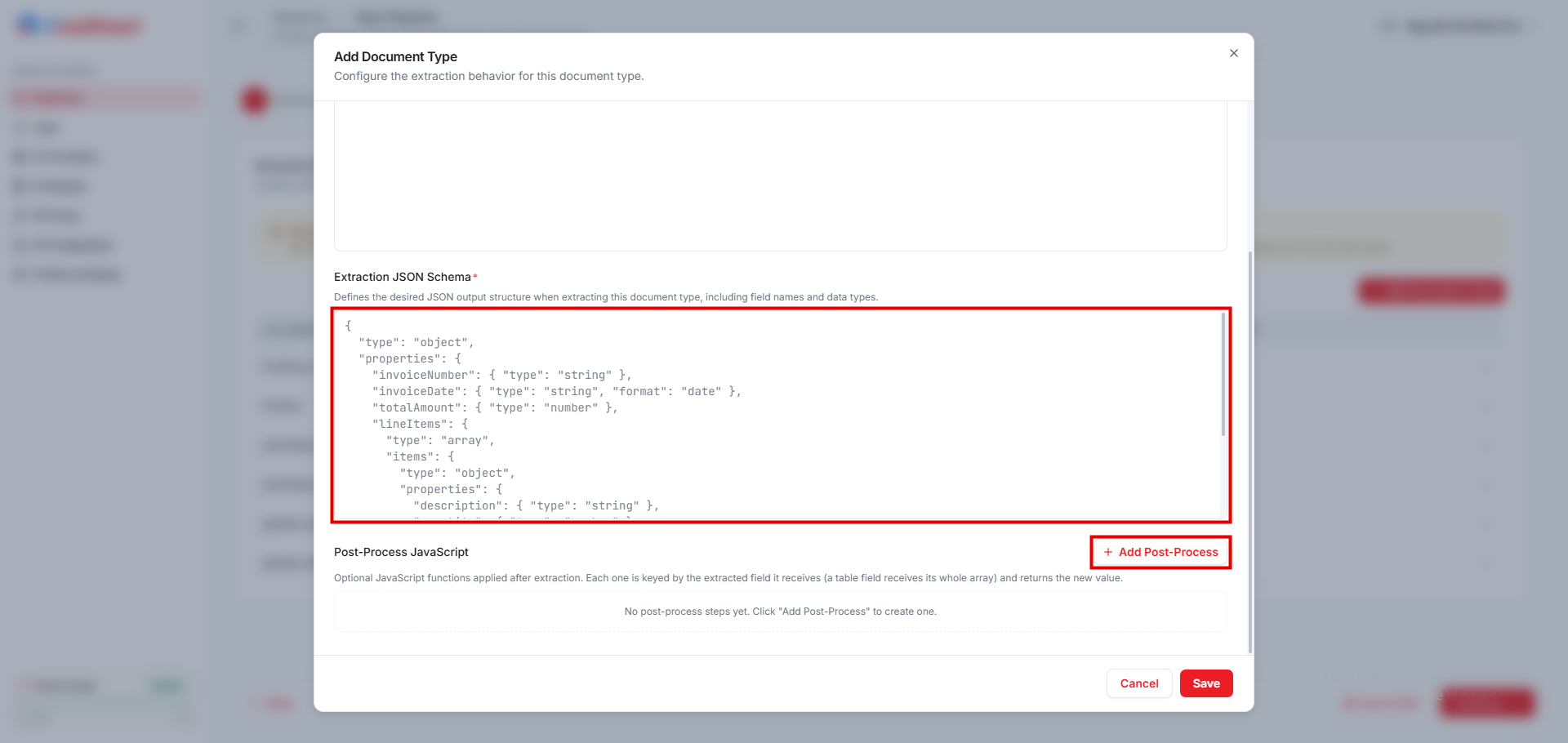
| 3. Extraction Mappings | Mỗi loại tài liệu một mục: Document Type Key, Extraction Prompt, Extraction JSON Schema và xử lý sau (tùy chọn) | Có sẵn mẫu cho hóa đơn, đơn đặt hàng và phiếu nhập kho |
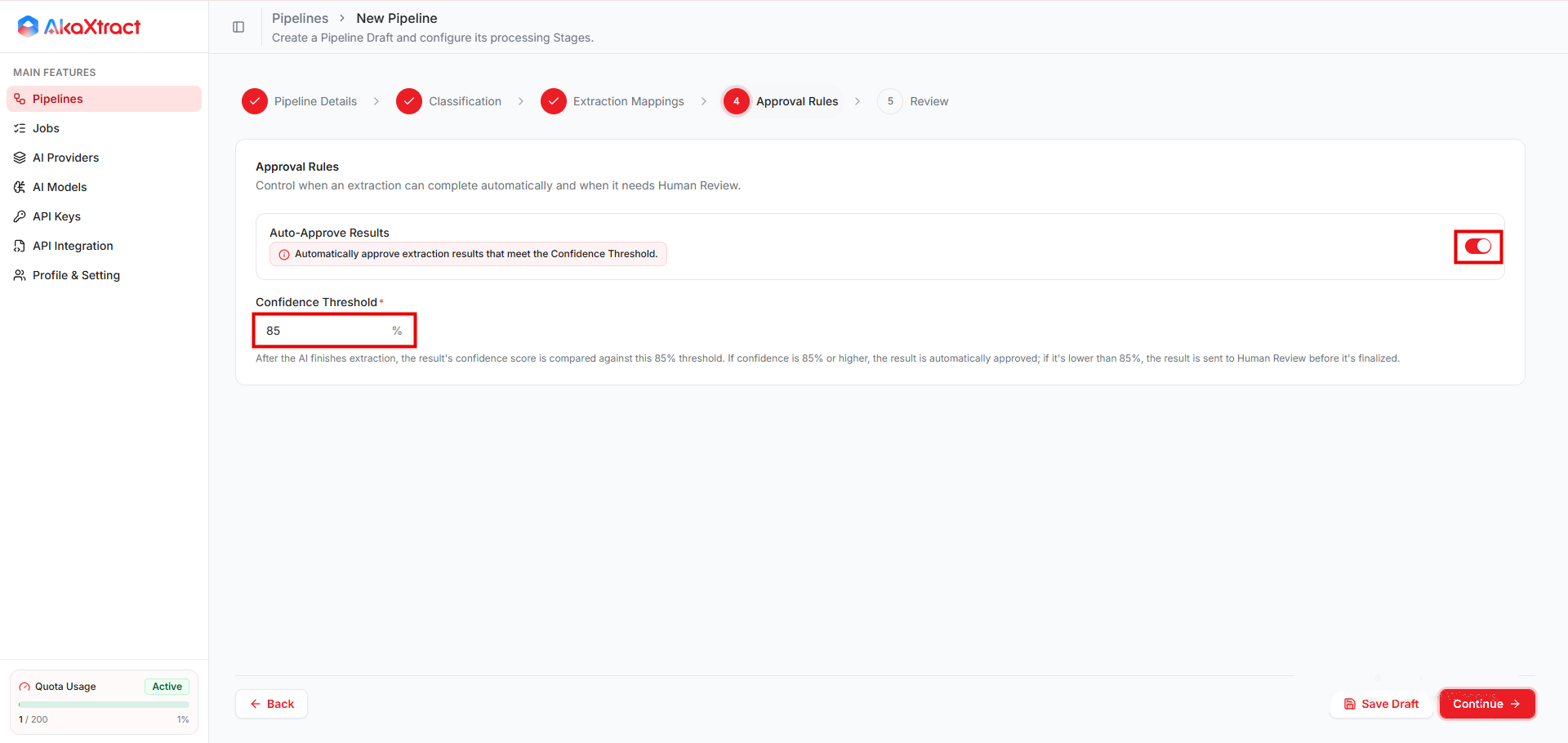
| 4. Approval Rules | Auto-Approve Results và Confidence Threshold | Xem Quy tắc duyệt |
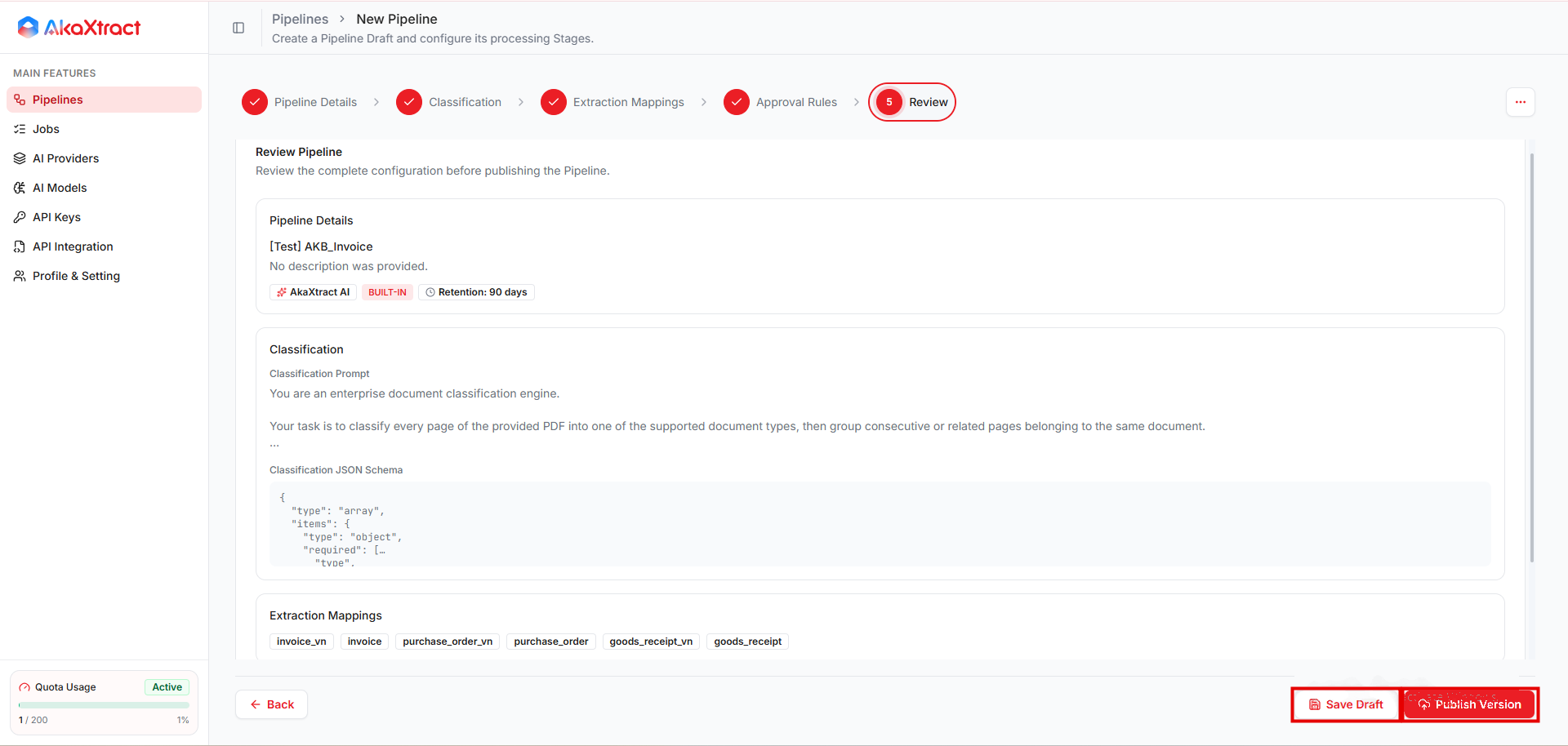
| 5. Review | Kiểm tra cấu hình, rồi Save Draft hoặc Publish Version | Draft chưa nhận tài liệu cho đến khi bạn công bố |
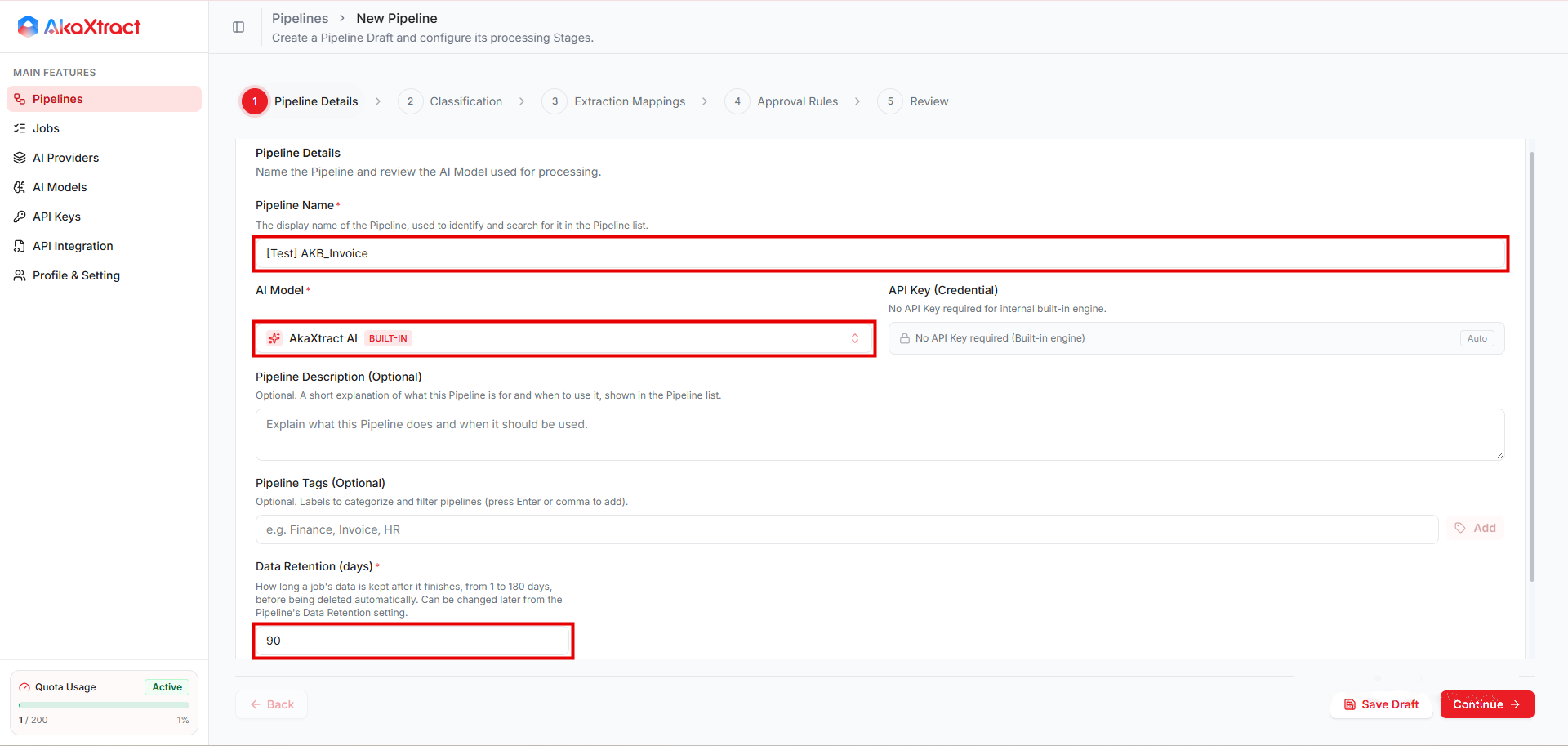
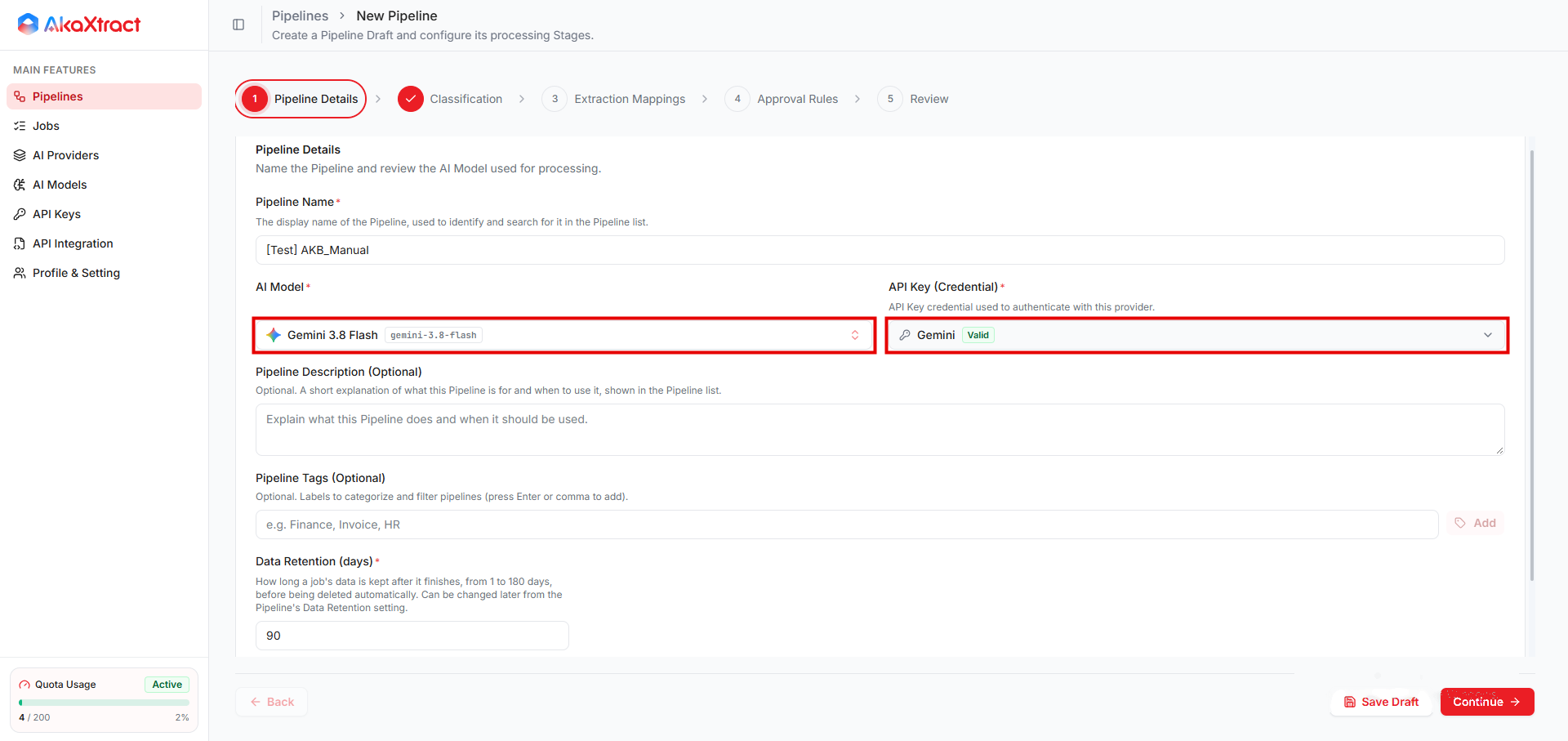
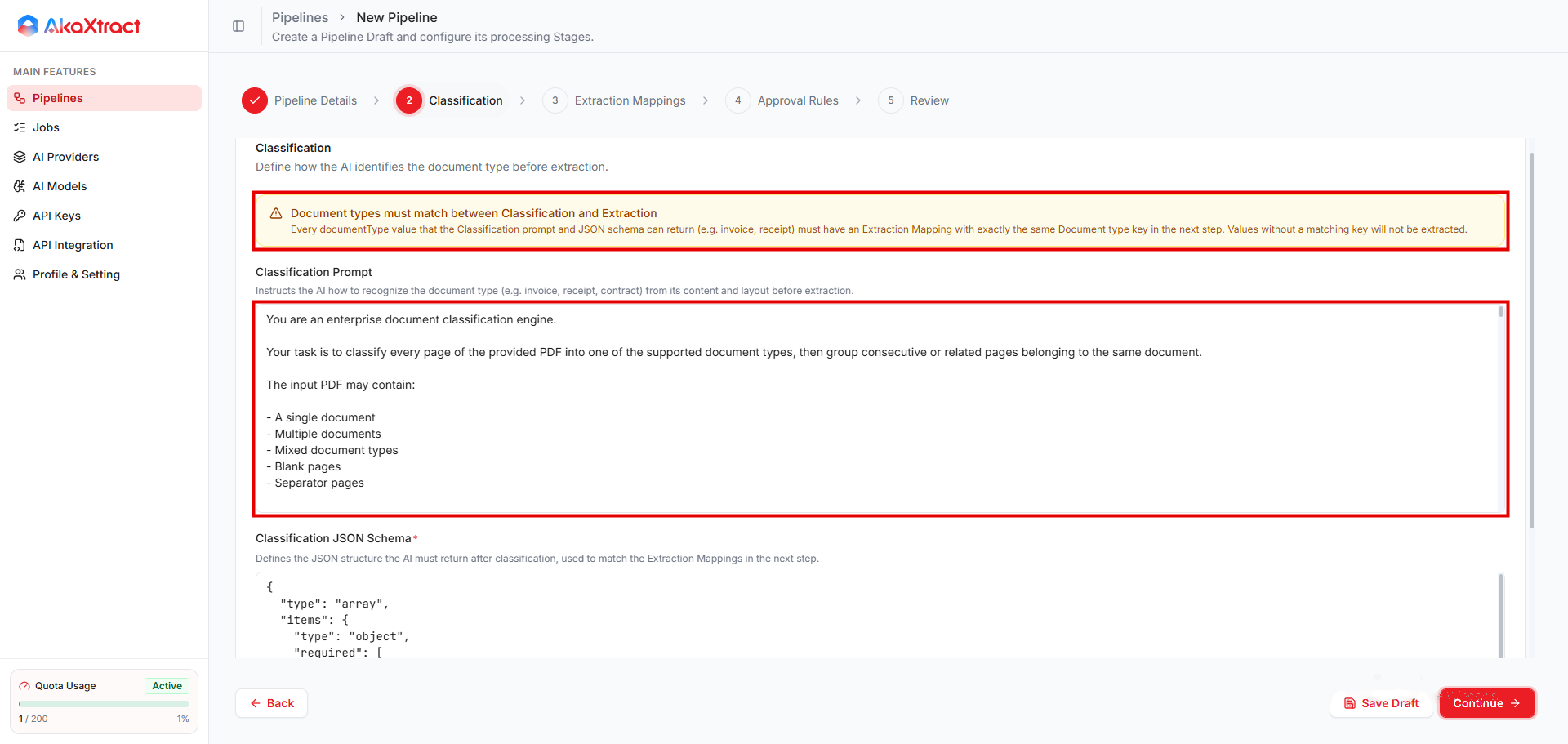
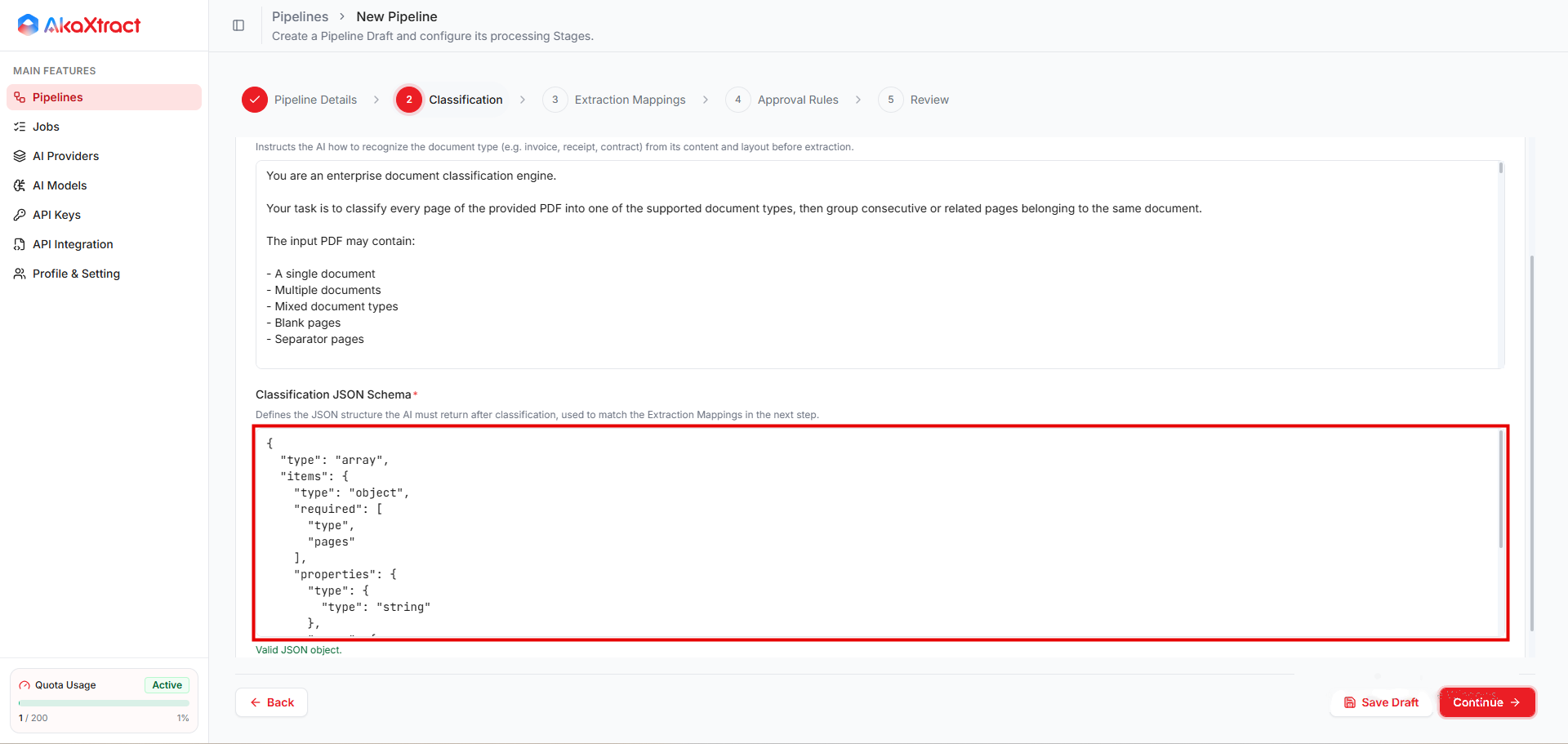
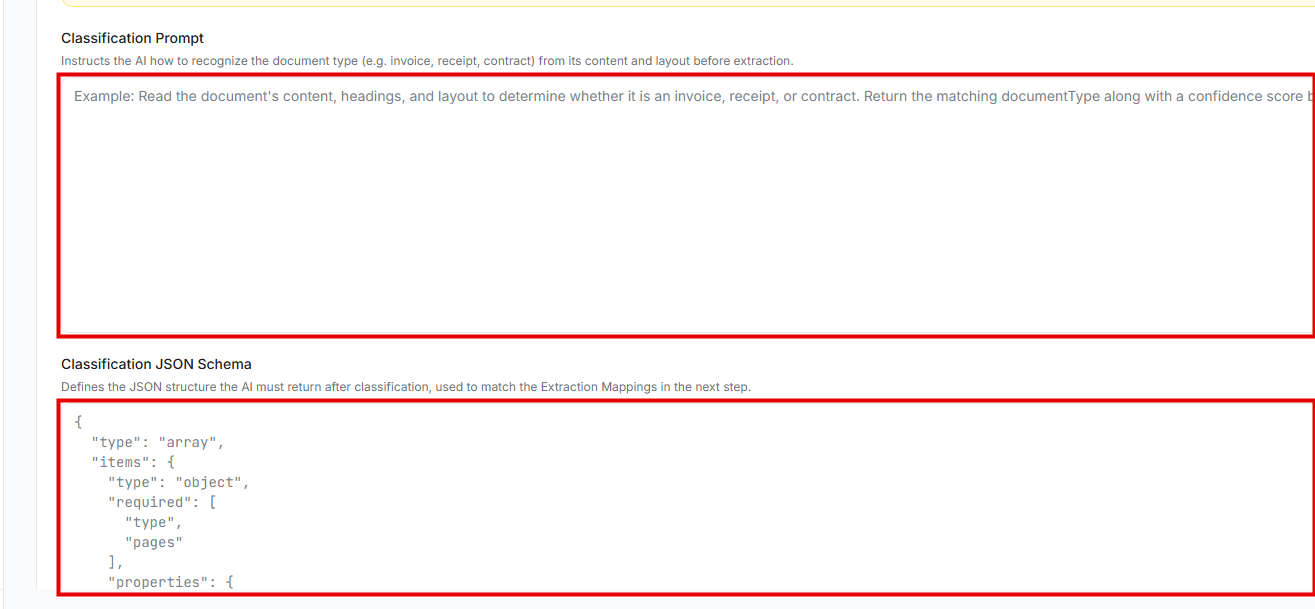
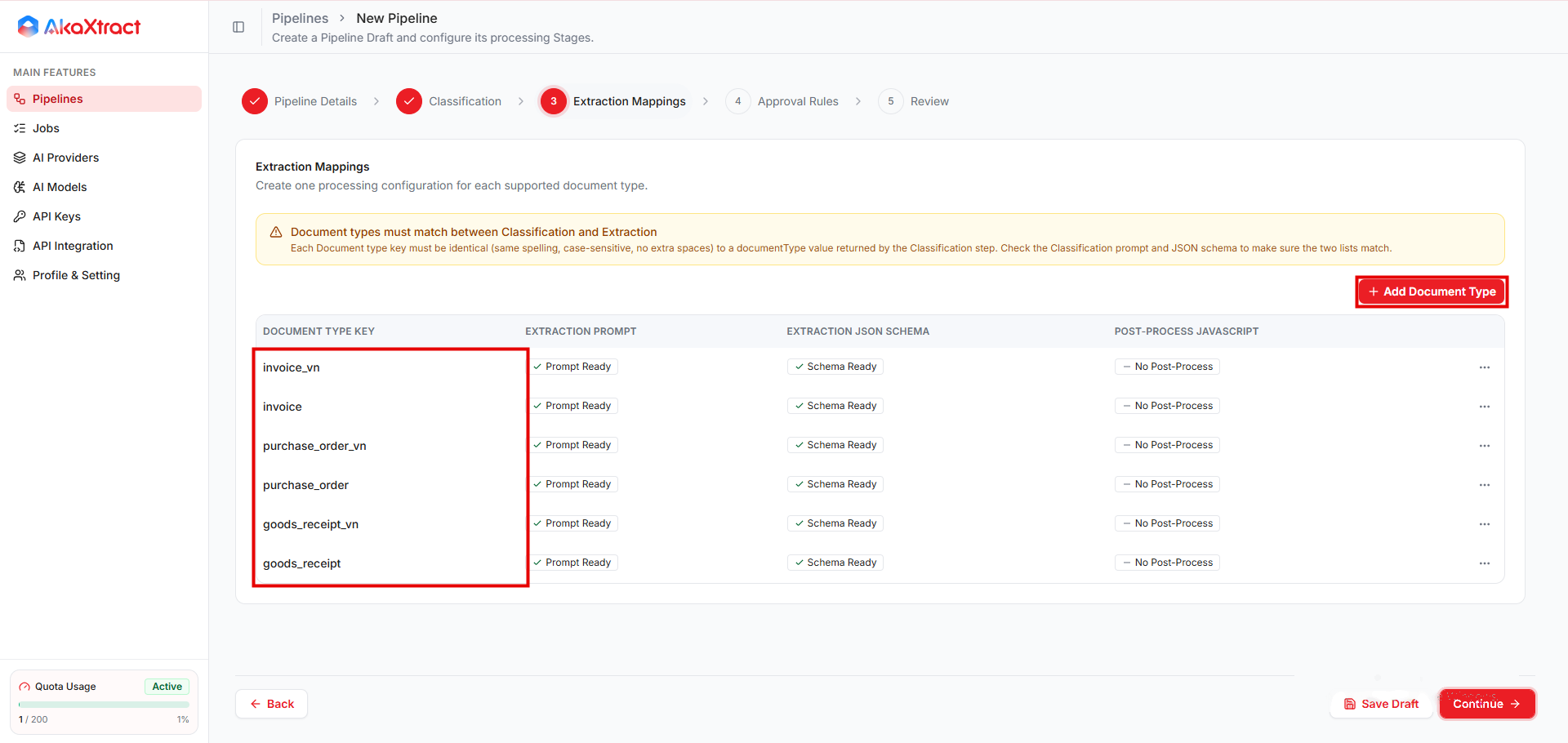
Mỗi Document Type Key phải khớp chính xác với một loại mà bước phân loại trả về (cùng cách viết, phân biệt chữ hoa chữ thường, không có khoảng trắng thừa). Loại không có khóa khớp sẽ không được trích xuất.
Extraction prompt và schema. Prompt mô tả các trường cần lấy, cách xử lý giá trị thiếu và cách đọc bảng. Schema là một đối tượng JSON liệt kê các trường và kiểu dữ liệu.
Xử lý sau (tùy chọn). Một hàm JavaScript đổi giá trị của một trường sau khi trích xuất, mỗi tên trường một hàm. Hàm nhận giá trị đã trích xuất của trường (trường dạng bảng nhận cả mảng) và trả về giá trị mới. Chỉ dùng mã đã được người phụ trách quy trình duyệt. Mã Python không còn được chạy.
Quy tắc duyệt
| Điều kiện | Kết quả |
|---|---|
Auto-Approve Results tắt | Người duyệt kiểm tra mọi kết quả |
| Độ tin cậy đạt ngưỡng, có dữ liệu và không có cảnh báo | Kết quả tự hoàn tất: Document Confirmed, Job Completed |
| Độ tin cậy thấp hơn ngưỡng hoặc không có, có cảnh báo, hoặc không trích xuất được dữ liệu | Người duyệt kiểm tra kết quả |
Ngưỡng là tỷ lệ phần trăm từ 0 đến 100, mặc định là 85. Tự động duyệt được bật sẵn.
Với dữ liệu quan trọng, hãy tắt tự động duyệt trong giai đoạn kiểm chứng Pipeline.
Bước tiếp theo
Kiểm thử và công bố Pipeline trước khi tải tài liệu thật lên.
Tham khảo: mẫu phân loại mặc định
Pipeline mới bắt đầu với Classification Prompt và Classification JSON Schema mặc định bên dưới. Mỗi loại tài liệu bạn muốn trích xuất, ví dụ invoice hoặc purchase_order, cần một Extraction Mapping với đúng cùng khóa. Loại other mặc định không có Extraction Mapping, nên các trang đó không được trích xuất. Chỉnh danh sách loại cho phù hợp với tài liệu của bạn. Danh sách mặc định gồm cả biến thể quốc tế và biến thể tiếng Việt (_vn).
Classification Prompt mặc định
You are an enterprise document classification engine.

Your task is to classify every page of the provided PDF into one of the supported document types, then group consecutive or related pages belonging to the same document.

The input PDF may contain:

- A single document
- Multiple documents
- Mixed document types
- Blank pages
- Separator pages

--------------------------------------------------
Supported document types
--------------------------------------------------

invoice_vn

Commercial invoice requesting payment for goods or services (Vietnamese invoice).

Typical indicators:

- Invoice
- Tax Invoice
- Commercial Invoice
- Hóa đơn
- Hóa đơn GTGT
- Hóa đơn điện tử
- Invoice Number
- Invoice Date
- Due Date
- Total Amount
- Amount Due
- VAT
- Tax
- Payment Terms

--------------------------------------------------

invoice

Commercial invoice requesting payment for goods or services (International invoice).

Typical indicators:

- Invoice
- Tax Invoice
- Commercial Invoice
- Bill
- Invoice Number
- Invoice Date
- Due Date
- Total Amount
- Amount Due
- VAT
- Tax
- Payment Terms

--------------------------------------------------

purchase_order_vn

Purchase Order issued by a buyer requesting goods or services from a supplier (Vietnamese purchase order).

Typical indicators:

- Purchase Order
- PO
- PO#
- Purchase Order No
- Đơn đặt hàng
- Số PO
- Order Date
- Requested Delivery Date
- Buyer
- Supplier
- Vendor
- Ship To
- Requestor

A Purchase Order is created BEFORE goods are delivered and BEFORE an invoice is issued.

--------------------------------------------------

purchase_order

Purchase Order issued by a buyer requesting goods or services from a supplier (International purchase order).

Typical indicators:

- Purchase Order
- PO
- PO#
- Purchase Order No
- Order Date
- Requested Delivery Date
- Buyer
- Supplier
- Vendor
- Ship To
- Requestor

A Purchase Order is created BEFORE goods are delivered and BEFORE an invoice is issued.

--------------------------------------------------

goods_receipt_vn

Document confirming that goods have been physically received (Vietnamese goods receipt).

Typical indicators:

- Goods Receipt
- Goods Receipt Note
- GR
- GRN
- Goods Receipt No
- Phiếu nhập kho
- Phiếu nhập
- Warehouse Receipt
- Received Quantity
- Actual Quantity
- Posting Date
- Receipt Date
- Đơn vị giao
- Đơn vị nhận

A Goods Receipt confirms receipt of goods, not payment.

--------------------------------------------------

goods_receipt

Document confirming that goods have been physically received (International goods receipt).

Typical indicators:

- Goods Receipt
- Goods Receipt Note
- GR
- GRN
- Goods Receipt No
- Warehouse Receipt
- Received Quantity
- Actual Quantity
- Posting Date
- Receipt Date
- Delivering Party / Supplier
- Receiving Party / Consignee

A Goods Receipt confirms receipt of goods, not payment.

--------------------------------------------------

other

Any document that is NOT one of the above.

Examples include:

- Delivery Note
- Packing List
- Credit Note
- Debit Note
- Statement
- Receipt
- Email
- Cover Letter
- Contract
- Quotation
- Attachment
- Blank page
- Separator page
- Unknown document

--------------------------------------------------
Classification Rules
--------------------------------------------------

Classify documents by their PRIMARY purpose, not by referenced document numbers.

Examples:

- Invoice containing PO Number
→ invoice / invoice_vn

- Goods Receipt containing Invoice Number
→ goods_receipt / goods_receipt_vn

- Purchase Order containing supplier quotation
→ purchase_order / purchase_order_vn

Never classify based solely on keywords.

Use the overall document structure and business purpose.

--------------------------------------------------
Grouping Rules
--------------------------------------------------

Pages belonging to the same document MUST be grouped together.

Do NOT split one document into multiple objects.

If the document type changes, start a new object.

If the same document type appears later as a different document, create another object.

Example:

Page 1-2 : Invoice A

Page 3 : Purchase Order

Page 4-5 : Invoice B

Return

[
  {
    "type":"invoice_vn",
    "pages":[1,2]
  },
  {
    "type":"purchase_order_vn",
    "pages":[3]
  },
  {
    "type":"invoice_vn",
    "pages":[4,5]
  }
]

--------------------------------------------------
OUTPUT

Return ONLY a JSON array.

Do NOT return markdown.

Do NOT explain anything.

Output format:

[
  {
    "type":"invoice_vn",
    "pages":[1,2]
  },
  {
    "type":"purchase_order_vn",
    "pages":[3]
  },
  {
    "type":"goods_receipt_vn",
    "pages":[4,5]
  },
  {
    "type":"invoice",
    "pages":[6]
  },
  {
    "type":"purchase_order",
    "pages":[7]
  },
  {
    "type":"goods_receipt",
    "pages":[8]
  },
  {
    "type":"other",
    "pages":[9]
  }
]
Classification JSON Schema mặc định
{
  "type": "array",
  "items": {
    "type": "object",
    "required": [
      "type",
      "pages"
    ],
    "properties": {
      "type": {
        "type": "string"
      },
      "pages": {
        "type": "array",
        "items": {
          "type": "integer"
        }
      }
    }
  }
}