Test and Publish a Pipeline
A new Pipeline is a Draft. A Draft does not accept documents until you test it and publish it.
Test
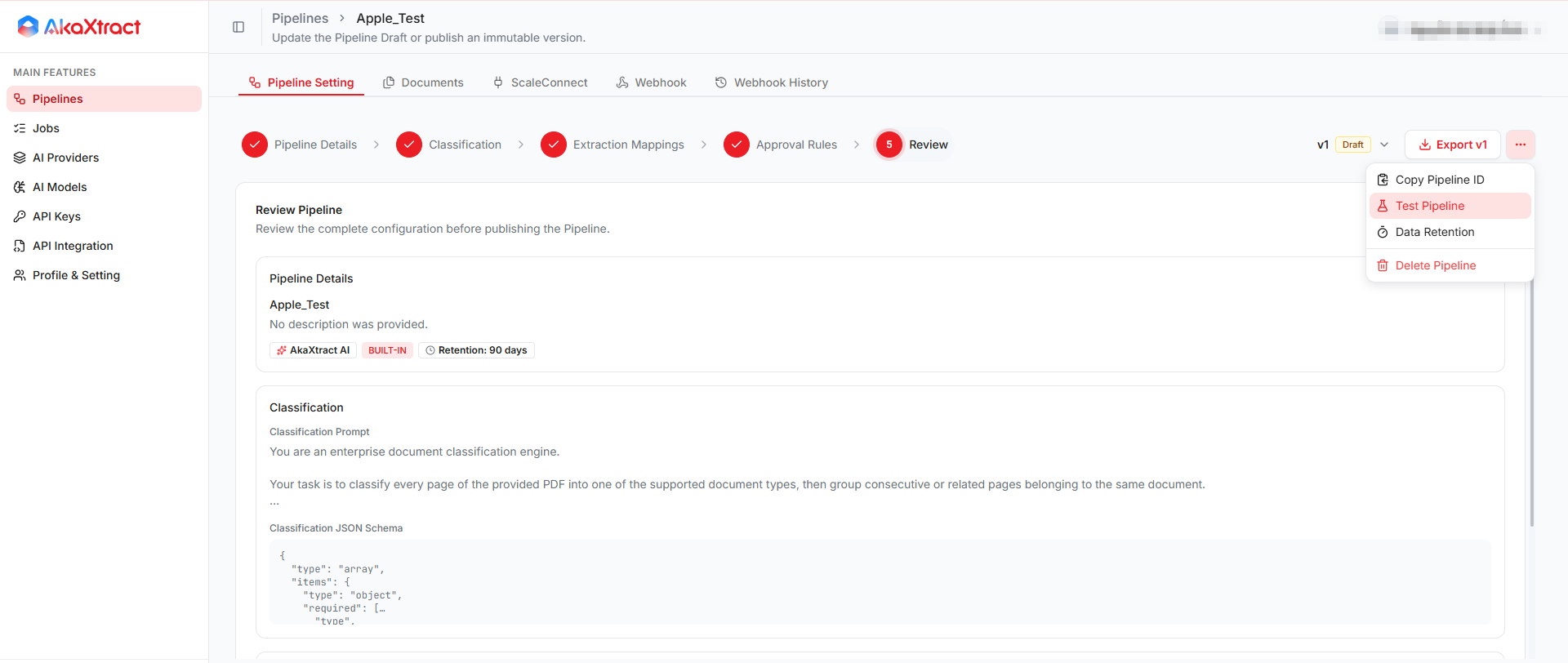
- Open the Draft and select
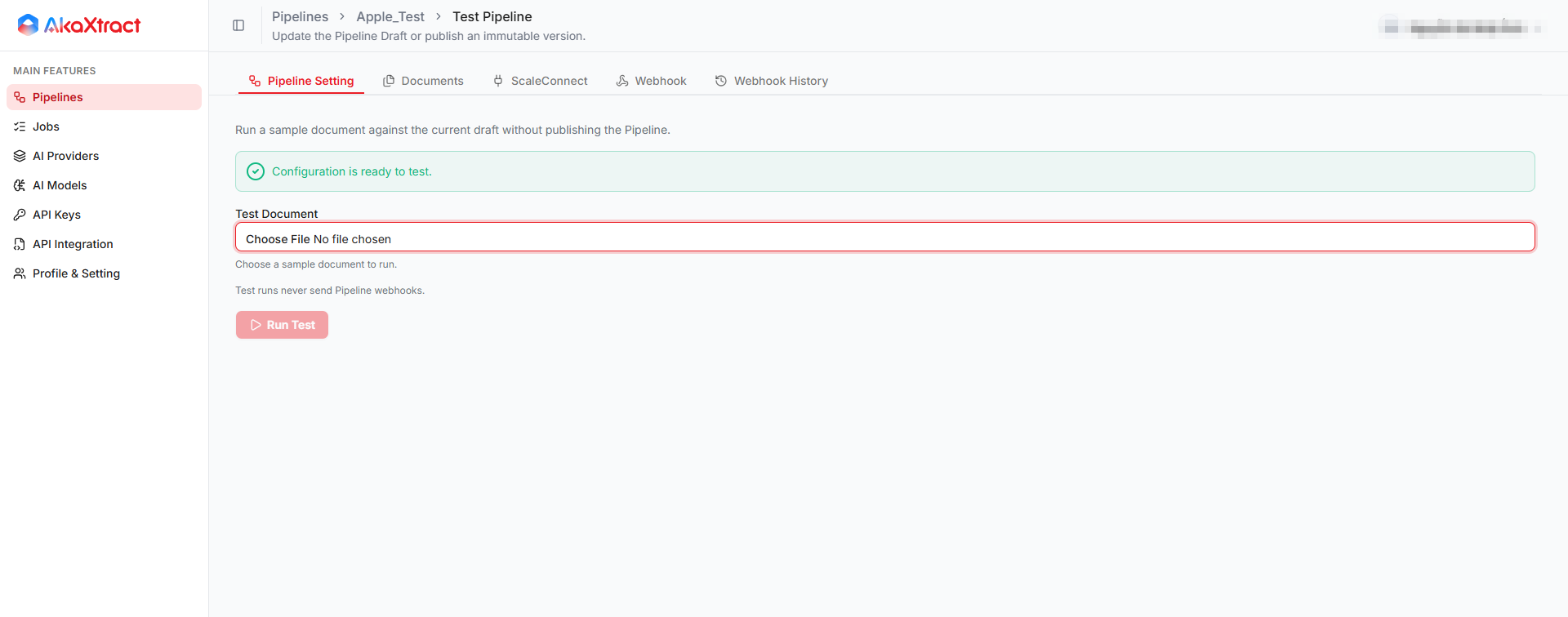
More Pipeline Actions->Test Pipeline. Wait forConfiguration is ready to test. - Select
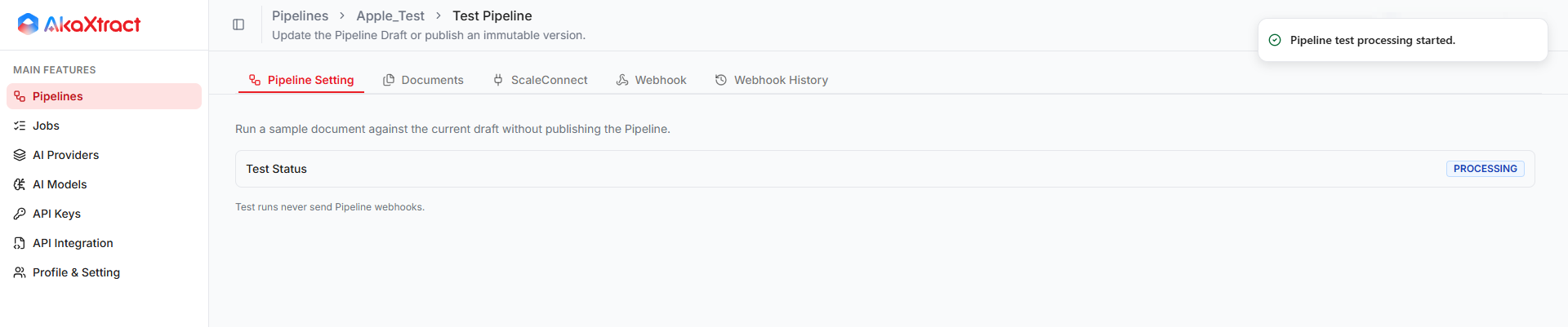
Test Document, choose a sample file, then selectRun Test.Test Statuschanges fromPROCESSINGtoCOMPLETED. - Compare
Extraction Resultwith the source document. UseRun Another Testto repeat.
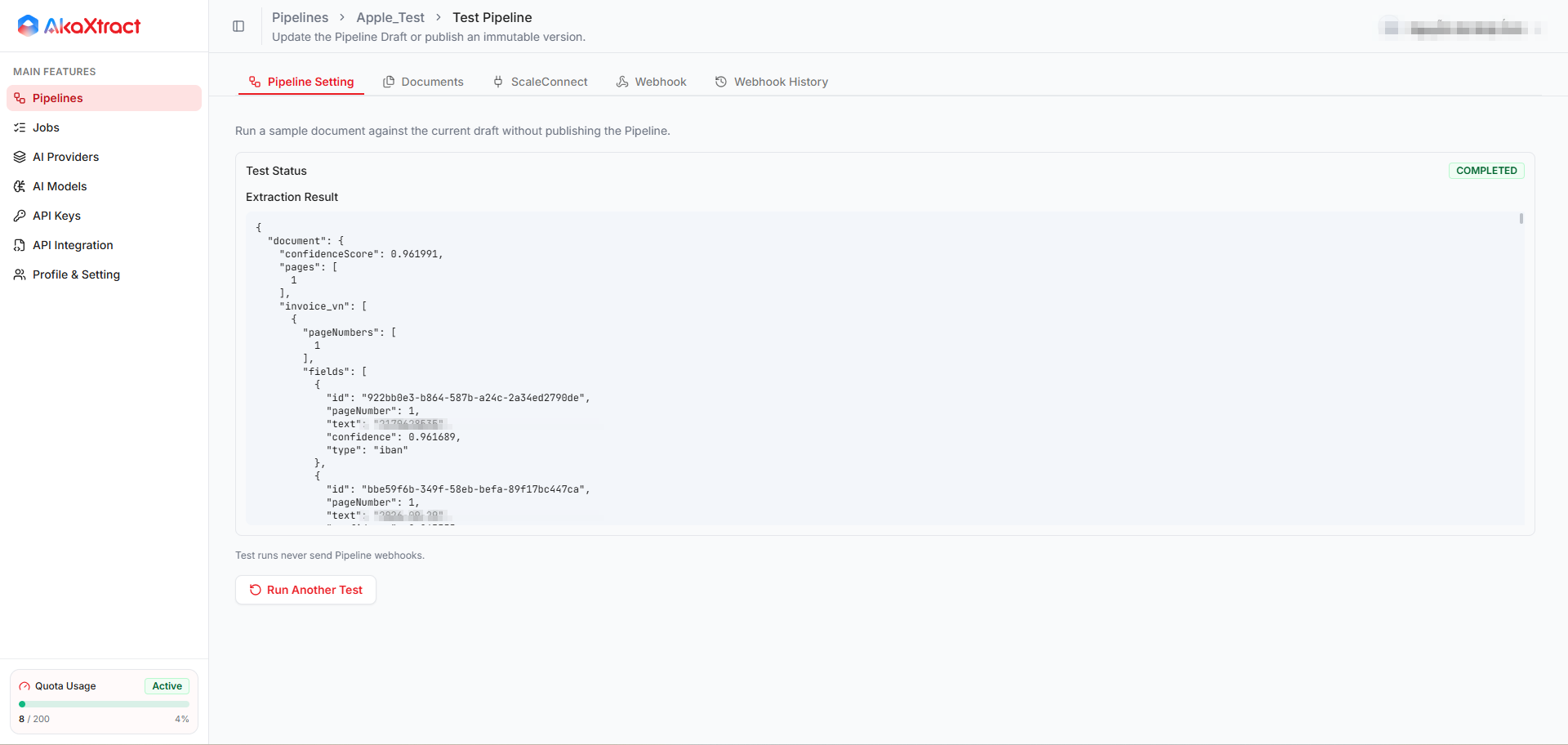
Result: you see the extracted data, or an error to fix in the Draft.
A test does not send Webhooks. Test data is kept for 7 days.
Publish
In the Draft, select Publish Version.
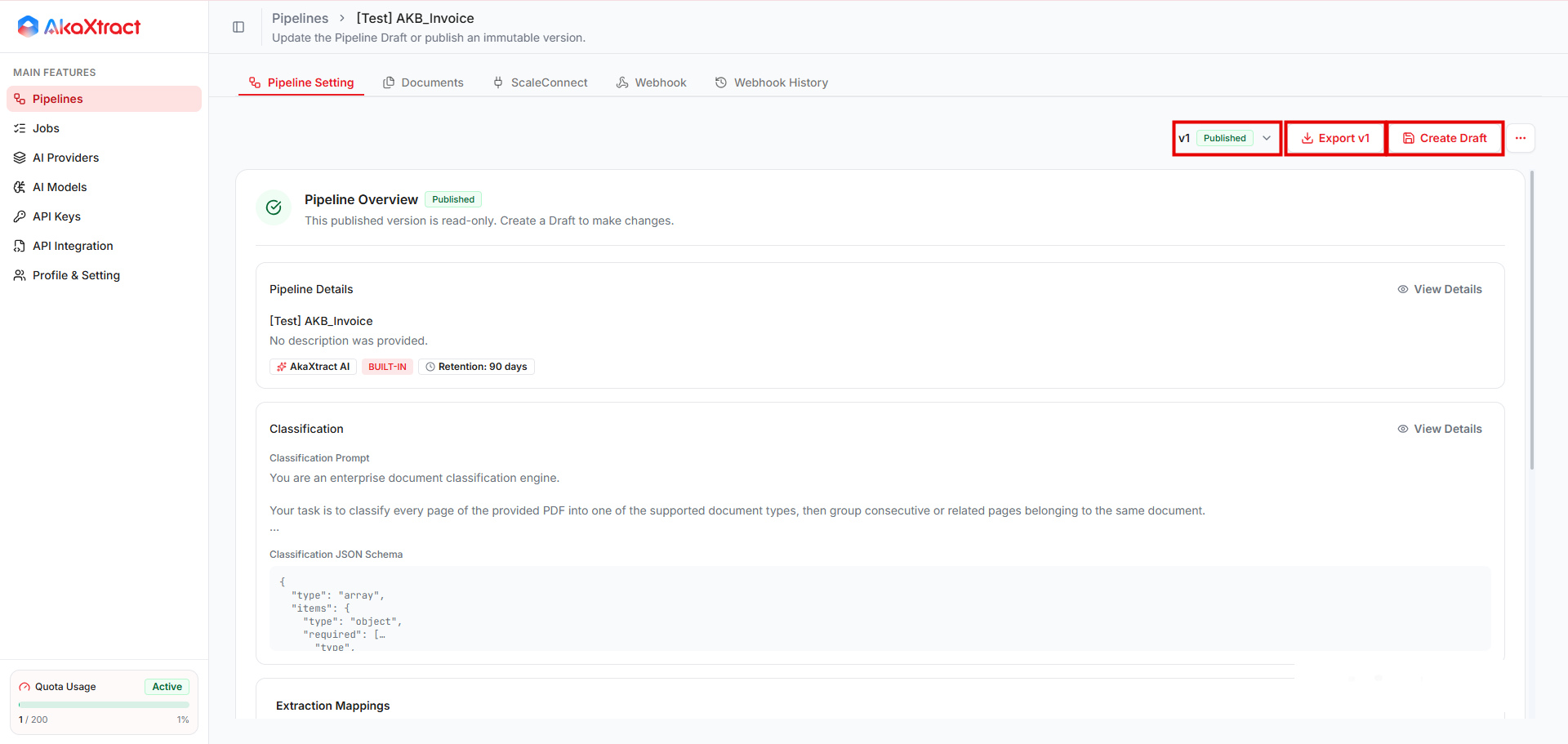
Result: the version shows Published. It is read-only and accepts documents.
Update a Published Pipeline
- Select the Published version and select
Create Draft. - Edit the Draft, then test and publish it.
To read the configuration of a published version, select View Details in a section of Pipeline Setting.
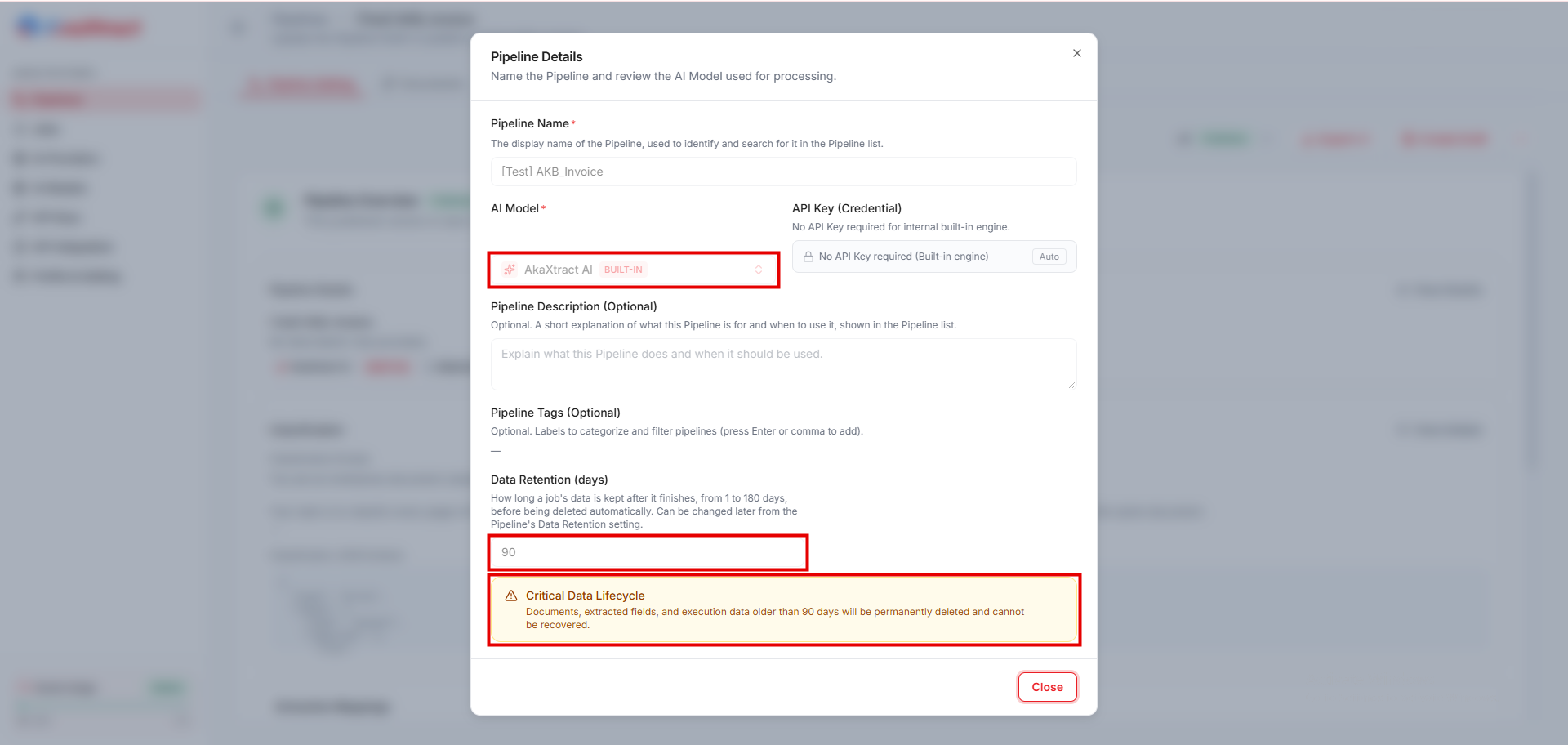
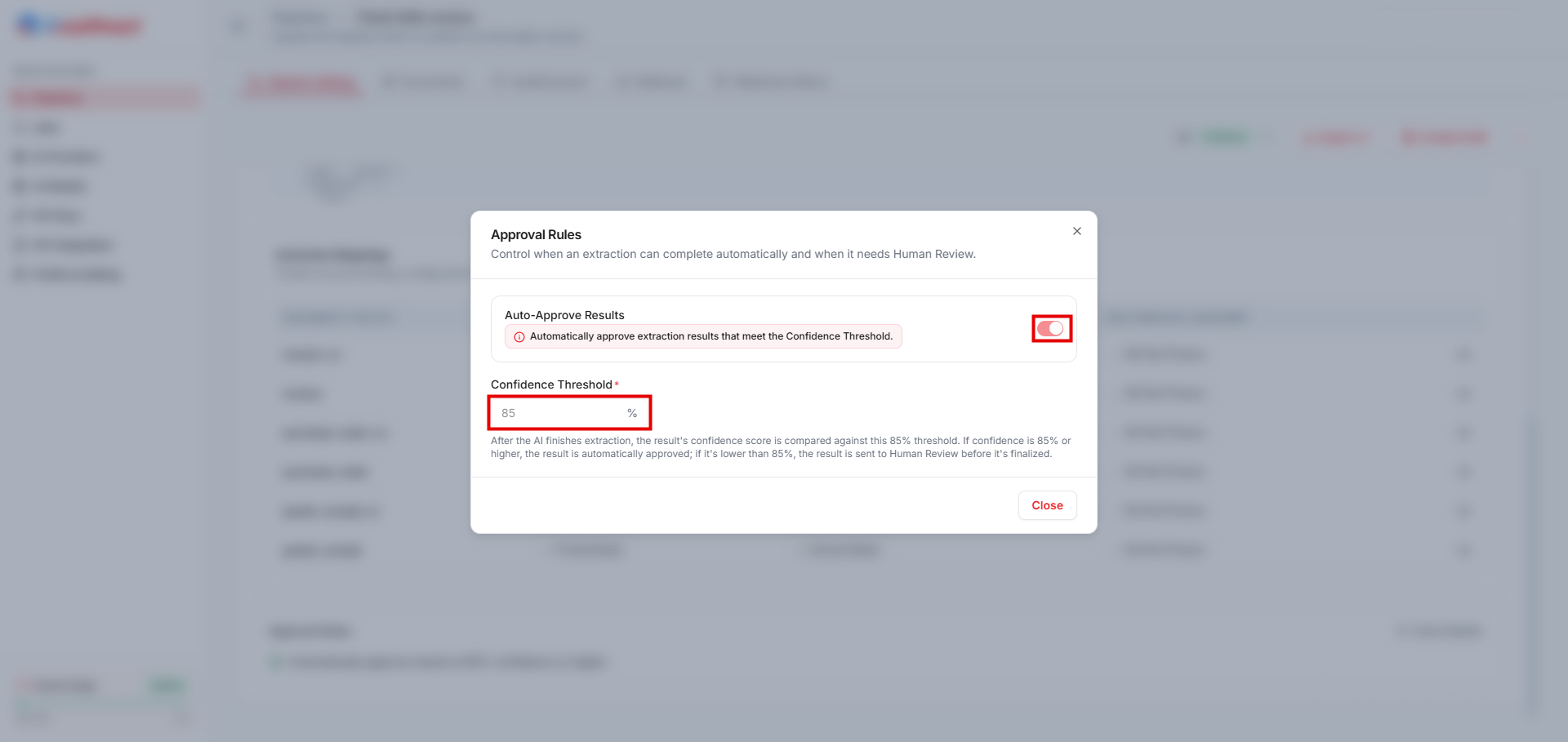
A Pipeline has only one Draft, so open the existing one if there is one. New Jobs use the version that is published when the document is submitted. Existing Jobs keep their version and are not reprocessed.
Clone, Export, and Import
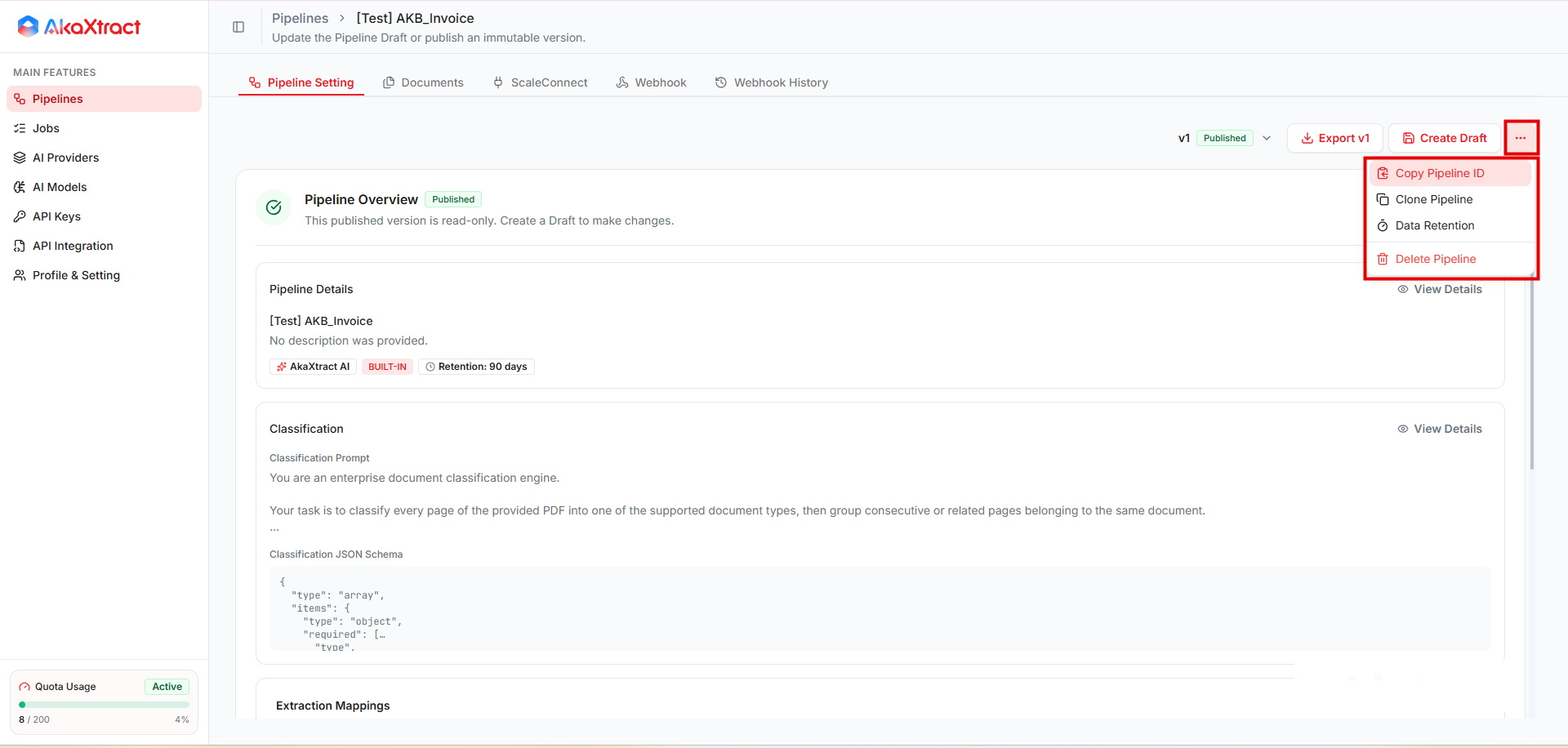
The ... button next to Create Draft opens a menu with Copy Pipeline ID, Clone Pipeline, Data Retention, and Delete Pipeline. Copy Pipeline ID copies the ID of the Pipeline. In a Draft, the menu shows Test Pipeline in place of Clone Pipeline.
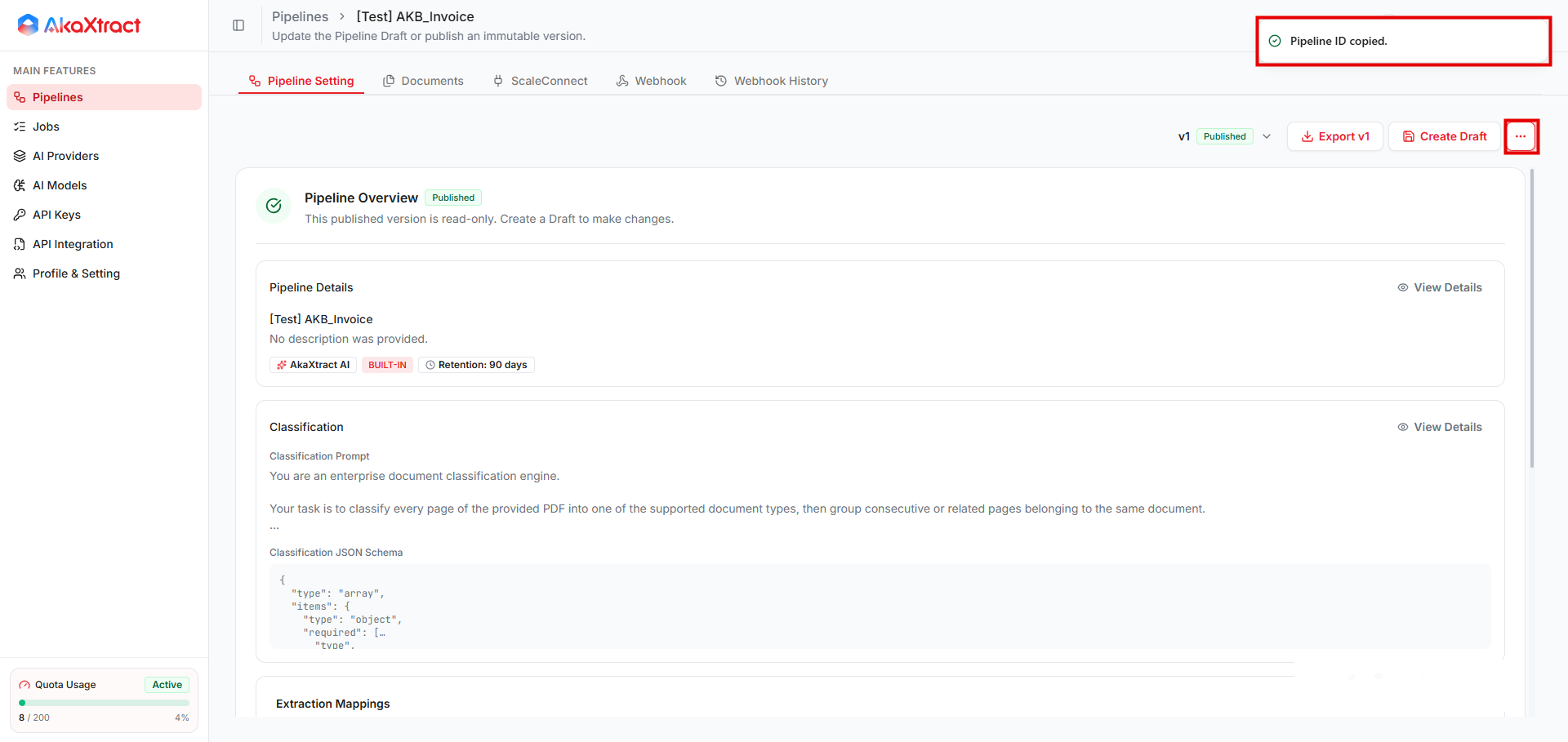
| Action | How | Result |
|---|---|---|
| Clone | Clone Pipeline, then enter a new name | A new Draft v1 from the current Published version |
| Export | Export v… | The saved configuration as JSON, without documents or results |
| Import | On the Pipelines page, select Import Pipeline... and choose a JSON file exported by AkaXtract (up to 5 MB) | A new Draft v1 |
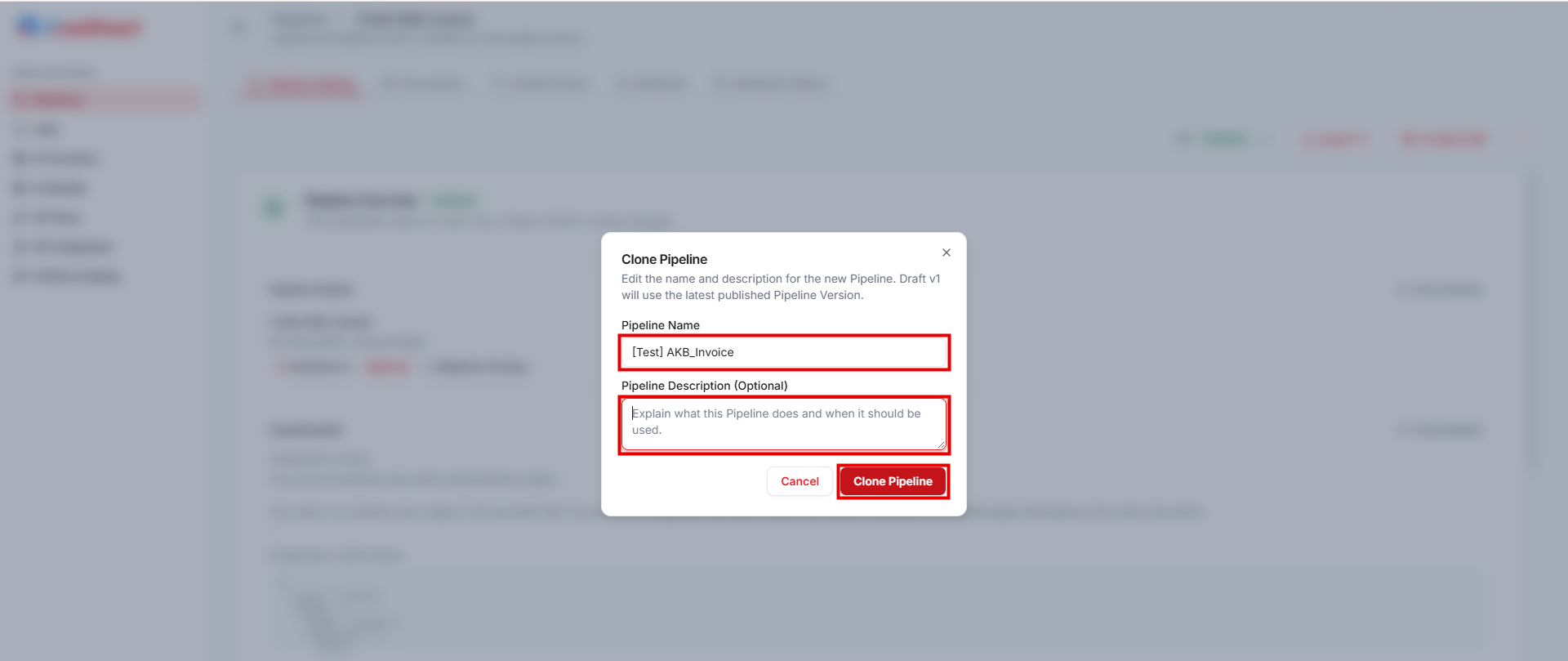
After a clone or import, reselect any model or key that does not exist in the destination company, then test and publish.
A test does not prove that your Webhook receiver or ScaleConnect source works. Check them in Integrations.