AI Models and Keys
This page is for the Owner, an Administrator, or anyone who can manage models.
Which Models Need a Key
The AI model that you select in a Pipeline processes the documents of that Pipeline.
| Model | Key |
|---|---|
AkaXtract AI and AkaXtract Onprem | Not needed |
| A model from another provider | A saved AI key for that provider. A key from API Keys does not work |
Add an AI Key
- Open
AI Models->Add API Key Model. - Select the provider in
Select AI Provider. EnterAPI Key NameandAPI Key(at least 8 characters). - Select
Test Connection, thenSave. Most providers need a successful test before you can save. A test is not required for FPT AI. A successful test showsAPI Key Is Valid. - In the Pipeline, select the model and the matching key.
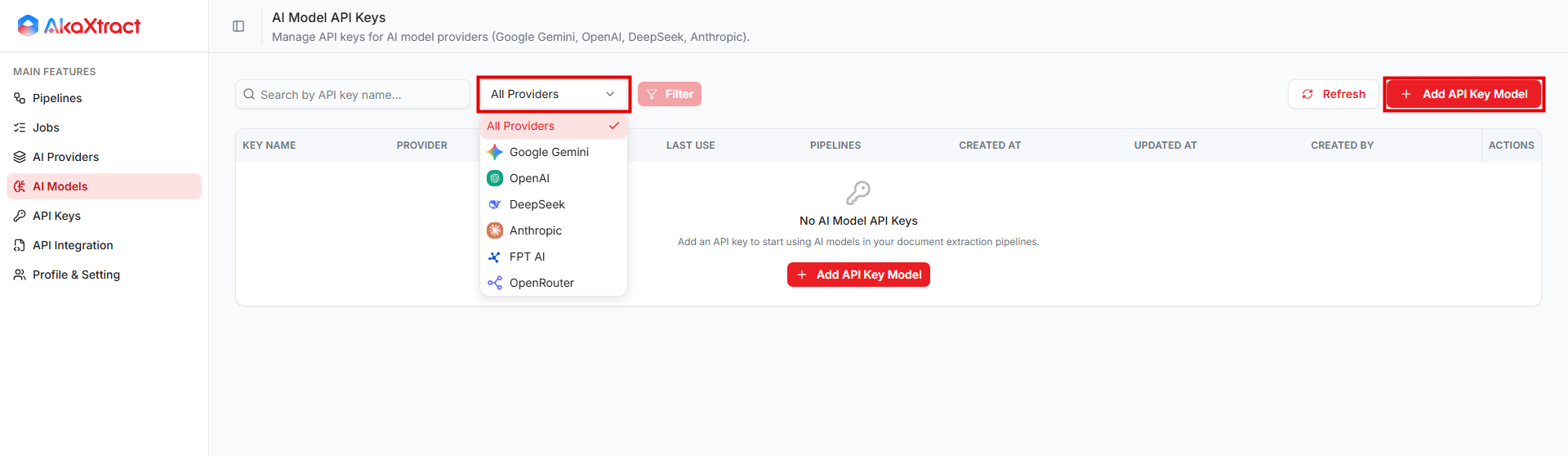
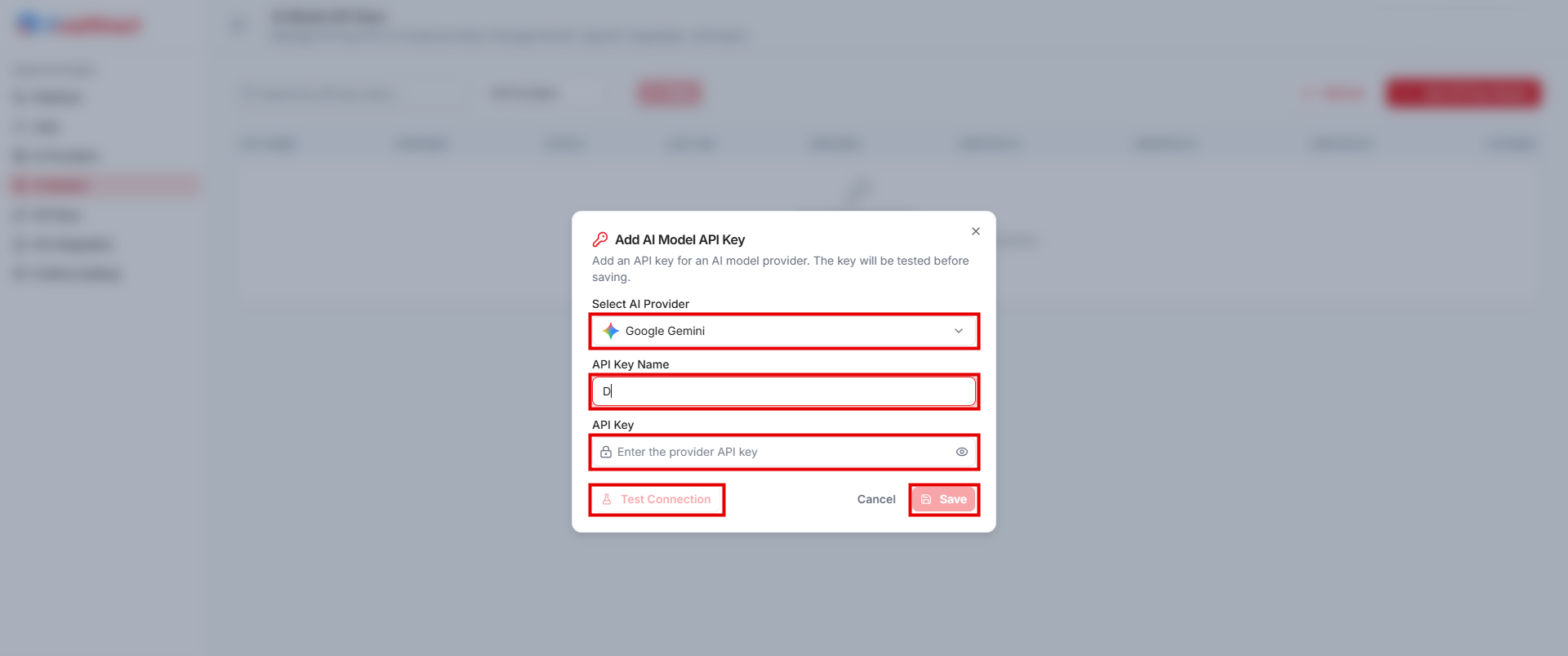
Result: the key appears under the correct provider.
To change a key, select Edit. Leave the key field blank to keep the current key.
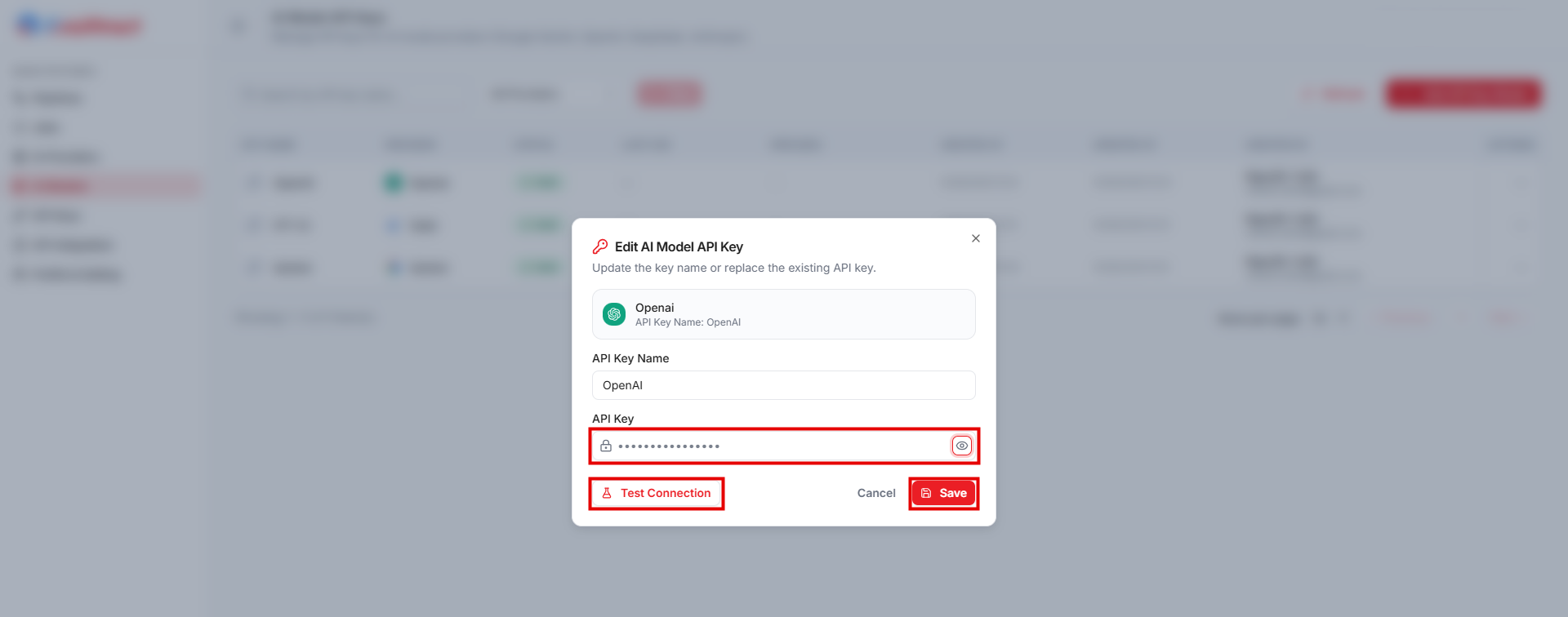
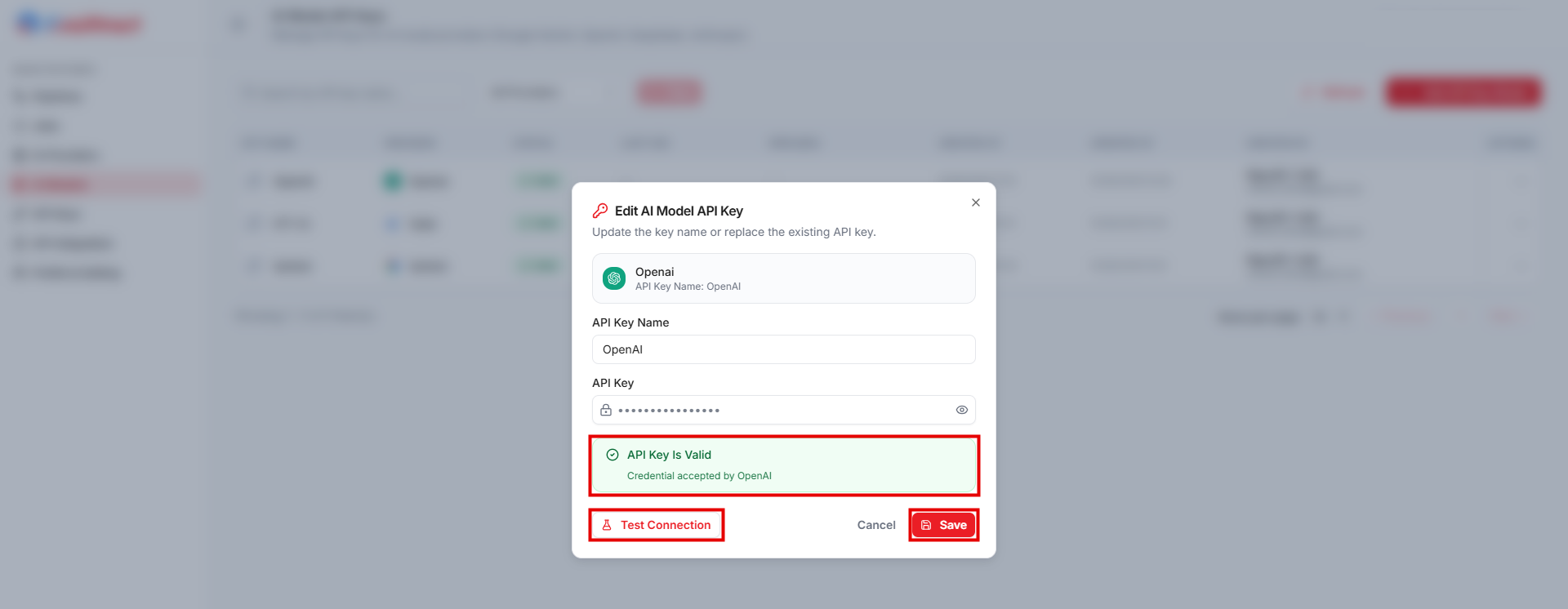
Deleting a key can affect Pipelines that use it. Replace the key in those Pipelines first.
Add a Custom Model
- Open
AI Providers, choose a provider, and selectAdd Custom Model.... - Enter
Model IDexactly as the provider defines it. It is required, up to 200 characters, and cannot contain backslashes, empty path segments,.or..segments, or control characters. - Optionally enter
Display NameandDescription, then selectAdd Model.
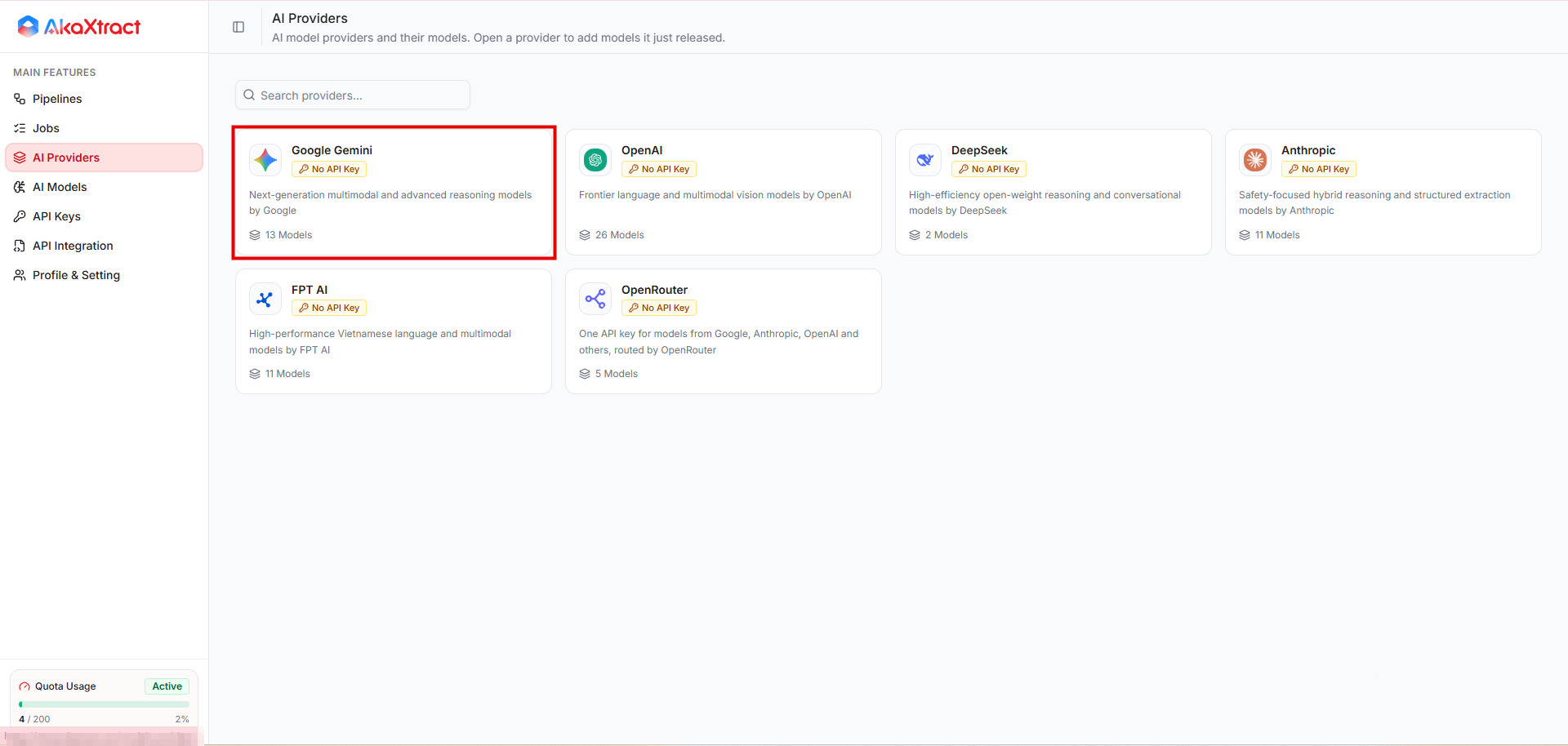
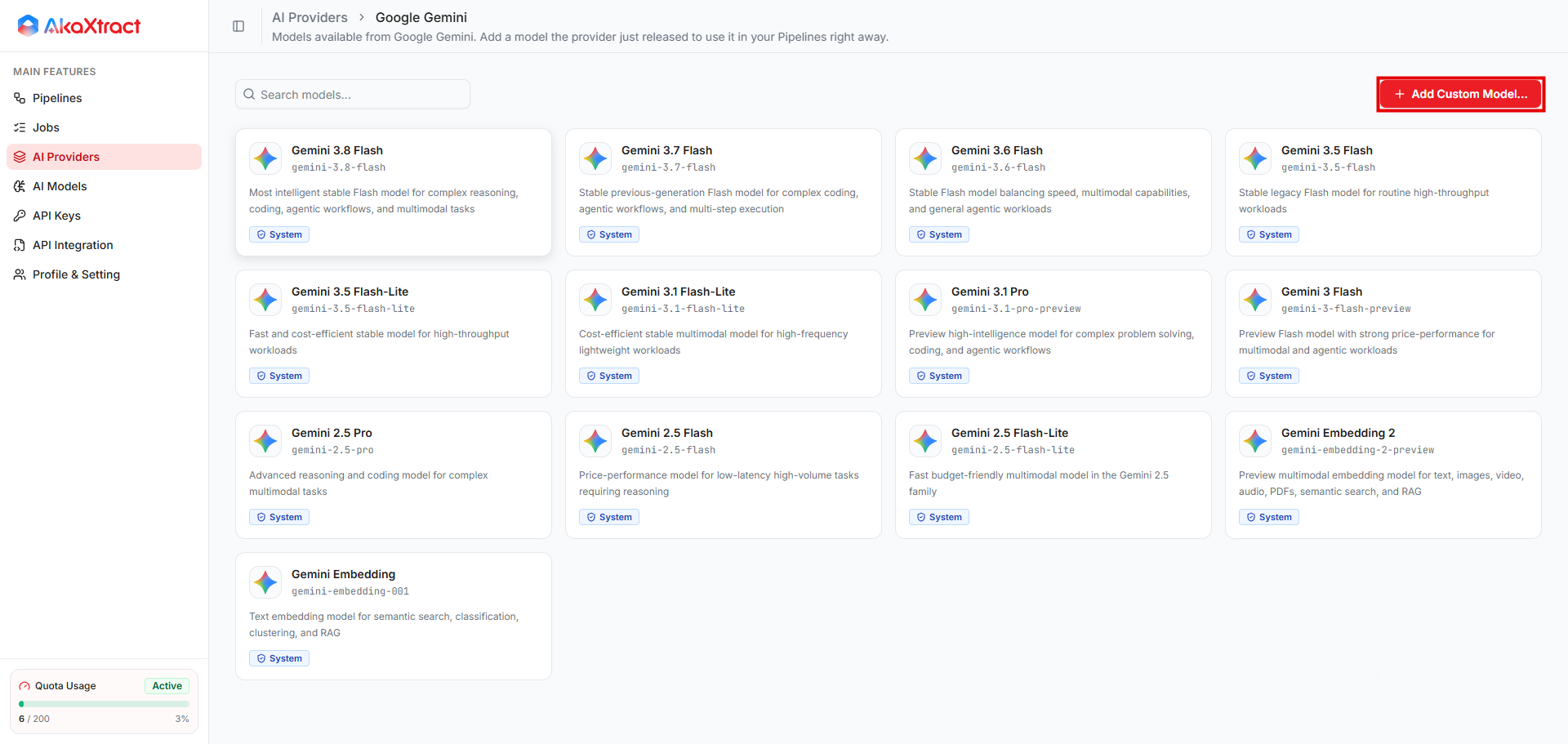
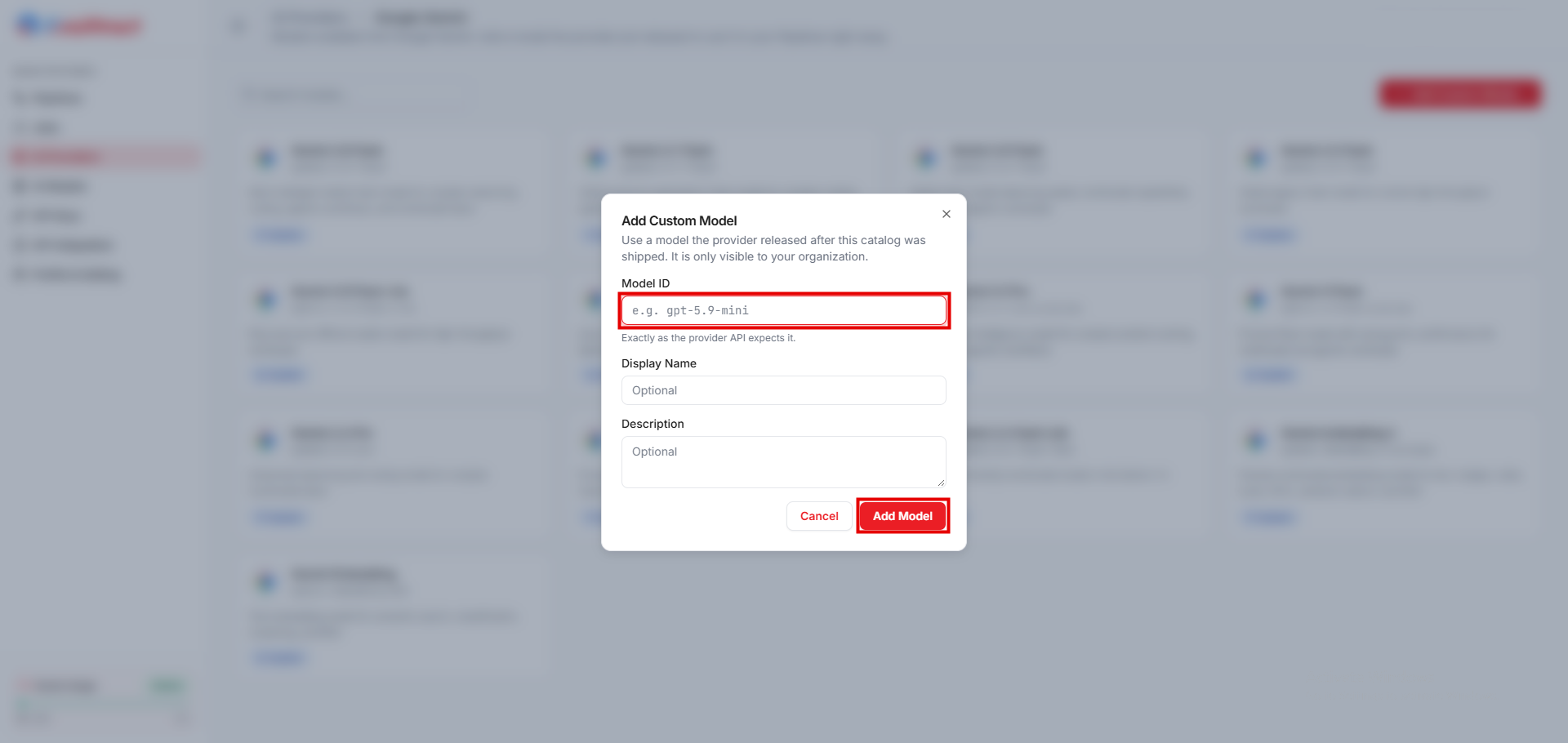
Result: the model appears with a Custom badge. A custom model is visible only to your organization. Adding a model to the list does not mean your key may call it.
Use Edit, Enable, or Disable from the model menu. Existing Pipelines keep their configuration when you delete a custom model and do not switch models automatically, so test them again before the next publication.