ST-USG-014 - Package Restrictions
Rule ID: ST-USG-014
Scope: Project
Description
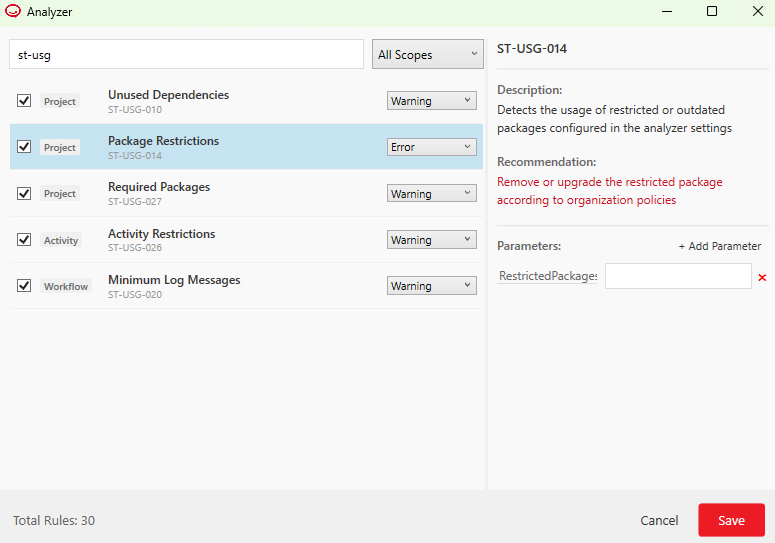
Detects the usage of restricted or outdated packages configured in the analyzer settings
Recommendation
Remove or upgrade the restricted package according to organization policies
Modifying the Rule
In the ribbon, click the Analyze button dropdown and select Analyze Settings to open the Analyzer window. Find and select the rule. You can modify the RestrictedPackage parameter according to your preferences.
By default, this rule does not restrict the use of any activity package. To define restricted packages, add them to the RestrictedPackage parameter.
- Add a package by writing its full name together with its version separated by the equals sign (
=), for example,RCA.Excel.Activities=2.5.3. - Add the greater than or equals (
>=) symbols to restrict higher versions. For example, addingRCA.Excel.Activities>=2.5.3to the restricted packages parameter prohibits all 'RCA.Excel.Activities' packages having a version of 2.5.3 or higher. The greater than (>) symbol can only be used together with the equals sign (=), inputs such asRCA.Excel.Activities>2.5.3are invalid. - The less than (
<) and the less than or equals (<=) symbols are not supported, therefore inputs such asRCA.Excel.Activities<2.5.3orRCA.Excel.Activities<=2.5.3are considered invalid. - You can use a wildcard character
*to match any number of characters. For example:- Adding
RCA.Excel.Activities=2.7.2-beta*restricts all beta versions 2.7.2-beta of the RCA.Excel.Activities package, while allowing the usage of other versions of the same package, includingRCA.Excel.Activities=2.7.2, any other prerelease versions of theRCA.Excel.Activities=2.7.2package (like alpha versions), or any other stable or prerelease versions of theRCA.Excel.Activitiespackage. - Adding
RCA.*to the parameter restricts all packages published by RCA. - When using the greater than or equals (
>=) symbol together with a wildcard character*, the greater than symbol (>=) is interpreted as the equals sign (=), for example,RCA.Excel.Activities>=2.7.2-beta*is a valid input, but is interpreted asRCA.Excel.Activities=2.7.2-beta*.
- Adding
Examples:
RCA.Excel.Activities=2.8.4-*RCA.Excel.Activities>=2.7.2RCA.Excel.Activities=2.7.2
To add multiple restricted packages, separate them by a comma. For example, adding RCA.Excel.Activities, RCA.UIAutomation.Activities to the parameter restricts all versions of these two packages.
Note: To check which package an activity belongs to, use the Group by Packages option in the Activities panel. Another easy way to check is to hover over an activity in the panel and read the tooltip.
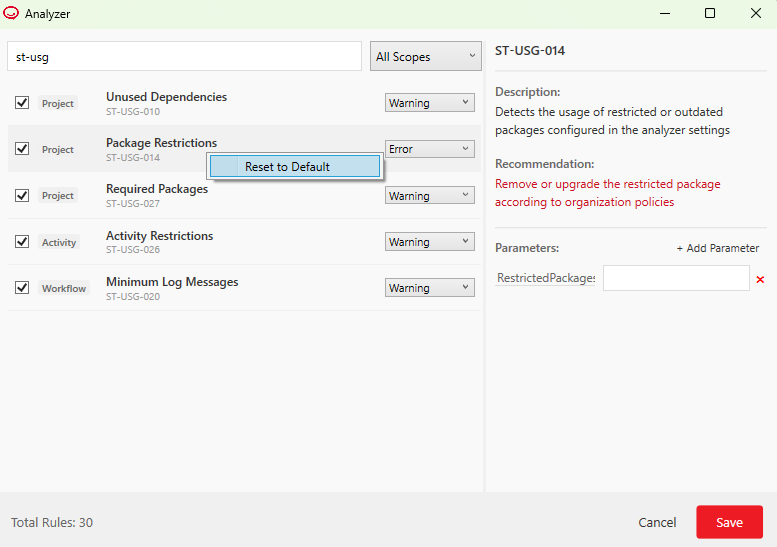
Reset to Default
By default, the rule does not restrict any packages. However, if you wish to quickly remove the packages that you've added, right-click the rule in the Analyzer window, and then click Reset to default. The Default action is also reset to its default value Error.