High-Density Agents Setup
High-Density Agents (HDA) allow multiple robot sessions to run simultaneously on a single machine using Windows Remote Desktop Services (RDS) or similar session virtualization technologies. This setup maximizes hardware utilization by running many akaBot Agent instances concurrently on one server, reducing infrastructure costs for large-scale automation deployments.
Prerequisites
- Windows Server 2019 or 2022 with Remote Desktop Services (RDS) role installed and licensed
- Per-user or per-device RDS CALs for all concurrent sessions
- akaBot Center 4.x with a license that supports High-Density Agents
- Sufficient hardware resources: at least 4 GB RAM per concurrent agent session, plus overhead for the OS and RDS
- A dedicated service account for each agent session, or a single service account with session isolation configured
- akaBot Agent 4.x installation package
Setup Steps
Step 1: Login Center
Step 2: Choose the Agent tab
Step 3: Choose Agents that need to be run High-Density mode then click Edit
Step 4: Choose and configure Agent Settings
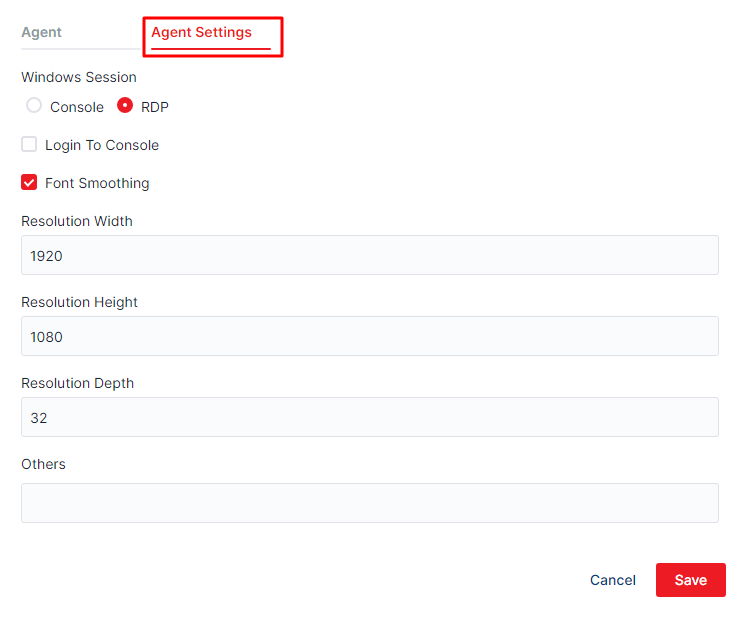
- Windows Session
- Console
- Choose the Console option if you want to run bot in Agent of physical machine which is used by human.
- In Console mode, instead of creating remote desktop session to target user, Agent will unlock the current lock screen in order to log in
- Screen resolution after login will have the same resolution as the current mornitor
- If the machine has no monitor, the activity which process image, OCR will be failed because the Windows doesn t export graphic in this case
- RDP
- Choose RDP option, if you want to run bots in Windows Servers with High-Density Agents. In this mode, whenever running task, Agent will create a remote desktop connection with parameters about resolution, color depth, and font smoothing to users who were defined in Agent Settings
- Console
- Login to Console: Choose this option if you want bot to have permission to use mouse and keyboard.
- Note: In case there is more than 1 task running at the same time with the same request to use the mouse and keyboard, only 1 task can run successfully and the rest will be failed. Because at the same time, there is only one session have Login to console permission and we suggest that you should not choose this option
- Font Smoothing: Make the text clearer and we recommend choosing this option
- Resolution width/height: Set up the resolution width/height for session screen. This resolution should be the same as developer s screen resolution to ensure environmental uniformity. The reference value should be: width 1920, height 1080
- Resolution depth: Color depth. The reference value should be: 16 or 32
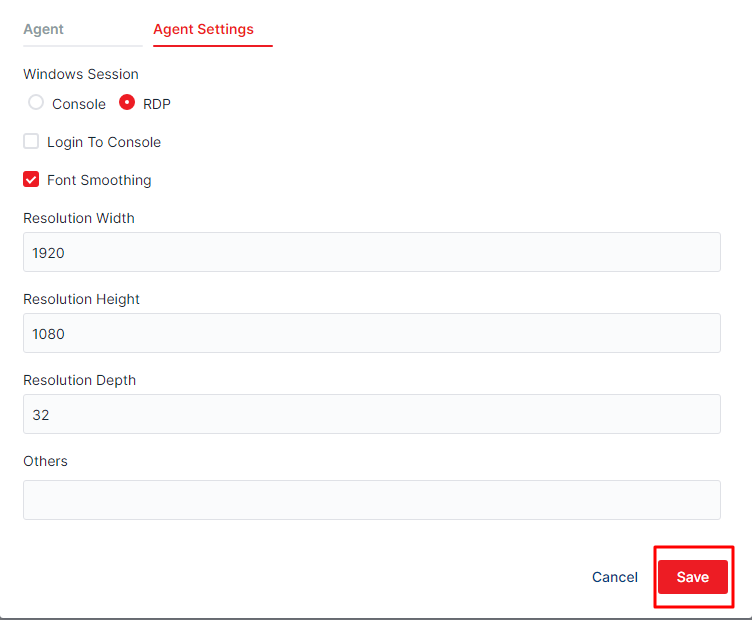
Step 5: Click Save button
Other configuration parameters (optional)
/port:3389

Remote Desktop port. Default value is 3389. If the remote desktop port has changed in your Windows machine, it s needed to specified that value.

/clientType:[auto, aktsc, freerdp]

Specify the client type that use to connect remote desktop session.

aktsc is the application like mstsc (based on library of Microsoft).

freerdp is the application that developed by open sources community.

/cert-ignore

Ignore remote desktop certificate warning.

+auto-reconnect

Auto reconnect if connection is lost or not stable.

/auto-reconnect-max-retries:20

Maximum retry times.

/rdp-timeout-sec:30

Remote desktop connection timeout in seconds.

/log-level:[ERROR, WARN, INFO, DEBUG]

Set log level for aktsc, freerdp, AutoLogonTool applications.

Example value:

/port:5508 /cert-ignore +auto-reconnect /auto-reconnect-max-retries:20
Notes and Warnings
Note: High-Density Agent setup requires an RDS-capable Windows Server license and appropriate RDS Client Access Licenses (CALs). Ensure compliance with Microsoft licensing terms before deploying.
Warning: Running too many concurrent agent sessions on under-provisioned hardware will degrade performance for all sessions. Conduct load testing before promoting to production.
Note: Each agent session must have a unique robot name registered in akaBot Center. Duplicate names will cause registration conflicts and connectivity issues.