Get Mail
RCA.Activities.Office365.GetMail
Description
The Get Mail activity retrieves emails from a specified folder in Microsoft Office 365 Outlook.
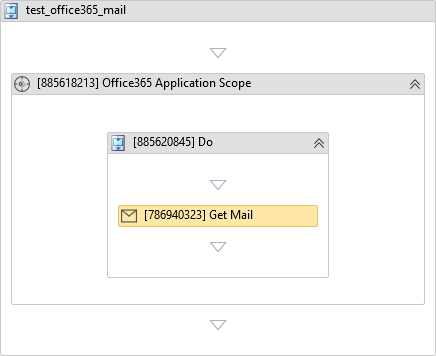
This activity must be placed inside the Do block of Office 365 Application Scope with the Mail service selected. See Connecting to Office 365 for how to set up authentication and permissions.
(* is mandatory)
In the body of activity
- None (Configure properties via the Properties panel).
Properties
Common
- Continue On Error (Boolean) - A Boolean variable has two possible values: True or False
- True : allows the rest of the process to continue the execution even an error occurs within the activity.
- False : blocks the process from continuing the execution.
Input
- Account (String) - The email address / account to retrieve emails from. If left blank, the authenticated account is used.
E.g: "user@example.com" - Mail Folder (String) - The mail folder from which the emails are retrieved. Default value: "Inbox".
E.g: "Inbox"
Options
-
Email Id (String) - The unique identifier of a specific email message to retrieve.
-
Query (String) - A filter query string based on Microsoft Graph API filter syntax.
E.g: "contains(subject, 'Invoice')" -
Top (Int32) - The maximum number of email messages to retrieve. If empty or 0, 50 messages are retrieved.
E.g: 20 -
Only Unread Messages (Boolean) - If True, retrieves only unread emails. Default value: True.
-
Mark As Read (Boolean) - If True, marks retrieved emails as read. Default value: False.
-
Order By Date (DropDownlist) - Specifies the order to retrieve emails by date: NewestFirst or OldestFirst. Default value: NewestFirst.
-
Results (Office365Message[]) - The retrieved email messages stored in an array of Office365Message objects.
Misc
- Public (Checkbox) - Check if you want to public the activity. Remember to consider data security requirement before using this property.
- Display Name (String) - The name of this activity. You can edit the name of the activity to organize and structure your code better.
E.g: Get Mail